Cisco Learning Network Store Promotions Page
Showing posts with label iTunes. Show all posts

8.21.2015

iOS 8.4.1 is out, but it may not fix all your Apple Music woes

Apple has released the iOS 8.4.1 update with the idea of fixing issues related to its Apple Music service, but testing suggests that more fixes are needed.

 
Apple has released the iOS 8.4.1 update with the idea of fixing issues related to its Apple Music service, but testing suggests that more fixes are needed.
 
According to the release notes, iOS 8.4.1 addresses the following issues:
  • Resolves issues that could prevent turning on iCloud Music Library
  • Resolves an issue that hides added music because Apple Music was set to show offline music only
  • Provides a way to add songs to a new playlist if there aren't any playlists to choose from
  • Resolves an issue that may show different artwork for an album on other devices
  • Resolves several issues for artists while posting to Connect
  • Fixes an issue where tapping Love doesn't work as expected while listening to Beats 1
But it seems that other problems remain. 
 
One of the test iPhones I have has been suffering from an issue where some tracks previously uploaded to iTunes Match (and which worked fine prior to the release of iOS 8.4 and Apple Music, and which are accessible on other devices) are unavailable on that particular device and trying to play them generates a prompt to sign up to Apple Music. I've heard from others affected by this same issue. This problem doesn't appear to have been fixed under iOS 8.4.1.
 
Another unfixed issue relates to the Music app. When switching back to it after interacting with other apps it refreshes to the home page. This was not a problem with the Music app prior to iOS 8.4.
 

1.01.2015

Apple's rumored iTunes and Beats Music 'Exclusives' plan is potentially evil

 
Imagine if in the 1990's, there were CDs that only played on certain players. In other words, what if Warner Brothers released the Red Hot Chili Peppers' iconic album, "Blood Sugar Sex Magik", and it only worked on CD players made by, say, Pioneer? Not only would it harm consumers, but also limit the reach of the artist. If you did not own a Pioneer CD player, you could not hear the album.
 
If a new rumor by the New York Post is to be believed, Apple is planning such a thing, but rather than CD players, its iTunes and Beats Music would be the means of harming the consumer. Yes, the fruit-logo company may be working with artists (and ultimately record labels) to bring album-exclusives to its own music services.
 
"It's been a while since we've heard much about Jimmy Iovine and Dr. Dre's Beats Music, but our music industry spies say Iovine is having fresh talks with artists about doing exclusives", says Claire Atkinson of the New York Post.
 
Atkinson further explains, "Beats executives -- now Apple employees -- are looking to replicate the kind of success Beyoncé had with her iTunes album, 'Beyoncé by Beyoncé'', back in December 2013".
 
Yes, many will point to BeyoncĂ©'s self-titled album as an example of success; it was an iTunes exclusive for a week, before expanding to greater availability. While this release sparked consumer interest on its limited nature alone, it would not likely be duplicated if commonplace.
 
Currently, iTunes and many retail stores, such as Target and Best Buy, offer exclusive bonus tracks, in addition to the album. I find this to be acceptable, as the perks are an added bonus. Apple's plan of limiting albums to its own iTunes or Beats, however, is an entirely different ball game, which does nothing to benefit the consumer.
 
Let's not forget, not everyone uses Apple products, such as iPads and iPhones. While iTunes is available for Windows, what about Chromebook users? or traditional Linux distribution users? Hell, some people use Android exclusively. Not everyone will have access to iTunes, and quite frankly, not everyone wants to access it.
 
Even worse is exclusivity to streaming services. If this practice were to catch on, consumers might have to shell out multiple monthly subscription fees in order to gain access to all of their favorite artists. Even then, with the music spread across multiple services, the user could not create playlists using all of the desired music.
 
Again, this is all rumor at this point, and I hope it is not true. With that said, the potential harm to consumers is so great, that even the mere notion should have music fans up in arms.
 
UPDATE: As a reader points out, iTunes already has some exclusives such as The Beatles. Obviously, expanding this practice would further harm consumers, much like not having the Fab Four on other services already does.
 
Photo CreditAfrica Studio / Shutterstock
 
~ Brian Fagioli

9.25.2014

Unofficial fix for iOS 8.0.1? Roll back to iOS 8. Here's how

Summary: Here's how to roll back your iPhone 6 or iPhone 6 Plus to iOS 8, and get the cellular connection and Touch ID working again.
 
 
What follows is an unofficial fix for the cellular and Touch ID issues introduced by the iOS 8.0.1 update.
 
I present this as is, and offer no endorsements or warranties. If it goes wrong, then you're on your own. However, this worked for two devices we tested, the iPhone 6 in the New York newsroom and the iPhone 6 Plus one in the UK.
 
1. Download the iOS 8.0 firmware (for iPhone 6, and iPhone 6 Plus) file from Apple.
  • iOS 8.0 (iPhone 6 Plus): iPhone7,1_8.0_12A366_Restore.ipsw
  • iOS 8.0 (iPhone 6): iPhone7,2_8.0_12A365_Restore.ipsw
2. While the file you need is coming in, go into Settings > iCloud and turn off Find My iPhone.
 
3. Next, connect the iPhone to a PC or Mac running iTunes using a cable connection (not Wi-Fi), and allow the two to connect.
 
4. Make a local backup using iTunes before you do anything else by clicking on the Backup Now button. Make sure you update to "this computer," rather than iCloud, encrypt the backup if you want to keep passwords, and make sure to include apps. Allow that to complete.
 
5. From the iPhone screen in iTunes, hold down Alt (on Mac) and Shift (on Windows) and click on Restore iPhone and point iTunes to the file you downloaded earlier.
 
6. Allow the restore to take place and when you iPhone reboots it will be running iOS 8.
 
7. Reload your data and apps by clicking on Restore from this backup and allow the process to complete.
 
8. Re-enable Find My iPhone.
 
If you followed the steps then you're handset is back to running iOS 8.0, and the Touch ID and cellular connection should be working again.
 
~ Adrian Kingsley-Hughes

9.18.2014

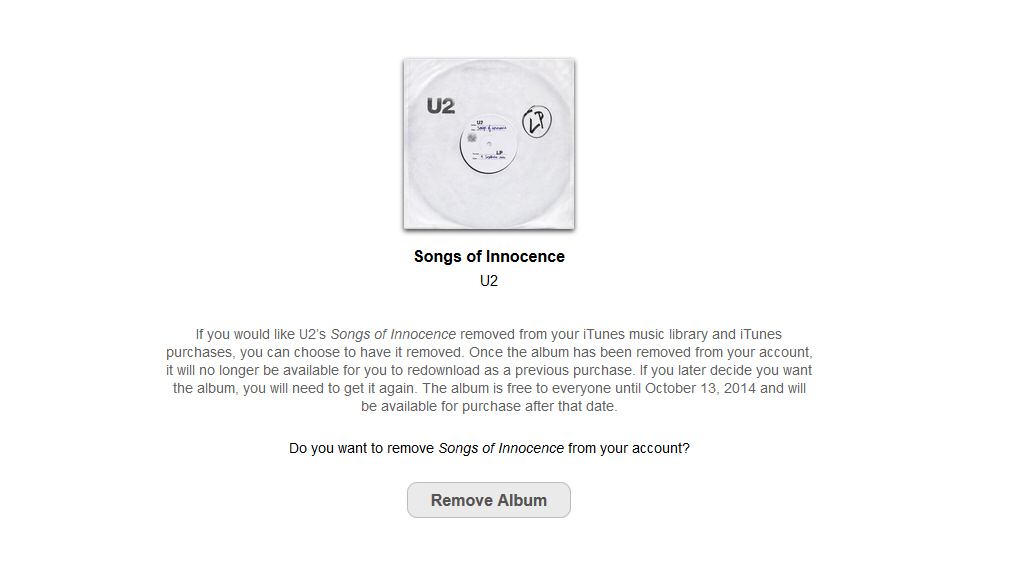
Hate U2? Apple offers a tool to remove the free Songs of Innocence album from your iTunes library

At the end of its iPhone 6/6 Plus/Apple Watch launch last week, the tech giant kindly gave everyone a gift -- a free U2 album. Songs of Innocence is the first album from the Irish band in five years, and Apple made it instantly available to all 500 million plus iTunes registered users. Which was a nice thing to do, after all who doesn’t like a free gift?
 
It turns out quite a few people were less than pleased to discover U2's new album appearing in their music collections whether they wanted it or not. If you’re one of those people unhappy about the presence of the album, and despite hunting for an easy way of removing it, still haven’t found what you’re looking for, don’t worry -- Apple has released a new tool for the job.
 
All you have to do is go to this link, hit the Remove Album button and log into your iTunes Store account. All reference to the album’s existence will vanish. If you’ve already downloaded it, you’ll need to manually delete the album from your device(s).
 
If you change your mind, and decide that yes, you do want the album after all, you’ll be able to download it from iTunes for free (provided you do so before October 13 2014).
 
Will you be using the tool to remove Songs of Innocence from your iTunes library?
 
~ Wayne Williams

8.09.2014

Jailbreaking iOS: Find out if it's right for you, and learn how to do it

You can hack your iOS device to run applications that aren't in the iTunes App Store, but should you? Cory Bohon answers that question and shows you how to perform a jailbreak.  

 
Jailbreaking originated with the first generation iPhone, before the iTunes App Store allowed folks to download applications onto their device. It was supposed to be an outlet for developers and power users to experience a mobile platform unlike any other, but then Apple officially sanctioned mobile 3rd-party apps. Today, jailbreaking allows you to perform all sorts of various hacks for iOS -- from theming apps to apps that allow you to tether your data connection to your Mac.

What do I get when I jailbreak?

At the heart of Jailbreaking is the app store application called "Cydia." This is the application that will get installed on your device (among some others, depending on the particular jailbreak that you use) when you jailbreak.
 
The Cydia application (Figure A) allows you to download unauthorized 3rd-party applications, install them, then (through a process of "respringing") have them show up on the home screen of your iOS device with all of your iTunes App Store apps. This will not affect any other components of your device, and it allows authorized and unauthorized applications to coexist peacefully.
 
Figure A
 
The Cydia app store provides free and paid apps that aren't allowed on the official iTunes App Store.
Unauthorized applications might be those that allow the use of background services that Apple doesn't sanction inside of the App Store; or it might be apps that allow unauthorized activity (such as tethering), which are currently banned from the App Store due to carrier agreements.

Does jailbreaking unlock my device?

This is a common misconception: Jailbreaking your device is not the same as unlocking your phone. Jailbreaking simply hacks the iOS operating system to install unauthorized 3rd-party applications through a specially designed "app store" for jailbroken applications.
 
Unlocking your device, on the other hand, is the act of removing the carrier lock to be able to place your device on a different cellular network (such as switching a GSM iPhone from AT&T to T-Mobile).
 
That being said, there are apps in Cydia that can also help you unlock your phone.

How do I jailbreak iOS?

The actual process of jailbreaking your iOS device has evolved from something for only the elite geeky to something that everyone can now do. Before you get started, here's what you'll need:
  • iOS device on iOS 7.1.x (check Settings | General | About to get your specific version number)
  • Pangu Jailbreak Tool (available for Mac and Windows)
There are many different iOS jailbreaking utilities, but Pangu is the newest and hottest one in the jailbreaking community, and it's also available for iOS 7 devices. Be sure that you're running iOS 7.1.x. If you're not, then the least worrisome issue is that it just doesn't work; in the worst case, your device may require a factory restore.
 
Let's see the steps for completing the jailbreaking process:
  1. Connect only the iOS device you want to jailbreak to your Mac or Windows machine through USB
  2. Download, install, and open the Pangu utility
  3. Click the Jailbreak button, and follow the on-screen instructions (Figure B)
  4. You'll be prompted half way through the installation to open the Pangu app that gets placed on your iOS device, and this will help you complete the jailbreak process on the device.
Figure B

Pangu will guide you through the jailbreak process and help you install Cydia on your device.
Once jailbroken, your device will restart, and you'll be booted back into a jailbroken version of iOS. You may notice some oddities, like a changed boot screen and new software on your device. The apps that get installed on your device are installed through the jailbreak utility, and they include features that allow you to install third-party apps (after all, that's what jailbreaking is all about -- installing the software that you want to use, regardless of what's officially sanctioned).
 
If you find that you no longer want to have your device jailbroken, the only way to reverse the jailbreak is by fully restoring your device from iTunes. For details on how to complete this process, check out this help guide on the Apple Support website.

What are the caveats?

As with all hacks, there are some caveats that you'll probably want to learn about before doing the jailbreak on your device:
  • You may experience decreased battery life (jailbreak applications that can be installed may run in the background, decreasing your iOS device battery life)
  • It may void your warranty (Apple has already said that jailbreaking may affect your warranty, and you'll never get service at the Genius Bar with a jailbroken device. You can always restore the device with iTunes before taking it in for warranty service, though.)
  • You cannot upgrade your device once it's jailbroken without running the risk of potential issues or jailbreak removal (usually when upgrading your device to a new iOS release, it removes the jailbreak, leaving you unable to jailbreak until the next jailbreak utility is released)
  • It can make iOS unstable, leading to increased app crashes.
  • Some iTunes App Store apps react to jailbroken devices by disabling themselves to prevent App Store piracy.
  • Jailbreaking can open security holes in iOS and make your device less secure to outside attacks and hacks.
  • You may not have a need for it (remember, the only purpose of a jailbreak is to install unsupported apps and hacks to iOS -- if this isn't your cup of tea, then doing this might not be for you)
Even with all of the caveats, some users might still want to go for it and jailbreak their device. If you fall into this category, then proceed with caution.
 
Have you jailbroken your iOS device? Do you like it? What are some of the apps that you use from the Cydia store? Share your opinion and experience in the discussion thread below.
 
~ Cory Bohon

5.29.2014

Upcoming Apple products are the best yet

SVP Eddy Cue promises that Apple's upcoming product pipeline is the best that he's seen during his 25 years with the company. 

 Image credit: Recode/Asa Mathat
Steve Jobs used to be the public face of Apple, but over the years, he began to give more executives stage time at the company's media events. One of those executives is Eddy Cue, Apple's senior vice president of Internet Software and Services -- basically, Apple's iTunes and iCloud products. He will also take charge of the Beats music subscription service when that acquisition closes later this year.
 
At the Code Conference yesterday, Cue and Beats co-founder Jimmy Iovine sat down with Walt Mossberg and Kara Swisher to discuss the future of Beats, the music industry, and Apple.
 
One of the most interesting statements came from Cue, who has been at Apple for 25 years and created Apple's online store in 1998, the iTunes Store in 2003, and then the App Store in 2008.
 
Surprising even the usually unflappable Walt Mossberg, Cue said that "we've got the best product pipeline that I've seen at Apple in my 25 years" with the company.
 
Mossberg noted that Eddy Cue's tenure covers Apple's rollouts of the iMac, iPod, iPhone, iPad, and MacBook Air -- "all widely recognized as pretty good products."
 
"I agree with you," Cue responded. But he reiterated his initial statement, saying "I believe... the products that are coming are great."
 
This isn't the first time that an Apple executive has made a bold proclamation about upcoming products. Earlier this year, CEO Tim Cook said the company was working on "really great stuff," and that it was planning to enter new product categories during 2014.
 
Among other things, Apple is rumored to be working on a wearable iWatch product that could have extensive health and medicinal tracking purposes. It has also been examining television for years and could be looking at launching a new Apple TV set-top box complete with an App Store.
 
For business customers, recent rumors have said the company will roll out its Touch ID fingerprint security system to all iOS products, including iPads, in its yearly refresh this fall. The Touch ID feature built into the iPhone 5s makes it easy for users to lock down their devices with little to no time lost, in comparison to entering passwords and PIN numbers. Though the feature currently only unlocks the phone itself and speeds app and music purchases through Apple's digital stores, it's easy to see how Touch ID could be expanded to unlock VPN and other secure protocols.
 
Expanding Touch ID would be key for business customers looking to maximize security on mobile devices. For this reason, it might be beneficial to hold off purchasing Apple equipment until September or October, when new models are expected to be introduced.
 
Separately, Cue was asked about the legacy that Steve Jobs left at Apple. He was slightly defensive at the idea that Apple needed to have a "reset" after he left, saying that Jobs had left the company in good hands.
 
"I think he'd be extremely proud of all the work that we're doing today and the products that we're building," Cue said. "I think we're continuing a lot of the legacy that he built."
 
Will you be waiting to buy new Apple gear until the annual fall refresh? Let us know in the comments below.
 
~ Jordan Golson


Here's how to unlock a hijacked iPad or iPhone

 
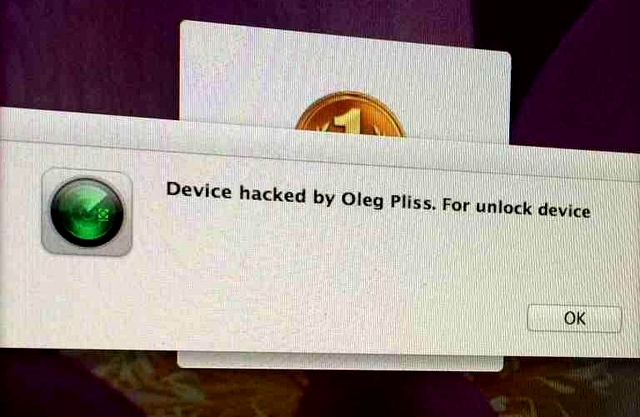
A number of iPhone and iPad users have fallen foul of a particularly nasty hack, in which they find themselves locked out of their devices unless they pay to have them unlocked.
 
The extortionist leaves a message claiming to be from the well-known software engineer Oleg Pliss. A message on the screen reads "Device hacked by Oleg Pliss", and encourages the user to pay $100.
 
The exploit only appears to affect users connected to the iCloud service. A number of users, most of them from Australia, took to Apple's Support forums complaining of the same issue, saying they had been hit on multiple Apple devices at once and were forced to change iCloud passwords.
 
"iPad woke me at 4.30am with the message 'Your device has been hacked by Oleg Pliss' and sound -- I thought it was the morning alarm," wrote one user going by the handle deskokat.
 
"I then signed in to my powerbook -- but as a guest user -- VERY grateful I did. Message to say I'd been hacked there too, wouldn't let me sign out without erasing all data for that user. As there was nothing but a couple of expendable files on there, I signed out. And the guest user portal has been erased. I then went into my own (password protected) desktop, no hacking message. Have changed my Apple ID password".
 
The user also reported receiving a total 15 messages in their Hotmail account stating that their devices had been registered as "lost" through Find My iPhone services, suggesting that the theft-prevention service was ironically the vector of attack. However, there has been no confirmation on whether Apple's systems have been compromised, or whether it is simply poor password habits by the users.
 
One user, georz, has offered the following advice to fix the problem:
  • Turn off your phone
  • Plug your cable into the computer and have iTunes open (do not plug into the phone yet)
  • Press and hold the home key on your turned-off phone (for about 10 seconds).
  • If nothing happens, plug in the cable into your phone (keep holding the home key)
  • Wait until you see the picture of iTunes and the cable on the front of the phone
  • Your iTunes should then recognize the phone as an unidentified phone
  • Select restore factory settings (it should download some software) after approximately 15 minutes and automatically install it
  • The phone should go through some of the standard reset screens (usually black screen with apple icon and loading bar)
  • You will be prompted to restore the phone.... do this from iTunes not the phone
  • Throughout this process you must not let the phone or computer go into sleep mode, and don't disconnect
However, prevention is definitely better than a cure. Make sure your iCloud account has a strong password containing numbers, capital letters and symbols. Also ensure that you have set a passcode on the device, as the remote lock normally can be overridden by entering that passcode once you've visited iCloud.com and taken the device out of lost mode.
 
For devices that didn't have a passcode, the solution seems to be to go through the above process and then backup and restore the device via iTunes on OS X or Windows.
 

~ Paul Cooper

2.20.2014

Backups: iCloud isn't better than iTunes, and vice versa

Many users have opted to stop backing up their devices with iTunes in favor of storing everything in the cloud, but is this really the best option for iOS users? Let's take a look at the facts. 


iCloud backups changed the iOS ecosystem. Instead of having to manually back up your iOS device to iTunes, you can simply sync it to Apple's iCloud service and it will back up automatically. However, many iOS users have never connected their device to their Mac or Windows machine to perform a backup, yet alone a sync. In this article, we'll discuss the two ways that you can restore iOS (iTunes and iCloud) to a new or existing device. Each has its pros and cons, so you'll have to decide which one is better for you.

Backing up and restoring with iCloud

iCloud provides an easy-to-use backup solution that is more or less "set it and forget it." Once you've enabled iCloud Backups, it'll do a nightly backup of your device, assuming that you have a Wi-Fi connection. All of your photos, videos, stored application data, and iOS settings are whisked to the cloud every day to ensure that if an emergency strikes, all of your information is easily accessible.
 
On the down side, there quite a few items that iCloud doesn't back up, including any media content on your device that wasn't purchased through the iTunes Store and photos that you've synced over from your computer.
 
iCloud also has space restrictions. Apple provides 5 GB of free storage (which is usually good enough to back up one or even two devices if you don't store many photos and videos), but the pricing can get a little costly as you need more storage. Only your application data and stored photos and videos will actually take up storage on iCloud, though. Apple doesn't count iTunes content against this limit.
 
To enable iCloud Backup, follow these steps:
  1. Open the Settings app
  2. Go to iCloud
  3. Go to Storage & Backup
  4. Enable the option for iCloud Backup (Figure A)
In this same section, you can manually create a backup at any time by pressing the Back Up Now button. Under that button, you can also see the date of the last iCloud Backup.
 
Figure A
 
Enable the option for iCloud Backup.
You can restore from your iCloud Backup only after you have reset all of the settings and are in the iOS setup view. When you get the options to either Set Up as New iPhone, Restore from iCloud Backup, or Restore from iTunes Backup, tap Restore from iCloud Backup (Figure B). Here you'll be able to select the backup to restore and begin the restore process. Note: The backup will load from Apple's servers, so you'll need to be connected online throughout the entire restore process.
 
Figure B
 
Restore from iCloud Backup.

Backing up and restoring your iOS device with iTunes

iTunes is an older way to back up your iOS device. You can do this by plugging in your device (using either a 30-pin or Lightning connector) or by connecting compatible devices to the same Wi-Fi network as your Mac or Windows machine that's running iTunes.
 
It's important to note that where iCloud fails, iTunes takes over with the backup process. iTunes backs up everything: applications, application data, and all content stored on your device (including iTunes content). This is good for a few reasons, but mainly because it backs up all of your purchased content. This means that if an app or other iTunes purchase becomes unavailable in the iTunes Store, you'll still have a copy on your computer that can be loaded back to your device.
 
You can back up your iOS device on iTunes by performing the following steps:
  1. Open iTunes and select your iOS device
  2. Click File | Devices | Back Up 
  3. The first time you begin a backup, you'll be prompted to select what kind of content -- like photos, music, or apps (Figure C) -- that you want to back up 
If you're using iTunes 10.7 or earlier, or if you have the sidebar in iTunes 11 shown, then you can right-click on your device in the sidebar and select Back Up Now.
 
Figure C
 
Backing up apps to iTunes.
If you visit the Summary tab in the device window, you can enable wireless syncing (and wireless backups) to iTunes (Figure D). As long as your iOS device is connected to the same wireless network as your opened iTunes installation, it'll start syncing and back up your device at regular intervals.
 
Figure D
 
Enable iTunes wireless syncing.
Here's how you can restore iTunes backups to your iOS device:
  1. Open the latest version of iTunes, and connect your iOS device to your computer
  2. Choose File | Devices | Restore from Backup (Figure E)
  3. Choose the backup you want from the drop-down list, and click Restore 
If you're using iTunes 10.7 or earlier, right-click on your device in the sidebar and choose Restore from Backup.
 
Figure E
 
Restoring a backup from  iTunes.
While iTunes backups are an older form of technology and not as convenient as iCloud, they do provide immediate access to your data should something happen to your device (or iCloud account). iTunes restores are also faster than iCloud restores, because all of your data is stored locally on your computer running iTunes.

Which method should you choose?

We've talked about the two ways to backup and restore your iOS devices, but which should you use on a regular basis? Is one better than the other?
iCloud and iTunes backups differ in two main ways: 1) iCloud backups won't restore items on your iOS device that have been moved to your device and not purchased through iTunes (music, videos, etc.); and 2) If your iCloud backups become corrupt or your account is compromised, you won't be able to restore your device's contents.
Weekly iTunes backups, coupled with daily iCloud backups, can provide the best of both worlds. iTunes is a complete snapshot of your device at the time of backup, while iCloud captures snapshots of your device daily. This means that should iCloud or iTunes fail to restore properly, you can fall back to one or the other. iCloud can also take a while to restore (due to limitations of both your Internet connection and the speed of the iCloud servers) -- in comparison, iTunes can restore all of the content back to your iOS device very quickly.
Many users run into issues by restoring backups when upgrading iOS hardware. iTunes and iCloud backups are very thorough (copying key user preferences and files), and they can copy corrupt settings between older and newer generations of devices when restoring, leading to degraded battery life, crashes, and other system-wide oddities. As such, it's generally a good idea to setup your devices as new each time you get new iOS hardware; only restore backups created on devices to the same generation of device to prevent these issues.
In the battle of iCloud vs. iTunes, do you prefer one method of backup over another, or have you had issues restoring from older generations of hardware to newer generations? Please share your thoughts and experience in the discussion thread below.
 ~ Cory Bohon