Support for Windows XP officially ends on April 8, 2014. After
this date Microsoft will no longer issues security updates, patch
exploits or provide any other means of official, direct support to its
users
For the majority of us the axe can’t fall soon enough. At twelve-years
old, XP is a crusty, cob-web laden old-codger of an OS, one that has
trundled on well past its best-buy date.
But in relieving themselves of the Crayola-coloured burden, Microsoft
are throwing an estimated 25% of PC users in to a minefield of security
issues.
The company will be hoping that the fear of vulnerability will spur the
frugal XP hold-outs into upgrading to (read: buying) a newer version of
the Windows family. Canny;
Windows 8 appears to need all the help it can get!
‘At 12 years old, XP is an ancient, crusty, cob-web laden OS.’
While newer versions of the Windows operating system will require newer,
faster computers to run on (i.e. expense) there are other, cheaper
(i.e. totally free) solutions. In fact, there are versions of Linux
designed specifically to run on ageing computers, breathing new life in
to hardware that would otherwise be considered obsolete.
Meet Lubuntu
So let’s say you’re running Windows XP right now. You like it; it does
what you need. But, at the same time, you don’t want to gamble on
security. It’s a wise and sensible thing. But what to do?
Lubuntu is a free, Linux-based operating system that supports a wide
range of computers and hardware. It’s fast, safe and secure (Linux
doesn’t require virus software, for example) it’s also really easy to
use, and there are thousands of applications available for it.
Not sold? Let’s take a look at some of those points in a little bit more detail.
Lubuntu is Maintained & Supported
Microsoft has supported Windows XP far longer than they originally
planned. As such few will blame them for finally redirecting their time
and effort into their more modern systems designed for newer hardware.
But that doesn’t mean those on ‘old’ computers are left to the wind.
Lubuntu is one of several Linux distributions that aims to breathe new
life into ageing hardware.
Lubuntu 14.04, due for release this coming April, will be updated with
critical bug fixes and security updates as and when needed until 2017 at
the earliest. After this date you’ll be given the choice to upgrade to
the next major release — again, for free!
Lubuntu is Secure; You Don’t Need Virus Software
The biggest culture shock you’ll experience in switching is (actually) a
nice one. Unlike Windows, you do not need to use anti-virus or malware
protection software on Lubuntu. Why not?
You don’t need anti-virus software on Lubuntu’
Linux is built in a way that makes it very hard for viruses to run, much
less do any sort of damage should they somehow find themselves
installed. As long as you don’t install suspicious software from
suspicious places you’re virtually immune to any sort of nasty or
untoward threat.
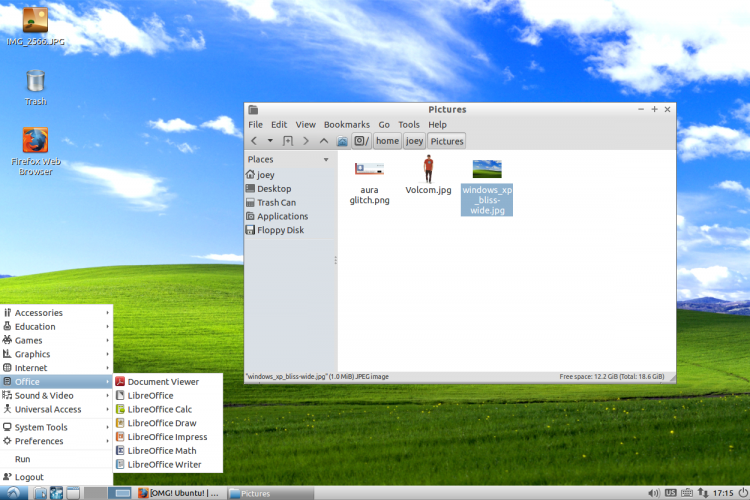
Lubuntu Looks & Feels Familiar
Moving away from an operating system you’ve used for years can seems scary, I know that. The good news is that
Lubuntu has a very similar layout to Windows XP. So while it
looks a little different to what you’re used to working with the differences are largely cosmetic.
Take the desktop for example:
The panel along the bottom has a “
Start Menu” with links to your apps; next to this is a “
Quick Launch”
area where you can put your most commonly used applications; next to
this is the area where you switch between open windows and applications;
finally, at the far end, is the ‘
System Tray‘ and
clock.
Your Favourite Applications Are Available
While not every single application you’re used to using is going to be available on Lubuntu, a good many will be.
There will be few new names to learn and icons to get familiar with, but
when it comes to software Lubuntu offers all the same
core functionality as Windows XP.
For browsing the web the modern, fast and secure Mozilla
Firefox web browser is installed by default. The
Google Chrome browser is also available to download and install should you wish.
For video calls
Skype is available;
‘Pidgin’ is a multi-service instant messaging app that can connect to Facebook, AIM and Yahoo! Chat among others; and ‘
Sylpheed’ is just one of the many apps available for getting e-mail on your desktop.
Microsoft Office isn’t available natively on Linux, but there are a host
of office applications, including spreadsheet and word processing
tools, available that are compatible with Microsoft Office documents.
Lubuntu also includes a document viewer for viewing PDF files.
More apps, most of which are free, can be installed from the Software Centre application preinstalled on your computer.
Some common “equivalents” to know:
- Windows Explorer = ‘File Manager’
- Windows Media Player = ‘Audacious’ (for audio) and ‘GNOME MPlayer’ (videos)
- Microsoft Paint = ‘MtPaint’
- Notepad = ‘LeafPad’
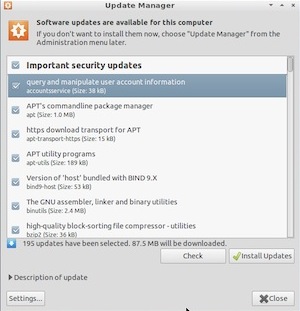
- Windows Update = ‘Software Updater’
Find Out More
For more information on Lubuntu you can visit the official website for
the project. There you’ll also find details on how to download a copy,
burn it to a CD and try it out for yourself without losing your files.
~ Joey-Elijah Sneddon


.JPG)