Cisco Learning Network Store Promotions Page
Showing posts with label Internet Explorer. Show all posts

1.29.2015

Extension support coming to Microsoft's Spartan browser

 
Microsoft is currently in the process of developing a new browser for Windows 10 codenamed 'Spartan', which will be a revamped and modernized version of Internet Explorer. One of the new features set to be included with the browser, finally, is proper support for extensions.
 
Although Internet Explorer 11 currently supports "add-ons", their usefulness and ability to truly enhance the functionality of the browser was limited. Meanwhile, two of the most popular browsers on the web - Mozilla Firefox and Google Chrome - have included wide extension support for years, which has helped them become well liked, feature-filled browsers.
 
At this stage Microsoft has only confirmed that there will be some form of extension support in Spartan, but it's expected that the implementation will be most similar to Chrome's. In fact it has been reported that Microsoft is looking in to some form of easy Chrome extension porting, which will be great for developers who don't want to recreate their extensions from scratch.
 
Spartan will feature a new, streamlined rendering engine called Edge, which is based on a heavily modified version of Internet Explorer 11's Trident engine. Other features already announced include an inking mode for annotating web pages, a new reading mode, and Cortana integration.
 
Spartan will ship with Windows 10, and some versions of the OS will include it alongside Internet Explorer 11 for compatibility reasons.
 
~ Tim Schiesser

1.02.2015

Microsoft is reportedly building a brand-new web browser for Windows 10

 
As Microsoft continues to put the finishing touches on Windows 10, many have speculated as to the direction the Redmond-based company will take with regard to Internet Explorer.
 
Word around the water cooler up to this point is that Microsoft is developing a new version of Internet Explorer, codenamed Spartan, that’ll eventually debut as Internet Explorer 12. That intelligence no longer appears to be accurate according to ZDNet’s Mary Jo Foley.
 
Based on information from a couple of sources, Foley now believes that Spartan isn’t simply the codename for Internet Explorer 12 but an entirely new and lightweight browser for Microsoft.
 
Sources tell Foley that Spartan will still use Microsoft’s Chakra JavaScript engine as well as its Trident rendering engine instead of WebKit. And as Neowin pointed out a few months ago, the UI will resemble what Google and Mozilla currently offer with Chrome and Firefox, respectively.
 
What's more, Microsoft Student Partner and VLC lead developer, Thomas Nigro, mentioned on Twitter earlier this month that he heard Microsoft was building a new web browser.
 
With Spartan on the horizon, it may seem as though Microsoft is preparing to retire Internet Explorer but that doesn’t appear to be in the cards. Instead, Windows 10 will reportedly ship with both Spartan and Internet Explorer 11.
 
Spartan could be one of the new features that Microsoft is planning to show off at its Windows 10 preview event scheduled for just after CES on January 21.
 
No word yet on whether or not Microsoft has finalized a name for the new browser (Spartan is just the codename and won’t be the name attached when it ships).
 
~ Shawn Knight

8.07.2014

Internet Explorer gets more secure -- will start blocking outdated ActiveX controls

 
In the technology world, it is fashionable to bash Internet Explorer. There is that old joke that people only open IE once -- to download Chrome or Firefox. To some extent, that is true; however, Microsoft's web browser has been improving leaps and bounds. When I am on Windows, I enjoy using version eleven very much.
 
Unfortunately, the reason Internet Explorer got a bad reputation with some tech nerds, is that it was more susceptible to malware than other browsers. There was truth to this and I experienced it first-hand, when fixing and cleaning the computers of friends and family. Today, Microsoft announces that Internet Explorer is getting more secure by blocking outdated ActiveX controls.
 
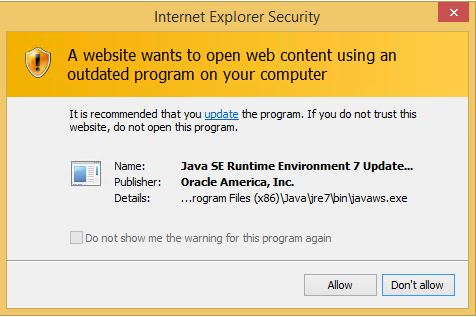
"Starting August 12th Internet Explorer will block out-of-date ActiveX controls. ActiveX controls are small apps that let Web sites provide content, like videos and games, and let you interact with content like toolbars. Unfortunately, because many ActiveX controls aren't automatically updated, they can become outdated as new versions are released. It's very important that you keep your ActiveX controls up-to-date because malicious or compromised Web pages can target security flaws in outdated controls to collect information, install dangerous software, or by let someone else control your computer remotely", says Microsoft.
 
The company further explains, "Internet Explorer uses a Microsoft-hosted file, versionlist.xml, to determine whether an ActiveX control should be stopped from loading. This file is updated with newly-discovered out-of-date ActiveX controls, which Internet Explorer automatically downloads to your local copy of the file. We are initially flagging older versions of Java, but over time will add other outdated ActiveX controls to the list".
 
You can see an example of the alert below:
 
Microsoft lists the following aspects of the blocking:
  • Know when Internet Explorer prevents a Web page from loading common, but outdated, ActiveX controls.
  • Interact with other parts of the Web page that aren’t affected by the outdated control.
  • Update the outdated control, so that it’s up-to-date and safer to use.
  • Inventory the ActiveX controls your organization is using.
This is a brilliant move by Microsoft that only helps to protect its users. While it is probably not enough to sway Chrome and Firefox users to start using Internet Explorer, it definitely helps to improve the browser's image. This forward-thinking regarding security makes me excited for Internet Explorer 12 and I cannot wait for its release.
 
Image Credit: 9nong / Shutterstock
 
~ Brian Fagioli

5.02.2014

Time for Mac users to ditch Windows XP?

For many Mac users, their Windows version of choice is likely to be Windows XP. And with the conjunction of Microsoft this month orphaning XP (the XPocalypse), and the vulnerability announced by Redmond over the weekend, Mac users must decide whether to keep running the old, stale Windows, or upgrade.
 
 
Microsoft said the exploit was still being investigated and the company hasn't worked out a fix.
All versions of Internet Explorer from 6 through 11 are listed as vulnerable as well as all supported versions of Windows other than Server Core. Windows Server versions on which IE is run in the default Enhanced Security Configuration are not vulnerable unless an affected site is placed in the Internet Explorer Trusted sites zone.
But is this such a problem for Macs running Windows? Not so much.
 
The latest version of Boot Camp, Version 5.1, supports Windows 8.1 and also comes with drivers for 64-bit versions of Windows 7 and Windows 8. The previous Boot Camp 4 supported only Windows 7, including Microsoft Windows 7 Home Premium, Microsoft Windows 7 Professional and Microsoft Windows 7 Ultimate. Windows XP and Windows Vista are not supported with Boot Camp 4, however, older Macs running Mac OS X versions before Lion can run Windows XP and Vista.
 
The latest security issue announced this weekend concerns running Internet Explorer on any version of Windows. So, Boot Camp users should move to a more modern browser, such as Google Chrome or Mozilla Firefox.
 
However, there are no XP restrictions in Parallels Desktop for Mac and VMware Fusion 6 lke there are in Boot Camp. Both can run any version of Windows from XP on up. 
 
At the same time, there are fewer security problems running XP in a virtual machine. And especially on a Mac. I was interested to find that one of the new features of Parallels 9 is its Security Center, which helps customers manage installations of security subscriptions for their Windows virtual machine and for the Mac itself.
 
Still, like the rest of the PC users in the world, Mac users face this choice about XP. The Mac preference for XP doesn't stem from a great love for old-fashioned software. But just as some 29 percent of current PC users still find, XP is inexpensive and readily available. So, their choices are the same.
 
The best way to avoid XP's Windows insecurity is to run Mac applications. I know that sounds ridiculous, but it's the best solution. Mac users want to run Mac software in OS X. Often, switchers from Windows believe they must run a specific Windows application and don't bother checking for Mac alternatives. If possible, seek a Mac alternative to a Windows solution. Often, one is available.
 
Another option is to avoid running Windows altogether and run individual Windows applications in CodeWeaver's CrossOver Mac environment. Interestingly, a number of PC developers are taking advantage of CrossOver Porting to provide support for Mac customers. I own one of these applications, DavkaWriter 7 Mac Edition. The result is ugly and unappealing to Mac customers, but it works — just like it does on the PC. I may not be happy with the Windows user experience, but I'm very happy to run this application outside of a virtualized Windows installation, which I had to do a couple of years ago.
 

~ David Morgenstern

4.28.2014

Serious vulnerability affects all versions of Internet Explorer -- XP users especially at risk


In a security alert released over the weekend, Microsoft warns of a serious vulnerability in Internet Explorer that could allow hackers to remotely take over a computer.
 
The vulnerability makes it possible to execute code remotely and affects Internet Explorer 6 through 11, which is around a quarter of the web browser market. XP users, who no longer receive security updates from Microsoft, are going to be the most at risk from this flaw. If you know someone still on the aging OS, now is the time to give them another nudge to switch to a newer, and safer, choice.
 
In Security Advisory 2963983 Microsoft explains:

The vulnerability is a remote code execution vulnerability. The vulnerability exists in the way that Internet Explorer accesses an object in memory that has been deleted or has not been properly allocated. The vulnerability may corrupt memory in a way that could allow an attacker to execute arbitrary code in the context of the current user within Internet Explorer. An attacker could host a specially crafted website that is designed to exploit this vulnerability through Internet Explorer and then convince a user to view the website.
Microsoft further explains that an "attacker who successfully exploited this vulnerability could gain the same user rights as the current user" and if that user is logged on with administrative rights, the attacker could take complete control of an affected system and "install programs; view, change, or delete data; or create new accounts".
 
Microsoft says it is investigating the issue, and will no doubt issue a patch shortly for users of its newer operating systems. In the meantime it suggests a number of workarounds including enabling Enhanced Protection Mode in Windows 7 (x64) and Windows 8.x, setting Internet and Local intranet security zone settings to "High", and deploying EMET (Enhanced Mitigation Experience Toolkit).
 
Naturally, using a different browser can help too.
 
~ Wayne Williams

4.08.2014

Windows XP support ends: Survival tips to stay safe

Summary: If you're late to upgrade or have decided not to change your operating system, check out these tips to keep the system as secure as possible

Do not use Internet Explorer

It is not advisable to keep running Microsoft's Windows XP operating system now that support has ended.
 
Today, Microsoft will release its last batch of security updates, patches, and fixes for Windows XP, and after this date, core vulnerabilities or security issues that could leave you open to cyberattack will not be investigated or fixed. You won't have a permenant blue wheel of death the moment support ends, but vulnerabilities stored up by cybercriminals for use after this date will not be fixed.
 
Tip one? Stop using Internet Explorer.
 
The most common version of IE used on XP systems is version 8, and considering that Internet Explorer is now up to version 11, you can see how old and obsolete the browser is. Not only this, but Internet Explorer 7 and 8 will also not be updated further, leaving your system vulnerable to malware that exploits this old program.
 
Both Mozilla's Firefox and Google's Chrome browsers will continue support for Windows XP after expiration, and so use one of these browsers instead of Internet Explorer if you are still running XP. This will at least give you a little more time, but be aware that Chrome on XP will only be supported for one more year, and it is not known how long Firefox will offer support.
 
In addition, don't forget to change your browser from the IE default.


Keep third-party software up to date

The fewer software packages you have installed on your computer, the fewer routes that hackers can take to infiltrate your system.
 
Any software you can't live without, especially if used in tandem with an Internet connection, must be kept fully updated at all times. Adobe Flash, Adobe Acrobat PDF reader, and Java are of particular concern, as they are often targets for hackers -- and while modern versions check for updates automatically, older versions may skip checks altogether.
 
If you don't need the Java browser plugin, disable it, and you should do the same for Adobe Flash. The fewer outlets you provide for vulnerabilities to be exploited the better. While these are all stop-gap solutions instead of the ultimate protection — killing your Windows XP system altogether — it may keep your system a little safer.


Turn on the Windows XP firewall

It may seem like an obvious tip, but it is amazing how often this critical security feature is turned off and forgotten about.
 
Go to your control panel, select Windows Firewall, and turn the security barrier on — and leave it that way.
 

Update everything

It is not just third-party apps and plugins that should be updated — don't forget the most important element, upgrading all of your Microsoft applications and services to their most modern states.
 
From the Start menu, select All Programs and then Windows Update to see the status of your system. Install anything deemed "Important," and set Windows Update to install any future fixes automatically. In addition, as Microsoft Office 2003 is also being abandoned, leave it alone and switch to an open-source suite such as OpenOffice, or move along to the Web and use Google Docs or OneDrive.


Limit user accounts to limit potential damage

If you use a full-system administrator account, this type of user is able to install programs as well as modify and remove software, and often malware will use these privileges to achieve its malicious ends.

While many versions of malware are able to modify user privileges anyway — and so this advice is limited — creating a limited user account may mitigate some of the damage malicious software can do if it arrives on your system. This restricts your ability to make changes to the operating system, but should be fine for daily tasks. You can always switch back to an Administrator account if you need to install software — but make sure you scan it for problems or malicious code first using an antivirus program.


Protect yourself against zero-day malware and exploits

Microsoft's Windows XP will not be updated and protected against major flaws any longer, but this does not mean security needs to go entirely out of the window.
 
Microsoft says you'll be facing a zero day forever scenario by clinging on to the old operating system, and that's likely, but it doesn't mean you'll immediately be left out in the cold by many security vendors.
 
The Redmond giant's Microsoft Security Essentials will support XP for one more year, and this seems to be the approach taken by many third-party security vendors. 
 
Considering that you'll be saving money by not upgrading your computer, it's worth considering the purchase of premium antivirus products to give Windows XP the best chance of staying secure. AVG, Avast and MalwareBytes are antivirus vendors with real-time scanning that you may want to consider.
  

Stay safe and vigilant

If you're using an archaic operating system, being careful when you browse the Web will now be critical to staying safe.
 
Do not click on emailed attachments or links that are suspicious, and if you receive an email which seems legitimate — whether from the tax office or bank — ring them first and clarify the contents before submitting any personal data. Stay away from websites that are known sources of malware, adware, and spyware, and be careful about visiting websites with expired security certificates.  
 
If you can, unplug from the Internet entirely. This may be an extreme solution, but if you're running the risk of using an outdated, vulnerable system, connecting up to a source of security issues isn't going to help matters. 


Upgrade your operating system or computer entirely

The final, and most useful tip? Changing, updating and shoring up the system are only temporary measures. If you want to stay safe, you need to upgrade the operating system to a newer version, such as Windows 7, or change your OS altogether.
 
Microsoft offers Laplink, a free data migration tool, to help you transfer files, settings, and profiles from your Windows XP PC to your new Windows laptop, desktop, or tablet — as long as they are running Windows 7, Windows 8, or Windows 8.1.
 
The problem is that many old computers still running Windows XP simply won't have the memory, storage, or capabilities to cope with a modern operating system, and so if you can't upgrade, you'll have to invest in a new machine. 
 
But what's worse — a few hundred dollars for a new machine or your account emptied when a hacker installs malware, keyloggers, and steals your financial data due to XP security vulnerabilities?
 
Chris Boyd, Malware Intelligence Analyst at Malwarebytes told ZDNet:
"The research team at Malwarebytes, myself included, is keeping an attentive eye on how cybercriminals respond to the threat to XP users. Whenever there is an event that gains a lot of media attention, there will always be individuals with criminal intent seeking to capitalise. 
The problem is that XP being retired isn't just a software issue but a hardware issue too. Many end-users running XP may well be running old PCs and may struggle to upgrade to Windows 7 or 8. It's going to take some time for those people to upgrade and we need to do everything we can to ensure their machines are as safe as can be in the meantime, which is why we're continuing to support them."
~ Charlie Osborne


3.09.2014

Best Web Browser (Part 3)

Safari 5.1.7

Apple abandoned it, and so should you
 
The last time Apple updated its Safari browser for Windows desktops was in May 2012, and that was just a minor housekeeping patch. Apple left Windows users behind when it introduced Safari 6 for Mac OS X 10.8 Mountain Lion, and while the Cupertino outfit hasn’t explicitly stated Safari will never make a return to Microsoft’s OS, there’s little reason to believe it will. Safari was never able to carve out a significant share of the browser market anyhow, though both NetMarketShare and StatCounter agree that there are more web surfers on Safari than Opera, so leaving Windows users behind might not have been the best long-term decision.

What’s New

Though Apple has turned a blind eye to Windows users, the latest version of Safari is still available to download. Prior to abandonment, Safari’s Reading List feature alone was reason to consider the browser. What it does is let you save web pages you don’t have time to read and return to them later, online or offline. Think of it as a temporary bookmarks feature that self-destructs once you’ve brought up a saved page.
 
Safari Reader is another element of the browser we liked. It strips web pages to the bare essentials, removing most ads and preventing pop-ups.

Security

Safari’s biggest security feature is running web processes in a restricted environment, otherwise known as sandboxing. Pretty snazzy, except that it only runs that way on Mac OS, so it’s a feature that’s of absolutely no benefit to Windows users—boo! On the plus side, it’s rather easy to disable JavaScript, pop-up windows, and plugins from the Security tab in Preferences. Safari will also warn users when visiting a website it deems fraudulent.

Privacy

Safari blocks third-party cookies by default, a feature that’s found in the browser’s Privacy panel. It also contains an option to remove all website data with a couple of mouse clicks. In the same panel is an option to limit website access to location services. Some websites use information about your location to enable certain features and services, but if you’d rather keep that information private, you can disable it altogether or be prompted when a website requests your whereabouts.

Performance

In the majority of benchmarks, Safari came in dead last, especially when testing for JavaScript performance. The dated browser supports limited hardware acceleration in Windows, but it wouldn’t even run two of the three Microsoft test demos.
Click the Reader button in the address bar to de-clutter noisy websites and side-step pop-up ads.

Internet Explorer 11

An old browser reborn and bred for Windows 8
 
It wouldn’t make sense for Microsoft to rebuild Windows without also revamping the parts that integrate with it, and so what we have in Internet Explorer 11 is a vastly different browser compared to previous releases. Yes, it will probably be available for Windows 7 by the time you read this, but it’s really intended to complement the vision Microsoft set out for Windows 8, which includes a heavy dose of touch interaction and interoperability across a range of Windows devices and screen sizes.
 
While the version we’re testing is a Preview release, it’s very close to what the final build will be like, unlike an early beta, which could be missing key features and/or suffer from stability issues.

What’s New

When firing it up from the Start screen, IE11 looks and feels like a brand-new browser rather than an upgrade of an existing one. That’s not really surprising since the same could be said of Windows 8 compared to previous versions. The first thing you’ll notice is that Microsoft moved the address bar to the bottom of the browser. It hides out of view to give you a full-screen browsing experience, though you can bring it back up with a right-click or swipe up from the bottom. If you have a touchscreen, you’ll also use swiping gestures to navigate forward and backward.
 
Outside of touch controls, the feature we’re most excited about is side-by-side browsing. While Windows 8 insists on running applications in full-screen mode, the side-by-side feature in IE11 allows you to view multiple websites at the same time, and you can resize the width of each one. This is handy for comparison shopping, among other uses.
 
We’re only scratching the surface here. Microsoft lifted the limit of open tabs from 10 to 100 per window, which appear as scrollable tiles just above the address bar. Non-active tabs are suspended so they don’t drag down your PC’s performance or adversely affect battery life. Microsoft also implemented hardware-accelerated 3D web graphics through WebGL, plug-in-free HTML5 video support, and the ability to pin websites as live tiles on the Start screen—phew!

Security

By default, IE11 turns on Enhanced Protected Mode (EPM), which only allows compatible add-ons like toolbars, browser helper objects (BHOs), and extensions to load. Furthermore, EPM shoves untrusted web content into a restricted environment sort of like a sandbox.
 
Instead of letting WebGL content run wild, it’s put through a pre-screening stage in IE11. It also runs on top of DirectX, so if malicious content bombards the GPU and takes it out, it will reset rather than crash the entire system.

Privacy

Microsoft was the first browser maker to turn on its Do Not Track feature by default, and that setting is retained in IE11. New to IE11, however, is a User-Granted Exceptions option so that users can grant permission to websites to use cookies that request it.
 
InPrivate browsing mode is still available in IE11, though it’s not obvious when surfing from the Start screen. You can use the keyboard shortcut (Ctrl+Shift+P) or bring up the Tabs menu and press the Tab tools button on the right-hand side.

Performance

IE11 posted the best SunSpider score in this roundup, which measures JavaScript performance. It was also the fastest in Microsoft’s 3D demos, especially Lawn Mark 2013, a benchmark Microsoft claims “uses emerging HTML5 techniques.” We’re a bit skeptical of the discrepancy in scores, as are Chrome developers, one of which stated in a Chromium forum that the benchmark is “running intentionally slow JavaScript in all browsers besides IE.” Still, it shows that IE11 is able to render 3D graphics at a fast clip, and surfing the web certainly feels fast as well.

Power-User Tips

1. To add a website as a live tile, click the Star icon (Favorites) and then the Pin icon.
 
2. You can pin the address bar permanently to the bottom of the screen by bringing up the Charms menu (swipe or press Windows Key+C) and selecting Settings > Options. Under the Appearance heading, flip the dial to On.
 
3. Sites not showing up correctly? Fire up IE11 in Desktop and press Alt. Select Tools > Compatibility View settings.
 
1) Side-by-side allows you to view multiple pages in separate, resizable Windows.
 
2) It’s not the least bit obvious, but those three dots designate the Tab tools option. Click or tap to initiate an InPrivate browsing session.
 
3) You’re no longer limited to just 10 open tabs. In IE11, you can have as many as 100 per window. Equally cool is the preview view of each one, which you can scroll through.
 
4) Microsoft relocated the address bar to the bottom of the browser where it’s better optimized for touch. Just swipe up from the bottom (or right-click your mouse) to make it appear.
 
 
~ Paul Lilly

Best Web Browser (Part 2)

Opera 15

If you can’t beat ’em, join ’em
  
For years, Opera’s development team championed strict web standards through their own rendering engine called Presto. Maintaining a relevant rendering engine is a massive undertaking, so for version 15, Opera Software made the decision to swap out Presto for Google’s Blink engine, which is a fork of Webkit and the same one driving Chrome. It’s a significant change and one that allows the Norwegian browser maker’s small team to narrow their focus on Opera’s complementary features and security.

What’s New

A new rendering engine is just one of the many changes in Opera 15, not all of them positive. Bookmarks have vanished (Opera Software plans to return them in a future release), and the integrated M2 email and news client played a disappearing act just like Presto. In their place is an overhauled UI that more closely resembles Chrome, along with a combined address and search bar.
 
Opera’s Speed Dial feature lists thumbnails of saved web pages on new tab windows, and new to Opera 15 is the ability to group and search entries. Also new are Stash and Discover entries in new tab windows. When you click the heart icon in the address bar, Stash will take a snapshot of the website, while Discover lists news clips from around the web.
 
Finally, Opera 15 introduces an Off-Road mode that adopts server-side compression technology found in Opera Mobile.

Security

By making the transition to Blink, Opera 15 becomes the beneficiary of security protocols included in the Chromium project, such as running tabs in separate processes and sandboxing. Opera also adopts a rapid release schedule for more frequent security updates, both as it pertains to Blink as well as parts of the browser not related to Chromium (everything but the engine).

Privacy

Opera 15 retains the ability to open a private-browsing window, which you can run alongside a non-private session. The feature is more easily accessible in Opera’s main drop-down menu. Opera 15 also supports Do Not Track requests, though the feature is turned off by default.

Performance

The Blink rendering engine gives Opera an instant speed boost that puts the browser nearly on par with Chrome. In our benchmark tests, Chrome 29 still edged out Opera 15 in most tests, though Opera was faster in Microsoft’s Lawn Mark 2013 test. Furthermore, neither browser ever left the other one in the dust. That’s an impressive testament to Opera’s upgraded code, since Chrome ended up being the fastest of the bunch.
Opera 15 does away with traditional bookmarks, but you can “Stash” websites with screenshot previews that appear on the Start page and new tab windows.

Chrome 29

All hail the new king
Chrome recently celebrated its fifth birthday, and though it required a few coats of polish to really shine, most users today couldn’t or wouldn’t want to fathom a world without Google’s quick and nimble browser. To wit, Chrome did what no other browser could do—it dethroned Internet Explorer in market share, at least according to StatCounter’s data. NetMarketShare still has IE in the lead, but the mere fact that Chrome is even in the discussion is a remarkable achievement for such a young browser.

What’s New

Google decided early on that a rapid release schedule made the most sense, so like Firefox, individual updates typically lack hordes of killer features to make you pump your fist in excitement. Over time, however, the experience gradually changes. In Chrome 29, Google added an immersive mode that hides the toolbar and shelf in full-screen mode until you hover over the top. There’s also a “Reset browser settings” to restore Chrome to its original state. If you’re in love with Windows 8’s touch-friendly interface, you’ll also adore running Chrome in Windows 8 Mode, which replaces IE as the default browser in the process.

Security

Chrome 29 came with more than two dozen security patches, an unusually large amount. Part of the reason is because Google routinely rewards external security researchers with financial bounties for discovering bugs. Combined with Chrome’s automatic updates and sandbox approach to browsing, you’re about as protected as you can get outside of a virtual machine.

Privacy

Up until version 23, one of the few criticisms you could make about Chrome was that it didn’t have a Do Not Track feature like IE and Firefox. Google took its sweet time adding DNT code to Chrome, but it’s there, only you have to hunt down the setting and manually turn it on just like in Firefox. Even when you do, the effectiveness of DNT hinges on whether websites honor your request or essentially tell you to go fly a kite.
 
For browsing on the sly, Chrome’s Incognito mode erases the past more efficiently than Stephen King’s Langoliers.

Performance

Even Michael Jordan didn’t win every game he played in, and though it wasn’t a clean sweep for Chrome either, Google’s browser had the best score in more benchmarks than any of the other four contenders in this roundup. And unlike in our browser cage fight from two years ago, Chrome now boasts hardware acceleration.

Power-User Tips

1. Install the Omnibox Timer extension to set reminders in the Omnibar while you’re at your PC. Once installed, activate a timer by typing TM in the Omnibar and then something like, “15 stand up and take a break” to be reminded in 15 minutes to move around. (Protip: Sitting for long stretches is bad for your health.)
 
2. Google isn’t your only search option in Chrome. Type Amazon in the Omnibar followed by the Tab key and then type in your search query. You’ll see the option to bring up search when you start typing in websites you’ve previously visited. Alternately, type the name of a site followed by a colon and then your search query (e.g., MaximumPC: Intel).
 
3. Fancy yourself a code junkie? Right-click a website and select “Inspect element” to spy a site’s code.
 
1) If you’re not digging Internet Explorer in Windows 8’s Modern UI, you can swap it out for Chrome. Once you do, it always runs that way, even if you launch Chrome from the desktop.
 
2) There’s no need for a dedicated search bar in Chrome. The Omnibar (or address bar) also functions as a search bar.
 
3) Type chrome://flags in the Omnibar to bring up a wealth of experimental features to play around with. As always, be careful flipping switches willy-nilly, lest Chrome start acting in unexpected ways.
 
4) Signing into Chrome allows you to sync your settings and data from one PC to another. Just sign into the same account when you get home to bring up your work PC’s Chrome session.
 
 
~ Paul Lilly


12.12.2013

Mozilla making progress with Firefox’s long journey to multiprocess

Over the last year, the browser has taken steps toward being more stable and secure.

Multiple Firefox processes.
Internet Explorer and Chrome both use a multiprocess architecture to enhance stability and security. They separate the task of parsing and rendering Web pages from the job of drawing the browser on-screen, saving downloaded files, creating network connections, and so on. This allows them to run the dangerous parts—the parts exposed to malicious scripts and exploitative HTML—in a sandbox with reduced permissions, making it harder for browser flaws to be turned into system compromises.
 
It also means that they're much more tolerant of crash bugs; a bug will bring down an individual tab, but shouldn't, in general, bring down the browser as a whole.
 
In 2009, Mozilla announced the Electrolysis project, which was to bring this kind of multiprocess design to Firefox.
 
It's now late 2013, and Firefox still isn't a multiprocess browser. It does have a limited multiprocess design, as it can run plugins in their own process, but everything else is run in a single process, running with the full permissions of the user. The full Electrolysis project was put on hold just over two years ago.
 
Work on Electrolysis resumed in January this year, and Mozilla developers have started to talk about it in detail. Nightly builds of Firefox can now be used with multiple processes. Currently, this is still quite limited when compared to Internet Explorer and Chrome. Where those browsers will create a whole bunch of processes (generally around one per tab), Firefox Nightly creates two: one for the browser window and chrome itself, another for all the tab content.
 
The organization still has a lot of work to do before multiprocess support is ready for prime time. While basic browsing and some add-ons work already, others don't. The Firefox developer tools, for example, are non-functional.
 
Substantial work has been done to make Firefox work with multiple processes. In single process Firefox, add-ins and the browser user interface itself can directly access the page structure. With multiple processes, that's no longer possible: the add-ins and user interface exist in one process, the page structure in a separate one. Every such access has to be passed through a message-passing interface that connects the two processes.
 
To ensure that the user interface doesn't hang and remains responsive, those messages are asynchronous—the message sender doesn't wait for the message to actually be received. The result is a design that can be quite a bit more complicated than in single-process Firefox.
 
This message-passing mechanism has been in place since Firefox 4. Add-ins that use it should be in a good position to work with multi-process Firefox. However, not all do, because at the moment, they don't have to. In the meantime, some kind of fallback solution will have to be devised. Firefox has a second system for passing information synchronously between processes which can fill some of the gaps, but ultimately some add-ons may force the use of a single-process browser.
 
Mozilla has also had to change the way content is actually drawn. In traditional single-process Firefox (and, indeed, most software), a single thread is used to handle input events (like mouse clicks, keyboard clicks, and so on), calculate the layout and appearance of the screen, and then submit it to the operating system/GPU to actually draw. In doing so, the different elements of the page (backgrounds, fixed position items, videos, text) are all drawn onto separate layers. The GPU then flattens the layers together to create a composite image.
 
As part of the work done for Firefox OS, this was split into several threads. The main thread still responds to input events and produces the layers, but the work of moving the layers to the GPU and forming the final composite is done on a separate thread.
 
Multi-process Firefox builds on this work. It extends this split approach to all operating systems (not just Firefox OS), and the new approach is now the default on OS X (though not Windows or Linux). In multi-process Firefox, the content process creates the layers. These are then passed back to the main browser process, which sends them to the GPU and composites them.
 
There's no ETA yet for when Electrolysis will be moved to the stable branch of Firefox or turned on by default. Even when the basic development is complete, ensuring that add-ons remain compatible means that it's a complex project with hard problems to solve. Nonetheless, it's good that this progress is being made. When it's finished, it should make Firefox a much more robust, secure browser, and that's a change we should all welcome.
 
~  Peter Bright

12.07.2013

Microsoft leads disruption of largest infected global PC network

Men install Microsoft Corp's Windows 8 operating system on their laptops, as Windows 8 goes on sale after midnight, along a street at the Akihabara district in Tokyo October 26, 2012.
(Reuters) - Microsoft Corp said on Thursday it had disrupted the largest network of compromised personal computers, involving some 2 million machines around the world, since it stepped up its battle against organized online criminals three years ago.
 
The Redmond, Wash.-based software giant filed a lawsuit in Texas and won a judge's order directing Internet service providers to block all traffic to 18 Internet addresses that were used to direct fraudulent activity to the infected machines.
 
Law enforcement in many European countries served warrants at the same time, seizing servers expected to contain more evidence about the leaders of the ZeroAccess crime ring, which was devoted to "click fraud."
 
Such rings use networks of captive machines, known as botnets, in complicated schemes that force them to click on ads without the computer owners' knowledge. The schemes cheat advertisers on search engines including Microsoft's Bing by making them pay for interactions that have no chance of leading to a sale. Microsoft said the botnet had been costing advertisers on Bing, Google Inc and Yahoo Inc an estimated $2.7 million monthly.
 
The coordinated effort marks the eighth time Microsoft has moved against a botnet and a rare instance of it doing serious damage to one that is controlled with a peer-to-peer mechanism, where infected machines give each other instructions instead of relying on a central server that defenders can hunt down and disable.
 
But the ZeroAccess botnet still had a weakness: The code in the infected machines told them to reach out to one of the 18 numeric Internet addresses for details on which ads to click.
 
Microsoft recently opened a new Cybercrime Center in Redmond and is using new tools in its efforts. They are helped by a provision in trademark that allows pretrial seizure of suspected counterfeit goods, including websites that, as in the present case, are spreading tainted versions of the Internet Explorer browser.
 
The company is working with national computer security authorities in various countries and with Internet service providers to notify individual computer owners with infected machines, hoping to reach most of them before the fraudsters can spread new instructions.
 
Microsoft has been sharing evidence with the FBI and Europol, the continent's law enforcement coordinating service. National agencies took part in seizure actions in Germany, Switzerland, Latvia, Luxembourg, and the Netherlands.
 
For now, at least, the fraud by this network has stopped, said Microsoft Assistant General Counsel Richard Boscovich.
 
The operators of the botnet are believed to be in Russia, while the author of the malicious software distributed on it could be based elsewhere, Boscovich said.
 
~ Joseph Menn          

5.17.2012

Microsoft bans Firefox on ARM-based Windows, Mozilla says

Raising the specter of last-generation browser battles, Mozilla launches a publicity campaign to seek a place for browsers besides IE on Windows devices using ARM chips.
IE10: the only browser allowed on Windows for ARM-based devices?
Stop me if you've heard this one before: Microsoft muscles aside other browsers and cements the dominance of Internet Explorer. The browser market, deprived of competition, stagnates.

That, of course, is what happened during the first browser war of the 1990s and beyond, on personal computers. Today, Mozilla's top lawyer warned that Microsoft's behavior threatens a repeat of history, because it's telling Mozilla that it's barring Firefox from forthcoming Windows 8 machines that use ARM processors. 

"They're trying to make a new version of their operating system which denies their users choice, competition, and innovation," said Harvey Anderson, Mozilla's general counsel. "Making IE the only browser on that platform is a complete return to the digital dark ages when there was only one browser on the Windows platform."

Anderson has been discussing the matter with his counterparts at Microsoft, but the company hasn't budged, he said. Anderson also detailed concerns in a blog post. 

Microsoft declined to comment for this story.

Microsoft's position raises the prospect not only of refighting the browser wars of more than a decade ago, but also of reviving the grindingly slow antitrust litigation from the U.S. Justice Department, 20 U.S. states, and the European Commission. The U.S. case is closer to today's situation: the accusation that Microsoft abused its monopoly power in Windows to crush browser pioneer Netscape. 

"Microsoft used its monopoly power to develop a chokehold on the browser software needed to access the Internet," then-U.S. attorney general Janet Reno said upon suing Microsoft.

Although Microsoft didn't prevail in those cases, its, uh, competitive spirit appears to be unquenched.

Mozilla isn't considering legal action at this time, and Anderson said going to court would be "a solution of last resort." But it's an option if nothing changes. 

"First I want to really see if Microsoft is intent on pursuing this path. They could have a subsequent release that allows third-party browsers," Anderson said. "Sometimes they need some pressure. If it turns out to be legal pressure, that could be the thing."

Technically, Mozilla could release a version of Firefox for Windows 8's new Metro interface -- it's indeed building one for more traditional Windows 8 PCs that use x86 chips. But that browser would be crippled on Windows RT, said Asa Dotzler, a Mozilla spokesman. 

"First, Microsoft has a browser that runs in Classic mode on Windows ARM. They are not allowing us that same access to run our browser on Classic. Second, Microsoft has a browser that runs in Metro mode on Windows ARM that has access to rich APIs that they are denying to third-party Metro browsers on Windows ARM," Dotzler told CNET. "So, we are denied the ability to deliver any browser on Classic, and we are denied the ability to build a competitive browser on Metro." Dotzler also elaborated on the issue in a first and second blog post.

In terms of worldwide personal computer browser usage, Microsoft's IE is on the rebound after years of declines.
Why bar Firefox?
Microsoft Deputy General Counsel David Heiner told Mozilla it won't permit other browsers for two reasons, Anderson said: 
  • ARM processors, which power virtually all iOS, Android, and Windows Phone smartphones and tablets today, are different from the x86 chips that power PCs. The chips have new requirements for security and power management, and Microsoft is the only one who can meet those needs.
  • Windows RT -- the version of Windows 8 geared for ARM devices -- "isn't Windows anymore."
Anderson scoffs at the arguments. "I'm not aware that Microsoft is the exclusive and sole proprietor of technology capable of working in the ARM environment.... It's a different architecture, but it's not the first time we've had an OS that works on a different architecture," he said of the first point.

Of the second, he says Windows RT uses the same user experience, programming interfaces and Windows Update system. "The idea that it's not Windows it doesn't make sense." 

Browsers, of course, aren't just any old software. They're essentially becoming miniature operating systems unto themselves able not just to show Web pages but to run Web applications. Browsers nowadays have multitasking, hardware-accelerated graphics, pop-up notifications, and built-in videoconferencing. It's no coincidence that IE10 will provide the display engine for some native apps, not just Web apps, running on Windows 8.

Not coincidentally, given their steadily more sophisticated processing capabilities, browsers are also a prime vector for attack. So Microsoft could perhaps be forgiven thinking that running multiple browsers on Windows would mean a bigger attack surface for those trying to compromise computers. 

Pshaw, Anderson said. "I trust Firefox before I trust IE. That's one of the key reasons Firefox took off." 

Overall, it looks like Microsoft is taking pages from the Apple playbook. On iOS, Apple permits only its WebKit browser engine to be used for Web apps and Web pages. That can simplify life for Web developers racing to adapt to mobile browsing -- but other browsers suffer.

And like iOS, Windows RT also only will be available preinstalled -- something that simplifies hardware combinations that can become a support nightmare. Windows RT also only will run software delivered through Windows Update or the Windows Store.

Clearly, Microsoft is concerned about keeping the best possible experience, and it's willing to clamp down on old-style Windows programming methods from the x86 era to do so. In a blog post about programming for Windows 8 on ARM, Microsoft's Windows chief Steven Sinofsky has this to say about moving Windows apps written for x86 chips to the ARM world:
 

Broken promises?
Mozilla also suggests Microsoft has gone back on 12 principles for promoting choice and competition on Windows that General Counsel Brad Smith announced in 2006. 


The Web page about the principles is no longer obviously available on Microsoft's site, but a press release and Smith speech about it remain.

In that speech, Smith extolled the virtues of openness to others' applications.
 
Smith cited iTunes as one example of software that Microsoft graciously accommodated even though it competed directly with its own Media Player product.

However, Smith indicated that not all decisions are final:
 

Reliving history
Internet Explorer's dominance, traces of which remain today especially in China, was indeed a grim period for Web developers in many ways. 


The browser's dominance did simplify programming by letting many code for that single browser, which bucked some Web standards. But then Microsoft left IE6 largely untouched for years. A lot of online application innovation took place instead with Flash Player from Macromedia, later acquired by Adobe Systems.

Mozilla's release of Firefox in 2004 rallied allies who wanted something better. Mozilla and Opera, another browser rival, also began a project called the Web Hypertext Applications Technology Working Group to advance HTML standards when the World Wide Web Consortium decided it didn't want to. Apple later joined, too, and eventually the W3C picked up the baton again.

By the time Google arrived with Chrome in 2008, Microsoft was well on its way to re-engaging with Web standards work and to producing the vastly more competitive IE9. Now its competitive juices in the browser market are clearly flowing again. 

But this is the kind of challenge that could rally Mozilla, too. The non-profit organization rose from the ashes of Netscape, and for years, much of its identity was defined in opposition to Microsoft. Mozilla embraced open-source software and touted the Web standards Microsoft ignored.

Now Anderson generally considers Mozilla's relationship with Microsoft as healthy. 

There's one huge difference from the last-generation browser battles: Apple.

Apple's Safari dominates mobile browsing.
Safari is the dominant mobile browser by far, and on phones and tablets, Microsoft is very much the underdog. On ARM devices today, IE isn't even close to second-place Android.

So a complacent IE team seems improbable at this stage. 

Anderson is still dissatisfied. Sure, people can switch to another mobile operating system by switching devices, but that's not easy.

"If that's your version of choice, I think that's a sad world, and it doesn't have to be that way," he said. 

He remains optimistic that an amicable solution can be found. Microsoft altered course to let other browsers run in Windows 8's Metro interface on x86 machines, and Firefox and Chrome are headed for Windows 8 now. So the company can budge.

And for practical reasons, Mozilla hopes it will. 

"I'm not inclined to look to judicial solutions as the No. 1 way to protect users," Anderson said. "I was at Netscape in the 1996 era. I watched the slow wheels of justice turn."

By that time it was over, Netscape was long gone as an independent company. 

~ Stephen Shankland


4.14.2012

Microsoft roadmap details IE 10, Office 15, Windows Phone launches

A Microsoft product roadmap has leaked onto the net recently that shows several new items in the pipeline through 2014. The screenshots in question are dated December 22, 2011 and were recently posted on Twitter by Maarten Visser, CEO of Meetroo which is a SharePoint and mobility startup.
 Items of interest include Internet Explorer 10 with a mid-2012 launch window that could likely coincide with a Windows 8 release, although the timing would be off slightly based on a suspected October introduction for the new operating system. It’s more likely that the new browser will launch alongside the Windows 8 Release Candidate in the near future.
Office 15 is scheduled to go into beta sometime near the middle of this year as well with availability listed for early 2013. The exact same can be said for Exchange 15, SharePoint 15, Visio 15 and Project 15. An update for Windows Phone is expected later this year with the icon on the roadmap indicating “general availability.” This could possibly be the Apollo update, otherwise known as Windows Phone 8.

Visser didn’t post every screenshot but we are told that Silverlight shows zero updates after the December 2011 web release. Visual Studio is set to be released to manufacturing later this year alongside SQL Server.

It’s worth pointing out that the term ‘leaked’ is used loosely here as Visser claims that he obtained the slides from the Microsoft Partner Network where they can be downloaded without logon.

~ Shawn Knight