Summary: I still find Ubuntu with Unity the best desktop of all for users who don't know computers and just want something easy to use.
Lately,
Ubuntu has been getting a lot of flack from other Linux users for going its own way. For example,
Canonical, Ubuntu's parent company, eventually plans on using its own Mir display server instead of the more broadly supported Wayland, and that's annoyed many non-Ubuntu Linux developers.
That "inside baseball" criticism aside, I've found the latest release
of Ubuntu 14.04 , Trusty Tahr, to be an outstanding Linux desktop both
for new users and for professionals.
 |
| Ubuntu 14.04 with Unity 7 desktop. |
I've been checking out the Trusty Tahr since its beta two release and
I've been very pleased with it. I've been testing it in a VirtualBox
virtual machine (VM) on a newer high-end Dell system and on two older
test systems: The first was my 2007 Dell Inspiron 530S, which is powered
by a 2.2-GHz Intel Pentium E2200 dual-core processor. This PC has 4GBs
of RAM, a 500GB SATA (Serial ATA) drive, and an Integrated Intel 3100
GMA (Graphics Media Accelerator) chip set. The second was a 2008-vintage
Gateway DX4710. This PC is powered by a 2.5-GHz Intel Core 2 Quad
processor, 6GBs of RAM, a 1TB SATA drive, and an Intel GMA 3100 for
graphics.
My point in listing these systems' stats in detail is that Ubuntu works just fine even on seven-year old systems.
It's also worth noting that
Ubuntu 14.04 is a long-term support (LTS) version.
That means that Canonical will be supporting this desktop Linux for
five years. In turn, if you use an older PC you could get as much as 13
years of use out of it before you'd need to buy a new PC—just try that
with Windows.
Installing Ubuntu remains as easy as ever on older PCs:
Download the Ubuntu ISO, burn it to a DVD, boot your PC from the DVD and follow the instructions. If you're stuck with a Windows 8/8.1x PC,
dealing with Secure Boot can still be a pain. The easy way around this is to go to the UEFI menu as you boot your PC and disable Secure Boot.
As an LTS, Ubuntu 14.04 doesn't have a lot of new features nor has there
been much in the way of changes under the hood. Canonical has decided,
for example, to not pull the old stable X window server and the Unity 7
shell for the graphical interface for the newer Mir graphics stack and
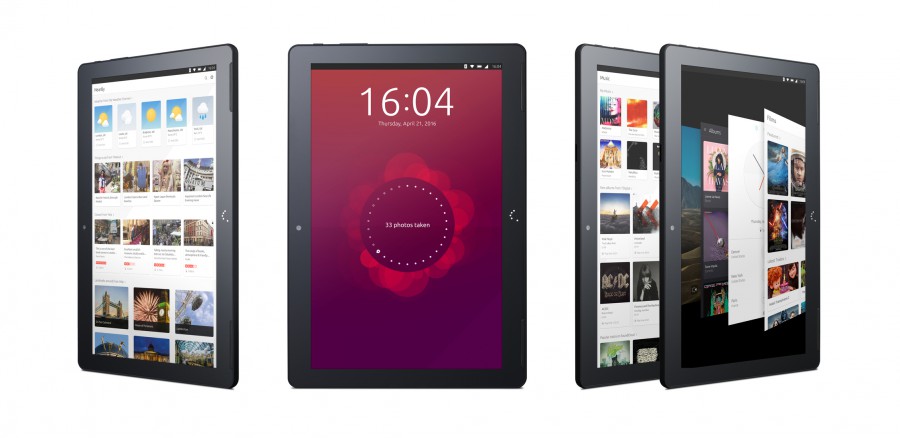
Unity 8. You'll see those appear first in Ubuntu's smartphone and tablet
efforts.
If you want, you can give Mir and Unity 8 a try. To do that, open a terminal and enter the following command:
sudo apt-get install unity8-desktop-session-mir
That's the quickest, cleanest way to install Mir and Unity 8. Both
projects are under heavy development so be ready for regular changes.
That said, Unity 7 is a completely polished desktop now. If you still love
GNOME,
KDE, or one of their variations such as the
GNOME-based Cinnamon you're not going to love Unity. There are, of course, versions of Ubuntu 14.04 that use other desktops. These include:
Ubuntu GNOME;
Kubuntu with KDE, and
Lubuntu with LXDE.
If you haven't tried Unity lately, though, and you can keep an open
mind, you should give Ubuntu 14.04 with Unity a try. It's much smoother
than when it first appeared. In addition, I still find Ubuntu with Unity the best desktop of all for users who don't know computers and just want something easy to use.
Ubuntu has made several minor changes to Unity that have lead to major advantages in usability. The first of these is that Unity now has the option of using local menus again.
In earlier versions of Unity you had to live with your applications'
menu choices being in the master menu bar, ala Mac OS X. That's OK, but
if you use a big display—I'm writing this using a 23-inch Samsung
monitor—then your menu choices can be a long, long way from your
application. By giving you a choice of having them on the main menu bar
or on a more traditional local application menu bar, you get to pick
what works best for you. For me, with my large monitors, its local menus
all the way.
As for its base operating system, Ubuntu uses the
Linux 3.13 kernel. This includes security and networking improvements.
For applications, Ubuntu has stuck with its usual defaults. It now uses
LibreOffice 4.2.3 for the office suite; Thunderbird 24.4 for e-mail; and
Firefox 28 for the Web browser. As always, you can install the programs
you want if those don't please you via the Ubuntu Software Center.
Canonical has also taken out one feature: its own personal cloud storage program Ubuntu One. You can replace its functionality with Dropbox, Google Drive, or any of many other personal cloud storage services.
At the same time, it's kept one controversial feature: Built-in search scopes for such commercial sites as Amazon and eBay.
If you can't stand these built-in searches, you can disable them manually by going to the terminal with the following command:
settings set com.canonical.Unity.Lenses disabled-scopes
"['more_suggestions-amazon.scope', 'more_suggestions-u1ms.scope',
'more_suggestions-populartracks.scope', 'music-musicstore.scope',
'more_suggestions-ebay.scope', 'more_suggestions-ubuntushop.scope',
'more_suggestions-skimlinks.scope']"
Personally, these smart searches don't bother me.
Put it all together and what I see is a mature, smooth Linux desktop
that would work well for either business or personal use. While
old-school Linux users may never learn to love Unity, I think most
others will find this latest Ubuntu a true pleasure to use. I know I
did.
~ Steven J. Vaughan-Nichols