Cisco Learning Network Store Promotions Page
Showing posts with label Windows Insider. Show all posts

1.09.2017

Wow! Massive Windows 10 Insider Preview Build 15002 arrives on Fast ring -- and it's a doozy!

 
The holidays are over, and so it’s time for a new Windows 10 Insider Preview build to hit the Fast ring.
 
While we’ve been waiting for Microsoft to find a build that’s considered safe, and stable enough for testers to try, there have been a couple of leaked releases -- 14997 and 15002. Installing either of those was not without its risks, but the big news is if you’re a good Insider and have been waiting patiently for an official build, the wait is over. And boy, has Microsoft got a treat for us with this release.
 
The software giant has selected Build 15002 for the Fast ring, and this is a huge update, delivering a ton of new features, some of which we’ve covered previously from the leaked versions, including the new GSOD (Green Screen of Death), and the ability to pause updates for up to 35 days (on Pro, Education and Enterprise editions).
 
The full list of changes is very long, and probably not fully exhaustive either, but here’s what you can look forward to.
 
Microsoft Edge changes
 
Microsoft's browser isn’t making much headway in its battle with Firefox and Chrome, but this new build introduces a lot of improvements to it.
 
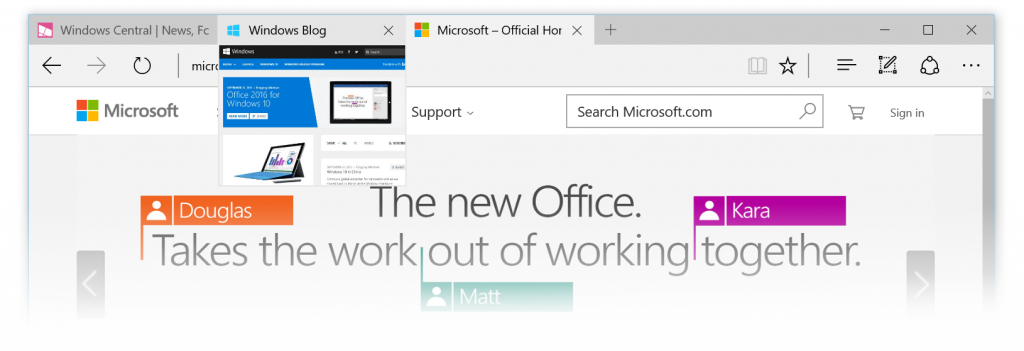
There’s a new tab preview bar, which makes it easier to find the tab you want, and the ability to set tabs aside, so you can come back to them later.
 
You can now launch new browser windows (regular and InPrivate) from the Edge taskbar icon and, as we mentioned previously, Flash has been made click-to-run.
 
Edge also gains preview support for the new Payment Request API so sites can use payment and shipping preferences stored in Microsoft Wallet. You can’t actually buy anything using this at this moment though.
 
Start Improvements
 
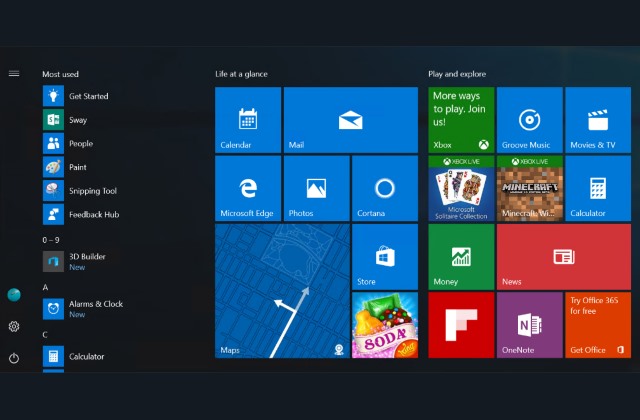
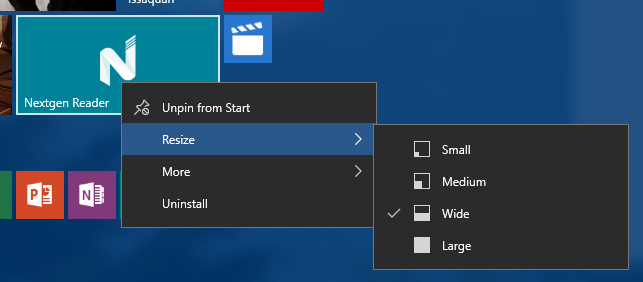
In this new build you can now group Start tiles into folders, which is a great idea. The process of creating a group is the same as in iOS -- just drag one tile on top of another.
 
The Windows Share experience has been redesigned too, including introducing 'ads' to the window…
 
OneNote 2016’s screenshot feature is now available in Windows 10, and there’s improved high-DPI support for desktop apps, which is a very welcome addition for those of us with large, high-resolution screens.
 
Window resizing is smoother now, and there have been improvements made to icon placement and scaling. VPN access has been made easier, and there’s now lunar calendar support for the Taskbar. I can hear you shouting 'Hooray' from here.
 
Cortana Improvements
 
What would a new Insider build be without changes and improvements to Cortana? In this build, discovery of Cortana’s app-specific commands has been made easier, there are more recurrence options for reminders, and the keyboard shortcut for invoking Cortana has changed to Win+C, which makes sense.
 
Windows Ink Improvements
 
For those of you who like scribbling in Windows (that includes me), Microsoft has introduced some improvements to the Windows Ink Workspace. The pen, pencil and highlighter now show which color is selected, and there’s the option to erase some of an ink stroke, rather than all of it.
 
Windows Defender Improvements
 
Windows Defender was given an app-makeover in the last build, and in this release there are new options to run quick, advanced and full scans, new device performance and health scans, and other changes. There’s also a Refresh Windows on demand option available to run directly from Defender should things start to go really bad.
 
Miscellaneous Improvements
 
Microsoft has made it easier to set up Windows 10, there are various Narrator improvements, and the introduction of Braille support in this build.
 
Settings has been made easier and faster to navigate, device settings have been updated, there are new display settings, and a lower blue light feature which will make using Windows at night more comfortable on the eyes.
 
There’s metered Ethernet connection support, and improvements to the precision touchpad experience.
 
Windows Personalization supports recent colors, and theme management is now available in Settings.
 
There are other changes to updates besides simply being able to pause them -- Windows 10 won’t attempt to install an update if it detects you’re using your PC for something like projecting the screen -- and you can decide whether or not to include driver updates when you update Windows.
 
Other changes, improvements, and fixes for PC include:
  • The 3D Builder app has been moved to the "Windows Accessories" folder on Start.
  • Fixed an issue where the display brightness keys on some devices weren’t working as expected.
  • Fixed an issue where the display may stay black after resuming from sleep if a USB display is connected.
  • Fixed an issue where opening an app that uses the camera, such as the Camera app, would sometimes result in a bugcheck.
  • Fixed a crash in the RPCSS service which in turn was resulting in some Insiders experiencing CRITICAL_PROCESS_DIED bugchecks on recent builds.
  • Fixed an issue for touch keyboards sometimes requiring multiple clicks to invoke on non-touch PCs.
  • Fixed an issue where Disk Cleanup would sometimes unexpectedly show 3.99TB worth of Windows Update Cleanup files.
  • Microsoft has updated its logic so if the Microsoft Edge window is narrow and Cortana has a tip, Cortana will only appear as an icon in the address bar.
  • Updated tooltips for the Microsoft Edge favorites bar to wrap around for longer website names rather than truncate.
  • Fixed an issue where Touchpad settings page via Settings > Devices > Touchpad wasn’t displaying an icon next to its name in the navigation pane.
  • Fixed an issue that may have resulted in a recent drop in Action Center reliability for Insiders.
  • Updated the Speaker Properties dialog to now allow you to configure Spatial Audio for different endpoints. If the current playback device has Spatial Audio enabled, the volume icon in the notification area will now indicate this.
  • Made some tweaks to the backend for how users connect to devices, such as Miracast displays and other PCs. Use the Connect UI (WIN+K) as you normally would, and file feedback if you encounter any issues.
  • Removed the rerouting of mspaint.exe to Paint 3D.
  • Fixed an issue Insiders may have experienced on recent builds where navigating to OneDrive folders could unexpectedly result in popup saying there had been a "Catastrophic Error".
  • Fixed an issue that could result in a Visual Studio crash when trying to open, add, or save a file.
  • Fixed an issue resulting in some Insiders using PCs with certain older chipsets from seeing colored boxes in the place of text and various other UI in UWPs apps.
  • When you use Miracast to a device that supports input (for example, an Actiontec Screenbeam or Miracast-enabled Windows 10 PC), you will now see a toast notification to help you enable input (touch, keyboard, etc) on that device.
  • Fixed an issue where the Home and End keys were unexpectedly not working in certain Settings pages, for example "Apps & features".
  • Fixed an issue that could cause some progress indicators in UWP apps to appear to wobble or glitch.
Known issues for PC include:
  • Opening Battery settings page via Settings > System > Battery will crash the Settings app.
  • The option to enable the Virtual Touchpad is missing from the taskbar context menu.
  • Cortana’s cross-device scenarios won’t work on this build (including notification mirroring, missed call, share photos, share directions, low battery, and find my phone).
  • Some websites in Microsoft Edge may unexpectedly show "We can’t reach this page". If you encounter this, please try accessing the site from an InPrivate tab.
  • Dragging apps from the all apps list to pin on Start’s tile grid won’t work. For now, right-click on the desired app in order to pin it.
  • Using CTRL + C to copy in Command Prompt won’t work.
  • When projecting to a secondary monitor, if you set the connection to "Extended", Explorer.exe may start crashing in a loop. If this happens, turn off your PC, disconnect the secondary monitor, then restart your PC.
  • The touch keyboard button may be unexpectedly missing from the taskbar. If this happens, open the taskbar context menu, and select "Show touch keyboard button".
  • You may see an error from Windows Hello saying “Couldn’t turn on the camera” on the lock screen.
  • Brightness changes made via Settings > System > Display will unexpectedly revert after closing the Settings app. For now, use either Action Center, power flyout or brightness keys to change the brightness
  • The list of apps in the Surface Dial "Add an app" page via Settings > Devices > Wheel may unexpectedly be empty. If that happens, tap the "Browse for an app" button at the bottom of the screen to pick the desired app instead.
  • Miracast sessions will fail to connect.
  • The Netflix app may display a black screen rather than the expected video content. As a workaround, you can use Microsoft Edge to watch video content from Netflix.
  • On certain hardware types (e.g.: Acer Aspire), the Netflix app crashes when starting a movie.
  • 3rd party UWP apps would crash on devices if the DPI settings on the machine are >=150 percent.
  • If you upgrade from Windows 8.1 directly to Build 15002, all your store apps are lost during upgrade process but you can go and re-download all the lost apps from the Store.
  • When using Microsoft Edge with Narrator, you may hear "no item in view" or silence while tabbing or using other navigation commands. You can use Alt + Tab when this happens to move focus away from and back to the Edge browser. Narrator will then read as expected.
  • Saying “Hey Cortana, play <item> on <AppName>” doesn’t work immediately after installing the app. Wait 5 minutes for indexing to begin and try again.
Photo credit: wavebreakmedia / Shutterstock
 
~ Wayne Williams

12.15.2016

No more Windows 10 Insider Preview builds until next year, but there is some good news

 
Microsoft has been rolling out new Insider Preview builds of Windows 10 on a weekly basis, with just one or two exceptions.
 
A new build was anticipated for this week, but the software giant isn’t happy with the choice of options, and didn’t want to risk pushing out an unstable release this side of Christmas.
 
While it does mean we won’t see any more new builds in 2016, Insider Chief Dona Sarkar has said the company will release an updated ISO for the Slow ring next week.
 
If you’re not on the Fast ring, or you want to join (or catch up on) the Insider Preview program, you’ll be able to use this for a clean install.
 
Microsoft released Windows 10 Insider Preview Build 14986 to the Slow ring a day ago, and it will likely be this one which you’ll you be able to download as an ISO. That build was rolled out to the Fast ring last week and includes a ton of changes and exciting new features. Read all about what’s new here.
 
Photo credit: charnsitr / Shutterstock
 
~ Wayne Williams

11.03.2016

Windows 10 Insider Preview Build 14959 -- Creators Update -- for Mobile and PC arrives on the Fast ring

 
It’s taken a few days longer than normal for a new build to arrive for Windows Insiders, but Build 14959 for both PC and Mobile finally makes its way onto the Fast ring.
 
This is the first new build since Microsoft announced the next big step in Windows 10’s evolution -- Creators Update. This is due to be released early next year, but Windows Insiders will get an early taste of all its new features and improvements.
 
In fact, if you’re a Windows Insider you’ll already have experienced some of what will become Creators Update through Build 14955, released last week. Dona Sarkar, Windows Insider chief, explains that "Windows is an iceberg, the features that people 'see' are quite a small percent of the engineering work that we do to enable new UI to be visible". So while the big new features revealed at the Windows 10 event last week won’t start rolling out for a few weeks yet, each new build lays the foundations for them.
 
Build 14959 is being published using Microsoft’s Unified Update Platform (UUP), and the biggest new feature to be detailed is the ability to control the display scaling of virtual machines on PC.
 
That’s not all though. Other improvements and fixes for PC include:
  • Fixed an issue for Insiders resulting in the automatic brightness setting unexpectedly being turned off after upgrading. In doing so, Microsoft re-enabled automatic brightness adjust for users that have never changed their auto-brightness setting. If you have already manually configured your auto-brightness setting, then this fix will not affect you. If you would like to enable or disable automatic brightness adjustment go to Settings > System > Display, where you can adjust your preferences.
  • Fixed an issue Insiders on domain connected PCs may have experienced where login might fail when the computer was disconnected from its domain network.
  • Fixed an issue resulting in certain apps, such as Outlook Mail and Calendar, failing to update for some Insiders with the error code 0x800700B7.
  • Fixed an issue for Insiders with certain device models where ejecting an SD card might result in a system crash.
  • Fixed an issue where disliking one of the Spotlight lock screen images would show the new image immediately, followed by a transition animation from the previous image to the new image.
  • Fixed an issue where launching an app from another app while in Tablet mode no longer launched it side by side, and instead launched it fullscreen (for example, when launching a web link from the MSN News app).
Known issues for PC include:
  • If you have a 3rd party antivirus product installed on your PC -- your PC might not be able to complete the update to this build and roll-back to the previous build.
  • Microsoft is aware of an issue where Internet Explorer may crash a few seconds after launch and working.
As for Mobile, improvements and fixes include:
  • The data usage page in Settings via Settings > Network & wireless > Data usage has been updated with performance and UI improvements.
  • Fixed issues preventing Insiders from adding cards to Wallet and paying using tap to pay.
  • Fixed an issue resulting in being unexpectedly able to close Start in the task switcher.
  • Fixed an issue resulting in certain options for default calling app via Settings > System > Phone > Default apps from being unexpectedly missing.
  • Fixed an issue causing apps that play media in the background, such as Groove Music, to stop when Battery Saver turns on.
  • Fixed an issue Insiders may have experienced where the phone would get into a state where copy/paste wouldn’t work until the device had been restarted.
  • Fixed an issue where Settings might hang after unchecking "Let apps automatically use this VPN connection" in VPN Settings.
Known issues for Mobile include:
  • If you used the previous ‘date change’ workaround to update to Build 14951 or Build 14955: Don’t use it any longer! The Microsoft account (MSA) ticket on your device needs to expire and then you’ll be offered today’s build. If you changed your date by 30 years… you’ll want to do a device reset.
  • You will be unable to install additional languages, keyboards, and speech packs on your phone for the next few weeks. If you have existing languages, keyboards, and speech packs installed -- they will carry over when you update to new builds. You just can’t install any new ones. If you do a hard reset of your phone on these builds -- you will also be unable to install additional languages, keyboards, and speech packs. You can use Windows Device Recovery Tool to go back to Windows Phone 8.1 or Windows 10 Mobile, install any languages, keyboards, and speech packs you need and then update to the latest build in the Fast ring as a workaround.
Photo credit: charnsitr / Shutterstock
 
~ Wayne Williams

7.10.2016

Bug fixes aplenty in surprise Windows 10 Insider Preview Build 14385 release

 
It might be the weekend, but the code monkeys at Microsoft doesn’t let a small detail like that stand in the way of work. The release of Windows 10 Anniversary Update is now within spitting distance, and the Insider builds are being pushed out thick and fast.
 
Today Dona Sarkar announced the launch of Windows 10 Insider Preview Build 14385 for PC and Mobile. As we're so close to launch day, it should come as no surprise that this is a bug fix release -- but there are plenty of them. There are also some extra performance tweaks thrown in for good measure.
 
Surface users have improved battery life to look forward to, and anyone who has been pestered with a message about the end of the Windows evaluation period will be pleased to hear that these notifications have been killed. The desktop build gets much more attention than the mobile build; here are the improvement you will find, as shared by Microsoft:
 
Improvements and fixes for PC
You should no longer see a notification pop-up once a day saying that your Windows evaluation copy expires on 7/15/2016. I know this has caused a lot of you some angst so thank you for being patient.
We have improved battery life for Surface devices.
We fixed an issue resulting in Spotify sometimes crashing while playing music.
We fixed an issue resulting in the Google Chrome window being clipped on the top when maximized.
We fixed an issue with Mobile Hotspot that could result the host device bug-checking (bluescreen) and rebooting if it was sharing on a 5GHz band and the connected device browsed to certain websites.
We fixed an issue where the pin prompt shown when connecting to certain VPNs would display behind the other open windows.
We fixed an issue resulting in LastPass and AdBlock extensions for Microsoft Edge not showing the expected context menu items or status information in subsequently opened Edge windows. We also fixed an issue where the current tab in Edge might hang after exiting Web Notes.
Projecting to a PC auto-discoverability is off by default. To have your PC beacon so it can be discovered and you can project to it through the Connect quick action from a Continuum enabled phone or another PC, go to Settings > System > Projecting to this PC and set “Windows PCs and phones can project to this PC when you say it’s OK” to “Available everywhere” or “Available everywhere on secure networks”. You can also set other settings on this page to your preference.
Improvements and fixes for Mobile
You can open PDFs in Microsoft Edge and use touch to interact with the PDF (such as scrolling, pan or zoom) again without it constantly reloading the PDF.
We have improved battery life for older devices, such as the Lumia 830, 930, and 1520.
We fixed an issue where setting the SIM name on a dual SIM phone would sometimes fail.
There are still a few issues to watch out for, and you can find out about these on the Windows blog.
 
Photo credit: charnsitr / Shutterstock
 
~ Mark Wilson

7.01.2016

Microsoft announces Windows Insider MVP Program

 
If you are a die-hard Microsoft fan, there is one designation that would probably put you over the moon -- MVP. Yeah, many people want to be considered a most valuable person, but not everyone gets the nod.
 
Today, the new queen of the Windows Insider program, Dona Sarkar, makes an exciting announcement. You see, there is a new category that will focus specifically on Microsoft's operating system -- 'Windows Insider MVP Program'.
 
"Last October, we announced a restructuring of the Microsoft MVP Program to focus on Developers and IT Professionals. As part of that restructuring, we mentioned that the consumer MVP award categories would be supported directly by the product teams. Today we are excited to announce the Windows Insider MVP Program – the new home for our MVPs focused on Windows and Devices for consumers", says Dona Sarkar, Software Engineer, Windows and Devices Group.
 
Sarkar further says, "our Windows and Devices consumer MVPs are super important to us and we have been working these past several months to figure out the right home for them. It was a thoughtful decision to bring these MVPs into the Windows Insider Program, where the future of Windows is being shaped directly by the people who use Windows most. The Windows Insider MVP Program allows us to work more closely with MVPs via more focused, direct interactions with various Windows and Devices product teams".
 
For existing Microsoft MVPs that focus on Windows, the company will begin transitioning them soon. If you are such a person, and you are worrying about it being rocky, don't -- Microsoft should make it an easy move.
 
If you want to get this newly-announced and likely-coveted Windows Insider MVP Program designation, you must wait until next year. Sorry! Microsoft promises to supply more details for new members in the fall.
 
Photo Credit: Tashatuvango/Shutterstock
 
~ Brian Fagioli

Microsoft sets off fireworks with Windows 10 Insider Preview Build 14379 for PC and Mobile

 
Fourth of July is coming up this Monday, and tomorrow is Friday. This is significant in the business world, as many folks transform a three-day weekend into four by taking off the Friday before a holiday. In other words, it is a great way to get a mini-vacation while only sacrificing a single vacation day.
 
Apparently, Dona Sarkar and team are getting an early start on celebrating USA Independence. In anticipation of the extended weekend, she is setting off some fireworks -- figuratively speaking, that is. Today, Microsoft releases Windows 10 Insider Preview Build 14379 for PC and Mobile to the fast ring.
 
"We in Redmond are about to take off for the long weekend to celebrate the 4th of July weekend, BUT before then we wanted to give you what we’ve been working on. Today we are releasing Build 14379 for both PC and Mobile to Windows Insiders in the Fast ring with another batch of bug fixes based on feedback", says Dona Sarkar, software engineer, Windows and Devices Group.
 
Sarkar shares the following changes.
Improvements and fixes for PC
  • We fixed an issue where the size of the Credential UI might not be big enough to display the contents on a PC with High DPI.
  • We fixed an issue where Action Center might crash after dismissing a large number of notifications.
  • We fixed an issue where Centennial app launches from Start or Cortana wouldn’t count towards those apps bubbling up in Start’s “Most used” list.
  • We fixed an issue where no note would have keyboard focus after minimizing then reopening the Sticky Notes app.
Improvements and fixes for Mobile
  • We fixed an issue that could result in a stray focus rectangle becoming visible in certain apps, such as Groove or Cortana, after bringing up the keyboard.
  • We fixed an issue where the aspect ratio of images on live tile wasn’t preserved if they need to be shrunk, leading to them appearing stretched.
Known issues for PC
  • Using Continuum from your phone on your PC via the Connect app will not work. This should be fixed in the next build.
Known issues for Mobile
  • You can open PDFs in Microsoft Edge but won’t be able to use touch to interact with the PDF (such as scrolling, pan or zoom). When you try to use touch to interact with a PDF, it will constantly reload the PDF.
  • We’ve heard you and we are investigating decreases in battery life on older devices such as the Lumia 830, 930, and 1520.
  • We’re also investigating Wi-Fi disconnect issues – if you are experiencing an issue with your Wi-Fi disconnecting, please see this forum post and make sure to upvote Wi-Fi disconnecting issues in the Feedback Hub.
  • REMINDER: We have changed the backup format for Windows 10 Mobile devices to reduce the size of the backup stored in OneDrive. As a result, if you do a backup on a device running the latest Windows 10 Mobile Insider Preview builds and move back to the released version of Windows 10 Mobile (Build 10586) and restore from your backup – your Start screen layout won’t restore and remain the default Start layout. Your previous backup also gets overwritten. If you need to go back to Build 10586 temporarily, once you are on Build 10586 you should disable backup so it doesn’t overwrite the good backup from Windows 10 Mobile Insider Preview builds.
Microsoft is going a bit overboard with builds lately -- I'm sure some Insiders are feeling fatigued. Then again, some fans of the company and its products would likely argue that they cannot get enough. If you do install the latest build, please head to the comments below and tell us how it is.
 
Photo Credit: vectorfusionart/Shutterstock
 
~ Brian Fagioli

6.29.2016

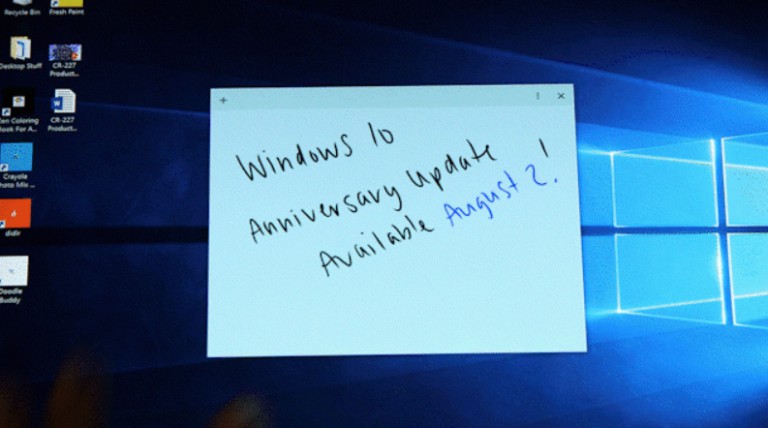
Microsoft confirms Windows 10 Anniversary Update is coming August 2 -- here's what’s new

 
Yesterday, Microsoft accidentally leaked the news that the eagerly awaited Windows 10 Anniversary Update is now set to arrive on August 2, and today the software giant confirms the news, along with details of what to expect from the update.
 
If you’re a Windows Insider, or have been following news of the various Insider Preview builds, you’ll know there’s a lot of new features and improvements in the update.
 
Here are some of the headline changes:
  • Revamped Start menu -- The All Apps list is now permanently on display, and a small sidebar provides links to Power, File Explorer and Settings.
  • Edge improvements -- As well as support for extensions (such as Pinterest’s "Pin It Button", Amazon Assistant, AdBlock, AdBlock Plus and LastPass), there’s a new history menu, and the browser can automatically clear browsing data when you exit it.
  • Windows Ink -- This new addition lets you draw on your computer desktop and programs using a stylus or your finger, and add smart sticky notes.
  • Cortana improvements -- You’ll be able to use the digital assistant from the lock screen, and it will be easier to search for music and Office 365 documents too. Microsoft says there are now over 1,000 Cortana apps available in the Windows Store
  • GNU Bash shell -- A Ubuntu command line inside Windows 10. Only really something developers will care about, but it’s a big inclusion.
  • Limited Periodic Scanning mode -- This sets Windows Defender to scan your PC at intervals, even if you have another anti-virus program installed, providing a useful second line of defense.
  • Updated apps -- Most of the pre-installed apps have had improvements made to them.
 
If you have yet to upgrade to Windows 10, will you be doing so before the free upgrade offer ends on July 29? What new features have got you most excited for the Anniversary Update? Let us know in the comments below.

~ Wayne Williams
6.24.2016

Windows 10 Insider Preview Build 14372 for PC and Mobile arrives on the Fast ring

 
Windows 10 Insider Preview builds are coming thick and fast now in preparation for the Anniversary Update on 29 July.
 
We had a new build on Tuesday (Build 14371), and today Windows Insider chief Dona Sarkar has pushed the button on another new release -- Build 14372 for PC and Mobile. That’s just one build newer, but includes fixes designed to improve overall performance and reliability. But that’s not all.
 
Included with this build is a new extension -- Evernote Web Clipper for Microsoft Edge. This allows you to clip the web pages you want to keep, save them in Evernote and easily access them on any device.
 
Alongside all the bug fixes in this release, Microsoft details the known issues for both PC and Mobile. PC first they are:
  • Clicking on networks or VPN connections in the network flyout on the taskbar doesn’t launch the network settings page like it should.
  • There are a few known issues with the Evernote Web Clipper extension for Microsoft Edge. The Evernote Web Clipper might not load on certain websites and there is no thumbnail image when clipping bookmarks. There are also various visual issues.
  • When you enable Developer Mode in this build, you will receive an error message because the necessary package needs from Windows Update isn’t being published appropriately. This will prevent you from using Device Portal. Microsoft is working to get this fixed as soon as possible. You can still F5 deploy apps from Visual Studio to your PC.
And for Mobile:
  • Microsoft has changed the backup format for Windows 10 Mobile devices to reduce the size of the backup stored in OneDrive. As a result, if you do a backup on a device running the latest Windows 10 Mobile Insider Preview builds and move back to the released version of Windows 10 Mobile (Build 10586) and restore from your backup -- your Start screen layout won’t restore and remain the default Start layout. Your previous backup also gets overwritten. If you need to go back to Build 10586 temporarily, once you are on Build 10586 you should disable backup so it doesn’t overwrite the good backup from Windows 10 Mobile Insider Preview builds.
  • Microsoft is investigating decreases in battery life on older devices such as the Lumia 830, 930, and 1520 (devices with SoC 8974 chipsets).
  • It is also investigating Wi-Fi disconnect issues -- if you are experiencing an issue with your Wi-Fi disconnecting, please see this forum post and make sure to upvote Wi-Fi disconnecting issues in the Feedback Hub.
Photo credit: charnsitr / Shutterstock
 
~ Wayne Williams
6.08.2016

Windows 10 Insider Preview Build 14361 for PC and Mobile now available in the Fast ring

 
It’s been a couple of weeks since we last had a new Windows 10 Insider Preview build released to the Fast ring, but today the wait is over as new Windows Insider chief Dona Sarkar has pushed the button to roll out Build 14361 for both PC and Mobile.
 
This new release includes new features, some improvements to existing features, and plenty of fixes. The release date for the big Windows 10 Anniversary Update is edging ever nearer, so the quest is on to fix as many problems as possible before then.
 
As you might expect, the new additions aren’t that exciting, but they do include a LastPass extension for Microsoft Edge, and Hyper-V Container which will let you use Docker natively on Windows 10.
 
A raft of improvements have been made to Windows Ink, and there have also been improvements made to the Settings app as well, including changes to the colors so it's more obvious whereabouts you are. Jumping to the Settings homepage has been made easier now too.
 
The Blu-ray icon has been updated, which is exciting for those people who a) like icons and b) have a Blu-ray drive. The Network Quick Action icon has been updated as well.
 
Other improvements and fixes for PC include:
  • Fixed the issue causing keyboard navigation in Store apps like Netflix or Tweetium to not work.
  • Fixed the issue causing certain websites like YouTube to fail to render in Microsoft Edge or IE due to a recently implemented feature called TCP Fast Open.
  • Fixed an issue resulting in a strange gray bar frequently being seen on the left side of the Microsoft Edge browser window (for example, after invoking a context menu).
  • The window of active hours for when you are using your PC has been increased from 10 to 12 hours under Settings > Update & security > Windows Update and "Change active hours".
  • Updated the download notification in Microsoft Edge to include filename, download status, and site domain on separate lines.
  • Fixed an issue that would cause the icons to disappear from the tabs in Microsoft Edge after the DPI change corresponding with remotely connecting to the PC via Remote Desktop.
  • Fixed an issue where DNG file thumbnails were not displaying in File Explorer.
  • Polished the appearance of Start by reducing the amount of whitespace at the top of Start, and adding logic so that the scrollbars will immediately hide once your mouse is no longer hovering over that area. Also fixed an issue resulting in clipping on the bottom or side of Start’s context menus.
  • Fixed an issue where pressing the Enter key would not submit the Wi-Fi password in the network flyout from the taskbar.
  • Decreased the size of icons used in notifications from 64×64 to 48×48 -- maintaining the visibility, while improving the use of space in the Action Center.
  • Improved the reliability of Cortana’s listening after tapping the mic button and fixed an issue that resulted in focus being lost to Cortana’s search box after a typed search has been deleted via backspace.
  • Updated Windows Defender to not show recap notifications in normal mode if no scans have been run, or in scan-only mode if no threads have been found.
  • Fixed an issue that resulted in certain apps, such as Photos, not being able to set the desktop background.
  • Going forward from Build 14361, your Task Manager settings will now be preserved across build updates.
  • Fixed an issue where Start wouldn’t dismiss after launching Sticky Notes, leading to Sticky Notes appearing behind Start.
  • Fixed an issue resulting in not being able to set your account picture in Settings using the camera option.
  • Added a keyboard shortcut for opening the taskbar’s clock and calendar flyout -- this shortcut is WIN + Alt + D.
  • Fixed an issue where Command Prompt wasn’t maximizing correctly on high DPI monitors. We also fixed an issue where Command Prompt wouldn’t refresh the windows properly when doing an upwards Ctrl + F search with a long output of text.
  • Fixed an issue where the taskbar’s volume icon was showing incorrect states for 0 percent and muted.
  • Fixed an issue where applying a new save location on the Storage Settings page for any one file type would result in any other pending save location changes being lost.
With this being a Fast ring release there are of course still quite a few known issues to be aware of. These include:
  • If you have a French Windows 10 Insider Preview build installed on your PC, you will not receive Build 14361. There is an issue with the French translation process in this build that would revert a lot of text that was used to be shown in French back to English. So Microsoft has chosen not to release this build to Insiders whose base build is French. If your base build is not French and you have a French Language Pack installed -- you will still be able to install the new French language pack on top of this build, but this issue will also impact you.
  • Text prediction using the Japanese IME will freeze your PC. To avoid this issue and continue using the Japanese IME, we recommend turning off text prediction. You can do this by right-clicking IME mode icon "A" or "あ" in systray and selecting "Properties", clicking "Advanced", and navigate to the "Predictive Input" tab and check off "Use predictive input system". You can turn on prediction feature again by checking it on.
  • Navigating to the Privacy pages in Settings app will crash the Settings app and prevent you from adjusting your privacy settings. Your privacy settings already set will remain intact after updating to this build. If this is a blocker for you, you can move to the Slow ring until this bug is fixed or be sure to set your privacy settings before updating to this build.
  • If you click on a file download link, it will open a tab and close it without doing anything in Microsoft Edge. The workaround is to go to the Download pane and start the download there by clicking "Save" or "Save As".
  • For certain languages, such as Chinese or Portuguese (Brazil), you will not be able to launch Start while an app is installing.
Photo credit: charnsitr / Shutterstock
 
~ Wayne Williams
5.27.2016

Windows 10's new Limited Periodic Scanning mode will keep your PC extra safe from malware -- here's how to use it

 
While there’s a lot of negativity surrounding Windows 10 at the moment, thanks mostly to Microsoft’s shady upgrade tactics, it is actually a very good operating system.
 
The upcoming Windows 10 Anniversary Update, out at the end of July, improves the OS significantly, introducing a wealth of new features, and one of the latest inclusions to be made available for Windows Insiders to try is Limited Periodic Scanning. This sets Windows Defender to scan your PC at intervals, even if you have another anti-virus program installed.
 
In other words, it uses Windows Defender as a second line of defense, without interfering with your primary AV software.
 
If you’ve ever been annoyed by a Windows 10 Update kicking in at an inappropriate time (as this pro-gamer was), then you might be concerned that this addition will cause Windows to start scanning your PC when you don’t want it to, but that won’t be the case.
 
In the Anniversary Update, Microsoft is introducing something called Automatic Maintenance, which ensures updates only happen at a time that won’t impact on your PC usage (in the middle of the night, for example). Limited Periodic Scanning uses this, so hopefully you won't even notice it in action.
 
Get Started
 
The feature is disabled by default. To use it, firstly make sure you’re running Windows 10 Insider Preview Build 14352, and then go to Settings > Update & Security > Windows Defender and turn Periodic Scanning on.
 
Don't see it? You need to have a third-party antivirus scanner installed and listed in the Security and Maintenance Control Panel applet of Windows for the new feature to be available.
 
 
Once it’s enabled, it will get on with things in the background, and you can see scanning and threat information in the Windows Defender interface. If a threat is detected, you’ll be told about it via a Windows 10 notification and will be able to click this to find out more.
 
 
Anything which can help keep users safe without annoying them, and which can be easily enabled or disabled, is a good thing in my book, so this is a very welcome inclusion.
 
The new feature is aimed at consumers, but may also be made available for commercial users in the future.
 
Photo Credit: Georgejmclittle/Shutterstock
 
~ Wayne Williams

4.25.2016

A hands-on guide to Windows 10's Anniversary Update Start menu

 
Microsoft has implemented lots of changes to Windows 10 in readiness for the big Anniversary Update due for release in July. If you’re a Windows Insider then you’ll likely have already played around with new features such as Windows Ink, Bash on Ubuntu, Extensions on Edge, and so on.
 
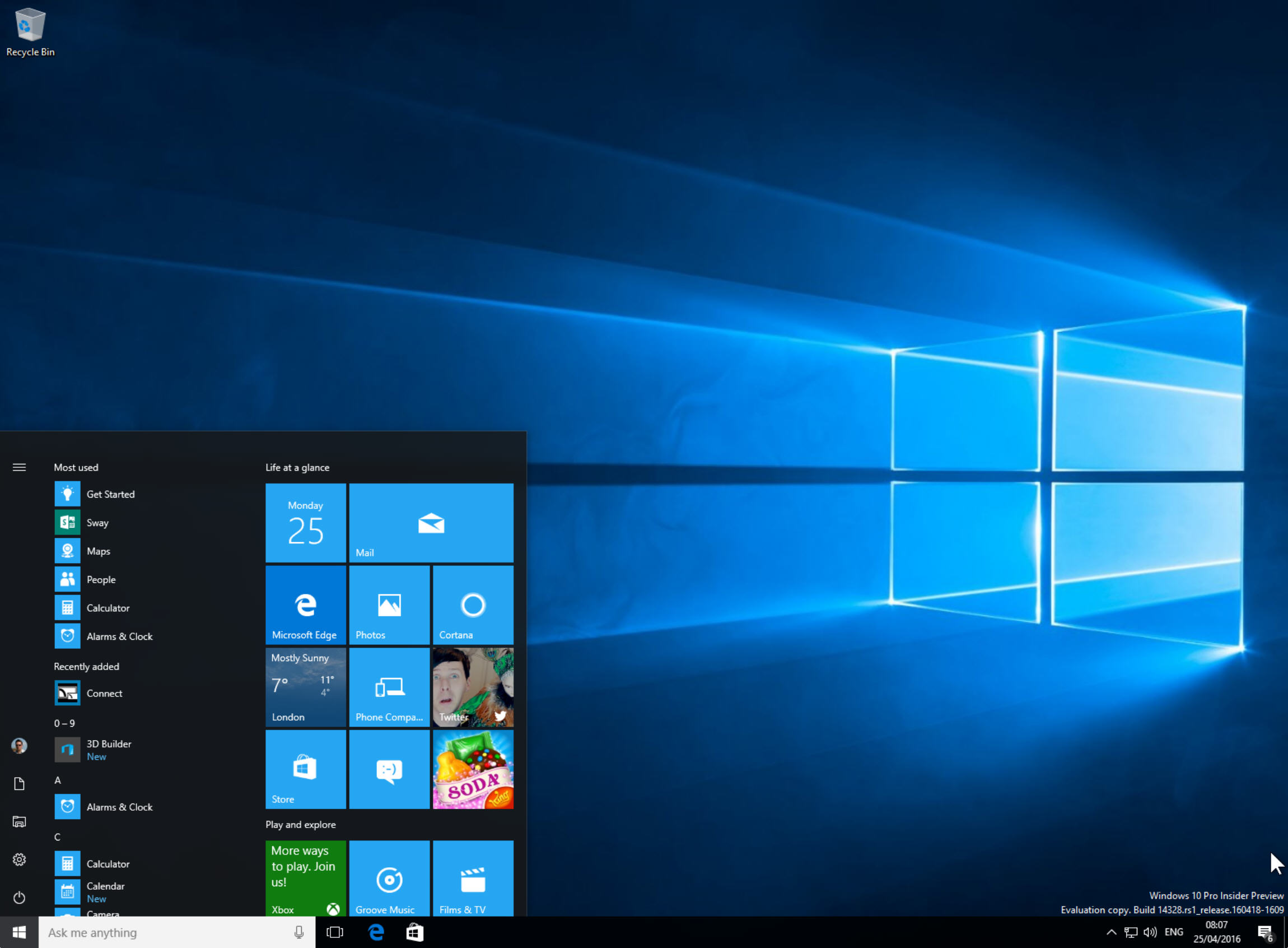
The latest Windows 10 Insider Preview release, Build 14328, introduces some major -- and very welcome -- tweaks to the Windows 10 Start menu. Here’s a detailed guide to the changes.
 
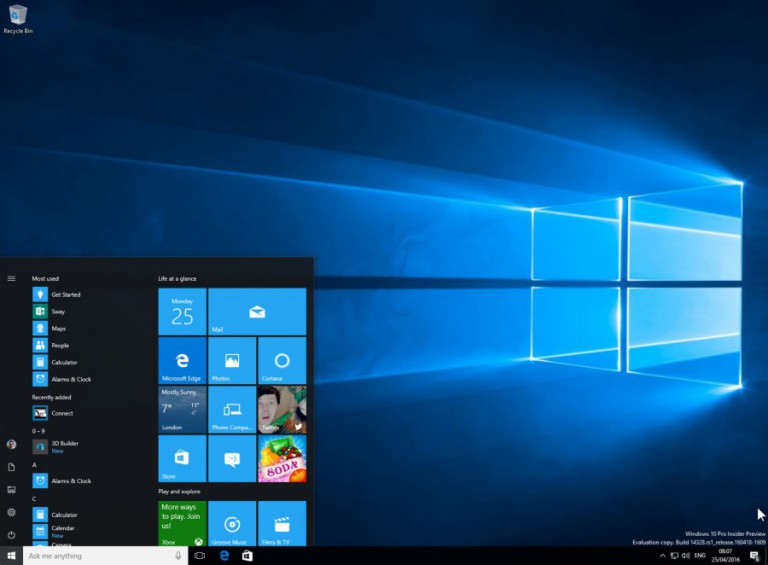
The first thing you’ll notice when you click the Start button is installed apps have been moved front and center. No more having to click on All Apps to find a particular item (personally I always prefer to search for an app, rather than use the menu, but this might change now).
 
The list of apps is presented alphabetically, and you can scroll down to find the one you want.
 
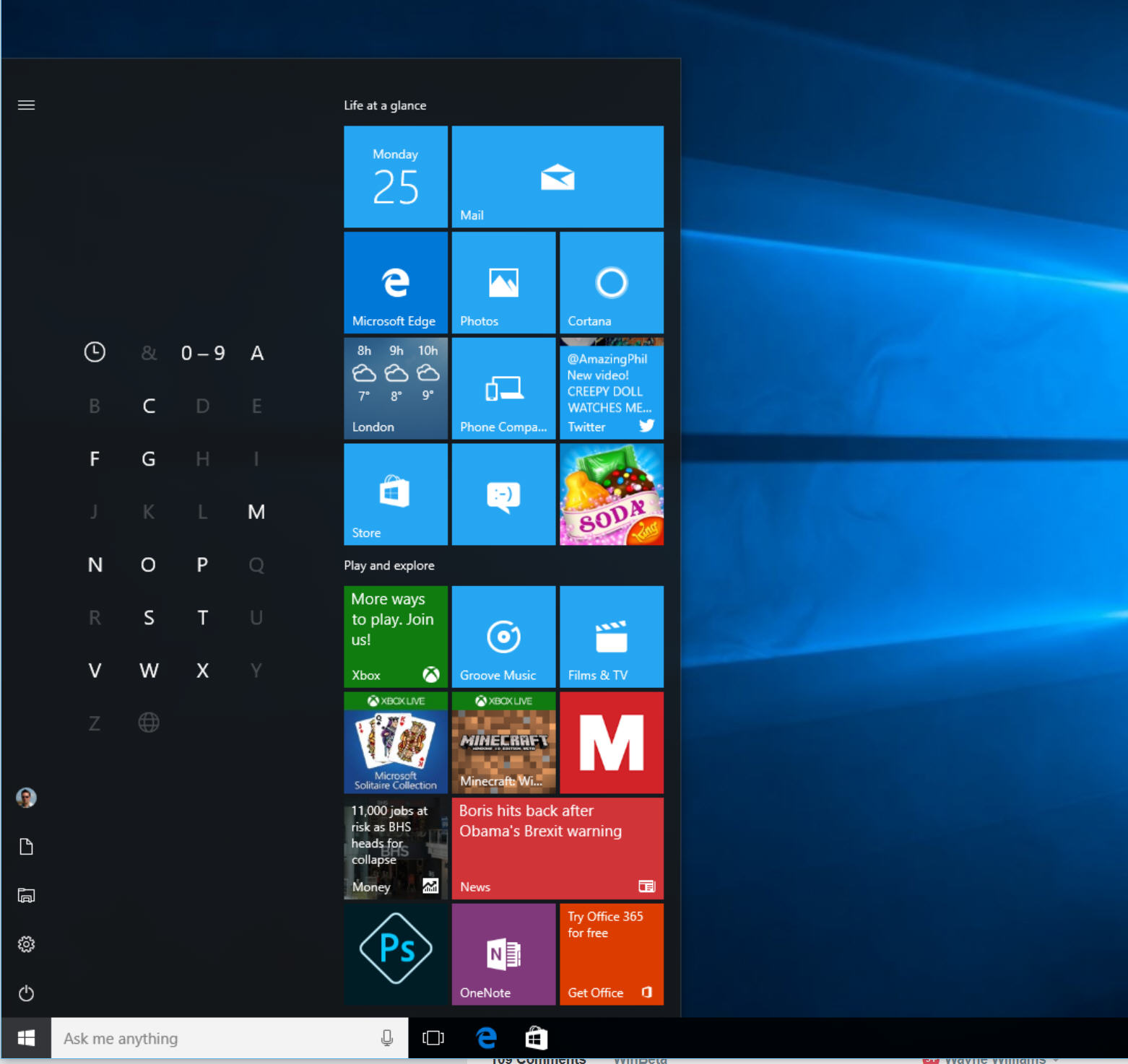
Alternatively, if you have a lot of apps installed, you can just click on any of the menu headings (such as one of the letters or Recently added) and jump straight to a particular section using the A-Z view.
 
 
Right-clicking an app you use regularly will let you pin it to the tiled section on the right.
 
Above the apps list, at the very top, is a Most used section, which to begin with includes Get Started, Sway, Maps, People, Calculator, and Alarms & Clock.
 
Underneath that is Recently added. This shows the last app you installed, but can now display up to three new items.
 
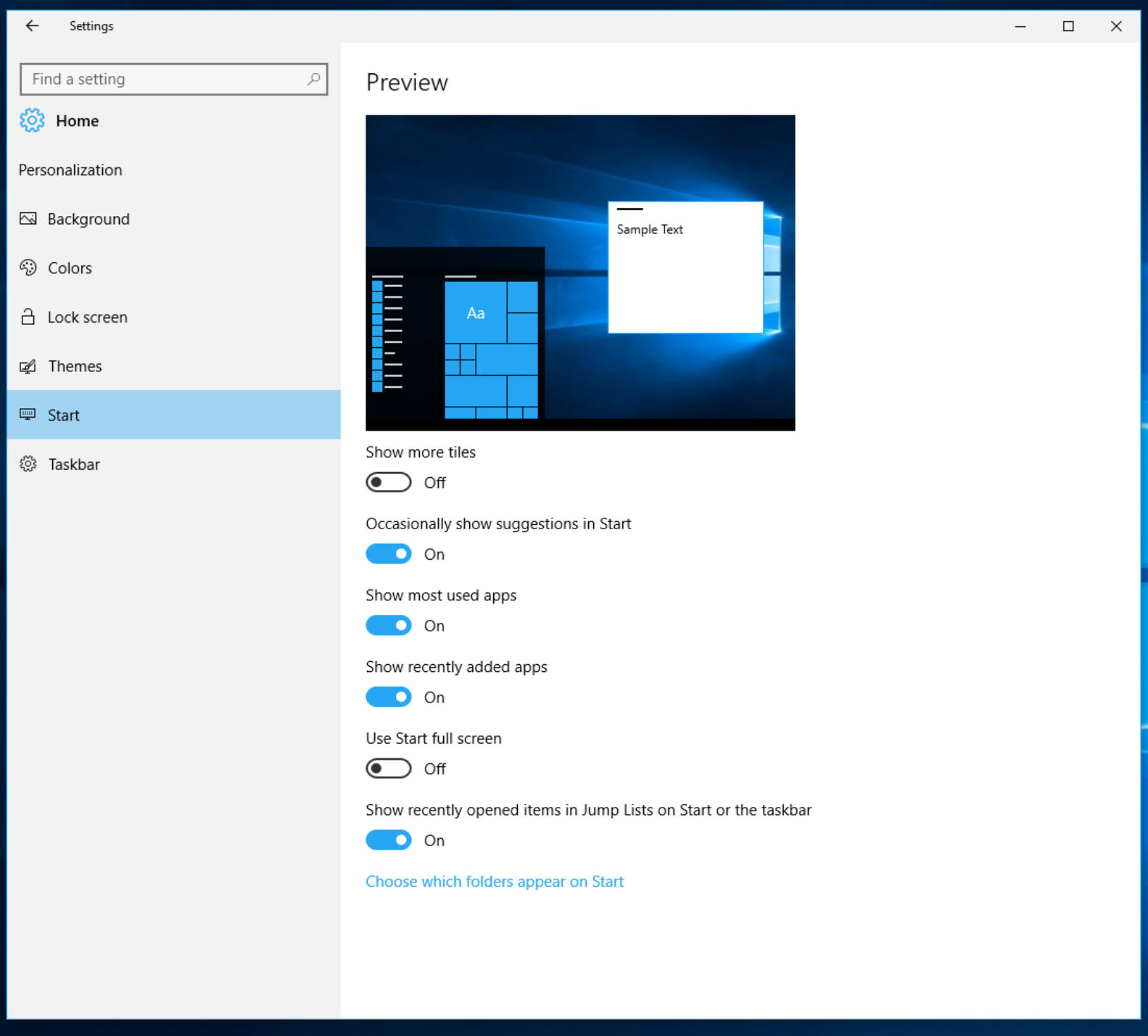
The little sidebar to the left of the menu gives you quick access to your account (you can change account settings, Lock and sign out from there), File Explorer (which has been removed from the Taskbar for space reasons) and Settings. The Shutdown button has also been moved to here, and clicking it will let you choose the action you require. This little bar stays visible at all times and you can customize it through Settings > Personalization > Start. Scroll down to the bottom and click Choose which folders appear on Start. You can add Documents, Downloads, Music, Pictures, Videos, HomeGroup, Network, and Personal folder.
 
The Settings menu also lets you choose to toggle various options on or off, including
  • Show more tiles
  • Occasionally show suggestions in Start
  • Show most used apps
  • Show recently added apps
  • Use Start full screen
  • Show recently opened items in Jump Lists on Start or the taskbar
 
Tiles on the right of the Start menu can be reordered, resized and removed as before, and of course you can resize/reshape the menu itself by clicking and dragging. If you prefer a long list of apps, extend the menu downwards.
 
Personally I think these changes really help to improve the Start menu, but you may disagree. Let me know what you think in the comments below.
 
~ Wayne Williams

4.04.2016

New Start Menu features on the way in Windows 10 Anniversary Update

 
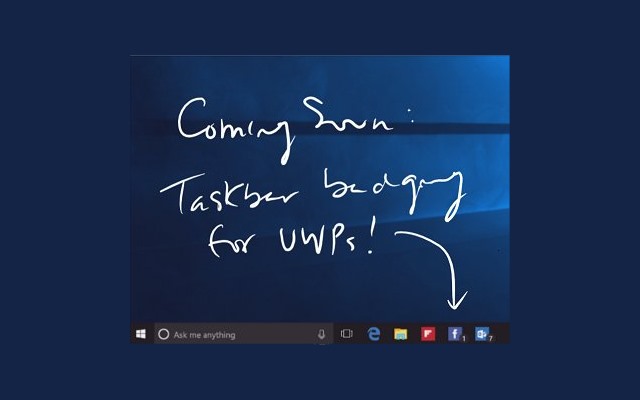
Windows Insiders will soon be able to try out a new Start Menu when preview builds of Windows 10 Anniversary Update begin to roll out. We already know some of what to expect from this big update to Windows 10 -- such as badge notifications in the taskbar for UWP apps -- and now we can see what the updated Start menu looks like too.
 
The same Microsoft software engineer who shared details of badge notifications -- Jen Gentleman -- has posted an animated GIF to Twitter that shows the Start Menu in action. There are a few notable changes in the updated version, including a nested hamburger menu.
 
As the new Start Menu is only currently being tested internally at Microsoft and is yet to roll out even to Windows Insiders on the Fast ring, it's entirely possible that things will change over the coming weeks. That said, the animation does give an intriguing insight into the ideas that Microsoft is playing with.
 
Ms Gentleman's tweet may only be a few seconds long, but it has generated a good deal of interest:
The hamburger menu is used to house the icons that currently appear in both the All Apps and 'Most used' sections. The redesign also helps to provide easy access to system folders such as Music and Documents. There are also changes on the cards for the Start screen as the Feedback Hub reveals:
Start menu: This view is predominantly designed for PC. We've heard your feedback, and we’ve focused on consistency, efficiency, simplicity, and making better use of the space.
The All apps list is essential to understanding which apps you have on your device. We’ve elevated this list to the top level of the UI to reduce clicking & scrolling. This makes it easier to access apps in the All Apps list. It also reinforces the consistent Start experience across form factors.
Start screen: This view is predominantly designed for tablet. We've heard from Insiders that they feel Windows 8.1 start screen delivered a better tablet experience than what we have in Windows 10 today. We are addressing that and are looking to make the All apps list more usable in two ways:
  1. Full-screen All apps list in tablet mode. We heard your feedback that the All apps list should be full-screen in tablet mode and explored several designs that aid efficiency while taking advantage of the additional real estate when Start is full screen. Specifically, we’re striking a balance between density and "scan-ability" (i.e. how easy it is to scan the list to find the app you want).
  2. A combined "Most used" and "All apps" list view. With this approach, we hope to address the confusion that many users felt with the two very similar list views ("Most Used" and "All apps").
As part of this improvement, we’ve also made it easier and more clear how to switch between the "Pinned Tiles" and "All apps" views by adopting the navigation pane pattern used throughout Windows.
Microsoft is looking for feedback about this change just as it has done with other new features of Windows 10, and you can provide your thoughts via the Feedback Hub and find out more on Sway.
  
~ Mark Wilson

4.03.2016

Windows 10 Anniversary Update to bring badge notifications to the taskbar

 
The idea of badges is a very familiar concept on mobile phones. A little numerical overlay on app icons provides at-a-glance info about the number of notifications there are to look at for different apps and services. Now Microsoft has revealed that the same feature is coming to the desktop.
 
Among the changes in Windows 10 Anniversary Update are taskbar badge notification for Universal Windows Platform apps. This new style of notification joins improved toast notifications and changes to the Action Center. Developers will be able to try out the feature soon, and we've got a sneaky glimpse of how things will look.
 
As with so many of the announcements to come out of Build 2016, Microsoft has not said exactly when this feature will actually see the light of day. Of course, it's Windows Insiders who will be able to try badges in action first, and with Windows 10 Anniversary Update pegged for a late summer release, it shouldn’t be long before we get to see a preview.
 
In the meantime, we can content ourselves with an image shared on Twitter by Microsoft software engineer Jen Gentleman:
It's a feature that has been a very long time coming. It's worth noting that taskbar icons have long been updatable to indicate the number if notifications that are pending, but the new system for UWP apps should make the process simpler and more widespread.
 
Photo credit: Jen Gentleman
 
~ Mark Wilson

4.01.2016

Windows 10 Insider Preview Build 14295 ISOs now available for download

 
A week ago, Microsoft released a new Windows 10 Insider Preview build for PC and Mobile. While Build 14295 isn’t the most exciting of releases, it does include a lot of notable bug fixes and Microsoft deems it stable enough for the Slow ring which is welcome news for any Insiders not on the cutting edge.
 
There’s also good news for anyone struggling to update their existing Insider Preview build through Windows Update (or for anyone wanting to do a fresh install or try out the new build in a virtualized environment) as Microsoft has just made Build 14295 available for download in ISO format.
 
It’s important to remember, that while Build 14295 is mostly just bug fixes, it follows on from Build 14291 which delivered extensions to Microsoft Edge, as well as pinned tabs and other Edge enhancements. There was an updated Maps app, and a wealth of other changes (including the introduction of a new Feedback Hub) in that build too.
 
If you’re not currently running Build 14295 you can download the ISOs for it from this link. You’ll need to be a Windows Insider, but you can join the program if you’re not already part of it.
 
Once you’ve downloaded the ISO you can burn it to DVD or write it to a USB flash drive, and install it.
 
Photo credit: charnsitr / Shutterstock
  
~ Wayne Williams

3.19.2016

Windows 10 Insider Preview Redstone Build 14291 delivers extensions to Microsoft Edge and other new features

 
Microsoft is having a very busy Thursday. As well as beginning the long-awaited rollout of Windows 10 Mobile, the software giant has also pushed the button on a new PC build for Insiders on the Fast ring.
 
Fast ring updates sometimes offer new features, but other times it’s just tweaks to the core and bug fixes. Windows 10 Insider Build 14291 is one the more noteworthy updates, finally delivering the long awaited extensions in Microsoft Edge, as well as pinned tabs and other Edge enhancements. There’s also an updated Maps app, and a wealth of other changes, including the introduction of a new Feedback Hub.
 
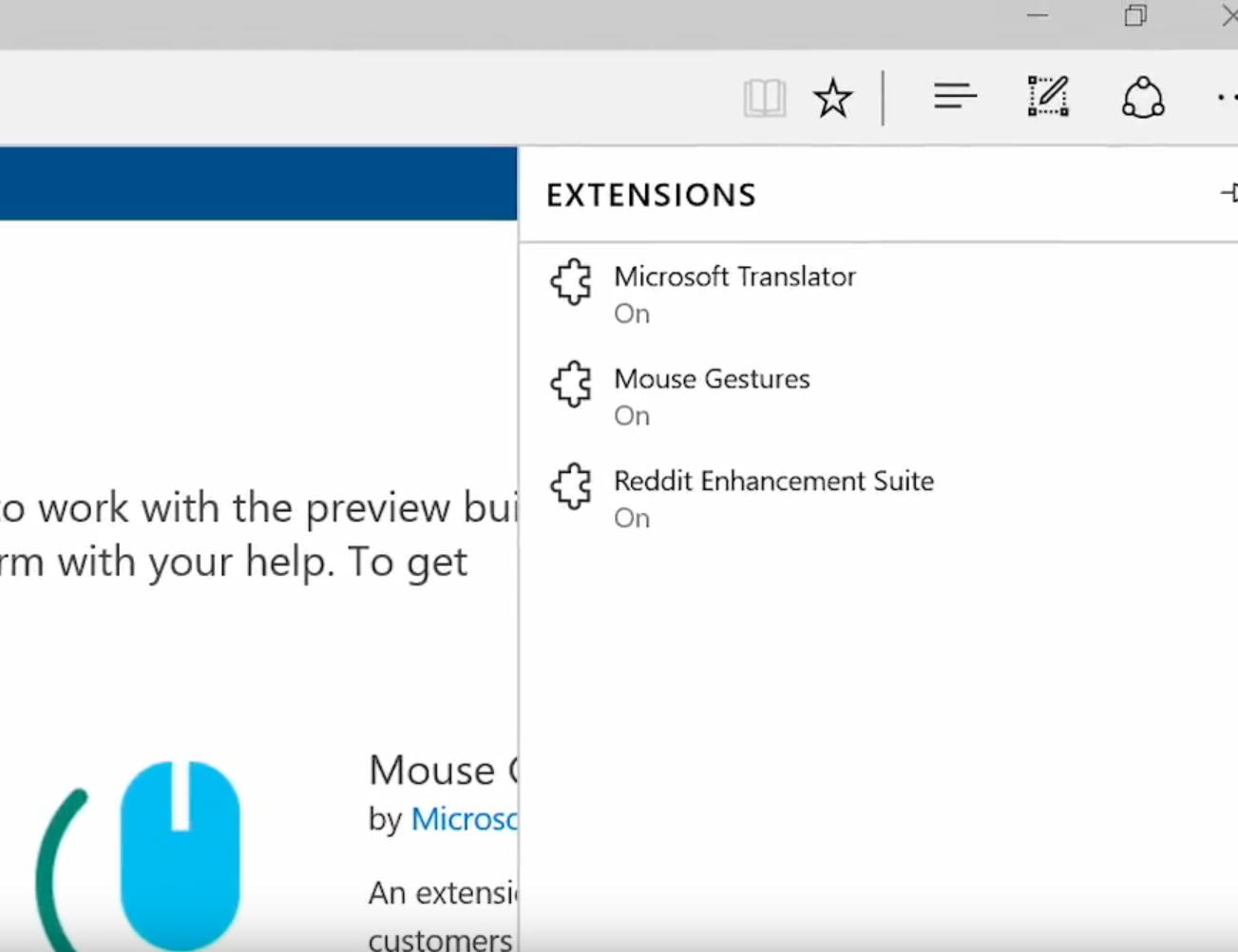
Extension support is of course the biggie and finally gives Microsoft Edge a chance to compete with the likes of Firefox and Chrome. To try out an extension, just click on the ellipses (…) at the top right and then click Extensions. In the Extensions pane click Get extensions.
 
This is obviously a new feature, so there aren’t many add-ons available at the moment, but you can try out Mouse Gestures, Microsoft Translator (automatically translates pages in over 50 different languages) and an early version of Reddit Enhancement Suite.
 
More extensions are on the way, including AdBlock, Adblock Plus, Amazon, LastPass, Evernote.
 
 
Although extensions currently have to be downloaded and sideloaded they will eventually be made available through the Windows Store.
 
 
Edge also now lets you pin tabs so you can have easy access to favorite and regularly used sites. This feature works exactly as you’d expect. To pin a tab, right-click on it and choose Pin tab. To unpin a tab, right-click on it and choose Unpin tab. Pinned tabs don’t show a close button, so can’t be closed accidentally.
 
Finally, you can now copy any link into your clipboard, and right-click on the address bar in Microsoft Edge and choose "Paste and go" from the context menu. This is a standard feature found in most other browsers, and is a welcome inclusion in Edge.
 
Other Changes
 
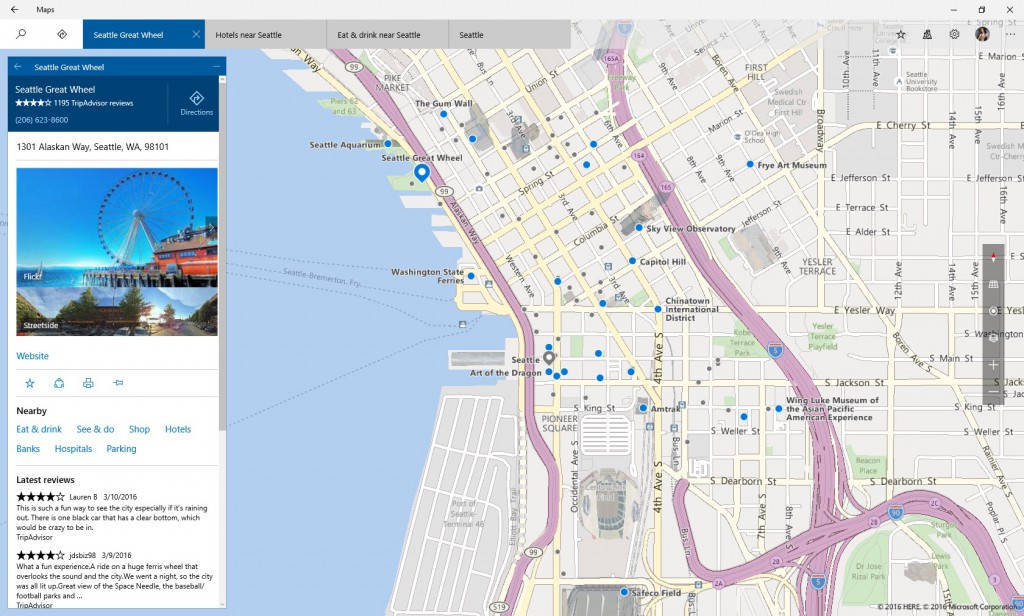
The updated Maps app offers a more lightweight and improved UI as well as general improvements and new features including one-tap access to search and directions from anywhere, the ability to view multiple searches and directions at the same time, and Cortana based turn-by-turn directions. You can read more about the changes to the app here.
 
 
The Alarms & Clock app has been updated as well with a new inline time picker, and there are a couple of big improvements for Japanese users (one-handed kana touch keyboard and Lined-mode Text Input Canvas).
 
The Feedback Hub, which combines the Insider Hub and Windows Feedback apps, also makes its debut in this new build.
 
In addition to all those new features Build 14291 includes the following fixes:
  • The issue causing the notification area ("systray") to look out of alignment when turning on the "always show all icons in the notification area" should now be fixed.
  • Fixed the issue where connectivity to older Wi-Fi networks using the WEP encryption security method may be broken.
  • Fixed an issue where the "X" to close the "Find of Page" toolbar in Microsoft Edge is displayed off screen on 8-inch devices when in portrait mode.
  • Fixed an issue where the USB icon in the notification area was reverting to the old icon when ejecting drives.
  • Fixed an issue where clicking the suggested search in Microsoft Edge resulted in a URL to the search as the search string.
With this being a Fast ring release, there are the usual list of known issues to be aware of including:
  • Microsoft is continue to investigate an issue in which some Surface Pro 3, Surface Pro 4, and Surface Book devices experience a freeze or hang and all input such as keyboard/trackpad and touch do not work. The workaround is to hold down the power button to force the device to hard-reboot.
  • Your PC may freeze when plugging in an Xbox One or Xbox 360 controller and other gamepads in this build.
  • If you use Hyper-V and have a Virtual Switch configured for your network adapter, you may see an error indicator (red-colored "X") for your network adapter in the notification area of your taskbar. The error indicator is incorrect and your network adapter should continue to work just fine.
  • We are seeing reports of some apps such as QQ crashing. We are currently investigating, and this bug may also impact older apps such as Windows Live Mail and Expression Encoder 4.
  • If you have Kaspersky Anti-Virus, Internet Security, or the Kaspersky Total Security Suite installed on your PC there is a known driver bug that prevents these programs from working as expected in builds from the Development Branch. We are partnering with Kaspersky to fix this issue for a future release, but at this time there are no known workarounds. While this issue is present, we recommend using Windows Defender or another third party anti-virus product of your choice to remain protected.
Are you excited about the introduction of extensions in Edge? Will it make you use Microsoft's new browser?
 
Photo credit: charnsitr / Shutterstock
 
~ Wayne Williams

3.08.2016

Microsoft delays Windows 10 'Redstone 2', now expected spring 2017

Microsoft is currently working on the next version of Windows 10, codenamed Redstone, and we’ve been seeing the results of this labor in the form of new Insider Preview builds arriving on the Fast ring at a rate of around one a week now.
 
The updated OS will include new features, tweaks and general improvements and should, finally, introduce extension support to the Edge browser. It will also bring the different Windows 10 devices -- PC, Xbox, Mobile -- closer together.
 
'Redstone', like 'Threshold' last year is set to be released in two waves. The first, currently expected in June/July, will be timed to encourage Windows 7 and 8.x users to upgrade while the OS is still free. The second wave, Redstone 2, was set to follow that towards the end of the year, and be a continuation of RS1. In other words, features that fail to make the first update will likely land in the second.
 
However, sources at Microsoft now say Redstone 2 won’t be released until spring 2017. The reason?
 
According to Microsoft watcher Mary Jo Foley, this delay is due to the software giant deciding to wait for a next wave of Microsoft branded devices to arrive -- new PCs, tablets and phones -- and that would make sense. Intel is expected to introduce its next processor family, dubbed Kaby Lake, by the end of 2016, and it’s a safe bet we’ll see a new Kaby Lake powered Surface Pro from Microsoft shortly afterwards, possibly in the spring.
 
Delaying Redstone 2, so it arrives at the same time as the new hardware, would be a sensible move, and give Microsoft further time to fine tune the OS update.
 
Image Credit: iQconcept / Shutterstock
 
~ Wayne Williams

2.04.2016

Windows 10 Insider Preview Redstone Build 14257 arrives on the Fast ring


Last year Fast ring preview builds of Windows 10 arrived at a pretty sedate pace. This year they are coming thick and fast with a new build announced on a weekly basis.

The speed that new builds arrive does mean the differences between versions aren’t huge, but it’s all about preparing the ground work for future additions, like extensions.

Announcing the new Build 14257, Windows Insider chief Gabe Aul says:
Teams are still early in their new feature work and changes in this build are mostly about laying the foundation for those features to start coming into builds. So you won’t see many visible changes quite yet. Also, the increased pace of the Fast ring (You’ll note that this build is only 6 revs newer than the last build we sent to the Fast ring) means that there will be fewer big changes between builds as opposed to this time last year when builds were about 30 days apart. There is a ton of coding work going on, but I want to set your expectations on how it will show up for you at our increased Fast ring pace.
As a result, this release is all about shoring things up and Microsoft lists the following bug fixes included in this build:

  • The issue of periodic app crashes or other memory related app errors due to a memory management change has been resolved. If you were having issues launching the Git client for Windows, you should now be able to launch it in this build.
  • The Connect button now shows up again in Action Center.
  • F12 Developer Tools will now load correctly Microsoft Edge.
  • Fixed an issue where suggested apps were being shown on the Start menu even though "Occasionally show suggestions in Start" was turned off under Settings > Personalization > Start.
  • Fixed an issue where if you try to change the Lock screen picture with "Get fun facts, tips, tricks and more on your lock screen" turned on it will revert back to the default.
  • Fixed an issue where the positions of desktop icons get jumbled up after switching DPI settings from 100% to 150% or 175%.
  • Also fixed an issue where pasting files into a new .zip file (compressed folder) in File Explorer by either right-clicking or Control-V would not work. You should be able to paste tiles into new .zip files just fine now.
Naturally, with this being a Fast ring release, there are various known issues to look out for.

  • If you choose "Reset This PC" under Settings > Update & Security > Recovery -- your PC will be in an unusable state. There is no workaround if your PC gets into this state and you will need to reinstall Windows. This issue will be fixed in the next build. You can still rollback to the previous build if for some reason this build doesn’t work out for you. This bug also existed in Build 14251 so please avoid resetting your PC on these builds.
  • You might see a WSClient.dll error dialog after logging in. We’re working on a fix for this but as a workaround, you can run the following in Command Prompt with administrative rights: schtasks /delete /TN “\Microsoft\Windows\WS\WSRefreshBannedAppsListTask” /F. This issue will be fixed in the next build.
  • The front-facing camera is unusable on PCs with Intel RealSense resulting in being unable to use Windows Hello or any other apps that utilize the front-facing camera.
  • After logging in to your PC, you may hit a UI issue in which Airplane Mode will incorrectly show as "on" even though your PC’s Wi-Fi is powered on. This is due to a timing issue between how the UI communicates and waits for the underlying platform to respond. The UI for Airplane Mode essentially does not wait long enough for the device’s physical radios to power on before reporting the current state. You can toggle the Airplane Mode on and off to get Airplane Mode back to showing the correct state.
Photo credit: charnsitr / Shutterstock

~ Wayne Williams

11.05.2015

Windows 10 Insider Preview Build 10586 hits the Fast ring -- is this Threshold 2?

 
Microsoft is preparing a huge update to Windows 10, codenamed Threshold 2. We don’t know exactly when it will be made available, only that it’s coming this month.
 
In advance of that update, Microsoft is in the process of rolling out a new Insider Preview build which has all the hallmarks of being a test run of Threshold 2, or the Fall Update, as it’s likely to be known.
 
Instead of tweaks and new features, build 10586 is all about bug fixes and general improvements. It’s "very fast and smooth, and makes a great daily driver", according to Microsoft’s Gabriel Aul. That’s not something you’d normally hear about a Fast ring release.
 
So what can you expect to see in this new build? Microsoft shares the following improvements:
  • The issue where any audio playing (like music from Groove, or videos from the Movies & TV app) gets reduced by 75 percent for a period of time after a notification pops up from Action Center is fixed.
  • Pressing the power button on your Surface Pro 3 should put your Surface Pro 3 to sleep instead of shutting it down.
  • We fixed an issue reported by Windows Insiders where a disksnapshot.exe command prompt window would flash randomly.
  • Windows should now remember your previous login type. For example, if you log in with a PIN -- it will prompt you for a PIN next time instead of another type.
  • We fixed an issue where Tab previews in Microsoft Edge were appearing as black if the page was not scrolled to the top, and web note clippings were also appearing as black.
  • Small form-factor devices, like the Dell Venue 8 Pro, that boot with rotation or virtual mode screen size set larger than the physical screen size should no longer experience a bluescreen on upgrade.
  • Apps and games should download from the Store more reliably.
There are, naturally, still some known issues. These include:
  • After upgrading from one Windows 10 Insider Preview build to another Insider Preview build, Skype messages and contacts will disappear from the Messaging + Skype app. You can get Skype messages and contacts back by navigating to "C:\Users\<USERNAME>\AppData\Local\Packages\Microsoft.Messaging_
    8wekyb3d8bbwe\LocalCache" in File Explorer and deleting or renaming the "PrivateTransportId" file. After deleting or renaming that file, go to the Skype video app and sign out of Skype and sign back in.
  • The Insider Hub might be gone after upgrading to this build. You can get Insider Hub back by going to Settings > System > Apps & features and clicking "Manage optional features", choosing "Add a feature" and selecting Insider Hub.
Photo credit: Stanislaw Mikulski / Shutterstock
 
~ Wayne Williams

10.14.2015

Now you can activate Windows 10 with your Windows 7 or Windows 8.1 product key

 
The release of Windows 10 has been a rollercoaster ride of excitement, frustration, and disappointment. But with the Insider program Microsoft has given itself a unique opportunity to address issues and try out new features, testing them out on hardcore users.
 
With the release of Windows 10 Build 10565 we see not only the introduction of a number of new features, but also a change to the way the activation process works. Some people have experienced problems activating Windows 10 after performing the free upgrade. A Windows 10 product key may no longer be needed, but this latest Insider build introduces the option of activating Windows 10 using a Windows 7, Windows 8 or Windows 8.1 product key.
 
The new process means that anyone who finds that Windows 10 complains about not being activated is now able to change their product key. It is also possible to use an old product key when performing a clean installation, but the same checks will be carried out to ensure that a qualifying device is being used.
 
Writing on the Windows Experience blog, Gabe Aul said:
We have received a lot of feedback from Insiders on making it easier to activate Windows 10 on devices that take advantage of the free upgrade offer to genuine Windows by using existing Windows 7, Windows 8 or Windows 8.1 product keys. If you install this build of the Windows 10 Insider Preview on a PC and it doesn’t automatically activate, you can enter the product key from Windows 7, Windows 8 or Windows 8.1 used to activate the prior Windows version on the same device to activate Windows 10 by going to Settings > Update & security > Activation and selecting Change Product Key. If you do a clean install of Windows 10 by booting off the media, you can also enter the product key from prior Windows versions on qualifying devices during setup. Refer to the Insider Hub for more information on these activation improvements including requirements.
Microsoft has not given any indication of the number of people who have experienced issues with activation, but it's safe to assume that a reasonable proportion of the estimated 110 million installs have been problematic. Having implemented a new system, the question has to be asked -- why was this not done from the start?
 
~ Mark Wilson

10.13.2015

Windows 10 Insider Preview Build 10565 arrives on the Fast ring, includes Skype integration, Edge improvements

 
If you’re a Windows Insider on the Fast ring, Microsoft has a new Windows 10 preview build for you to try. Build 10565 has quite a lot of changes and new features, including integrated Skype messaging, calling and video, tab preview in Microsoft Edge, some new icons, and Cortana enhancements.
 
There are also improved context menus on Start, more vibrant title bars, and the ability to sync favorites and reading list items in Edge. A lot of annoying problems have been fixed in this build too.
 
The Skype integration is of course the big new addition. The inclusion comes through Messaging, Phone and Skype video Windows apps, and Microsoft warns that as this is an early preview you can expect "some bugs", so be warned.
 
Tab preview shows a glimpse of what’s on a website when you hover your mouse over an open tab, and the Cortana changes include reminders for movie and event bookings and being able to intelligently understand hand written notes.
 
You can read the full list of changes and bug fixes here.
 
Naturally, with this being a Fast ring release, there are some known issues to be aware of:
  • The search box does not work if you are in a locale where Cortana is not available. Microsoft is  currently investigating workarounds.
  • The Xbox app for Windows 10 will consume gigabytes of memory on your PC if you have any Win32 games (non -Windows Store games) installed on your PC that have been identified as games or added by you in the Xbox app. Closing the Xbox app will release your PC’s memory.
  • WebM and VP9 have been temporarily removed from the flight builds. Microsoft will continue to develop a VP9 implementation that it intends to ship in Windows. Expect VP9 to return soon in a future release.
  • Small form-factor devices, like the Dell Venue 8 Pro, that boot with rotation or virtual mode screen size set larger than the physical screen size will experience a bluescreen on upgrade and will roll back to the previous build.

The new build is available to Fast ring insiders now, except those in Russia and Turkey. If you live in either of those countries you'll have to wait a few more days for the build to make its way to you.
 
~ Wayne Williams