Cisco Learning Network Store Promotions Page
Showing posts with label Android 4.4.4 KitKat. Show all posts

10.27.2014

Samsung Galaxy Note 4 Review... Continue ~ Software, S Pen & New Sensors

Software, S Pen & New Sensors

The Samsung Galaxy Note 4 comes loaded with Android 4.4.4 and their TouchWiz UI, which is a combination largely the same as the Galaxy S5. As the two phones are so similar in their software offerings, and to save me from repeating myself, head over to my review of the Galaxy S5 to learn about the main features of the Note 4.
 
 
However, as the Note 4 is a newer device with a different set of features and hardware, the software isn’t identical. The general interface has received some minor changes (most stock app backgrounds are now white instead of black, for example), some features have been altered and some others have been removed entirely.

The most notable changes to the basic features I have summarised for you below.
  • The app switcher has been revised for the larger display, featuring larger images in a cascading tile view.
  • There is a shortcut to the camera app on the lockscreen, which comes in handy for quick photo capturing
  • The Toolbox has been removed, as it wasn’t a particularly useful feature to begin with.
  • The time and weather widget has been visually improved, fitting in much better with the rest of the Android interface. It actually looks nice this time!
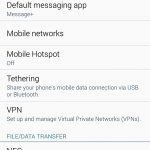
  • The settings screen has been revised to be easier to navigate. The massively long list of icons, with some options duplicated, is now a simple list that is separated into obvious categories. It’s still pretty long, but it’s no longer terrible.
  • The Messages and Music apps now have new landscape modes. Oddly, the basic landscape modes are the same for every other app, most of which don’t make use of the large Galaxy Note 4 display.
  • The fingerprint scanner registers finger swipes faster, although the swiping motion required to get it to recognize your fingerprint is still awkward.
Alongside these smaller changes, Samsung has made a few larger ones that bring polish to the overall software implementation. One of these is the brand new multi-window mode, which is completely redesigned to make the most out of the large 5.7-inch display on the Note 4.
 
The previous multi-window mode allows you to split the display into two sections that each would be occupied by a separate application. The feature was handy if you wanted to quickly switch between two apps, but limited. With the Note 4’s new multi-window mode, apps can actually be placed into individual windows and moved around the screen, creating a true multi-application window experience within Android.
 
 
Rather than dragging apps from a tray onto the screen to activate multi-window, you now create a window by swiping diagonally inwards from the top-right corner as if you want to make the app smaller. From there you can move the window around, minimize it to a small circular icon on the display, and easily copy content from one window to another using the Move Content feature. You can have a maximum of five windows on the screen at any one time.
 
Unfortunately the feature still only works with a few of the applications in Android, although some third-party apps like Chrome (and most Google apps), Facebook, and Evernote are supported. Still, despite these restrictions, the revamped multi-window feature can become incredibly useful for multitasking-heavy power users after a bit of practice to learn how it works.
 
S Health also comes with some new features, and this is due to the new sensors found in the Note 4. The first of these new features is UV mode, wherein you point the back of the Note 4 towards the sun and it tells you how intense the UV rays are. This feature is meant to indicate whether you should wear sunscreen or not, although like the heart rate monitor it’s somewhat of a gimmick. You look like an idiot pointing your smartphone at the sun, and most weather apps will already tell you the UV Index for your location.
 
 
SpO2 is another feature that uses a new sensor in the Note 4: the pulse oximeter. This feature’s aim is to tell you how oxygenated your blood is, with a normal level falling within 95-100%. A level from 90-95% is considered low, while below 90% could indicate you are ill and require medical attention. The value itself is a ratio of the oxyhaemoglobin to total concentration of haemoglobin in your blood.
 
All of my readings while testing the SpO2 meter fell within 95-100%, regardless of my diet and exercise patterns. Obviously this is good news for my personal health, though it makes the sensor less valuable. The reading doesn’t indicate whether I should exercise more, drink more or eat better food, just whether I’m healthy or not. And to be honest, I can tell if I’m feeling ill without a smartphone’s assistance.
 
Samsung also fails to inform you within S Health as to what the meaning of the SpO2 reading actually is. The information they provide says that a normal SpO2 range is between 95-100%, and that it can “indicate your fitness level and the intensity of exercise”. However after doing absolutely no exercise I can achieve a SpO2 level of 100%, so the latter claim seems questionable.
 
 
After a bit of research it appears that the meter is useful for people wanting to exercise in high altitude conditions, revealing if you may be at risk of hypoxia. It’s also useful for asthma sufferers wanting to assess their health while exercising. It’s not nearly as useful for healthy individuals who exercise regularly, making it more of a niche feature than something you’ll use every day. I would have liked to see Samsung provide more information about the SpO2 meter so that people like me don’t have to look up what it means.

Moving on to the S Pen, and the experience remains largely the same as past Galaxy Notes. The passive stylus is responsive and comes with more pressure levels than before (up to 2,000 levels), making it one of the best digital pen experiences you can find. S Note is still your number one stop for note-taking, and although it hasn’t changed much compared to the version found in the Note 3, it’s still a solid application filled with features.
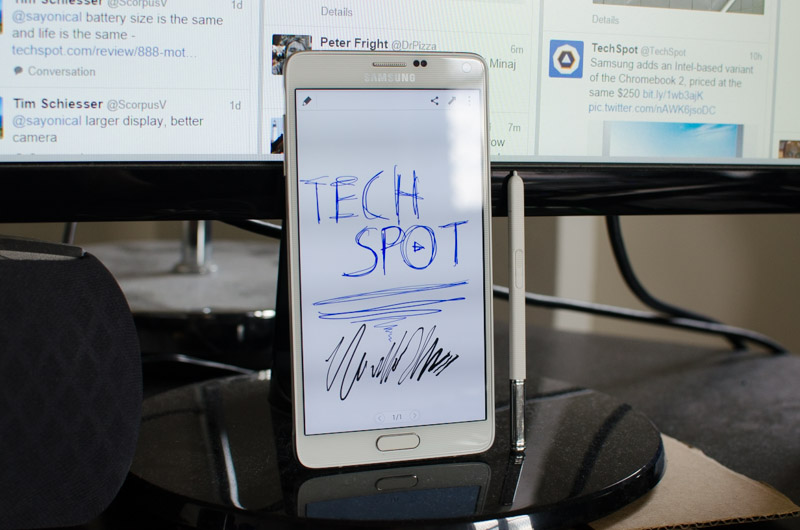
 
 
Removing the pen from its slot, or hovering the pen over the display and pressing its button, activates Air Command, which has been consolidated compared to previous iterations. It now features four basic and useful commands: Action Memo, which is a pop-up notepad that saves to S Note and can automatically convert input to phone numbers and addresses; Screen Write, which takes a screenshot and allows you to draw on it; Image Clip for drawing around something on the screen to capture as an image; and my personal favourite, Smart Select.

Smart Select is a conglomerate of past S Pen features added together into the one handy package. It allows you to select items on the screen and capture them to a clipboard, either as text – which is automatically recognized and converted – or an image. The clipboard floats around on the screen, and by clicking and dragging you can add it to input windows such as S Note, emails or messages.
 
 
The feature has a number of excellent use cases. For example you could capture an image of a business card, use Smart Select to convert the address in the image to editable text, and then go straight to Maps from the automatically generated link. You could also capture a paragraph from a website, convert it to text, and email or tweet it alongside an automatically generated link back to the source.

The Note 4 also comes with expanded highlighting options using the S Pen. Pressing the button down and selecting text will now allow you to copy it with ease or even it look it up in the dictionary. Hover previews have been expanded as well, and now include quick action buttons for things such as editing and sharing.
 
 
Another handy feature is found within S Note, called Photo Note. In this mode you can capture notes from a written notebook and convert them to editable shapes within S Note. Alongside S Note’s versatile note-taking features, Photo Note allows you to import written notes into the digital app with ease.
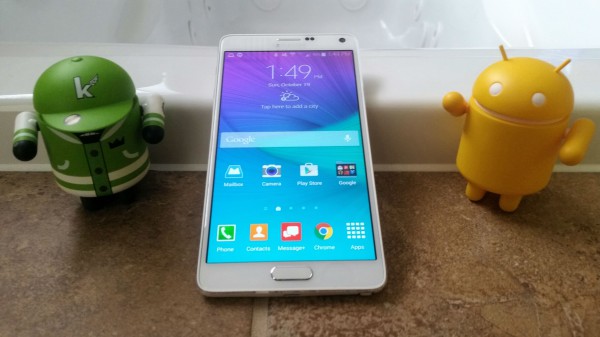
 

Article Index

10.20.2014

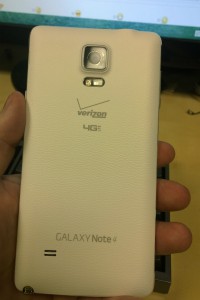
Samsung Galaxy Note 4 (Verizon) -- Unboxing and first impressions

 
There are many times when tech pundits are wrong about things. I remember thinking the first iPad was a disaster -- who wanted a computer that did not have a USB port for flash drives? The whole world apparently, including myself, only a short while after it launched. The same can be said about Samsung's Note line of smartphones. When the first Note launched, I thought people looked idiotic using such a large phone. I mean, talking on that monstrosity in public? You look like a loon, right? Wrong there too -- people loved it and the industry followed Samsung's phablet lead. Hell, the term phablet is almost a misnomer now, as large screens have become the norm. The screen sizes we considered to be "normal" only a few years ago, are now designated with terms like "mini".
 
So here we are in 2014 and Samsung is still the leader of the large screen movement, although imitators are catching up. Apple got into the phablet game with the iPhone 6 Plus and even Google is set to release the Nexus 6 in conjunction with Motorola. Still, as great as the iPhone 6 Plus is, and as wonderful as the Nexus 6 is sure to be, Samsung releases the Galaxy Note 4 in hopes to remain the gold standard and the one to beat. I finally got my hands on one -- arguably the best one -- the Verizon variant, which will not be released until October 23. Yes, BetaNews has achieved it early and here are my impressions.
 
Notable Specs
  • Operating System -- Android KitKat 4.4.4
  • CPU -- Snapdragon 805 2.7 GHz Quad-Core Processor
  • RAM -- 3GB
  • Storage -- 32GB, expandable with microSD
  • Display -- 5.7 inch Quad HD Super AMOLED 2560 x 1440
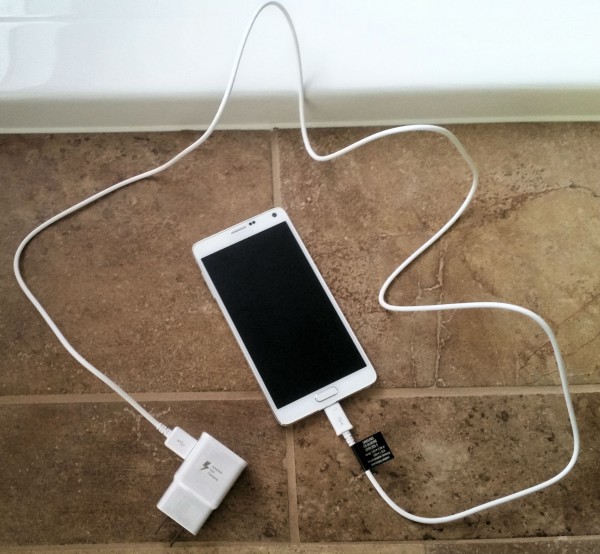
  • Battery -- Li-ion 3220mAh, Fast Charging (Adaptive Fast Charging & QC2.0)
  • Camera -- Front: CMOS 3.7MP w/ f1.9, Rear: CMOS 16.0 MP w/ OIS
Unboxing


Impressions
 
When taking it out of the box, it is shocking how light it is. You expect such a phone to be heavy, but it is not so. Believe it or not, it is slightly heavier than last year's Note 3 at an acceptable 6.21 oz. I have never experienced wrist-fatigue when using it one-handed. I spent a lot of time with the Note 4 at the official unveiling, but it is hard to gauge just how light it is when it is tethered with a security wire. You can see my initial experience in the video below.


The back remains plastic, but the faux-leather feel gives it a good grip, so it is not slippery like the iPhone 6 Plus. The band around the body is now metal, lending to a more premium feel. The corners are rounded, but the edges are sharp, and the overall build feels strong and industrial. Of course, you should still invest in a case, as even the most care-conscious owner can drop it by mistake, despite the good grip.
 
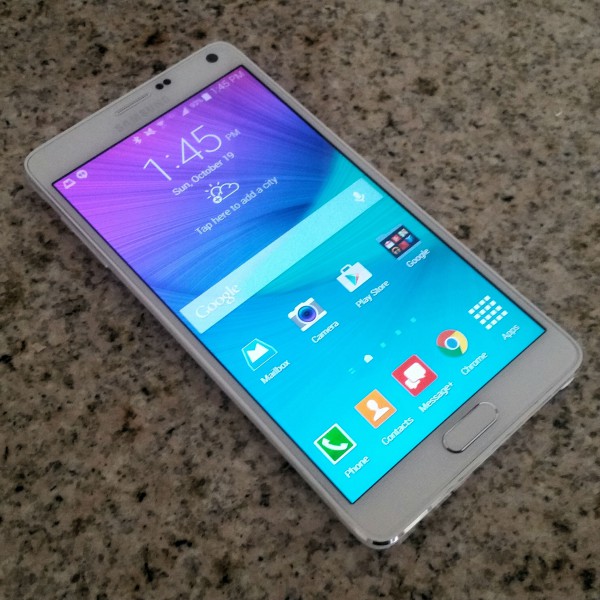
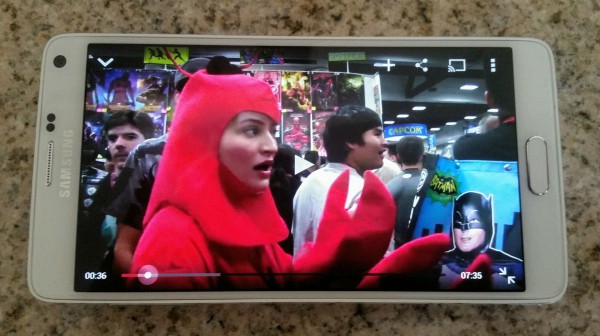
Once powered on, the screen becomes the star of the show. The 5.7 inch display is now Quad-HD, or 2560 x 1440. This is the same resolution as the LG G3, but Samsung's technology produces a much more vibrant experience with eye-popping colors and detail. Viewing photos and watching videos are awe-inspiring, as the media pops, and feels alive. Hell, even watching iJustine dressed up as Libby the Lobster on YouTube looked great!
 
 
Speaking of pictures, the cameras on the Note 4 are exceptional -- both the front and rear. The 16 megapixel rear shooter takes gorgeous photos, and the optical image stabilization assures photos are not blurry. Videos can be shot in 4K, something Apple's new handsets cannot achieve. Audio quality for the videos is amazing -- check out the 4K video test below.
 
 
Selfie-fans will love the front 3.7 megapixel camera, as it takes rather nice photos too. The standout feature for me, however, is that the heart-rate monitor located on the back, doubles as a button for snapping front-facing photos. In other words, you do not need to fiddle with tapping the screen or waiting for timers -- a quick tap triggers the shot.
 
The speaker is passable and produces decent sound quality, but it is small and located on the rear. The upcoming Nexus 6 features dual front-facing speakers for an optimal stereo experience. Would I prefer that the Note 4 have that level of audio design? Sure, but the rear speaker is totally acceptable when listening to music or watching movies. Quite frankly, I usually use headphones for that.
 
Actually, the Note 4 has something more important than speakers on the face -- a hardware button that doubles as a fingerprint reader. Many Android purists prefer on-screen buttons, but I am not a fan. Sure, it can lend to a cleaner look, but the on-screen buttons do take up screen real estate and can be easy to hit on accident.
 
The fingerprint reader works very well -- just as good as the Galaxy S5. I know, people hate sliding their fingers, and would prefer a stationary approach like Apple's touch ID. I'm with you there, it would be preferable, but the finger sliding is fine for me, and is close to 90% accurate once you learn the best way to interface with it. Bottom line, sliding your finger is much better than typing a pin or password.
 
What truly differentiates the Note 4 from most phablets, is the inclusion of the S Pen (aka a stylus). My first smartphone was a Treo 650 and I used a stylus quite a bit, so I was hesitant to embrace Samsung's S Pen, as it seemed like a step backwards. This is definitely not the case, as it unlocks many unique features, which makes Android a more usable operating system. Doing something as simple as selecting multiple photos is a dream, as you can hold down the button on the pen to drag and select.
 
 
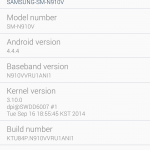
Sadly, the Note 4 ships with Android 4.4.4, but should get a quick upgrade to 5.0 Lollipop. This may be a blessing in disguise however, as 5.0 may have bugs, and is likely to cause issues with existing apps. Android KitKat is a proven and stable base, and should serve well as 5.0 gets straightened out.
 
The love-it-or-hate-it Touchwiz UI is of course on board, and I love it. Stock Android is fine, but Samsung's enhancements are well executed and improve the overall experience. Little things like folder animations and a more user-friendly settings menu makes all the difference.
 
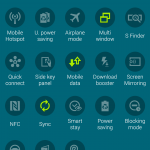
I particularly like the pull-down menu that can be customized and expanded to a full-screen view. While it may be overwhelming for some, this too seems better designed than the stock design, and Samsung deserves major kudos.
 
It's one of those things where, had Google implemented the Touchwiz enhancements, the hardcore Android purists would celebrate them, but because it is Samsung, it is decried.


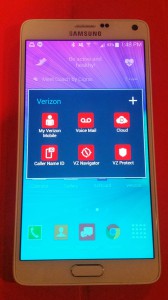
Verizon "bloatware" is kept to a relative minimum, and includes "My Verizon Mobile", "Visual Voice Mail", "Verizon Cloud", "Caller Name ID", "VZ Navigator", "VZ Protect" and the very good "Message+". Do I wish these were all optional? Sure, but it really doesn't slow down the phone. Once root is achieved, you can remove all the apps you want, but remember; missing apps can sometimes cause issues with OTA updates.
 
Luckily, Verizon has not neutered the phone -- special features are not removed or hidden. For instance, Download Booster is selectable, which enabled simultaneous Wi-Fi and 4G LTE downloads. Also available is Ultra Power Saving mode, which can extend usage when your battery gets low.
 
 
Conclusion
 
In my limited testing, I can safely declare the Note 4 to be the best Android smartphone on the market today -- powerful, sexy and chock full of features. However, this may be short-lived as the Nexus 6 arrives in November with a bigger screen and similar specs. While I am sure the Nexus 6 will be a great phone, I think Samsung has enough unique features and customizations to make the Note 4 stand-out.
 
The big question that consumers will ask over the next 6 months will be, "should I buy the Note 4 or Nexus 6?" Quite frankly, you probably can't go wrong either way, but if you like getting work done and put a premium on productivity rather than fast Android updates, the Note 4 is for you. Don't hesitate to buy this phone.
 
~ Brian Fagioli

9.04.2014

Samsung unveils Galaxy Note 4 and curved-display Galaxy Note Edge at IFA

Samsung officially announced an all-new flagship phablet at IFA 2014 this morning. An iterative update over last year's Note 3, the Galaxy Note 4 features a 5.7-inch Quad HD 2560 x 1440 display, Qualcomm Snapdragon 805 or Samsung Exynos 5433 SoC (depending on the region), and a 16-megapixel rear camera with optical image stabilization -- a first for Samsung.
 
Memory remains the same at 3GB while internal storage now starts at 32GB, with a microSD slot that can take up to 128GB cards for expansion. The battery is just about the same size as last year's model (3200 vs. 3220 mAh), and Samsung says it will charge from zero to 50 percent capacity in just 30 minutes thanks to Qualcomm's QuickCharge technology.
 
 
The S5's fingerprint scanner and heart-rate monitor have made their way into the Note 4 as well, alongside an updated S Pen with improved tracking.
 
In terms of software the Note 4 runs Android 4.4.4 KitKat with Samsung's usual range of apps and interface tweaks on top of it. Among the highlights here are a new stacked card multitasking view, improved multitasking with the ability to have more than two windows open at a time, the ability to pin short notes to your home screen, and S Health specific improvements.
 
 
While the device itself maintains a similar design compared to its predecessor, one major change is the inclusion of a metal band that wraps around the frame of the Note 4 -- much like it was the case with the new Samsung Galaxy Alpha. Elsewhere the back is still textured plastic, which you can remove to access the SIM card, MicroSD memory card, and battery.
 
The Galaxy Note 4 be available from all major U.S. carriers, but Samsung hasn't shared specific details on pricing and launch dates.

Galaxy Note Edge

In addition to the new Note, Samsung also showed off a limited-edition version of the device with a curved edge screen on one of the sides. Dubbed Galaxy Note Edge, the phablet's differentiating feature is admittedly gimmicky, it'll be up to developers to exploit this extra bit of screen real estate in creative ways.
 
 
By default this edge acts as an app launcher, but there are a number of widgets designed specifically for it. Some examples mentioned or shown off by Samsung included tickers of sorts that let you flip through news or tweets, notifications, or app-specific toolbars. The idea is you get more functionality and information without disturbing whatever you're doing on the main screen.
 
The Galaxy Edge is also coming to all major U.S. carriers, and likewise, there's still no word on pricing or availability at this point.
 
~ Jose Vilches