Cisco Learning Network Store Promotions Page
Showing posts with label Wi-Fi. Show all posts

6.30.2016

Public Wi-Fi is unsecure

 
People are aware of the risks that come with using Wi-Fi, but generally believe public hotspots, like those on airports, are secure. Those are the results published in Norton’s latest Wi-Fi Risk Report 2016, which said 64 percent of UK’s adults assume public Wi-Fi is safe enough to use.
 
However, Norton says this couldn’t be further from the truth.
 
"We know many consumers believe that using a password to access public Wi-Fi means their information is safe, but that’s not necessarily the case", said Nick Shaw, vice president and general manager at Norton EMEA.
 
By using these networks, people often offer their private data, even banking information, to hackers on a plate. Besides using unsecure Wi-Fi networks, the problem also lies in unsecured mobile apps, both on Android and iOS mobile operating sytems.
 
Norton says that 25 percent of the most popular Android apps in the UK transmit personal data without encryption.
 
The security firm offers a solution, though -- an app called NortonWiFi Privacy, helping consumers protect their private data from prying eyes.
 
"Norton WiFi Privacy helps protect information, such as passwords and credit card numbers, and denies access to hackers who may be eavesdropping on the same network", Shaw added.
 
The report is based on a poll of more than 9,000 people, across nine markets. It can be found on this link.
 
Published under license from ITProPortal.com, a Net Communities Ltd Publication. All rights reserved.
 
Image Credit: Sidarta / Shutterstock
  
~ Sead Fadilpašić

4.18.2016

What the future holds for Wi-Fi

 
Throughout its more than 20-year existence, Wi-Fi has evolved to be ever faster. That evolution continues but arguably it has already reached a point where home broadband, device processors and other limitations mean that greater speeds are not of benefit to most. So where next, if anywhere, for Wi-Fi?
 
Of course, the continued success of Wi-Fi is in little doubt. It is in almost every home in the developed world. Wi-Fi chips are embedded in every phone, tablet, laptop and computing device. We send ever-more data each year across WiFi. It has been said that if you want to hold a family conference, go to the room in the house where the router sits, turn it off, and wait a few minutes.
 
Wi-Fi is central to our lives and will remain so for the foreseeable future. This success brings a constraint to future evolution. We have to keep everything backward compatible and working with the billions of Wi-Fi devices currently out there, so change cannot be too dramatic or rapid. It also means accepting that there may be some older, low-performance devices using an access point at any time, dragging down its overall performance.
 
Automated Access
 
One area where Wi-Fi has long striven to improve is automated access. At present we too-often have to select a Wi-Fi base station and enter a password to gain access. Various solutions to this exist, from using the authentication on the cellular SIM card through to completely open systems, but none has enabled simple access to all nodes. Perhaps the best solution is the equivalent of a "PayPal for WiFi" -- a trusted third party that signs on to nodes that have registered to it on behalf of users.
 
Automated access is also a key issue for the Internet of Things (IoT). Imagine trying to tell your washing machine the identity of your home router and then finding a way to enter the password into it using the dial on the front panel. And the toaster is even harder. Again there are solutions to this such as pushing a button on the router at the same time as one on the appliance. It is a good idea, but just not yet quite standardized enough.
 
Power Problem
 
A solution as important as Wi-Fi is aiming to play a key role in home IoT applications. This makes sense, in that homes already have WiFi networks and so new devices can be brought into the home and connected without the need for the installation of new home hubs. However, Wi-Fi in its standard form is not ideal for IoT because it requires too much power to be able to deliver the 10-year battery life that many believe is needed for in-home devices that are not mains-powered.
 
These include concepts like plant moisture sensors and pill-box opening sensors. This is because Wi-Fi is currently optimized for high-speed data transmissions and this requires high-power processors in our devices to decode the data stream as it arrives. We accept the high power consumption this entails because we expect to charge laptops and smart-phones daily. But IoT devices rarely need high speed. Indeed, the plant watering sensors might only send a byte of data a day. That is about one ten millionth of what we might send from our smart-phone.
 
With those differences in data rates and power consumption requirements, it might seem more sensible to start afresh and design a new technology suited to the IoT that could sit alongside the Wi-Fi router in the home. And indeed, this is a route many have taken. Some solutions are open standard, such as Zigbee, some proprietary such as those used by some smart heating solutions.
 
However, it is very hard to introduce a new wireless technology into the home -- few will want to buy a new home hub just to enable their smart plant sensors. This is why we continue to look to Wi-Fi to evolve a mode suitable for IoT and work is currently underway on variants that are low-power and can work at the same time as conventional WiFi. We will need to replace our home router to get this upgraded capability, but most replace routers fairly regularly, often as part of a change of broadband service or an upgrade to a higher speed broadband solution.
 
Frequency Interference
 
A final issue to address is interference. Wi-Fi nodes can fail to work in dense areas where there are many competing routers all in the same place. Shopping malls, train stations and similar are key examples of this, and the situation is likely to get worse over time as more nodes are deployed and existing nodes are expected to deliver more.
 
The solution to this is better coordination between nodes. At present, most nodes automatically select the particular frequency they use based on a measurement of the interference across all frequencies. Once the choice is made it might not be revisited for some time. This approach works well in simple environments where there are only a few interfering devices, but can tend to be sub-optimal in complex environments where central intelligence is needed to resolve the problem. There are now a number of companies with interesting solutions to this which gather data from participating nodes and the devices connected to them and seek near-optimal assignment solutions.
 
We probably will not notice much of this going on. We might be pleasantly surprised that our devices appear to be becoming more intelligent at automatically finding hotspots to connect to. And we might enthuse about the added functionality in our intelligent appliances without giving too much thought as to how they connect to our smart-phones. But this is how it should be -- the best solutions are the ones that work quietly and reliably in the background. Turning off the Wi-Fi router in the home, even to have a family conference, will become increasingly unthinkable.
 
William Webb is an IEEE Fellow, CEO of the Weightless SIG and Director of Webb Search Consulting
 
Published under license from ITProPortal.com, a Net Communities Ltd Publication. All rights reserved.
 
Photo credit: Shutter_M / Shutterstock
 
~ William Webb

3.28.2016

The dangers of using public Wi-Fi hotspots

 
There are hundreds of thousands of free public Wi-Fi spots throughout the UK. Widespread connectivity and free accessibility are two appealing features that tempt users to open up their devices for on-the-go convenience.
 
However, uncontrolled access to public Wi-Fi hotspots and robust mobile security often conflict with one another. Cyber-criminals now find it increasingly easy to attack public Wi-Fi networks using Man-in-the-Middle (MitM) techniques which allow the attacker to clearly view all information transmitted across networks.
 
When it comes to awareness, how savvy are these users of the lasting implications of opening up their personal data to the general public?
 
Wi-Fi Awareness
 
Research conducted by Action Fraud, the UK’s national fraud and internet crime reporting center, found that 77 percent of people did not think that public Wi-Fi was any less secure than their personal internet connection. The findings show a frightening lack of awareness concerning the potential security vulnerabilities linked to public Wi-Fi.
 
Public Wi-Fi has gained a notorious reputation in mobile security as one of the weakest links due to its minimal level of data security, but despite negative word of mouth it seems the general public -- including employees -- are still connecting to vulnerable networks. With social engineering and MitM attacks taking place more frequently, educating users and employees has never been more necessary.
 
MitM Attacks Explained
 
A MitM attack involves a malicious actor inserting themselves as a relay/proxy into a cyber-conversation between two parties -- such as a device and the web server it’s trying to communicate with. The attacker can intercept the information being transmitted and exploit the data within the online communication. The hacker can also identify a person’s location, gain access to personal messages and access stored information within the device.
 
Mobile apps and devices need to connect with remote servers in order to function, and most do securely with an HTTPS connection. However, problems emerge when apps fail to use standard authentication methods. In some cases, the app will not reliably check the certification of the server, or the server’s hostname. To ensure that a secure connection is made, the certificate name and server must be matched, the certificate must be issued by a trusted certificate authority and the certificate date must be valid. If any of these tests do not pass, neither the app nor the device can identify if data is being hijacked and sent to a new web location.
 
It is also worth noting that MitM attacks can also come in the form of a spoof network or "evil twin". Hackers can pose as shops, hotels or restaurants offering free Wi-Fi, and then infiltrate the user’s device once they have unwittingly connected to their network.
 
Protecting Devices
 
Without the knowledge of what damage could be caused by connecting to open networks, enterprises are putting themselves in a very vulnerable position when their employees are working remotely. Within the enterprise, some individuals are more vulnerable to attacks than others -- this includes those who hold senior and executive positions that may handle more sensitive information within their emails and on their devices. Hackers are intelligent, and know how to gain sensitive information from open networks.
 
The problem is not subject to particular models or devices -- it runs throughout Android and iPhone devices. In April 2015, a vulnerability was discovered which affects approximately 1,500 iOS apps that try to establish secure connections, with the result that anyone intercepting data from these apps on an iPhone or iPad could access logins and other sensitive information transmitted via HTTPS. This has recently been followed up by KeRanger, the first ransomware to strike Apple’s OS X.
 
Android users have had received similar warnings -- it has been estimated that nearly three quarters of the top 1,000 free apps in Google Play don’t check server certificates, and the same amount of those ignore any SSL errors that pop up when they communicate with the app server.
 
How to Educate
 
There is no one size fits all solution that will alleviate the issue of public network attacks. But educating users on the severity of what an attack entails is the first step. Security-aware individuals make for the most effective defense mechanism for enterprises. Arming your employees with the knowledge of what the implications of MitM attacks mean will put you in the best position moving forward to protect your sensitive company information.
 
Standard protection methods like secure containers, wrappers and mobile anti-virus solutions are highly recommended, but will not be enough to protect a fleet of devices against these emerging threats. Instead, the best method for protection is prevention. Employees can act as their own first line of defense against MitM attacks by taking heed of the following advice:
 
Don’t auto connect to Wi-Fi -- unless it’s onsite at the office or your protected home network; avoid using free Wi-Fi hotspots; do not use jail-broken phones, and finally, only use apps from trusted sources.
 
Eldar Tuvey, co-founder and CEO of Wandera.
 
Published under license from ITProPortal.com, a Net Communities Ltd Publication. All rights reserved.
 
Image Credit: Sidarta / Shutterstock
 
~ Eldar Tuvey

12.28.2015

How to view saved Wi-Fi passwords in Windows 10, Android and iOS

So many stores, service stations, coffee shops, pubs and so on offer free Wi-Fi that you probably have countless networks saved on your phone or laptop. Having a password saved on your computer is great, but how can you get the password so you can use it on your phone as well?

Rather than trying to hunt down a member of staff to ask, or hunting high and low for that tiny sign that shares the password, you can instead view the wireless passwords you have saved. Read on to find out how to retrieve these passwords in both Windows 10 and Android.

If you already have the password for a wireless network saved on your laptop and want to retrieve it to use on your phone -- or share with someone else -- things are quite simple. The same method works in Windows 7, Windows 8.x, and Windows 10, but it's important to note that you need to be connected to the network you are trying to retrieve the password for.

  • Press the Windows key and R, type ncpa.cpl and press Enter.
  • Right click on the wireless network adaptor and select Status.
  • Click the Wireless Properties button.
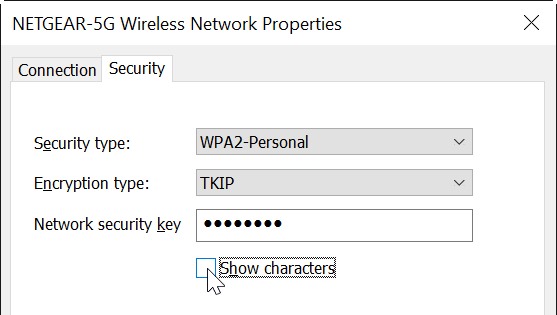
  • In the Properties dialog that appears, move to the Security tab.
  • Click the Show characters check box, and the network password will be revealed.

If you want to retrieve a saved wireless network password from Android or iOS, you'll have to have a rooted or jailbroken device -- sadly, there is no standard way to pull up security credentials. It's worth noting that there are several apps out there in Google Play that claim to reveal Wi-Fi passwords; while some of these work, there are also numerous malicious tools out there, so it's best to use an alternative method.

If you're using Android, install a copy of the free file browser ES File Explorer.

  • Navigate to the data/misc/wifi folder on your device -- it will not be visible on non-rooted phones.
  • Open the file called wpa_supplicant.conf and you will see a list of saved Wi-Fi networks complete with their passwords.
To retrieve a Wi-Fi password on a jailbroken iPhone, you can check in the Keychain access app if you have a Mac connected to the same network, but there's another method if you prefer to do it all from your phone.
Grab yourself a copy of WiFi Passwords from Cydia.
Fire up the app, and you'll be presented with a list of all of the passwords your iPhone has for saved wireless networks.
Photo credit: Marynchenko Oleksandr / Shutterstock

~ Mark Wilson

10.09.2015

Pro tip: How to solve the dreaded Wi-Fi exclamation point

If you've been experiencing the dreaded "!" error in your Android Lollipop Wi-Fi connections, Jack Wallen has a solution that will fix the issue. 

 Image: Jack Wallen
If you're running Android Lollipop, and you rely on Wi-Fi, you have probably witnessed the dreaded "!" showing up in your Wi-Fi notification. What does it mean? How do you solve it? The possible solutions are many, but this is the only solution I've found that actually works. The only caveat to this solution is that it requires you have a bit of information about the wireless network you're having issues with.
 
Why is this happening? The best (and only) explanation that Google offers is that there's a problem communicating with the wireless network. Yeah, I know that's not a viable answer.
 
To solve this issue, we're going to set a static IP address for that particular Wi-Fi address. This means that you'll need to know an available address on the LAN, the gateway address, and the DNS address(es) for the network. Note: You can use Google's default DNS addresses of 8.8.8.8 and 8.8.4.4.
 
This is not the best solution, but it works. Here's what you need to do.
 
Open the Settings on your Android device and go to Wi-Fi. Locate and long-press the wireless network in question, and then tap Modify network. In the resulting pop-up, tap Advanced options, and then select Static from the IP settings drop-down (Figure A). 
 
Figure A 
Figure A
Setting a static address for a Wi-Fi network on a Verizon-branded Nexus 7.
Enter the necessary information for the network, and tap Save. Once you've done that, restart your device. When the device restarts, drag down the notification bar to reveal the same network without the dreaded exclamation point.
 
Yes, you'll have to do this same thing for all wireless networks you connect with (that happen to be plagued with the "!"). I'm hoping that the upgrade to Marshmallow will resolve this issue once and for all. Until then, a simple static IP address will fix what ails your device.
 
What other issues do you hope will be resolved with the upcoming Marshmallow upgrade? Let us know in the discussion thread below.
 
~ Jack Wallen

2.19.2015

SOAP vulnerability leaves Netgear routers open to hackers

 
Owners of Netgear routers are warned that their wireless security keys and admin password could be accessed by hackers. A security vulnerability has been found in the SOAP service embedded in some Netgear network devices that could be abused with specially designed HTTP requests.
 
Routers can be tricked into executing commands even if they originate from an unauthenticated session, potentially exposing sensitive information to hackers. For anyone with remote management enabled on their router, there is the added worry that all of this could be carried out by someone without physical access, or who is not in close proximity, to the network. A number of Netgear routers are affected.
 
The vulnerability as discovered by security researcher Peter Adkins and it is thought to be a problem for the devices listed below. As well as making it possible to extract data such as administrator password and wireless credentials, the vulnerability also reveals the serial number of a router and details of devices that are connected to it.
 
In a tale that is somewhat reminiscent of Google's bug disclosures through Project Zero, Adtkins notified Netgear of his findings back in January. Unhappy with the response and lack of action, he decided to go public:
The initial response from NetGear support was that despite these issues "the network should still stay secure" due to a number of built-in security features. Attempts to clarify the nature of this vulnerability with support were unsuccessful. This ticket has since been auto-closed while waiting for a follow up. A subsequent email sent to the NetGear 'OpenSource' contact has also gone unanswered.
Devices thought to be affected by SOAP vulnerability are:
  • NetGear WNDR3700v4
  • NetGear WNR2200
  • NetGear WNR2500
  • NetGear WNDR3700v2
  • NetGear WNDR3700v1
  • NetGear WNDR4300
  • NetGear R6300v2
  • NetGear WNDR3800
  • NetGear WNDRMAC
  • NetGear WPN824N
  • NetGear WNDR4700
Netgear is yet to issue a statement or give an idea of when, or indeed if, a patch will be released. In the meantime, it would be a good idea to disable the remote management feature of your router unless you have a particularly pressing need to leave it enabled.
 
Photo credit: Adrian Coroama / Shutterstock
 
~ Mark Wilson

2.03.2015

Wi-Fi, calendar, and Bluetooth issues continue to plague iPhone and iPad owners

Summary: Nearly four and a half months since the release of iOS 8, and some owners of iPhone and iPads continue to suffer from show-stopping Wi-Fi and Bluetooth issues.
Nearly four and a half months since the release of iOS 8, and some owners of iPhone and iPads continue to suffer from show-stopping Wi-Fi and Bluetooth issues.
 
iOS 8.1.3 is Apple's sixth stab at patching the platform, but Apple's support forum continues to be awash with complaints.
 
The most serious of these problems relates to Wi-Fi stability issues that cause devices to drop the connection periodically, forcing the user to disconnect and reconnect. A thread that was started back when iOS 8 was made available for download has now grown to over 100 pages and gathered over half a million views
 
While a number of possible solutions have been suggested for this problem, no amount of end-user tinkering seems to help.
 
Another bug that is pretty show-stopping for corporate and BYOD users is a calendar bug where events are displayed with GMT times rather than local time. Again, no amount of end-user voodoo seems to solve this issue.
 
Bluetooth also appears to be just as glitchy as Wi-Fi, with connectivity issues running rampant across devices ranging from keyboards to car audio systems. Some of these issues have workarounds while others do not, so if you are affected it might be worth your while having a nose around the support forums
 
Apple might be able to sell 74 million iPhones in a quarter and pull in billions of dollars in revenue, but it can't seem to squash these annoying bugs.
 

~ Adrian Kingsley-Hughes

12.09.2014

Lollipop 5.01 review: The Android release we've been waiting for

Summary: The bug-fix release of Android 5 is out, and all finally seems well with this eagerly anticipated release.
 
Is it finally safe to upgrade to Android 5 after the recent release of Android 5.01? Based on my experiences with my pair of 2013 Nexus 7 tablets, the answer is an unqualified yes.
 
Android Lollipop 5.01 is here.
When Android 5 Lollipop first appeared, it worked well for some users. Others, however, said that the new operating system made their smartphones and tablets "unusable." People complained that their devices were "laggy and crashed randomly." There were also reports of trouble with the virtual keyboard display and video playback.
 
I didn't see any of those myself with the Lollipop 5.0 release. Google did eventually confirm that there was a battery life problem with Lollipop on Nexus 5 due to a Wi-Fi implementation issue. In addition, Adobe and Google uncovered a show-stopping problem with some Adobe Air applications.
 
While Google has been annoyingly quiet about exactly what bugs were fixed in Lollipop 5.01--there are no release notes--the main troubles appear to have been repaired.
 
So why should you consider upgrading? I'll tell you:

Six licks of Google's Android Lollipop

First, Lollipop's Material design gives Android a new clean look that I find to be very pleasing. It extends from the front-screen to the menus and back again. I really like this new look and it makes me more efficient by making my workflow smoother
 
In addition, Lollipop has far better built-in security. To cite only one example, your data is encrypted now by default. If you lose your phone, the only way anyone's getting at your data is if they have your password -- even if they have the device in hand.
 
This full "disk" encryption does come with a performance hit. Therefore, I don't recommend that anyone with an older Android device, such as a 2012 Nexus 7, should upgrade it. On my 2013 Nexus 7s, however, I didn't see a significant performance hit.
 
On the other hand, I have seen much better battery performance. With Lollipop, my devices are seeing about a 30 percent increase in battery life. That's amazing!
 
Not as neat, but still darn nice, is that notifications are now both more useful and easier to control. For example, with the new Priority mode, I can pick and choose what notifications I'll hear or see. I can fine-tune to the point that I will only see calls and texts from specific people. I can also set up a "Do Not Disturb" mode and nothing can disturb my nap... ah work.
 
I can also now set how app notifications work from the Menu/Sound & Notification/App notification menu. That's a lot easier than diving into each app's own menu to set up its notifications.
 
The Multitasking interface has also been improved in Lollipop. Now instead of "recent apps," Overview shows you all your apps that are running in the background as a card stack. With this, it's much easier to shuffle your way to the application you want. In addition, if you're working on multiple tasks within a single app, you'll see each task. So, for example, if you're writing an e-mail in Gmail and checking your inbox, Overview will show cards for each job. It's really handy.
 
Finally, you'll also notice that some applications run faster when they're not reading or writing to your device's memory. That's because of Lollipop's new Android runtime (ART). This Dalvik replacement gives most apps a small, but noticeable, performance bump.
 
All-in-all, I'm really pleased with this new upgrade. The battery life improvement was worth the price of admission for me. If you can't stand to wait for an automatic upgrade, you can download and install Android 5.0.1 (build LRX22C) for the Nexus 9, Nexus 7 (2013), and Nexus 10. Lollipop is also available for Google Play editions of the HTC One M8 and HTC One M7.
 
~ Steven J. Vaughan-Nichols

11.25.2014

Apple releases another Yosemite beta as Wi-Fi problems refuse to go away

 
Just over a couple of weeks after Apple released the first beta of Mac OS X Yosemite for developers since the official release, the company has come out with a second beta. It isn't yet clear whether the 10.10.2 update fixes the Wi-Fi problems that have been plaguing users for some time now.
 
Ever since Yosemite made its debut last month, users have reported various issues. Chief among them is that after installing the OS their Wi-Fi becomes extremely slow or unstable, dropping every few minutes.
 
The 10.10.1 beta claimed to enhance Wi-Fi reliability, among other improvements, and yielded a formal OS update released to the public last week. But it failed to fix the Wi-Fi problems and users continued to post complaints in Apple discussion forums, third-party sites, and other platforms.
 
As of writing, the longest running thread on the Apple Support site about the problem, which is titled "OSX Yosemite Wifi issues", has 1,368 replies, and has been viewed 278670 times.
 
While announcing the availability of the OS, the Cupertino-based company had said, "OS X Yosemite is the most advanced version of OS X we’ve ever built," adding that it ushers in the future of computing, where your Apple devices all work together "seamlessly and magically." Apple is yet to issue a formal statement on what might be causing the Wi-Fi issues.
 
~ Himanshu Arora

8.05.2014

Hacker says to show passenger jets at risk of cyber attack

Cybersecurity researcher Ruben Santamarta poses for a photo near Madrid, July 30, 2014.
Credit: Reuters/Andrea Comas
 
(Reuters) - Cyber security researcher Ruben Santamarta says he has figured out how to hack the satellite communications equipment on passenger jets through their WiFi and inflight entertainment systems - a claim that, if confirmed, could prompt a review of aircraft security.
 
Santamarta, a consultant with cyber security firm IOActive, is scheduled to lay out the technical details of his research at this week's Black Hat hacking conference in Las Vegas, an annual convention where thousands of hackers and security experts meet to discuss emerging cyber threats and improve security measures.
 
His presentation on Thursday on vulnerabilities in satellite communications systems used in aerospace and other industries is expected to be one of the most widely watched at the conference.
 
"These devices are wide open. The goal of this talk is to help change that situation," Santamarta, 32, told Reuters.
 
The researcher said he discovered the vulnerabilities by "reverse engineering" - or decoding - highly specialized software known as firmware, used to operate communications equipment made by Cobham Plc, Harris Corp, EchoStar Corp's Hughes Network Systems, Iridium Communications Inc and Japan Radio Co Ltd.
 
Cybersecurity researcher Ruben Santamarta poses for a photo near Madrid, July 30, 2014.
Credit: REUTERS/Andrea Comas 
 
In theory, a hacker could use a plane's onboard WiFi signal or inflight entertainment system to hack into its avionics equipment, potentially disrupting or modifying satellite communications, which could interfere with the aircraft's navigation and safety systems, Santamarta said.
 
He acknowledged that his hacks have only been tested in controlled environments, such as IOActive's Madrid laboratory, and they might be difficult to replicate in the real world. Santamarta said he decided to go public to encourage manufacturers to fix what he saw as risky security flaws.
 
Representatives for Cobham, Harris, Hughes and Iridium said they had reviewed Santamarta's research and confirmed some of his findings, but downplayed the risks. 
 
For instance, Cobham, whose Aviation 700 aircraft satellite communications equipment was the focus of Santamarta's research, said it is not possible for hackers to use WiFi signals to interfere with critical systems that rely on satellite communications for navigation and safety. The hackers must have physical access to Cobham's equipment, according to Cobham spokesman Greg Caires.
 
"In the aviation and maritime markets we serve, there are strict requirements restricting such access to authorized personnel only," said Caires.
 
A Japan Radio Co spokesman declined to comment, saying information on such vulnerabilities was not public.
 
BUGGY 'FIRMWARE'
 
Black Hat, which was founded in 1997, has often been a venue for hackers to present breakthrough research. In 2009, Charlie Miller and Collin Mulliner demonstrated a method for attacking iPhones with malicious text messages, prompting Apple Inc to release a patch. 
 
In 2011, Jay Radcliffe demonstrated methods for attacking Medtronic Inc's insulin pumps, which helped prompt an industry review of security. 
 
Santamarta published a 25-page research report in April that detailed what he said were multiple bugs in firmware used in satellite communications equipment made by Cobham, Harris, Hughes, Iridium and Japan Radio Co for a wide variety of industries, including aerospace, military, maritime transportation, energy and communications. 
 
The report laid out scenarios by which hackers could launch attacks, though it did not provide the level of technical details that Santamarta said he will disclose at Black Hat.
 
Harris spokesman Jim Burke said the company had reviewed Santamarta's paper. "We concluded that the risk of compromise is very small," he said. 
 
Iridium spokesman Diane Hockenberry said, "We have determined that the risk to Iridium subscribers is minimal, but we are taking precautionary measures to safeguard our users."

Cybersecurity researcher Ruben Santamarta poses for a photo near Madrid, July 30, 2014.
Credit: REUTERS/Andrea Comas 
 
One vulnerability that Santamarta said he found in equipment from all five manufacturers was the use of "hardcoded" log-in credentials, which are designed to let service technicians access any piece of equipment with the same login and password. 
 
The problem is that hackers can retrieve those passwords by hacking into the firmware, then use the credentials to access sensitive systems, Santamarta said.
 
Hughes spokeswoman Judy Blake said hardcoded credentials were "a necessary" feature for customer service. The worst a hacker could do is to disable the communication link, she said.
 
Santamarta said he will respond to the comments from manufacturers during his presentation, then take questions during an open Q&A session after his talk.
 
Vincenzo Iozzo, a member of Black Hat's review board, said Santamarta's paper marked the first time a researcher had identified potentially devastating vulnerabilities in satellite communications equipment.
  
"I am not sure we can actually launch an attack from the passenger inflight entertainment system into the cockpit," he said. "The core point is the type of vulnerabilities he discovered are pretty scary just because they involve very basic security things that vendors should already be aware of."   
 
(Reporting by Jim Finkle; Additional reporting by Andrea Shalal in Washington and Teppei Kasai in Tokyo; Editing by Richard Valdmanis and Tiffany Wu)                   
 
~ Jim Finkle

1.06.2014

Samsung's SmartCam HD DIY security cameras do 1080p video indoors or outdoors

 
Just in case the NSA isn't keeping a close enough watch over everything, you can use Samsung Techwin's latest SmartCams (previously seen in 2012 and 2013) to do your own surveillance. The SmartCam separates from its competitors by recording 1080p video to an internal SD card, and has a version designed to work outside. That means that unlike Dropcam, for example, it's not constantly uploading video to a remote server for storage and doesn't require an add-on subscription to work. While that cuts out some of the cloud-based security Dropcam can offer, it combines with Samsung's compression tech to enable these to use about 30 percent of the bandwidth other cameras require, and still lets owners tap in remotely for a peek whenever they like.
 
Both connect over WiFi, and can be configured from Android or iOS devices using the SmartCam app and WiFi Direct. Both claim excellent low-light video quality, and while the indoor version has a range of about 16 feet, the outdoor version extends to 50 feet. Beyond its extra viewing range, the outdoor version is ruggedized for the elements, and comes in two parts, keeping the power and WiFi module securely inside your home, connected to the camera outside via a network cable. The SmartCam HD and SmartCam HD Outdoor should hit shelves around March for $179 and $229, respectively.


12.25.2013

Check If Someone Is Using Your Wi-Fi

 
There are many reasons why you'd want to check if an unauthorized party is using your wireless network. It may be that you're experiencing a slower than normal Internet connection or you simply don't want anyone getting a free ride while you pay the bill. Of course, there are also security implications if this person can somehow access files on your network, and even legal implications if he uses your connection for piracy or other illicit activities.
 
Whatever the case it's better to stay on the safe side. Many of you may have already taken some basic precautions when setting up your wireless network and know your way around troubleshooting these issues. This brief guide is aimed mostly at novice users in need a hand to find out if, indeed, their Wi-Fi is being stolen.

 
Check the devices associated with your router
The first thing you need to do is login to your router's administrative console by typing its IP address directly into the browser address bar -- typically 192.168.0.1 or 192.168.1.1 depending on which router you have. If you don't know your router's default address check out this guide or simply go to the command prompt (Start > Run/Search for cmd) and enter ipconfig. The address you need should be next to Default Gateway under your Local Area Connection.
 
Alternatively, if you are on a Mac, you can find the default address by going to Network under System Preferences. It should be listed right next to "Router:" if you are using Ethernet, or by clicking on "Advanced…" and heading to the "TCP/IP" tab if you are using Wi-Fi. Next, point your browser to that address and enter your login details -- if you haven't changed the default settings it should be a combination of "admin" and "password" or blank fields. Here's a default username and password list (PDF) you might find useful, but we recommend you change this afterwards.
 
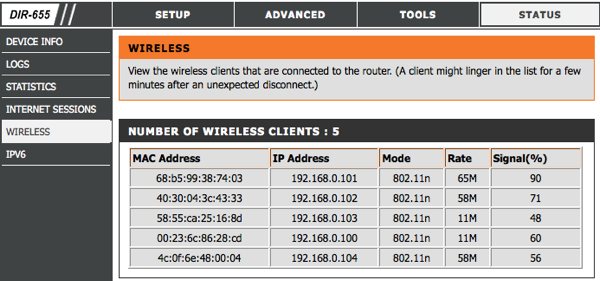
Once inside your router's administrative console look for a section related to connected devices or wireless status. In my old DIR-655 from D-Link it's available under Status > Wireless but you'll find it as "Attached Devices" in Netgear routers, under DHCP Clients Table on Linksys routers, "Device List" if you are using the Tomato firmware, and so on.


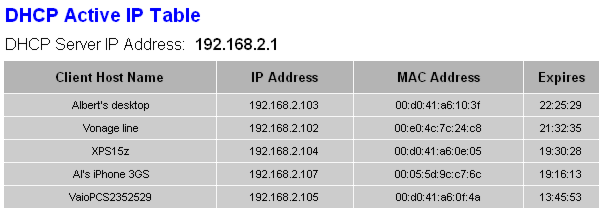
                                 DHCP client list examples on D-Link and Linksys routers.
 
This should provide a table with the IP, MAC address and other details of every device currently connected to the router. Check that list against your gear to find any intruders. You can find out the MAC/IP address of your computers by going to the Command Prompt again and entering 'ipconfig /all'. The MAC address will be shown as the physical address. I'll let you figure it out for mobile devices like smartphones and media players since I can't possibly list all options.

 
Taking action
The best and simplest solution is to set up a strong password using WPA2 or WPA -- WEP is very easy to crack so avoid that if possible. There are some other methods you can use to beef up security, like switching off the SSID broadcast (which prevents it from advertising the name of your network to nearby Wi-Fi devices) or setup a filter for allowed or blocked devices by MAC address. It won't stop the most determined intruder but it will slow him down.
 
That should be more than enough for most users but if you need to actually track down who's been breaking into your network it's possible to pinpoint his physical location using a tool called MoocherHunter. You'll need to burn a Live CD to boot your laptop with and walk around to track down unauthorized wireless clients. According to the program's description, it detects traffic sent across the network and can find the source within 2 meters accuracy.
 
Needless to say, we're not suggesting you take matters into your own hands, but it might come in handy if someone is getting you in trouble with authorities using your network for illegal purposes -- or simply to have a cool story to tell.

 
Bonus: Profit by setting up a paid Wi-Fi hotspot

If it doesn't bother you to have someone piggybacking on your connection you might as well get something in return, right? Chillifire is a good third-party firmware alternative if you want to run a public hotspot, as it allows you to offer for-pay or free Internet access points from your consumer router. Alternatively, you can get a Fonera router, which gives you free roaming at Fon Spots worldwide in return for sharing a little bit of your WiFi at home.