Cisco Learning Network Store Promotions Page
Showing posts with label MacBook Air. Show all posts

8.23.2015

Windows 10: Pushing my MacBook and iPad aside

The versatility of Windows 10 is gradually pushing my MacBook Air and iPad Air 2 to the side. This was unexpected and a testament to how good Windows 10 has become in such a short time.

 
I bought the Surface 3 primarily because it shipped with Windows 10. I wanted to get serious hands-on time with the latest version of Windows and the hardware of the Surface 3 seemed to be a good way to do that. A long-time MacBook user, what I didn't expect to happen was Windows 10 pushing the MacBook aside.
 
I now use the Surface 3 every day, and while I haven't retired the iPad or the MacBook Air I find I don't miss them when using Microsoft's device. I've given a lot of thought as to why that is, and it comes down to the versatility of Windows 10.
 
Windows 10 has grown on me rapidly. This may be partly because it's the shiny new OS on the block, but only to a small degree. The bigger factor is how I can interact with Windows 10 in a variety of ways that fits my mobile routine.

A touch of versatility

I can use the Surface 3 by touch, with the keyboard and trackpad, with a mouse, and with the Surface Pen. When it's better to reach up and touch the display I can do that. I can run Windows with the trackpad when that better fits what I am doing. When precision is the call of the day I unfold the Arc Touch Mouse and get busy. While I don't do so as much as I thought I might, the pen is always there for handwritten input.
 
This versatility works so well because it is natural in practice. I don't have to think about it; I just do things the best way at the time. This is due to the wide range of capability that Microsoft has built into Windows 10. There are several ways to do most things, and the Surface 3 takes full advantage of them. To quote a common statement about the Apple world, Windows 10 "just works".
 
Regularly used features -- e. g. Start Menu, Settings, Task View -- can be invoked in multiple ways. Tapping on the screen, entering a key command, or making a gesture on the trackpad all become second nature quickly. It's not only efficient, it's fun to use.
 
The Edge browser in Windows 10 was pretty buggy at first, but it's evolved nicely. I now use it almost exclusively, with only the rare jump into Chrome for a couple of sites that have trouble in Edge. The poor situation with Windows apps is largely offset by the web versions of the ones I need, and Edge fills that void.

Taking over the work desk and the gear bag

While I am carrying the Surface 3 daily instead of an iPad or MacBook, it's not just mobile use that it's taking over. I have traditionally used the MacBook Air as my desktop system, but now find I miss the Surface and Windows 10 when doing so. I am regularly putting the OS X system aside and using Windows in that role.
 
This surprises no one more than it does me. When I started using the Surface 3 and Windows 10 I figured it would be just another device in my daily mobile gear rotation. I like using a variety of gadgets in this role and to keep familiar with advances in all of the mobile platforms. I never thought I would head out to work nearly every day with the Surface 3 in the bag, but that is what is happening.
 
Microsoft has done a great job with Windows 10, especially with how it has integrated with the Surface 3. It's not perfect but then it's early days in the evolution of the OS. It is already surprisingly good, and that has gotten my full attention.
 
I'm not going to dump OS X nor iOS; covering them is what I do. I am looking forward to El Capitan, and find the iOS 9 public beta to be a great update on the iPad. But I don't miss them when I leave them behind, and that indicates a big step forward for Windows.

3.09.2015

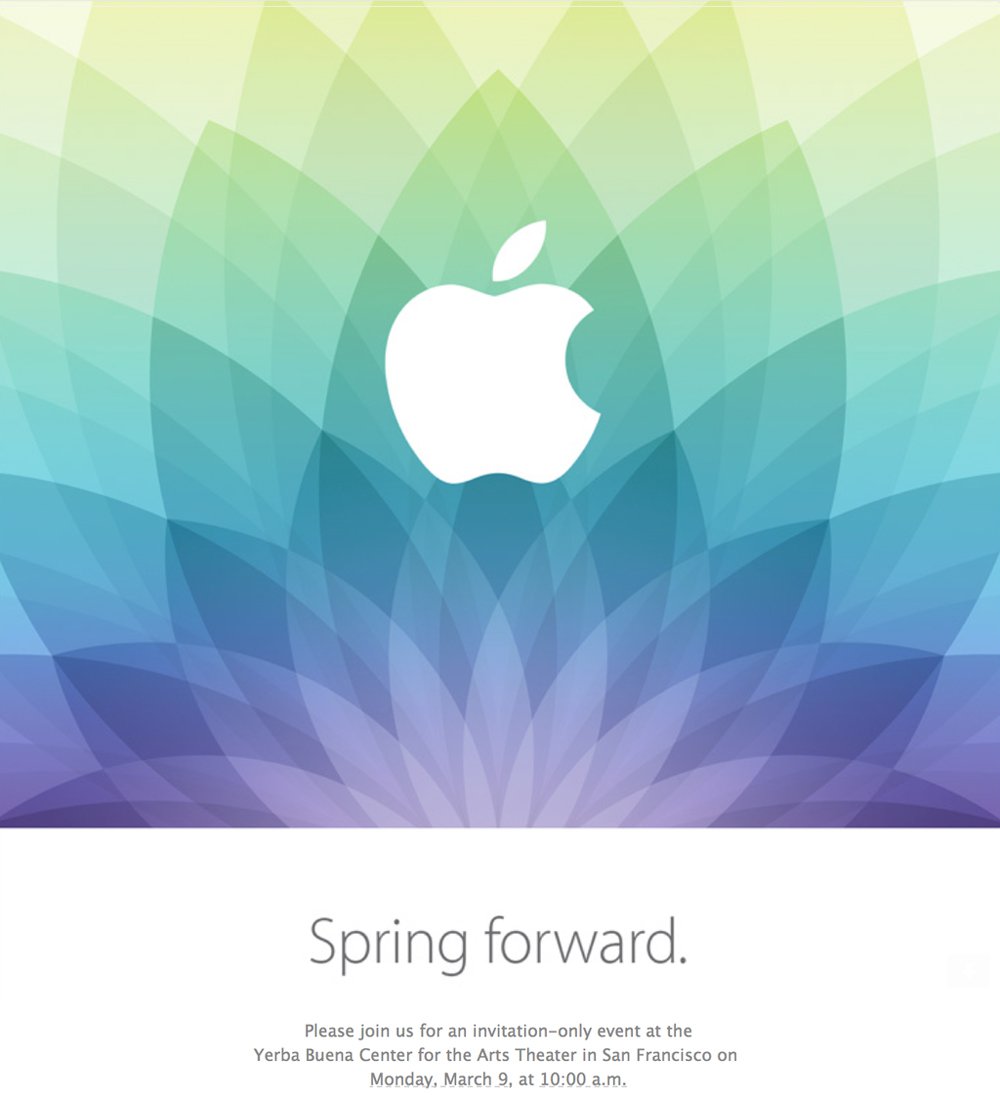
Watch Apple's 'Spring Forward' event live on any device including Windows and Android

Whether you think the Apple Watch will revolutionize wearables, or be a rare misstep for Apple, we’re about to find out as the tech giant is all set to launch its latest new product at a 'Spring Forward' event which is being hosted today at the Yerba Buena Center for the Arts Theater in San Francisco.
 
While the Apple Watch will be the center of attention, it’s possible that Apple will have a few other products to show off too including maybe a Retina MacBook Air and Beats Music Service.
 
The event starts at 10am PST, which is 1pm EDT and 5pm GMT (thanks to the change in Daylight Savings Time in the US). There will be a live stream, but as always with Apple, there are some restrictions.
 
Apple likes to preach to the faithful, so live streaming the event requires Safari 5.1.10 or later on OS X v10.6.8 or later; Safari on iOS 6.0 or later. Streaming via Apple TV requires second- or third-generation Apple TV with software 6.2 or later. Assuming you have what's required, you can watch the event live here.
 
If you have a Windows PC or an Android device you can still watch the event, but you’ll need VLC Media Player installed. Assuming you do, open it, and click on "Media" at the top left. Go to "Open Network Stream" and paste in the network URL of the live Apple event which is:
 
http://p.events-delivery.apple.com.edgesuite.net/14pounqefvoiubefvpiub10/m3u8/atv_mvp.m3u8
 
You should also be able to paste this address straight into Chrome or Firefox on Windows too, assuming you have VLC Media Player installed. It should be detected as a live stream and start playing. Naturally, all this will only work once the stream is live, so if you get an error, try again nearer the broadcast time.
 
Tune in once the event starts and feel free to share your comments about what Apple is showing off in the comments below. Will you be buying an Apple Watch?
 
~ Wayne Williams

1.07.2015

Apple's next MacBook Air will remove almost all traditional hardware ports: report

A render of the 12 inch Macbook Air projection from 9to5Mac.com. Photo: 9TO5MAC.COM
In a world of falling laptop sales, Apple's immensely popular MacBook Air stands tall.

But the current line feels stale to many, lacking the retina display of the MacBook Pro and the razor thinness of some of its competitors. An update is due some time this year, and as with all things Apple, rumours are everywhere.
  
A new report from 9to5Mac's Mark Gurman, which is built on information from sources within Apple, describes a new 12 inch MacBook Air that is thinner than both the current 13 and 11-inch models, with much less 'bezel' (think borders) getting in the way.

"Besides a new look for the front of the computer, the entire unibody has been revamped from the keyboard to the trackpad to the speakers. Taking cues from the 12-inch PowerBook introduced by Steve Jobs over a decade ago, the new keyboard sits edge-to-edge across the width of the laptop. In addition to going edge-to-edge, the entire key set has been subtly redesigned so that each key sits noticeably closer together."
Where are all the ports?! Render by 9to5Mac.
 
As well as saving space on bevels and keys, this projected model eschews almost every port, including Apple's own ThunderBolt and MagSafe ports. What's left? One standard headphone port and one USB Type-C port.
 
This new reversible USB port would allow for charging as well as your usual USB needs, including external monitor support. The prospect of Apple ditching that many ports at once seems somewhat far fetched, but with a pricy adaptor and a healthy dose of arrogance it does feel very Apple. Gurman takes care to note that Apple test many different versions of most devices, so the Air that ships may well have more ports on offer.
 
This news comes during CES, a huge gadget industry showcase that Apple do not take part in. They often offer some sort of counter-programming to disrupt the tech news cycle, which isn't to say this is an intentional leak, or even an authentic one. As with all things Apple, we won't know anything for sure until the device's release - likely at WWDC in the middle of this year. For more details and renders, check out the full report on 9to5Mac. 
 
Would you buy a MacBook Air with only two ports? 

~ Henry Cooke

1.06.2015

Asus' Transformer Book Chi family is an inexpensive Surface Pro alternative

 
During Asus’ press conference at the Consumer Electronics Show, the company announced a new family of Windows-based convertible tablets. The Transformer Book Chi family will debut with three models including the low-end T90 Chi as well as the high-end T300 Chi that we first saw at Computex 2014.
 
Described by Asus CEO Johnny Shih as the ultimate dream machine and compared favorably to Apple’s MacBook Air, the flagship T300 Chi features a 12.5-inch display operating at a resolution of 2,560 x 1,440. Under the hood is a fanless Intel Core M processor (your choice of the Core M 5Y10 or the 5Y71), up to 8GB of RAM and a 128GB solid state drive.
 
 
Carved out of aluminum, the chassis measures just 0.65 inches thick with the keyboard attached and only 0.3 inches without it so it is indeed slimmer than a MacBook Air. But at 3.1 pounds with the keyboard (1.6 pounds without it), it’s also a little heavier in its notebook configuration.
 
Pricing starts at $799 with the 2,560 x 1,440 display however it can be had for $100 less if you opt for a 1080p screen.
 
 
If that’s more than you’re looking to spend, the T100 Chi checks in with a smaller 10.1-inch screen and a resolution of 1,920 x 1,200. It’s powered by Intel’s Atom Z3775 Bay Trail chip and comes with your choice of 32GB or 64GB of internal storage. Expect to pay $399 for the opportunity.
 
Last but not least is the T90 Chi, the cheapest of the bunch with a starting price of $299. Even smaller still at 8.9 inches, the T90 ships with a 1,280 x 800 resolution display and the same Atom hardware and storage options as the T100. One key difference with this model is the fact that its keyboard doesn’t include a touchpad, likely due to lack of real estate.
 
All three Transformer Book Chi convertibles will be available starting next month.
 
~ Shawn Knight

9.25.2014

Apple's 12" Macbook Air said to feature thinner fanless design, reversible USB Type C, no MagSafe

 
Apple’s long-rumored 12-inch MacBook Air captured headlines earlier this month when Jack March reported the device would arrive in iPhone-esque color schemes next year. March, formerly of A Tech Website, recently published a follow-up report with even more details regarding Apple’s upcoming ultra-slim notebook.
 
As March outlines on his new site, the 12-incher will have a noticeably thinner design. To accomplish this, Apple may have to sacrifice the standard USB port in favor of a reversible USB Type C connector. If true, one would assume that Apple would include an adapter for backwards compatibility.
 
What’s more, Apple is said to be going with a fanless design for an even thinner profile. Again, one would assume the Air would be equipped with Intel’s Broadwell chip to pull off this engineering feat.
 
Elsewhere, the source also notes the MagSafe magnetically-attached power connector could be replaced with a different charging method. Apple apparently hasn’t decided one way or another on this, however.
 
The bezels surrounding the display will be noticeably thinner, much like the current MacBook Pro Retina line. The area around the keyboard, meanwhile, is being reduced so that there’s almost no space on the sides while the speaker is being moved above the keyboard and will be visible.
 
The source didn’t provide any further details as to not give away his / her identity, March said.
 
As predicted in his original post, March claims the new machines will arrive by the middle of next year. 
 
~ Shawn Knight

8.23.2014

How to: Get the most out of touch gestures on the MacBook

Summary: Touchscreens are becoming the norm on laptops as they add a new dimension for working with the system. MacBooks have great trackpads that make a touchscreen unnecessary when used properly.
 

Essential touch gestures for the MacBook trackpad

Page scroll

The gesture to scroll up and down in windows is most likely familiar to MacBook owners, but it's worth mentioning just in case.
 
Scrolling up and down in web pages and apps with scrollable windows is a simple process. Using two fingers, swipe up or down to move down or up the page.


Switching between running apps

On the MacBook, apps run in windows that can reside on the screen at one time. It is possible to put two apps side by side for referring to them both at the same time.
 
OS X also lets most apps run in full-screen mode, which is particularly useful on the MacBook Air with the low-resolution display. This is my preferred method of working with apps on my 11.6-inch Air, due to the gesture for moving from one app to another.


Image snapped in transition between apps
 
Swiping to the left or right with three fingers rotates among running apps. The display fluidly transitions from one app to the next. Apps rotate in the order they appear in Mission Control, where they can be dragged to the user's preferred order. This can be done quite easily given the gesture to access Mission Control, detailed on the next slide.

Launch Mission Control

Mission Control is a screen in OS X that shows an overview of all running apps (see image below). All workspaces are depicted in addition to all running apps.
To quickly access this overview, using four fingers swipe up on the trackpad. You can tap any thumbnail in Mission Control to go straight to that app or desktop. To stay where you were when you opened Mission Control swipe down on the trackpad with four fingers.
Mission Control in OS X
 

Show desktop

Those who prefer running apps in windows are familiar with how crowded the screen can get with all those apps displaying at once. For those times you need to quickly get to the bare desktop, this gesture is for you.
 
Using the thumb and three fingers, spread them out toward the edge of the trackpad. This makes all windows disappear and instantly brings you to the desktop.
 

Open Launchpad

OS X has a Launchpad (see image below) that shows all installed apps in a style similar to iOS on the iPad. It's a convenient method for finding the app you need. You can tap any app in the Launchpad to run it, and swipe through the multiple screens.
 
To instantly open the Launchpad, using the thumb and four fingers pinch in on the trackpad. You can return to the point you were when you opened Launchpad by reversing the pinch gesture.
Launchpad


Rotate images in Preview

Preview is the multi-purpose app in OS X for viewing images and PDF documents. The pinch-and-zoom gesture previously covered can be used in Preview to good affect.
When you want to rotate images in Preview, simply perform a rotate gesture on the trackpad using two fingers.


Move back and forth through web pages

When surfing the web it's common to use the Previous/ Next page buttons to go back and forward in the browser. OS X has a convenient trackpad gesture to make this possible without moving the cursor.
 
Swipe left or right using two fingers to slide through pages previously viewed. 
 
Note this doesn't work consistently in Chrome since the Mavericks update. It works well in Safari.


Pinch zoom

Anyone who owns a smartphone or tablet should be familiar with using the pinch-to-zoom gesture to make whatever is on the screen get larger or smaller. MacBook owners shouldn't overlook the same capability using the trackpad.
 
It works the same on the laptop as on other devices. Pinch in with two fingers to make things smaller and spread them out to make them bigger. This works in most apps in OS X.


Look up definitions in Safari

When you encounter an unfamiliar word in the Safari browser, there's a gesture for that. With the cursor over the word, tap the trackpad with three fingers.


Scrub video in QuickTime

If you need to move slowly forward or backward while working with a video in QuickTime (scrubbing), swipe left or right on the trackpad using two fingers.
 
Bonus tip for QuickTime — To enter or exit full-screen mode in QuickTime, perform a two-finger spread or pinch on the trackpad.
 
The popularity of tablets is due in large part to the utility of working with them using the touchscreen. Touchscreens are moving to the laptop as a result, and some feel they are mandatory for a good user experience. This leaves the MacBook behind, as Apple has yet to bring touch to the laptop screen.
 
That’s not as big an omission as some may think, due to the good job Apple has done with touch on the MacBook trackpad. They have large pads that work without fault, and Apple’s engineers have developed good touch gestures that make using OS X productive and natural.
 
There are some basic trackpad gestures that most MacBook owners are probably familiar with, and others worth learning. Using the gestures in this collection will help any MacBook owner get the most out of the laptop and OS X.
 
The gestures as presented are for the integrated trackpad on the MacBook. Most should work using Apple's Magic Trackpad with other Apple systems.
 
~ James Kendrick

6.25.2014

Microsoft offers $650 store credit for MacBook Air for Surface Pro 3 trade-in

Summary: Microsoft is offering MacBook Air owners up to $650 in store credit for trading in their Apple devices for its new Surface Pro 3 tablets.
 
Microsoft is offering a limited time Surface Pro 3 promotion via which users can get up to $650 in store credit for trading in certain Apple MacBook Air models.
 
 
The new promotion, running June 20 to July 31, 2014 -- "or while supplies last" -- requires users to bring MacBook Airs into select Microsoft retail stores in the U.S., Puerto Rico and Canada. (The trade-in isn't valid online.)
 
Microsoft execs have been touting the Surface Pro 3 as the tablet that can replace users' existing laptops, including MacBook Airs. Microsoft's Surface.com site 
 
The fine print:
 
"To be eligible for trade-in, device must power on to be considered working. Water-damaged devices and devices with cracked screens are not considered working devices for purposes of this offer." 
 
All trade-ins are final and provided as part of the "Recycle for Rewards program" from CExchange LLC. The trade-in is limited to one trade-in per purchase.
 
To get the maximum ($650) value, users have to apply the store credit toward the purchase of a Surface Pro 3, the most recent model of the company's Intel-based Surface tablets. The Core i5 version of the Surface Pro 3 began shipping on June 20.
 
There's no information on the Microsoft store site about which models of MacBook Airs are eligible for promotion.
 
Microsoft also, as of late,  has been trimming prices on its second-generation Surface Pro tablets, clearing the way for the Surface Pro 3s.
 
~ Mary Jo Foley 

5.29.2014

Upcoming Apple products are the best yet

SVP Eddy Cue promises that Apple's upcoming product pipeline is the best that he's seen during his 25 years with the company. 

 Image credit: Recode/Asa Mathat
Steve Jobs used to be the public face of Apple, but over the years, he began to give more executives stage time at the company's media events. One of those executives is Eddy Cue, Apple's senior vice president of Internet Software and Services -- basically, Apple's iTunes and iCloud products. He will also take charge of the Beats music subscription service when that acquisition closes later this year.
 
At the Code Conference yesterday, Cue and Beats co-founder Jimmy Iovine sat down with Walt Mossberg and Kara Swisher to discuss the future of Beats, the music industry, and Apple.
 
One of the most interesting statements came from Cue, who has been at Apple for 25 years and created Apple's online store in 1998, the iTunes Store in 2003, and then the App Store in 2008.
 
Surprising even the usually unflappable Walt Mossberg, Cue said that "we've got the best product pipeline that I've seen at Apple in my 25 years" with the company.
 
Mossberg noted that Eddy Cue's tenure covers Apple's rollouts of the iMac, iPod, iPhone, iPad, and MacBook Air -- "all widely recognized as pretty good products."
 
"I agree with you," Cue responded. But he reiterated his initial statement, saying "I believe... the products that are coming are great."
 
This isn't the first time that an Apple executive has made a bold proclamation about upcoming products. Earlier this year, CEO Tim Cook said the company was working on "really great stuff," and that it was planning to enter new product categories during 2014.
 
Among other things, Apple is rumored to be working on a wearable iWatch product that could have extensive health and medicinal tracking purposes. It has also been examining television for years and could be looking at launching a new Apple TV set-top box complete with an App Store.
 
For business customers, recent rumors have said the company will roll out its Touch ID fingerprint security system to all iOS products, including iPads, in its yearly refresh this fall. The Touch ID feature built into the iPhone 5s makes it easy for users to lock down their devices with little to no time lost, in comparison to entering passwords and PIN numbers. Though the feature currently only unlocks the phone itself and speeds app and music purchases through Apple's digital stores, it's easy to see how Touch ID could be expanded to unlock VPN and other secure protocols.
 
Expanding Touch ID would be key for business customers looking to maximize security on mobile devices. For this reason, it might be beneficial to hold off purchasing Apple equipment until September or October, when new models are expected to be introduced.
 
Separately, Cue was asked about the legacy that Steve Jobs left at Apple. He was slightly defensive at the idea that Apple needed to have a "reset" after he left, saying that Jobs had left the company in good hands.
 
"I think he'd be extremely proud of all the work that we're doing today and the products that we're building," Cue said. "I think we're continuing a lot of the legacy that he built."
 
Will you be waiting to buy new Apple gear until the annual fall refresh? Let us know in the comments below.
 
~ Jordan Golson


5.06.2014

New MacBook Air specs make for better business laptops

Apple's updated MacBook Air should prove appealing to business users. Erik Eckel explains. 

  Image credit: James Kendrick / ZDNet
Apple refreshed its MacBook Air line in late April. Business users will be pleased with the changes, which include updated hardware and lower prices -- always an attractive combination.
 
Organizations previously viewing the MacBook Air as potentially unnecessary, luxurious upgrades vs. more conservative but reliable MacBook Pro models may wish to revisit such conclusions. As of April 29, the MacBook Air features faster processors, fast flash storage, 802.11ac Wi-Fi connectivity, and significant battery life (up to 12 hours).
 
The ultrabooks already delivered impressive power within a lightweight package. The fourth-generation Intel Core i5 and i7 CPUs leverage ultra-efficient architecture to speed through common business productivity and even many graphics-intensive tasks while sipping electricity when possible to help ensure mobile users receive the battery life needed to run throughout the typical business day. Apple estimates the 11-inch models can run up to nine hours, while 13-inch models can extend to 12 hours of service between charges.
 
Now less than three-quarters of an inch thick and weighing less than two-and-a-half pounds, the MacBook Air is an attractive option for incessantly mobile professionals. Previously, an Intel 1.3 GHz Core i5 CPU proved standard. Processor speed is now 1.4 GHz. While only a modest uptick, new chips typically benefit from other advantages as well, such as improved energy efficiency.
 
Apple's also lowered prices both for 11- and 13-inch models by $100. What's that really mean for business users? Common builds are now faster and less expensive. Take an entry-level 13.3 MacBook Air, for example. With an Intel Core i5 1.4 GHz CPU (turbo boost up to 2.7 GHz), 4 GB RAM, 128 GB PCIe flash storage, and OS X with Apple's software suite (including iPhoto, iMovie, Pages, Numbers, and Keynote), the out-the-door cost is just $999. An 11-inch with the same configuration is now only $899.
 
Does your organization's traveling staff need even more robust performance? More capacity is available, but note it comes at a price. The top-of-the-line MacBook Air is the 13-inch Intel Core i7 1.7 GHz CPU model with 8 GB RAM and 512 GB flash storage. Those laptops cost $1,749.
 
All MacBook Air models are ready for desktop operation, even within demanding business environments. Both 11- and 13-variations possess integrated HD cameras, a Mini DisplayPort and VGA, DVI, and HDMI output capacity using corresponding adapters sold separately, as well as two USB and one Thunderbolt ports for connecting peripherals.
 
Are these specs impressive enough to make room for the MacBook Air in your organization? Share your opinion in the discussion thread below.
 
~ Erik Eckel

3.19.2014

Six ways to maximize Mavericks battery life

Erik Eckel provides some tips for getting the most out of your battery life in Mavericks OS X. 


Mac business users frequently work outside the office. That’s why they buy MacBook Pros and MacBook Airs. Portability is required to meet the challenges of modern careers. However, preserving battery life is often a critical task when working remotely.
 
Certainly, Apple’s taken notice. Its developers included several power-saving features within Mavericks, the new OS X release. Time Coalescing is one such feature. The technology enables Macs, including the popular laptop models, to group low-level operations, thereby creating idle periods for the CPU. Why is that important? Because the CPU can then enter lower power states more often. Apple claims the method can reduce CPU activity as much as 72% with little adverse effect noticeable to the user. Best of all, the feature is enabled automatically, which means Mavericks users don't have to do anything to benefit from it.
 
App Nap is another Mavericks refinement aimed at reducing power so that Mac business users obtain longer battery life. The system reduces resources dedicated to apps that are placed in the background and not performing other actions. Because email, Safari, and other apps constantly draw resources, Apple claims the new technology can reduce energy use by 23%.
 
Thus, Mavericks is already designed to maximize energy use. But particularly demanding road warriors can also leverage additional choices to further extend a MacBook Pro or MacBook Air’s battery charge. Here are six more ways to maximize Mavericks battery life.

1. Consider an SSD

Solid-state disk drives, while more expensive, offer faster performance. They also consume less energy. MacBook Airs ship with flash storage drives. Many 13” MacBook Pros, however, ship with 1 TB 5400 rpm drives, although solid-state drives are available as an upgrade.
 
Skeptics should consider the numerous Internet reports that confirm an SSD’s performance benefits. Lifehacker notes an SSD drive boosted a 13” MacBook Pro’s performance by approximately 20% and almost halved startup. Laptop Magazine, meanwhile, measured SSD power consumption and found “significantly more battery life.”

2. Disable Bluetooth

If you’re working on the road using a MacBook Air or MacBook Pro, disable Bluetooth. Chances are you don’t need wireless connectivity to a mouse, keyboard, or printer left back at the office anyway. Disable Bluetooth simply by clicking the Bluetooth icon in the menu bar and selecting Turn Bluetooth Off.

3. Disable wireless networking

A Mac’s wireless radio also consumes considerable energy. When an Internet connection and email access are unnecessary, disable the laptop’s Wi-Fi radio to further extend battery life. Disable Wi-Fi by clicking Apple’s wireless icon in the menu bar and selecting Turn Wi-Fi Off.

4. Lower display brightness

Mobile users seeking to squeeze every last drop of electricity from their Mac can lower the display brightness, too. Tapping the F1 key incrementally lowers the display brightness and further extends a battery charge.

5. Avoid using an optical drive

Some tips seem obvious, but occasionally they're necessary to point out truths. Listening to a CD or watching a DVD places quite a demand on a laptop’s electrical resources. The optical drive motor alone consumes quite a bit of energy, so avoid those practices when you need to extend a system’s battery life, if possible.

6. Leverage Energy Saver

Apple also includes Energy Saver options within System Preferences. Road warriors can specify explicit battery-saving preferences within Energy Saver. Adjusting how quickly the computer and display sleep, using the provided slider bars, can significantly extend the laptop’s battery charge, particularly if there are many activity lulls. Other Energy Saver options include choosing to put hard disks to sleep, when possible, and dimming the display when running on the battery.
 
Do you have any other suggestions for maximizing the battery life in Mavericks OS X? Share your tips and tricks in the discussion thread below.
 
~ Erik Eckel

3.04.2014

Tablets: Not mobile enough or productive enough for many professionals

Summary: Beyond specific verticals and specialized jobs, tablets are facing a usage problem with business professionals. They aren't winning as companion devices or convertibles, as we discuss in this week's Monday Morning Opener.

Image: iStockphoto
  
I'm packing for a business trip and once again the game of "do I pack the tablet?" starts anew. I need the laptop for work, need the smartphone because it's the one thing you can't leave home without and add the Kindle because the screen is easy on the eyes for reading. Does the tablet go along for the ride?

Increasingly, the answer is no.
 
The tablet is fun for consumption and that may work for many folks. But it's hard to argue the tablet—the 7-inch to 10-inch variety—is a tweener device. Tablets aren't quite mobile enough and not quite productive enough. Tablets are companion devices when I increasingly want to vote a device or two off the island.
 
To date, I haven't quite found that convergence device, but it's pretty clear the tablet isn't it. For a tablet to be a convergence device you may need a keyboard, a smartcover of some sort, and maybe a few adapters. Add it up and all you've done is cobble together an ultrabook or MacBook Air.
 
I recently sat through an overview of the HP ElitePad 1000, which is billed as a total business solution. The ElitePad has a bunch of accessories—smart jackets, battery, adapters, covers, docking stations and other goodies to turn this tablet into an enterprise IT powerhouse.
 
Derek Everett, director of worldwide product management for commercial Windows tablets at HP, was explaining to me how "not one size fits all with tablets." ElitePad is certainly flexible. But I had to interrupt him with: "At what point do you say screw all of this and just buy a laptop?"
 
Everett explained that certainly some people see tablets as a companion device. Others see tablets as notebook replacements. However, I'd argue most of us don't see them as either.
 
And that's the problem. For some business cases—sales, marketing, and customer service come to mind—a tablet is fine. For the rest of us, tablets have a few issues.
 
The larger issue is that the so-called convertible movement—tweener laptops and tablets—hasn't delivered that business home run yet. So for now, the tablet is voted out of the backpack. You can only lug around so much.

~ Larry Dignan