Cisco Learning Network Store Promotions Page
Showing posts with label Windows XP. Show all posts

8.01.2016

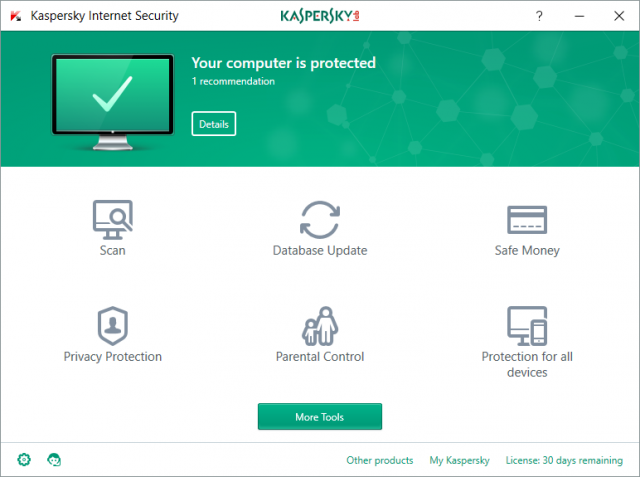
Kaspersky 2017 brings VPN, better adware blocking and removal

 
Kaspersky Labs has released Kaspersky Anti-Virus 2017, Kaspersky Internet Security 2017 and Kaspersky Total Security 2017 in the US and Canada. New features include Secure Connection, a virtual private network which automatically kicks in to protect you when using wifi hotspots, web banking sites and more.
 
An Installation Assistance tool looks out for adware and other pests that get silently installed with some free software, and the Software Cleaner helps you decide what to remove.
 
An extended Anti-Banner system now uses a "powerful subscription catalog held by a third-party", making it significantly better at blocking popups, web ads and more.
 
The suites now include Kaspersky’s Software Updater. This checks for updates to common applications (Adobe Reader, Flash, Java, Chrome, Firefox, more), and can optionally install them without you having to see or do anything at all.
 
Kaspersky has "enriched the design and usability of the main screens for all the new line products", apparently.
 
The product is now fully compatible with Windows 10, but Kaspersky hasn’t forgotten about older systems -- 2017 still works with Windows XP.
 
Trials of Kaspersky Anti-Virus 2017, Kaspersky Internet Security 2017 and Kaspersky Total Security 2017 are available now.
 
~ Mike Williams

7.12.2014

Don't be a bonehead: Run antivirus on your Mac

Summary: Choosing not to run antivirus on a Mac is a boneheaded move that people choose to make based on nothing more than fanboy idealism, and has no place in the real world. Doubly so if your Mac takes on BYOD duties.
 
 
The other day I put together a Q&A for shifting from Windows to the Mac, and under my "must have" utilities I listed an antivirus tool. While many understood the logic of this and agreed with my decision, there were some who saw this as a silly indulgence.
 
It's not. In fact, choosing not to run antivirus on a Mac is a boneheaded move that people choose to make based on nothing more than fanboy idealism, and has no place in the real world. Doubly so if your Mac undertakes BYOD duties.
 
Here's why.
 
I consider security to be an important part of computer ownership. Security for me means keeping my hardware safe, keeping my data secure, keeping my network safe, and keeping the people around me safe. I'm a big believer that vigilance is a vital tool in the fight against malware, and that applying security patches in a timely fashion goes a long way toward keeping a platform safe.
 
But I'm also fully aware of the fact that there is no such thing as secure code. Operating systems are huge, and it doesn't matter whether that code is written in Redmond or Cupertino or somewhere else, it will be riddled with bugs. Windows XP was out for more than a decade, and saw three service packs and countless patches, but the bugs just kept coming. Patched bugs represent just the tip of iceberg when it comes to the actual vulnerabilities present in the code we are exposed to and use on a daily basis.
 
If you believe that your operating system is secure, you're deluding yourself. And if you try to tell others that your operating system of choice is better than someone else's, you're trying to delude others and don't be surprised if people think you're foolish.
 
When it comes to malware, I don't want it landing on my systems, I don't want it inhabiting my systems, and I don't want to pass malware on to others. That's the plan, and I work at achieving that by taking a three-pronged approach:
  • Vigilance and care in what I download and install, where I visit on the web, and who I allow to access my system.
  • Apply patches in a timely manner. Not installing a patch – unless you have a very good reason – is pure insanity.
  • Keep an antivirus running to scan files and live on or pass through my system.
The final stage is important not only because it protects my system from malware – and believe me when I say that Mac malware does exist, just not in the same numbers as malware for Windows – but it also scans for Windows malware, which prevents me from passing on nasties to other people. A little RAM and some CPU cycles is a small price to pay to get an independent eye cast over the bits that flow into my Macs. OK, I only seem to catch Windows malware, but even quarantining that helps to keep my network safe, and prevents me inadvertently sending bad code to others.
 
I understand that antivirus can be expensive, but I can't understand the mentality behind spending hundreds – if not thousands – of dollars on hardware, and then paint a big bull's-eye on it for hackers and other online ne'er-do-wells. And even if your Mac purchase has left you strapped for cash, there are many free alternatives available to choose from.
 
So don't be a bonehead, and run antivirus on your Mac
 
~ Adrian Kingsley-Hughes

6.22.2014

Microsoft to retire old versions of Skype -- Mac users should be worried

 
Hate all you want, but Skype is awesome. The fact that it is supported on like, everything makes it one of the best video chat solutions. It works on Linux, Android, Windows Phone, iOS, OS X -- it is the bomb. Microsoft shows no favoritism to platform when this software is concerned.
 
Today however, in a bit of shocking news, Microsoft announces that in an effort to move everyone to the newest version of Skype, it will be retiring older versions for Windows and Mac. Does this mean that outdated versions will move to Florida and join AARP? No, well...maybe. Actually, it is not at all clear what retirement means in this case.
 
"As we look ahead to the future, we're focusing our efforts on bringing the latest and greatest to the most recent versions of Skype. As a result, we are going to retire older versions of Skype for Windows desktop (6.13 and below) as well as Skype for Mac (6.14 and below) over the next few months" says Tom Huang, Microsoft.
 
Huang further explains, "don't panic -- whether you’re using Skype for Windows desktop or Skype for Mac, you can download and update to the latest version today for free. We encourage all users to update to the latest version today to continue using Skype without disruption".
 
Whoa, Whoa, Whoa -- stop the clock. Disruption? This seems to imply that Microsoft will purposely block access to older versions. However, the company is mum on that for now. But, you are a HindSight Technologies reader, so you should enjoy being on the most recent versions of software, right? As fas as I can tell, there is no downside to this, right? Wrong.
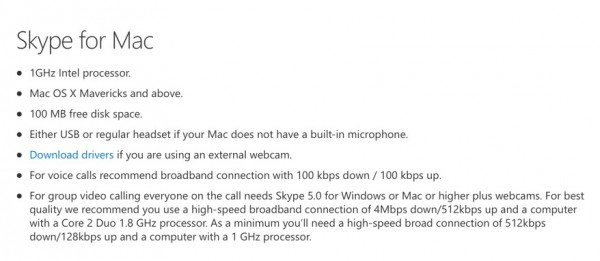
Newer versions of the Skype software may not run on older computers. Case in point, the new version for Mac requires Mavericks (OS X 10.9.x). This could mean that if your Mac cannot run Mavericks that you cannot use Skype! The Windows version however, is supported all the way back to XP SP3.

Are you worried about the potential "disruption" to older versions? Tell me in the comments.

Photo credit: Robert Kneschke / Shutterstock
 
~ Brian Fagioli

6.05.2014

Mint 17: The best Linux desktop to date

Summary: I've used hundreds of Linux desktops over the years, and Mint 17 with Cinnamon is my favorite one to date.
 
Over the decades—yes decades—I've been using Linux desktops, I've had many favorites. Now, I have a new one: Linux Mint 17. I expect it to be my favorite for a long time to come.
 
Linux Mint 17 "Qiana"
I can say that because this version, now a late release candidate. like its base operating system, Ubuntu 14.04, is a long-term support edition. It will be supported until 2019. This makes this edition one that businesses should consider.

In particular, I love Linux Mint 17 with the Cinnamon 2.2 interface. This GNOME 3.x-based desktop is a great windows, icons, menus, and pointer (WIMP) interface. Windows XP users will find it far more familiar than Windows 8's oddball tiled desktop. I also like the MATE interface, which builds on top of the GNOME 2.x interface; but for simplicity's sake I'm going to focus just on Cinnamon.
 
Like almost all Linux desktops, Mint is free and it can run on almost any PC you have at hand. All it requires is an x86 processor; 512 MBs of RAM (you'll be happier though with 1GB); 5 GBs of disk space; a graphics card that can handle 800×600 resolution; and a DVD drive or USB port. That's all.
 
Unlike most of its Linux brothers and sisters, Mint also includes many proprietary programs. So, for example, you can play Adobe Flash videos and DVDs from your Mint PC without jumping through any hoops. Mint doesn't include proprietary drivers such as the ATI or NVIDIA drivers; it does make it easy to install drivers.
 
Another nice feature, which Mint does shares with most modern Linux distributions, is that you don't have to commit yourself to it. You can try it out by running it from a live USB thumb-drive or DVD drive before actually installing it.
 
In my case — since I know Mint like the back of my hand — I went ahead and installed it not just on test systems but on my production desktop and laptop. Yes, I'm a brave Linux user!
 
My work desktop is a Dell XPS 8300. This PC uses a 3.4GHz quad-core Intel Core i7 processor, has 8GBs of RAM, and an AMD/ATI Radeon HD 5770 graphic card. Mint 17 “Qiana” ran perfectly on it. The new Mint also ran flawlessly on my Lenovo ThinkPad T520 laptop. This computer comes with a 2.5GHz Intel Core i5 processor, 4GBs of RAM, a 500GB hard drive and an integrated Intel HD Graphics 3000 processor.
 
This didn't come as a surprise. I haven't had a hardware compatibility problem with any Linux in years. The one annoying thing about Mint, however, is that you can't just upgrade from one version to another. Instead, you must over-write your existing system.
 
On both systems, installing Mint was as easy as falling off a log. There's nothing complicated about it. You just hit yes to most of the questions, give your computer a name, give yourself a login name, and you're in business.
 
Another potential problem for some users is that to install Mint 17 on a Windows 8 PC with Secure Boot, you'll need to turn Secure Boot off. Since I find Secure Boot much more of an annoyance than a benefit this doesn't bother me in the least.
 
For its default programs, Mint sticks with its tried-and-true formula of LibreOffice 4.2 for its office suite; Firefox 28 for its Web browser; Thunderbird 24.4 for its e-mail; and Pidgin 2.10 for instant messaging. Personally, I prefer Chrome for my Web browser and Evolution for e-mail. Mint makes it easy to mix and match my software of choice to its distribution.
 
Indeed, in a related development, this new version of Mint makes both updating the system, your installed software, and your drivers much easier. For example, besides simply having a better display with more information, Update Manger now tracks all your system's upgrades no matter how they were made: Update Manager, apt-get, aptitude, gdebi or dpkg, whatever you use — it now records what you've changed.
 
The operating system and Cinnamon paired together have had many minor improvements. For instance, previous versions of Cinnamon came with a hard-coded list of system tray icons to hide. This list is now gone and Cinnamon now dynamically shows relevant system tray icons when applets are removed, or to dynamically hide them when applets are added.
 
Expert users will also appreciate that hot corners, settings to make use of the display's four corners, have now been made easy to customize.
 
Put it all together and you have a very fast, very secure, and very smooth and easy to use desktop. While other operating systems lately seem to be determined to make things harder for users—and no, I'm not just talking about Microsoft and Windows—Mint's developers keep improving an already superb desktop experiences.
 
You don't have to take my word for it. Download and install it for yourself and you'll see what I mean.
 
~ Steven J. Vaughan-Nichols 

5.26.2014

How to continue getting free security updates for Windows XP -- until 2019

 
Microsoft has stopped providing XP users with security updates, forcing them to either upgrade to another, newer operating system, or gamble with their safety. While the latest usage figures show that a large portion of users are moving away from XP, there’s still a sizable number of users who aren’t -- or can’t.
 
If you’re an XP user, or know some XP users, there’s a trick which makes it possible to receive security updates for the aging OS for another five years -- right up until April 2019.
 
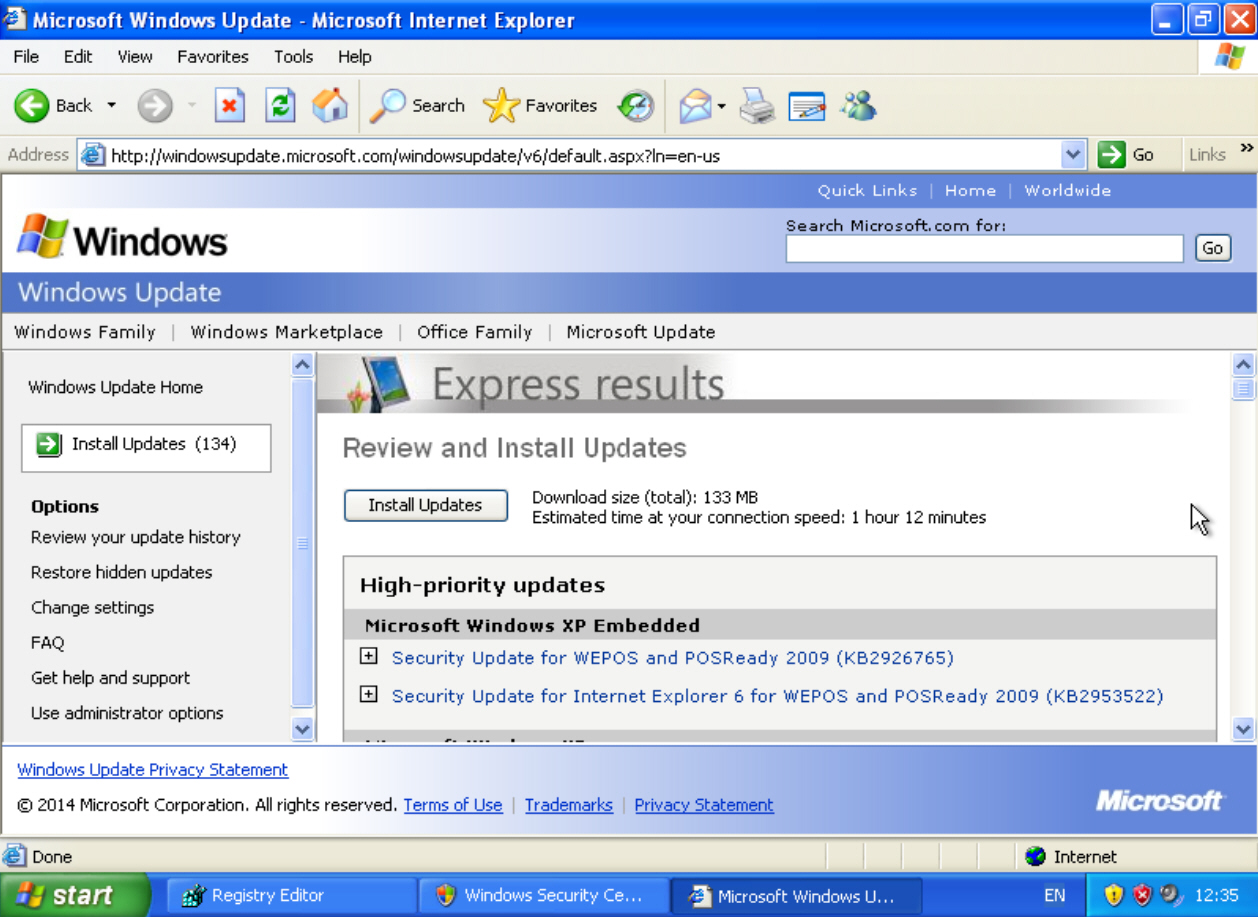
The workaround makes use of updates for Windows Embedded Industry (formerly known as Windows Embedded POSReady). This is based on Windows XP Service Pack 3, and the security updates which are being released for it are essentially the same ones Microsoft would have pushed out for XP, if it was still doing so.
 
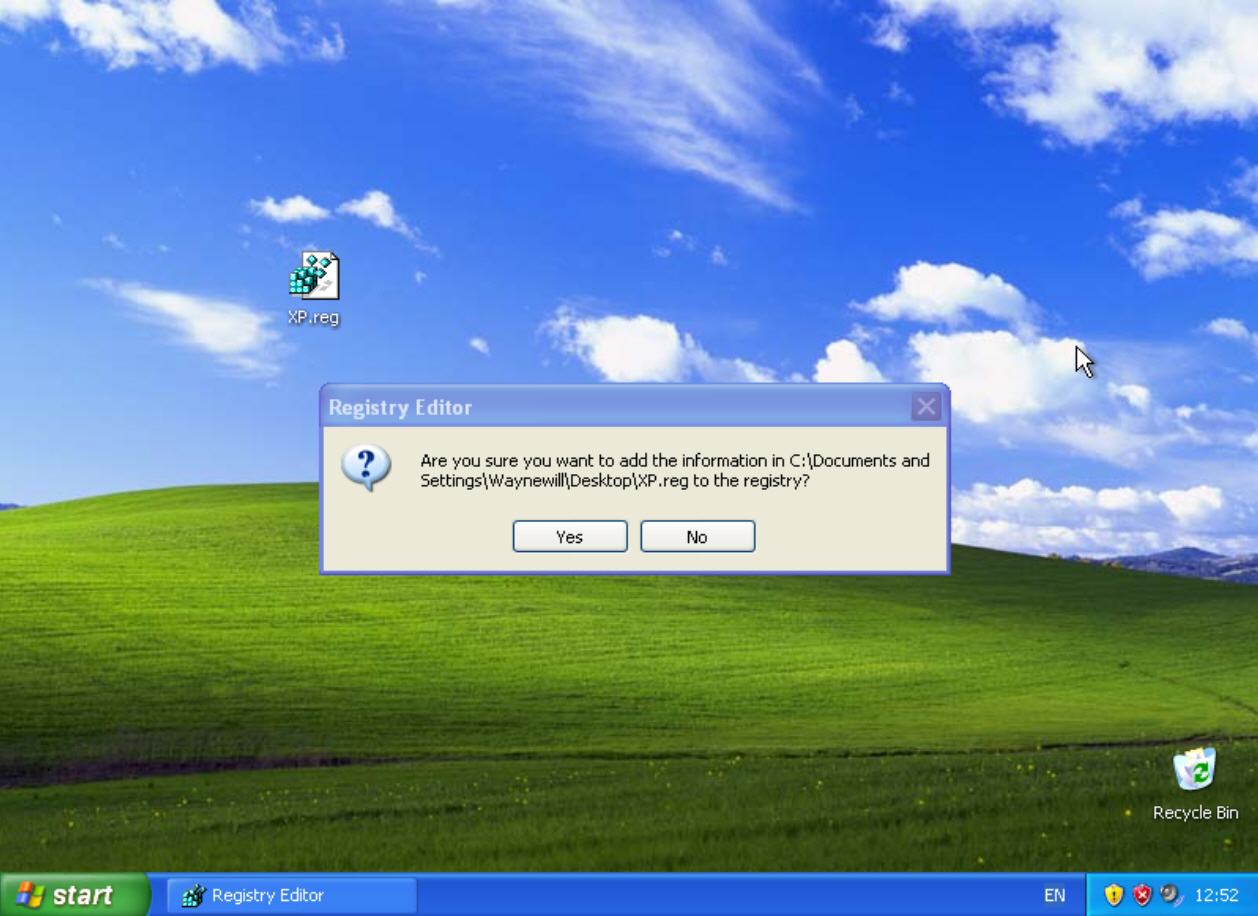
You can’t simply install the updates -- that would be too easy -- and you’ll receive a version mismatch error if you try. But a simple registry tweak is enough to fix that.
 
Create a text document, and call it XP.reg. You’ll need to make sure .reg is the proper extension -- so not "XP.reg.txt". If it’s not showing up as a registry file, open any folder, go to Tools > Folder Options, select View and uncheck 'Show hidden files and folders'. That should fix the problem.
 
Right-click the file, and select Edit. Paste in the following:
Windows Registry Editor Version 5.00
 
[HKEY_LOCAL_MACHINE\SYSTEM\WPA\PosReady]
 
"Installed"=dword:00000001
Save it, and then double-click the file. That will make that change to the registry. That’s all you need to do. Windows will now automatically fetch updates designed for POSReady 2009, ensuring XP remains protected for the foreseeable future.
 
This trick only works for 32-bit editions of XP, but there’s a workaround for 64-bit versions here.
 
Naturally, there’s no way of knowing how long this trick will work -- Microsoft could put a stop to it at any moment. Also, because you’re installing updates for a system other than Windows XP, there’s the possibility that not all updates will work as intended. But it’s still worth a shot.
 
 
~ Wayne Williams

5.22.2014

China bans use of Microsoft's Windows 8 on government computers

A Microsoft Surface tablet is seen during the launch of Microsoft Windows 8 operating system in Hong Kong October 26, 2012.
Credit: Reuters/Bobby Yip
(Reuters) - China has banned government use of Windows 8, Microsoft Corp's latest operating system, a blow to a U.S. technology company that has long struggled with sales in the country.
 
The Central Government Procurement Center issued the ban on installing Windows 8 on Chinese government computers as part of a notice on the use of energy-saving products, posted on its website last week.
 
The official Xinhua news agency said the ban was to ensure computer security after Microsoft ended support for its Windows XP operating system, which was widely used in China.
 
"We were surprised to learn about the reference to Windows 8 in this notice," the company said in a statement. "Microsoft has been working proactively with the Central Government Procurement Center and other government agencies through the evaluation process to ensure that our products and services meet all government procurement requirements."
 
"We have been and will continue to provide Windows 7 to government customers. At the same time we are working on the Window 8 evaluation with relevant government agencies," Microsoft said.
 
Neither the government nor Xinhua elaborated on how the ban supported the use of energy-saving products or how it ensured security.
 
China has long been a troublesome market for Microsoft. Former CEO Steve Ballmer reportedly told employees in 2011 that, because of piracy, Microsoft earned less revenue in China than in the Netherlands even though computer sales matched those of the United States.
 
Last month, Microsoft ended support for the 13-year-old Windows XP to encourage the adoption of newer, more secure versions of Windows. This has potentially left XP users vulnerable to viruses and hacking.
 
"China's decision to ban Windows 8 from public procurement hampers Microsoft's push of the OS to replace XP, which makes up 50 percent of China's desktop market," said data firm Canalys.
 
~ Paul Carsten and Beijing Newsroom        

5.02.2014

Time for Mac users to ditch Windows XP?

For many Mac users, their Windows version of choice is likely to be Windows XP. And with the conjunction of Microsoft this month orphaning XP (the XPocalypse), and the vulnerability announced by Redmond over the weekend, Mac users must decide whether to keep running the old, stale Windows, or upgrade.
 
 
Microsoft said the exploit was still being investigated and the company hasn't worked out a fix.
All versions of Internet Explorer from 6 through 11 are listed as vulnerable as well as all supported versions of Windows other than Server Core. Windows Server versions on which IE is run in the default Enhanced Security Configuration are not vulnerable unless an affected site is placed in the Internet Explorer Trusted sites zone.
But is this such a problem for Macs running Windows? Not so much.
 
The latest version of Boot Camp, Version 5.1, supports Windows 8.1 and also comes with drivers for 64-bit versions of Windows 7 and Windows 8. The previous Boot Camp 4 supported only Windows 7, including Microsoft Windows 7 Home Premium, Microsoft Windows 7 Professional and Microsoft Windows 7 Ultimate. Windows XP and Windows Vista are not supported with Boot Camp 4, however, older Macs running Mac OS X versions before Lion can run Windows XP and Vista.
 
The latest security issue announced this weekend concerns running Internet Explorer on any version of Windows. So, Boot Camp users should move to a more modern browser, such as Google Chrome or Mozilla Firefox.
 
However, there are no XP restrictions in Parallels Desktop for Mac and VMware Fusion 6 lke there are in Boot Camp. Both can run any version of Windows from XP on up. 
 
At the same time, there are fewer security problems running XP in a virtual machine. And especially on a Mac. I was interested to find that one of the new features of Parallels 9 is its Security Center, which helps customers manage installations of security subscriptions for their Windows virtual machine and for the Mac itself.
 
Still, like the rest of the PC users in the world, Mac users face this choice about XP. The Mac preference for XP doesn't stem from a great love for old-fashioned software. But just as some 29 percent of current PC users still find, XP is inexpensive and readily available. So, their choices are the same.
 
The best way to avoid XP's Windows insecurity is to run Mac applications. I know that sounds ridiculous, but it's the best solution. Mac users want to run Mac software in OS X. Often, switchers from Windows believe they must run a specific Windows application and don't bother checking for Mac alternatives. If possible, seek a Mac alternative to a Windows solution. Often, one is available.
 
Another option is to avoid running Windows altogether and run individual Windows applications in CodeWeaver's CrossOver Mac environment. Interestingly, a number of PC developers are taking advantage of CrossOver Porting to provide support for Mac customers. I own one of these applications, DavkaWriter 7 Mac Edition. The result is ugly and unappealing to Mac customers, but it works — just like it does on the PC. I may not be happy with the Windows user experience, but I'm very happy to run this application outside of a virtualized Windows installation, which I had to do a couple of years ago.
 

~ David Morgenstern

4.23.2014

New Chrome feature will allow users to unlock a computer with a smartphone

The Easy Unlock feature, which allows users to authenticate with a phone, has surfaced in the Chrome OS developer's channel. It potentially uses unique sound waves for authentication. 

 
Recent security flare-ups have caused major companies across the board to up the ante on product security and authentication. Forcing users to change their passwords more often has been the go-to solution, but that can actually be less secure if users have trouble remembering their passwords, as they end up writing them down or emailing them to themselves.
 
François Beaufort announced on a Google+ post in December that the Chromium OS team was working on "password free screen unlock" feature, noting that the proposal was made in November. In the initial code review it was referred to as chrome.screenlockPrivate, but it seems that the project has taken a new direction.
 
According to recent code commits (commit 1, commit 2) that were spotted by Android Police in the Chrome developer's channel, Chrome developers are working on an Easy Unlock feature for Chrome OS. The feature could allow a Chrome OS user to unlock their device by placing their phone in close proximity to their machine. Folks on the dev channel can "enable" the feature at: chrome://flags/#enable-easy-unlock, but nothing substantive will happen. The feature is still in its infancy, but there are a few things we can conclude.
 
 
In February, I wrote an article about Google's acquisition of SlickLogin, a startup founded by three graduates of the Israel Defense Forces' cybersecurity unit. SlickLogin's technology prompts a user's phone to emit a high-frequency sound that the computer will read as an authentication method. SlickLogin wasn't very well-known to the public and was acquired by Google before they even brought their product to market.
 
At the time Google purchased SlickLogin, it was also buying other security startups, such as Impermium, and it was unclear what the search giant had in store for the company. Now, it's apparent that Google's purchase of the Israeli startup was an acqui-hire play.
 
Based on the fact that the proposal was made in November 2013, it's safe to assume that Google had been courting SlickLogin long before the acquisition in February 2014; and they were probably targeting a company to assist with that feature. Combine that with SlickLogin's CEO changing his job title on LinkedIn to "Product Manager at Google" immediately after the announcement. 
 
While the concept of using a smartphone to unlock your personal computer may appeal to some consumers, I would argue that this feature is being developed to attract enterprise and education users. Chromebooks have already captured 20% of the education market, and Google has been moving steadily moving deeper into the enterprise.
 
Recently, Google has offered $100 off Chromebooks for business customers, VMWare support for Chromebooks, and even a Chromebox specifically for business. Easy Unlock will follow all of these offerings as simply another tool to get the enterprise on board with the idea of Chromebooks as laptops for business. 
 
With all this being said, security woes are still keeping some enterprise adopters at bay. By increasing the perceived security its computer offerings, Google is hoping it can position Chromebooks as a viable, more secure replacement for XP and Windows 8 products.
 
While much of the reporting on Easy Unlock has lauded the feature as a one-step replacement for passwords, SlickLogin also positioned its technology to be used as part of a two-factor authentication system for added security. So, this could be used as a way for Google to offer a cool feature to consumers and higher security to the enterprise. 
 
A Google spokesperson declined to comment.
 
~ Conner Forrest 


4.15.2014

Google offers $100 off Chromebook prices to XP switchers

In a strategic move to lure business users facing a loss of XP support, Google has dropped the price on Chromebooks for business. How many businesses will jump at the offer? 

Image: Sarah Tew/CNET
 
The popularity of Windows XP continues to cause headaches for businesses and Microsoft. Now that the end-of-life deadline for XP has officially passed, Google is taking advantage by offering a discount to businesses looking to move from XP to Chromebooks.
 
Amit Singh, president of Google Enterprise, announced in a blog post Tuesday that any business considering Chromebooks will receive discounts on the Chrome devices if they purchase before June 30.
 
If you purchase Chromebooks through Google's Chromebooks for Business program, your company will receive $100 off each managed device it purchases. Considering the average price of a Chromebook hovers around $300, this is a big deal. In addition, Google is offering the following discounts for employees that need access to desktop apps on their Chromebooks:
 
1. Business can also get an additional $100 off each Chromebook if you purchase it with VMware Desktop as a Service (DaaS)
 
2. Companies also receive 25% off Citrix XenApp Platinum Edition (including AppDNA software to speed up Windows XP migration)
 
The discounts are a logical step after Google partnered with VMware to address some of the major compatibility concerns with a VMware for Chromebooks. According to Forrester analyst J.P. Gownder, virtualization licensing is a concern for potential enterprise adopters.
 
"The special offer takes on one barrier to Chromebook adoption in enterprise: The cost of virtualization licenses," Gownder said. "Chromebooks increasingly fill a potential computing niche within enterprises, but only for some workers in some verticals; there are simply too many legacy applications in use to move all of a company's employees to Chromebooks. Virtualization is one way out of this problem -- if you only use a legacy application infrequently, for example, you can access it using tools from Citrix and VMWare. But the cost of licensing makes that hard."
 
Windows 8 has met poor reception, giving Google a prime opportunity to push Chromebooks and the Google Apps suite for the enterprise. According to Gartner fellow Tom Austin, it's a smart move, but the opportunity wouldn't exist for Google if Microsoft hadn't forced the hand of business customers.
 
"This is a smart, tactical campaign that should somewhat increase the volume and velocity of Chromebook sales into enterprises of all sizes. What's clever, of course, is Microsoft has provided the pressure to force more people to get off of XP, many of whom wouldn't go through the gauntlets they face if not forced," Austin said.
 
Google has made various steps toward the enterprise with announcements like the Asus Chromebox and Google+ Hangouts for the conference room, but fear of transitioning to a cloud-based system has kept potential customers at bay. And Austin said the potential spending spree could also be a factor. Businesses are looking at the possibility of migrating data, changing user procedures, retraining operators, and replacing business applications, among other things.
 
"Google is showing a commitment to Chromebooks that I believe is part of a longer game: Google will unify Chrome OS with Android over the next year or so, at which point Chromebooks will become a great deal more interesting because of the wide array of applications available for Android," Gownder said.

Ending support for XP makes sense on Microsoft's end, but that doesn't mean it's the right move. Consider this analogy from the automotive industry.
 
"I have a 1962 Morgan Plus 4 Roadster. It's still supported by the factory with spare parts. And many other marques -- such as Mercedes-Benz and Jaguar -- have similar policies on supporting heritage products. But the automotive market is different," Austin said. "There's a large and vibrant classic car market that funds heritage product production, warehousing and sales via their purchases. There's no such market around computers."
 
According to Austin, Google wants to capitalize on that pain and be the rebound for all of these distressed businesses.
 
"So it's good for Microsoft," Austin said. "But Google recognizes this as an opportunity for Google, too. If XP customers have to run the gauntlet, why not make it just a bit easier to move to Chromebooks? That's what Google is doing -- lubricating the skids of a switch to Chromebooks."
 
~ Conner Forrest

4.08.2014

Windows XP support ends: Survival tips to stay safe

Summary: If you're late to upgrade or have decided not to change your operating system, check out these tips to keep the system as secure as possible

Do not use Internet Explorer

It is not advisable to keep running Microsoft's Windows XP operating system now that support has ended.
 
Today, Microsoft will release its last batch of security updates, patches, and fixes for Windows XP, and after this date, core vulnerabilities or security issues that could leave you open to cyberattack will not be investigated or fixed. You won't have a permenant blue wheel of death the moment support ends, but vulnerabilities stored up by cybercriminals for use after this date will not be fixed.
 
Tip one? Stop using Internet Explorer.
 
The most common version of IE used on XP systems is version 8, and considering that Internet Explorer is now up to version 11, you can see how old and obsolete the browser is. Not only this, but Internet Explorer 7 and 8 will also not be updated further, leaving your system vulnerable to malware that exploits this old program.
 
Both Mozilla's Firefox and Google's Chrome browsers will continue support for Windows XP after expiration, and so use one of these browsers instead of Internet Explorer if you are still running XP. This will at least give you a little more time, but be aware that Chrome on XP will only be supported for one more year, and it is not known how long Firefox will offer support.
 
In addition, don't forget to change your browser from the IE default.


Keep third-party software up to date

The fewer software packages you have installed on your computer, the fewer routes that hackers can take to infiltrate your system.
 
Any software you can't live without, especially if used in tandem with an Internet connection, must be kept fully updated at all times. Adobe Flash, Adobe Acrobat PDF reader, and Java are of particular concern, as they are often targets for hackers -- and while modern versions check for updates automatically, older versions may skip checks altogether.
 
If you don't need the Java browser plugin, disable it, and you should do the same for Adobe Flash. The fewer outlets you provide for vulnerabilities to be exploited the better. While these are all stop-gap solutions instead of the ultimate protection — killing your Windows XP system altogether — it may keep your system a little safer.


Turn on the Windows XP firewall

It may seem like an obvious tip, but it is amazing how often this critical security feature is turned off and forgotten about.
 
Go to your control panel, select Windows Firewall, and turn the security barrier on — and leave it that way.
 

Update everything

It is not just third-party apps and plugins that should be updated — don't forget the most important element, upgrading all of your Microsoft applications and services to their most modern states.
 
From the Start menu, select All Programs and then Windows Update to see the status of your system. Install anything deemed "Important," and set Windows Update to install any future fixes automatically. In addition, as Microsoft Office 2003 is also being abandoned, leave it alone and switch to an open-source suite such as OpenOffice, or move along to the Web and use Google Docs or OneDrive.


Limit user accounts to limit potential damage

If you use a full-system administrator account, this type of user is able to install programs as well as modify and remove software, and often malware will use these privileges to achieve its malicious ends.

While many versions of malware are able to modify user privileges anyway — and so this advice is limited — creating a limited user account may mitigate some of the damage malicious software can do if it arrives on your system. This restricts your ability to make changes to the operating system, but should be fine for daily tasks. You can always switch back to an Administrator account if you need to install software — but make sure you scan it for problems or malicious code first using an antivirus program.


Protect yourself against zero-day malware and exploits

Microsoft's Windows XP will not be updated and protected against major flaws any longer, but this does not mean security needs to go entirely out of the window.
 
Microsoft says you'll be facing a zero day forever scenario by clinging on to the old operating system, and that's likely, but it doesn't mean you'll immediately be left out in the cold by many security vendors.
 
The Redmond giant's Microsoft Security Essentials will support XP for one more year, and this seems to be the approach taken by many third-party security vendors. 
 
Considering that you'll be saving money by not upgrading your computer, it's worth considering the purchase of premium antivirus products to give Windows XP the best chance of staying secure. AVG, Avast and MalwareBytes are antivirus vendors with real-time scanning that you may want to consider.
  

Stay safe and vigilant

If you're using an archaic operating system, being careful when you browse the Web will now be critical to staying safe.
 
Do not click on emailed attachments or links that are suspicious, and if you receive an email which seems legitimate — whether from the tax office or bank — ring them first and clarify the contents before submitting any personal data. Stay away from websites that are known sources of malware, adware, and spyware, and be careful about visiting websites with expired security certificates.  
 
If you can, unplug from the Internet entirely. This may be an extreme solution, but if you're running the risk of using an outdated, vulnerable system, connecting up to a source of security issues isn't going to help matters. 


Upgrade your operating system or computer entirely

The final, and most useful tip? Changing, updating and shoring up the system are only temporary measures. If you want to stay safe, you need to upgrade the operating system to a newer version, such as Windows 7, or change your OS altogether.
 
Microsoft offers Laplink, a free data migration tool, to help you transfer files, settings, and profiles from your Windows XP PC to your new Windows laptop, desktop, or tablet — as long as they are running Windows 7, Windows 8, or Windows 8.1.
 
The problem is that many old computers still running Windows XP simply won't have the memory, storage, or capabilities to cope with a modern operating system, and so if you can't upgrade, you'll have to invest in a new machine. 
 
But what's worse — a few hundred dollars for a new machine or your account emptied when a hacker installs malware, keyloggers, and steals your financial data due to XP security vulnerabilities?
 
Chris Boyd, Malware Intelligence Analyst at Malwarebytes told ZDNet:
"The research team at Malwarebytes, myself included, is keeping an attentive eye on how cybercriminals respond to the threat to XP users. Whenever there is an event that gains a lot of media attention, there will always be individuals with criminal intent seeking to capitalise. 
The problem is that XP being retired isn't just a software issue but a hardware issue too. Many end-users running XP may well be running old PCs and may struggle to upgrade to Windows 7 or 8. It's going to take some time for those people to upgrade and we need to do everything we can to ensure their machines are as safe as can be in the meantime, which is why we're continuing to support them."
~ Charlie Osborne


3.14.2014

Windows XP User? Here’s 4 Reasons to Switch to Lubuntu This April

Support for Windows XP officially ends on April 8, 2014. After this date Microsoft will no longer issues security updates, patch exploits or provide any other means of official, direct support to its users

For the majority of us the axe can’t fall soon enough. At twelve-years old, XP is a crusty, cob-web laden old-codger of an OS, one that has trundled on well past its best-buy date.
 
But in relieving themselves of the Crayola-coloured burden, Microsoft are throwing an estimated 25% of PC users in to a minefield of security issues.
 
The company will be hoping that the fear of vulnerability will spur the frugal XP hold-outs into upgrading to (read: buying) a newer version of the Windows family. Canny; Windows 8 appears to need all the help it can get!

‘At 12 years old, XP is an ancient, crusty, cob-web laden OS.’

While newer versions of the Windows operating system will require newer, faster computers to run on (i.e. expense) there are other, cheaper (i.e. totally free) solutions. In fact, there are versions of Linux designed specifically to run on ageing computers, breathing new life in to hardware that would otherwise be considered obsolete.

Meet Lubuntu

 
So let’s say you’re running Windows XP right now. You like it; it does what you need. But, at the same time, you don’t want to gamble on security. It’s a wise and sensible thing. But what to do?
 
Lubuntu is a free, Linux-based operating system that supports a wide range of computers and hardware. It’s fast, safe and secure (Linux doesn’t require virus software, for example) it’s also really easy to use, and there are thousands of applications available for it.
 
Not sold? Let’s take a look at some of those points in a little bit more detail.

Lubuntu is Maintained & Supported

Microsoft has supported Windows XP far longer than they originally planned. As such few will blame them for finally redirecting their time and effort into their more modern systems designed for newer hardware.
 
But that doesn’t mean those on ‘old’ computers are left to the wind. Lubuntu is one of several Linux distributions that aims to breathe new life into ageing hardware.
 
Lubuntu 14.04, due for release this coming April, will be updated with critical bug fixes and security updates as and when needed until 2017 at the earliest. After this date you’ll be given the choice to upgrade to the next major release — again, for free!

Lubuntu is Secure; You Don’t Need Virus Software

The biggest culture shock you’ll experience in switching is (actually) a nice one. Unlike Windows, you do not need to use anti-virus or malware protection software on Lubuntu. Why not?

You don’t need anti-virus software on Lubuntu’

Linux is built in a way that makes it very hard for viruses to run, much less do any sort of damage should they somehow find themselves installed. As long as you don’t install suspicious software from suspicious places you’re virtually immune to any sort of nasty or untoward threat.

Lubuntu Looks & Feels Familiar

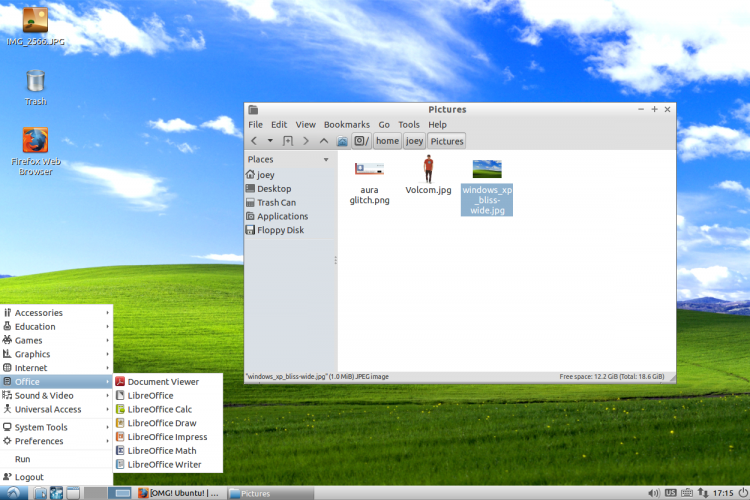
Moving away from an operating system you’ve used for years can seems scary, I know that. The good news is that Lubuntu has a very similar layout to Windows XP. So while it looks a little different to what you’re used to working with the differences are largely cosmetic.

Take the desktop for example:


The panel along the bottom has a “Start Menu” with links to your apps; next to this is a “Quick Launch” area where you can put your most commonly used applications; next to this is the area where you switch between open windows and applications; finally, at the far end, is the ‘System Tray‘ and clock.

Your Favourite Applications Are Available

While not every single application you’re used to using is going to be available on Lubuntu, a good many will be.
 
There will be few new names to learn and icons to get familiar with, but when it comes to software Lubuntu offers all the same core functionality as Windows XP.
 
For browsing the web the modern, fast and secure Mozilla Firefox web browser is installed by default.  The Google Chrome browser is also available to download and install should you wish.
 
For video calls Skype is available; ‘Pidgin’ is a multi-service instant messaging app that can connect to Facebook, AIM and Yahoo! Chat among others; and ‘Sylpheed’ is just one of the many apps available for getting e-mail on your desktop.
 
Microsoft Office isn’t available natively on Linux, but there are a host of office applications, including spreadsheet and word processing tools, available that are compatible with Microsoft Office documents. Lubuntu also includes a document viewer for viewing PDF files.
 
More apps, most of which are free, can be installed from the Software Centre application preinstalled on your computer.
 
Some common “equivalents” to know:
  • Windows Explorer = ‘File Manager’
  • Windows Media Player = ‘Audacious’ (for audio) and ‘GNOME MPlayer’ (videos)
  • Microsoft Paint = ‘MtPaint’
  • Notepad = ‘LeafPad’
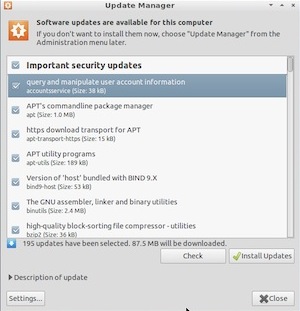
  • Windows Update = ‘Software Updater’

Find Out More

For more information on Lubuntu you can visit the official website for the project. There you’ll also find details on how to download a copy, burn it to a CD and try it out for yourself without losing your files.
 
http://lubuntu.net/
 
~ Joey-Elijah Sneddon


2.27.2014

Windows 7 change is good for businesses but may be more bad news for Windows 8

While members of TechRepublic's CIO Jury are pleased about Microsoft's plans for Windows 7, that's largely because they remain underwhelmed by Windows 8. 

Earlier this month Microsoft confirmed it will continue to allow PC makers to sell new PCs with Windows 7 Professional preinstalled beyond October 2014 - the company's original cut-off date.
 
 
Microsoft said the decision to extend was not related to the looming end-of-support date for Windows XP – or to take up of Windows 8. 
 
The company said that because Windows 7 is the largest part of Microsoft's installed base it wants to make sure it remains easy for businesses to obtain it, and its end of support dates for Windows 7 remain the same.
 
And when asked "Was Microsoft right to extend the availability of Windows 7 for business customers?," TechRepublic's panel of international business decisions makers responded yes unanimously  – but their enthusiasm for Windows 7 seems to be linked to their lack of love for Windows 8. 
 
Many tech chiefs praised the move – as Brad Novak, IT director at Goettsch Partners, noted "it allows us to keep a very stable OS a little longer", while Florentin Albu CIO at the UN's Food and Agriculture Organisation ,said creating an artificial deadline to force businesses to change desktop platforms has always been met with resistance, and added "Microsoft is just anticipating the response".
 
Meanwhile David Wilson, IT manager at VectorCSP, said businesses need a stable, workable platform: "Windows 8 still has bugs that cost time and frustration, and the interface is still too new to force-feed to industry. Microsoft would be well-served to leave Windows 7 Professional in production and open for support for the foreseeable future."
 
Similarly Jeff Focke, director of IT at Electrical Distributors, said that Windows 7 is still an integral and stable platform and there is no compelling business reason to need to upgrade to Windows 8, and noted: "I would rather focus time and resources on other challenges than a Windows upgrade project."
 
Some took a stronger line; Ingo Dean, IT director of EastWest Institute, said "Windows 8 is not ready.  Allowing us to continue to get Windows 7 alleviates our need to seek alternatives such as MacBooks or Chromebooks."
 
And Gavin Whatrup, group IT director at Creston, said: "There is no, or little value to the majority of businesses in deploying Windows 8 Pro, unless they need to be seen to be using the latest technology all the time. Or unless they need to utilise some of the more advanced features of Windows Server 2012 or other server products in the same wave."
 
He said that while Windows 7 Pro is -  as with XP Pro before it  - a stable, known and well-supported OS with significant support systems and processes behind it, "Windows 8 is a different beast without a compelling reason, or resources, to move to it."
 
Microsoft's change in policy is more aimed at smaller businesses that don't have enterprise agreements, as Dale Huhtala, executive director, Enterprise Technology Infrastructure Services at Service Alberta, observed. "Most enterprises use their own images anyway so whatever the desktops/laptops come preloaded with is irrelevant. We format the drive and install our own custom image. As long as we are licensed for Windows 7 and 8, these changes have no effect on large enterprises."
 
John Gracyalny, VP for IT at SafeAmerica Credit Union, made a similar point: "Extending the availability of Windows 7 Pro is likely good for small businesses. I would think larger shops like mine have been running Windows 7 Enterprise under a separate licensing agreement, and will continue to do so, regardless of what version new hardware is shipped with.
 
Other tech chiefs made their voices heard too. Tim Stiles, CIO at the Bremerton Housing Authority, warned: "Acceptance of Windows 8 may never occur within the business community", while Brian Wells, associate CIO at Penn Medicine, said: "Many third party application vendors do not support Windows 8 or its associated browser".
 
Other tech chiefs reported similar impressions of Windows 8. Ian Auger, head of IT and communications at UK news company ITN, said: "I think Windows 8 is still a step too far for most businesses. Windows 8 tries to cater for both touchscreen devices and traditional desktops but still comes up short for the latter."
 
Matthew Oakley, group head of IT at Schroders, said "This recognises, I think, that Windows 8 is not a really a business-ready platform and perhaps sets the scene for Windows 9 to be the main business migration."
 
However, not all agree: Juergen Renfer, CIO at German insurance organisation at Kommunale Unfallversicherung Bayern said "Windows 8 is the better Windows 7, as far as Microsoft does accept that users want to decide the GUI-style: old style (Windows 7 style) for PCs, new style (Windows 8 style) for mobile devices, e.g. tablets and smartphones. So Microsoft could be able to offer the only OS that is able to support all kinds of devices."
 
~ Steve Ranger
 

2.06.2014

Does security matter to you? Ditch Windows XP for one of these upgrade options

Microsoft officially ends support for Windows XP in April 2014, but there are plenty of upgrade options available. Andy Wolber takes a look at some conventional and alternative OS options. 


If you use Windows XP or Office 2003, after April 2014, you’re living dangerously. XP will run, and you can still work with Office 2003 apps, but Microsoft’s support for these systems ends that month. As a result, systems running XP and Office 2003 will be increasingly vulnerable to attack.
 
Microsoft will update anti-malware signatures for Windows XP through mid-July 2015. But anti-malware updates may not address system or software level flaws. Google will update and secure Chrome on Windows XP through April 2015. Yet using a secure browser on a potentially insecure operating system seems unwise. People using Windows XP and Office 2003 should upgrade.
 
Fortunately, upgraders have options. You can choose from at least seven operating systems and five office suites. The path that makes the most sense for you -- or your organization -- depends on many factors, including the number of systems and the reason the systems still run XP (e.g., Custom apps? Or you just haven’t bothered to upgrade yet?).
 
Apps, costs, and knowledge limit your upgrade options, though. The apps you need (or want) to use must be available for the platform you choose. Some upgrade options require new hardware, some don’t. Alternative apps often do similar tasks on different platforms but may require may require people to adapt (i.e., learn new things).
 
This week, we'll look at operating system alternatives to Windows XP. Next week, we'll examine office suite alternatives to Office 2003. 

Three conventional operating system options

Windows 7: Keep your hardware

For large enterprises and many individuals, Windows 7 may be the most obvious upgrade option, since it retains a similar look and feel to Windows XP. In most cases, Windows 7 will run on the same hardware as systems currently running XP. Download Microsoft’s Windows 7 Upgrade Advisor to assess your system.

Windows 8.1: Works best with a touch screen

Microsoft’s newest operating system provides a touch-friendly, tile-based interface while also offering the ability to run older Windows software. Windows 8 does run on non-touch systems, but I find it best suited for systems with touch screens. So, an upgrade from XP to Windows 8 most likely means buying a new touch-screen device.

Upgrade tip: If you’re upgrading individual systems, I’ve found Laplink’s PCmover to be worth the cost. PCmover saves your apps and data to a file before you upgrade. Then, you do a custom install of Windows 7 to a new folder on your system. After that completes, run PCmover again to unbundle your apps and data. It isn’t perfect, but it saves a lot of time otherwise spent reinstalling apps and copying files.

OS X Mavericks: Change platform, with access to apps

Individuals or small businesses may choose to move to the Mac. Many major software vendors make applications that run on both platforms. Emulators, such as Apple’s Boot Camp and Parallels, make it possible to install and run Windows and Windows apps on the Mac. However, not all peripherals, such as printers and scanners, work with both platforms.

Four alternative operating systems

iOS or Android devices: Robust portable computing

A smartphone or tablet may be all many people need, especially when occasionally paired with an external keyboard. Both platforms offer a rich ecosystem of apps, and both are widely used. For many users, a smartphone or tablet provides “just enough” computing power. Mobility and connectivity offer the opportunity to rethink how work gets done. 

Linux: Keep your hardware (but know what you’re doing)

For organizations with sufficient technical expertise (or support), the open source Linux operating system may be a viable alternative. For example, I know of a legal aid society that moved entirely to open source software because the tools both did the job and aligned with the organization’s philosophy. Open source software provides a level of transparency not available with other systems. Security-conscious organizations may find that essential.

Chromebooks / Chrome OS: When the web is enough

If your organization already uses Google Apps, you might replace some of your XP machines with Chromebooks. Unless people need to run non-web apps, Chrome OS and web apps are certainly enough for many users. Chromebooks offer fast boot times and no-hassle access to the web. The low price of most Chromebooks also makes the devices an appealing option for organizations with large numbers of obsolete Windows XP machines.
 
A unique benefit that Chrome OS offers is that people using Chrome OS can login to the Chrome browser on Windows or Mac systems. Most apps, extensions, passwords, and the browser history can be synced across platforms. Once you move 100% to the web with Chrome OS, you can work effectively in Chrome on any Chrome, Windows, or Mac system.

Think before you upgrade

The end of life of XP and Office 2003 offers a chance to rethink the tools you use. The simplest upgrade path is to move to a newer version of Windows and Office and call your task complete. But by doing so, you may miss the opportunity to leverage smartphones, tablets, and web apps -- all of which didn’t previously exist as they do today. Finally, I’ll suggest that people who adapt quickly will be more productive than people for whom change is a chore
 
Next week, we’ll look at upgrade alternatives for Office 2003.
 
What do you and your organization plan to do when support for Windows XP finally ends? Share your game plan in the discussion thread below.
 
~ Andy Wolber