Cisco Learning Network Store Promotions Page
Showing posts with label Windows 8. Show all posts

1.12.2016

Warning! Windows 8 will no longer receive security updates from today


If you’re still using Windows 8 it’s now time to upgrade because that operating system is about to get a whole lot less secure.

From today, January 12 2016, Microsoft will stop issuing security patches for its 3-year-old tiled OS, which will mean users will no longer be safe from newer threats.

Anyone still on Windows 8 -- according to NetMarketShare that's just under 3 percent of desktop users -- will need to either upgrade to Windows 8.1 or Windows 10 to continue receiving security updates.

Windows 8.1 (with Update) is a significant improvement over Windows 8, and Windows 10 -- even with all its flaws -- is a very good OS. Both upgrades are entirely free to users on Windows 8, so there’s little reason not to make the leap.

While new versions of Windows typically receive ten years of security updates, Windows 8 is an exception because Microsoft views Windows 8.1 as the equivalent of a service pack, rather than a separate OS.
~ Wayne Williams

11.19.2015

Windows 10 popular among enterprise users

 
Almost half (49 percent) of companies which participated in a recent survey by Forrester Research say that they plan on upgrading to Windows 10 by 2016.
 
The news broke out yesterday, adding that 38 percent of workers who use a computer say they want Windows 10 on their next work laptop, with 9 percent already using it on their primary work device.
 
This is a big deal, as such fast adoption of a new operating system is not something we usually see, especially not in the enterprise world. If we are to compare these figures to what we had with Windows 8 a couple of years back, we will see the difference: 22 percent of business responded positively to the radically different OS back in 2012.
 
Like millions of other PC owners worldwide, many businesses chose to stay on Windows 7 rather than upgrade to the much-maligned Windows 8.
 
But it seems as Windows 10 has hit the nail straight on the head. It combines the user-friendliness of Windows 7 with touch-friendliness of Windows 8. Add some extra business management features to the mix, and you got yourself a great product.
 
Microsoft says that 14 million business users are on Windows 10 now, of 110 million users total. The company is focusing hard on attracting more business users, which is obvious with the addition of new features like Windows Store for Business.
 
Forrester says that it’s seeing a lot of interest in "smart glasses" like Google Glass or Microsoft HoloLens, as "backoffice" workers turn to them for things like warehousing, logistics, or maintenance.
 
Photo credit: Stanislaw Mikulski / Shutterstock
 
Published under license from ITProPortal.com, a Net Communities Ltd Publication. All rights reserved.
 
~ Sead Fadilpašić

8.07.2015

How to find your Windows 10 product key

 
If you upgrade your computer from Windows 7 or Windows 8 to Windows 10, you probably have no idea what your product key is for the latest version of the operating system. The time may come when you want to perform a clean installation of Windows 10, and this is when you'll need that key.
 
It is not possible to use your product key for your old version of Windows to activate Windows 10, but during the initial upgrade process this key is converted into a new one. Using a special tool, you can find out the key that has been generated for you so you can make a note of it for future reference.
 
There are actually numerous tools that can be used to determine your Windows 10 code. One of the more reliable and comprehensive is ProduKey which is available free of charge -- there are 32- and 64-bit versions of the software available, so make sure that you download the correct version for your system.
 
ProduKey is provided as a compressed file, so unzip it and then run it. In a matter of seconds you'll be provided with the key you need which you can then make a copy of, email to yourself, write down, or backup in some other way for when you need it.
 
Grab a copy of ProduKey from the Nirsoft website.
 
Photo credit: koosen / Shutterstock
 
~ Mark Wilson

8.03.2015

Windows 10 will be a great operating system -- when it's finished

 
It could be said, with Windows now a service, Windows 10 will never truly be finished, but the truth is the version of the new operating system that’s out now is a long way from being polished enough for prime time. It’s like an Insider Preview build that’s been released entirely in error.

In an effort to wash away the stench of Windows 8, Microsoft has chosen to rush release Windows 10, and the result is an operating system that is clearly still very much a work in progress. The new OS isn’t anywhere near as half-baked as Windows 8 was when that launched, but there are still far too many issues to be ignored. Put bluntly, it's a mess.
 
It’s Schizophrenic
  
One of the things that really bugs me about Windows 10 is the duplication. There’s Settings and Control Panel, both offering two ways to do similar, or identical things, but wrapped up in entirely different interfaces. How do you know which you need? Good question. Want to change your screen resolution? Windows will push you to use the new UI, but the old Change the appearance of your displays version still exists.
 
Microsoft should have chosen one method for changing settings and customizing the OS and stuck with it, wiping out all traces of the other.
 
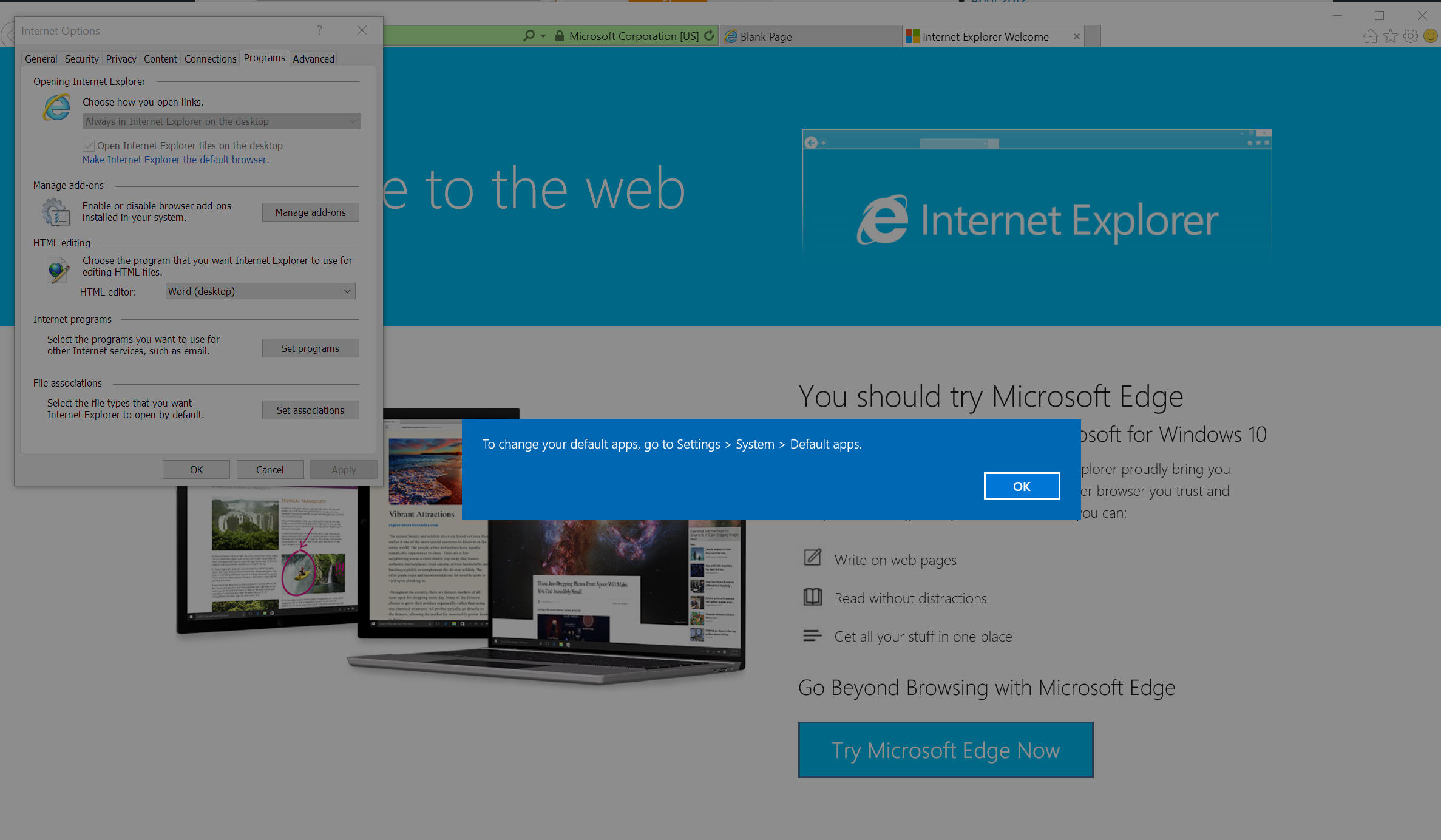
One annoyance I’ve encountered is that certain legacy buttons don’t work. Clicking on Set Associations in Internet Explorer doesn’t let you set the file types that the browser opens by default -- as you might reasonably expect -- but instead displays a message stating "To change your default apps, go to Settings > System > Default apps". Clicking OK doesn’t take you there, just closes the message. Thanks for your help Microsoft, let me go grab a pen.
 
 
And having two browsers is stupid too. Just include one browser that works. Edge will be quite good when it’s finished, I suspect. But it is clearly more of a proof of concept than a fully formed browser at the moment, lacking support for extensions and so on.
 
Want to uninstall a program? Well, if it’s an app, you can do it through Settings > Apps & Features. If it’s a legacy app (program, dammit!), then you may be able to uninstall it that way, but I’ve found many applications don’t show up there. Go to the old Programs and Features interface, and every program you can uninstall is listed there. Except apps. They don’t appear in that list at all.
 
There are small, but fundamental design inconsistencies throughout, including (but not limited to) old icons cropping up next to new ones and at least four entirely different styles of context menu.
 
These aren’t problems unique to Windows 10 of course. Windows 8.x had the same issues. Microsoft just hasn’t bothered to fix them. But with Windows as a service, maybe it will get around to it. One day.
 
It’s Buggy
  
Since the upgrade I have a problem on my PC with graphics going missing in browsers, and Firefox seems to hate Windows 10. It just crashes without warning. My graphics drivers are fully up to date, as are my browsers. Maybe I need to uninstall and reinstall everything, or do a clean Windows 10 install.
 
But clearly I’m not the only person experiencing issues with the new OS. We’ve posted loads of guides and stories on BetaNews covering how to do things with Windows 10, but what do you think the most popular article on the site currently is? Overcoming sound problems. It’s such an in-demand article, we’ve covered the issue twice.
 
A brand new OS is always going to be buggy -- there are so many different types of hardware, so many configurations, that it’s to be expected -- but I feel Microsoft should have taken a little longer to iron out potential issues before declaring Windows 10 done.
 
Final Thoughts
  
Microsoft passed quality assurance over to millions of Windows Insiders but yet quality is far from assured in Windows 10. There’s lots to like about the new OS, and lots to dislike too. As my headline says, I think Windows 10 will be great, when it’s "finished". I just have no idea when that might be.
 
Have you encountered problems with Windows 10? Share your experiences and frustrations in the comments below.
 
Photo Credit: Haryadi CH/Shutterstock

~ Wayne Williams

5.31.2015

Pre-order Windows 10 Professional OEM for $149.99

 
Microsoft has been promising that Windows 10 will see the light of day this summer for a while now, and current rumors suggest that we might hit RTM as early as July. Now a new listing on Newegg reveals -- perhaps -- that the Windows 10 release date is pegged for 31 August.
 
A pre-order listing for the OEM version of Windows 10 Professional has popped up on the site with a price tag of $149.99. Windows 10 Home OEM is listed for $109.99 Based on the previous pricing for OEM versions of Windows, it's fair to assume that this is the full version rather than the upgrade edition. The suggested release dates aside, the first thing that many people will jump on is the fact that Windows 10 has a price tag at all...
 
Microsoft has only said that upgrades from Windows 7 and Windows 8.x will be free of charge within the first year. There will be people who are upgrading from an older version of Windows, or are building a machine from scratch and need a full version of Windows to get up and running. This is who this version is aimed at.
 
Microsoft is yet to officially announce any sort of release schedule beyond 'summer' and the date has not been confirmed. It's entirely possible that this was a mistake by Newegg or wishful thinking, but it could just as easily be a guess on the website's part, or even just a marketing ploy. In the meantime, we probably have at least a few more preview builds to look forward to as we draw closer and closer to gold code.
 
~ Mark Wilson

3.25.2015

Microsoft is leaving the option to disable Secure Boot up to OEMs in Windows 10

 
When Microsoft was preparing Windows 8 several years back, concern arose over the company’s planned use of Secure Boot. When active, Secure Boot checks the cryptographic signature of any program (including operating system bootloaders) against a list of approved keys during the startup process to defend against nasty malware that can load before the OS.
 
Although Microsoft demanded that OEMs ship PCs with Secure Boot enabled, it ended up not being all that big of a deal because the company also mandated that partners include the ability to disable it.
 
It’s the same song, different verse for Microsoft as we head towards Windows 10. The key difference this time around which once again has some worried is the fact that the Secure Boot disable switch is now optional for x86 system builders.
 
All of this, of course, is a moot point if you build your own desktop as motherboard makers would all but have to offer an option to disable it in the UEFI since they won’t know what operating system a customer plans to install.
 
But for those that buy prebuilt desktops, this means that OEMs will be required to enable Secure Boot and could also ship without the option to disable it. The same could also hold true for notebooks.
 
It’s still too early to know exactly how this will play out as it’s entirely possible that Microsoft could drop the option by the time the RTM version of Windows 10 ships to OEMs.
 
~ Shawn Knight

10.13.2014

Windows 10: How to quickly switch between the Start menu and Start screen

 
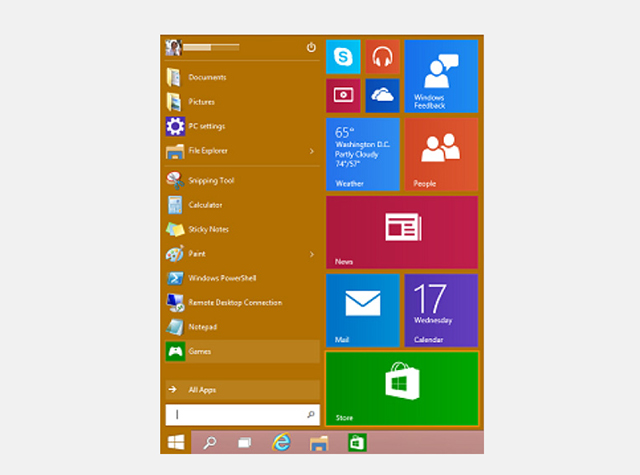
The main highlight in the Windows 10 Technical Preview is unquestionably the new Start menu. It is the perfect blend of the old and the new, mixing the Windows 7 Start menu with Windows 8's tiled Start screen.
 
If, however, you’re a Windows 8.x user who has become accustomed to working in the Start screen, you may not want to take the 'backward step' of returning to a Start menu. (My colleague Mark Wilson certainly feels your pain). The good news is Windows 10 lets you choose between the Start menu and Start screen, although switching backwards and forwards between the two modes is rather cumbersome. Fortunately, there’s a simple solution.
 
At the moment, the way to get the Start screen back is by right-clicking the taskbar and selecting Properties, then clicking the Start Menu tab and checking or unchecking "Use the Start menu instead of the Start screen". You then need to log out and log back in again to make the changes.
 
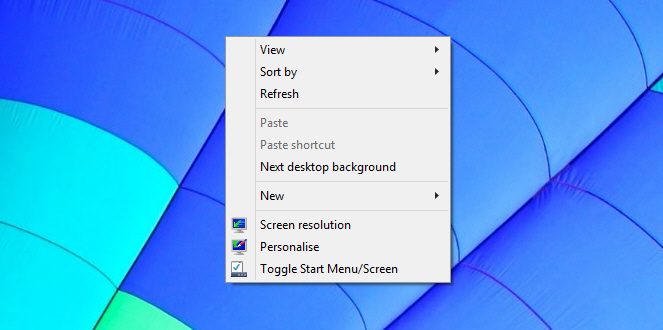
That is, obviously, a far from ideal situation, but thankfully a TenForums user has created a script which adds a Toggle Start Menu/Screen option to the desktop context menu. The process of installing it very simple, just grab the file from here, and unzip it. Move the Toggle_Start_Menu_or_Start_Screen.vbs file into C:\Windows then double-click the Add_Toggle_Start_Menu_or_Start_Screen_to_Context_Menu.reg file and approve the changes to the Windows registry.
 
Once installed, all you have to do is right-click the desktop and select the option to switch between the Start menu and Start screen. The beauty of this solution is you don’t need to log out and log back in to make the change, it just works.
 
There is another script available if you want to remove the toggle.
 
It’s a simple, and elegant solution and hopefully Microsoft will implement something similar in the finished Windows 10 release.
 

~ Wayne Williams

10.02.2014

Sorry Linux fans, Windows 10 will continue Microsoft's desktop domination

 
I'll admit, when Windows 8 was first announced, I hated it. Even though I am open-minded about UI changes, the Start Screen rubbed me the wrong way. At the time, I was strictly a keyboard and mouse user, who enjoyed doing things on a large monitor. After months of trying to convince myself that I would eventually like the changes, I gave up and went to Linux full time. I was already a casual user of operating systems based on the open-source kernel, but now I was jumping in head first.
 
Initially, life was great and I hopped from distribution to distribution trying Ubuntu, Mint, Fedora and many more. What was cool about these Linux-based desktop operating systems, was that I could choose the environment of my liking. In other words, if I didn't like the UI, I could easily switch. This was in stark contrast to Windows, which has a take it or leave it approach. Ultimately, I decided on Fedora and the GNOME 3 environment. This surprised me, because as a lifelong Windows user, I expected to gravitate towards KDE. Over time though, something strange happened -- I went back to Windows 8.
 
No, I didn't abandon Linux, but I turned to Microsoft's OS for the majority of my computing. The reason is rather simple -- I like quality programs. Don't get me wrong, software like Gimp and LibreOffice are good, but Microsoft Office and Photoshop are better. Plus, with Linux, I would spend more time tinkering and looking for solutions than actually using my computer as a tool. Don't forget, a computer is designed for getting things done -- it is not a religion or philosophy. Let's say Linux was a wrench and Windows was a hammer; many Linux users would try to drive a nail into a piece of wood with a wrench out of disdain for a hammer, and that is just silly.
 
This is really sad, as I know some very passionate Linux users that thought Linux could grab a huge piece of the desktop pie from Windows. Unfortunately, Microsoft has killed that opportunity with the announcement of Windows 10. You see, the biggest criticisms about Windows 8, which could have driven users towards Linux, are being rectified in the future version of Windows. Microsoft is finally bringing back the Start Menu and allowing Modern apps to run in a windowed mode. People that were considering a switch to Linux because of the lack of familiarity in Windows 8, will now not have to; the experience they desire is on its way back. Hell, $199 laptops don't hurt either!
 
You know that "take it or leave it" approach that I mentioned earlier? Well, Microsoft seems to be relaxing that stance, as users can choose the touch screen UI or desktop UI -- they aren't forced onto one of the other. You can even adjust the Start Menu to be tall or fat, or have live tiles; it is a very customizable experience. Actually, Linux distros offer too much choice, and ultimately, the small user base is fragmented due to the myriad of available desktop environments.
 
I still love Linux and I am anticipating Fedora 21; however, me and most of the world are probably more excited about the next version of Windows. The dream of Linux having a bigger piece of the desktop is less likely today than it was yesterday because of Windows 10. Still, Linux is no slouch -- it owns the smartphone market thanks to Android. Quite frankly, the mobile market may be more important anyway.
 
Image Credit: bouzou / Shutterstock
 
~ Brian Fagioli

9.30.2014

Windows 9 -- What to expect from the new OS

 
Microsoft will be announcing its new OS later today, with things kicking off at 10am PT/6pm BST. Although we’ve already seen various leaked images and videos, this will be our first official look at Windows 9 (aka Threshold) and Microsoft will reveal what it has planned for the successor to the much maligned Windows 8.
 
There isn’t a live stream unfortunately, and although a technology preview will be released for the new OS, it isn’t expected to be made available today. So what can we expect from Windows 9?
 
The return of the Start menu
 
Of course top of the list of changes in Windows 9 is the reintroduction of the Start menu. Before Windows 8 even launched people were crying out for its return, and that demand has never wavered. The Windows 9 Start menu looks good, and is exactly what most keyboard and mouse users have been asking for. It works much like the Start menu in Windows 7, but adds tiles from the Windows 8.x Start screen which, for me, is the perfect compromise.
 
Tiles can be added, removed and resized, and you can resize the Start menu itself.
 
You can use the Start screen if you prefer simply by switching to it in the Navigation properties window. Tablets running Windows 9 won’t have the Start menu, only the Start screen which makes sense.
 
Better integrated Modern UI
 
If you hate the Modern UI then you won’t really have to worry about it in Windows 9. You can switch off the tiles in the Start menu, and never see the Start screen or Charms bar. Apps can be run full-screen, or snapped, but also run in a windowed mode on the desktop, which is great news. A new Options button on the right lets you customize them and access system commands.
 
Switching between running apps is done using the new Task view button on the taskbar.
 
Virtual desktops
 
Linux and Mac OS X users are very familiar with the idea of virtual desktops, where you can switch between different workspaces, but Windows 9 will be the first time Microsoft has offered this featured natively. It’s a big boost for productivity, and great news for power users.
 
Cortana
 
Microsoft’s personal assistant is expected to find her way from Windows Phone to Windows 9, which makes sense. Cortana wasn’t in any of the leaked builds, so whether she’s included in the technical preview remains to be seen, but we’d bet on the feature being added at some point.
 
Notifications center
 
Windows 9 will gain a new Notifications center which will provide a single place to view all of the alerts and messages that the operating system flashes up. You’ll be able to view all of the Windows notifications directly from the system tray, including Skype messages, and delete individual ones, or all notifications at once.
 
General improvements
 
Windows 8.x has been a work in progress since launch, and Windows 9 will continue the improvements we’ve seen, while adding a further layer of polish.
 
What are you hoping for from Windows 9?
 
~ Wayne Williams

9.29.2014

Microsoft's Windows 9: What it has to strategically accomplish

Summary: Windows 9 will be the linchpin in Microsoft's future plans for cloud and mobile. Here's a look at the to-do list on the strategic front. 
 
Microsoft on Tuesday will preview its next operating system---code named Threshold and expected to be Windows 9---and the rollout is critical to make CEO Satya Nadella's master plan a success.
 
As noted previously, Nadella is steering Microsoft around a platform and productivity mantra with a heavy dose of cloud and mobile. Whether Windows 9 turns out to be a game changer for Microsoft or the last of big bang OS releases remains to be seen.
 
Nevertheless, Windows 9 will be a linchpin in Microsoft's plans going forward. Here's a look at what Windows 9 has to accomplish.
 
Be the cloud jump off point. Microsoft is big on platforms and a holistic cloud vision and Windows remains the centerpiece of the company's strategy (even though it isn't the primary cash cow today). Enthusiasm around Windows 9 would keep Microsoft's installed base in the fold and be the on-ramp to the company's cloud products. Should Windows become free Microsoft still could make out if the OS becomes an on-ramp to Office 365 subscriptions at $99 a year or so. Windows could be the key to a recurring revenue stream. Toss in storage and other services and you see that Windows doesn't have to be a cash cow to be critical.
 
Keep Microsoft relevant. Microsoft's enterprise business carries the company, but Windows remains the identity. Microsoft has missed the mobile curve as Apple's iOS and Google's Android moved ahead, but the software giant is one of the cloud leaders. However, Windows is the key to keeping the company from looking like an also-ran. Windows 9 has to drive upgrades, create demand for Microsoft powered tablets and potentially generate some buzz. Microsoft is far from irrelevant, but Windows 9 needs to erase the lackluster rollout of Windows 8.
Where does Windows 9 fit in this equation?
Be the last of Microsoft's big bang releases. Microsoft, like every other software company on the planet, will ultimately revolve around subscriptions. Windows reflects an old model where software vendors revolve around upgrade cycles and big bang releases. Windows 9 should ultimately look like a SaaS service where we pay an annual fee for twice a year feature releases. If Microsoft really does it right the next-gen Windows wouldn't have a number behind it.
 
Entice the enterprise to remain Windows based. Microsoft rocks the enterprise with products and services such as Office, Windows Server and Azure. However, Windows is the front end of Microsoft's enterprise identity and the operating system has taken a few hits. Apple's iOS is everywhere in the enterprise and Microsoft can no longer rely on Windows shops remaining that way forever. Windows 9 has to generate some enthusiasm and maybe even drive tablet and PC upgrades in what's likely to be a growth-challenged environment for years. Enterprises have better things to do than upgrade PCs, tablets and smartphones. Microsoft needs Windows 9 to at least spark some enterprise interest.
 
Advance Microsoft's mobile ambitions. Windows 9 is expected to be a unified platform that can leverage Microsoft's developer base from the PC and application fronts to mobile. Microsoft has tweaked the economics for Windows on key mobile devices to make headway against low-end Android devices. Microsoft needs a unified approach to close the app gap with Apple and Google.
 
Daniel Ives, an analyst at FBR noted:
The next version of Windows will target a more unified approach (e-commerce, developer platforms), a positive as Microsoft attempts to drive a more consistent platform experience and attract an increased number of developers/apps for its mobile offerings and devices, in our view.
~ Larry Dignan

9.15.2014

Surface Pro 3 stock sellouts and record iPhone 6 pre-orders make for nice headlines but are meaningless

 
My colleague Brian Fagioli reported some news a couple of days ago that had me smiling. "Microsoft's Surface Pro 3 is a worldwide success -- strong sales cause limited supply" his headline declared. It’s the sort of headline Microsoft would have hoped for when it announced the news that some overseas retailers had run out of Surface Pro 3 stock.
 
"A worldwide success" is pushing it. What happened was demand outstripped supply, in some countries, and the supply was probably on the low (prudent, if you like) side to begin with. Microsoft announced no numbers, and posted a cleverly worded blog which makes it sound as if Surface Pro 3 is a huge hit. Unless you read what it actually says.
 
"Given the interest that we saw as part of our US launch, retailers ordered what we thought was a healthy amount of Surface Pro 3s for these new markets. It turns out that we didn't ship enough", Brian Hall, General Manager, Surface Marketing says.
 
"Given the interest" is a fun way to begin that sentence. It could mean, "Given the high interest" or "Given the low interest". If you assume it’s not the implied first meaning but the second one, what he’s really saying is "Given the limited interest in the US, overseas retailers took more stock than we expected them to, and by golly they cleared the lot!"
 
The fact that Surface Pro 3 has sold out in some overseas territories is good news for Microsoft and the tech giant’s tablet brand, but it certainly doesn’t mean the device is a success, worldwide or otherwise yet.
 
When a new product launches stock shortages are common, and demand from people wanting to get their hands on the new release often cause sellouts that paint a picture that might not -- indeed probably won’t -- reflect the truth.
 
Shortly after Windows 8 launched, Microsoft told the world "Windows 8 upgrade momentum is outpacing that of Windows 7" and here we are a couple of years later waiting for Windows 9 to replace Microsoft's worst selling OS in recent memory.
 
And let's not forget, the original Surface and Surface Pro "sold out" in a lot of places in the early days too, and we all know how well that turned out to be doing. Shortly after Surface 2 and Pro 2 launched, Microsoft declared it "close to selling out" and now it's claiming the same with Surface Pro 3.
 
Brian also reported on how well iPhone 6 was doing (taking a swipe at Android users in the process) using a quote from Apple that said "response to iPhone 6 and iPhone 6 Plus has been incredible with a record number of preorders overnight". It is, of course, another rather meaningless statement. It could be a record number of preorders overnight everywhere, or a record number of preorders overnight in Punxsutawney, Pennsylvania Apple doesn't specify, and doesn't give any numbers, either.
 
When the Apple 5s launched we had stories about how iPhone 5s supplies were limited and my colleague Joe Wilcox wrote the following:
In business perception is everything, and supply shortages generate blogs and news stories and the appearance that the product is super hot-in-demand.
And when a product is super hot-in demand, people want it. They want to jump on that bandwagon and own the product everyone else has. If Microsoft or Apple say "we've plenty of stock, come buy" it will give the impression that no one wants what they're offering, and who wants a product that no one else wants?
 
So congrats to Microsoft for running out of Surface Pro 3 stock in some parts of the world, and well done to Apple for getting good pre-orders on a new phone with a hugely fanatical fan base. Come back to me when you have some solid sales numbers to offer, okay? 
 
Image Credit: shpockShutterstock
  
~ Wayne Williams

9.12.2014

New Windows 9 screenshots give us a closer look at the desktop, start menu and taskbar

  
A couple of German tech sites have published nearly two dozen Windows 9 “Threshold” screenshots. The images allegedly come from the “Windows Technical Preview,” a version of the operating system that is expected to be available later this month.
 
Specifically, the images are said to have come from an early build of the OS seeded to close Microsoft partners. By all accouts, they appear to be authentic.
 
 
These aren’t the first Windows 9 photos to leak onto the web but they do provide a closer look at the return of the Start Menu. If you recall, Microsoft removed the Start Menu in Windows 8 which left many users up in arms.
 
The images also show some obvious changes to the taskbar like a new search icon beside the Windows button as well as one for what could be the virtual desktops feature.
 
 
As is trendy in the UI world, it would seem that Microsoft has created new “flatter” icons for the file explorer and desktop. As The Verge points out, this will help it match the “Metro-style” look and feel of Windows 8.
 
Last month, the same publication said Microsoft was preparing to showcase the new operating system at a special media event on September 30. This date corroborated an earlier report that suggested the OS would break cover in late September or early October. Most expect Microsoft to release a preview version of Windows 9 to developers and enthusiasts at the unveiling.
  
~ Shawn Knight

8.25.2014

Microsoft expected to unveil Windows 9 "Threshold" on September 30

 
Windows 9 may arrive sooner than most think. According to a new report from The Verge, the successor to Windows 8 is slated to debut at a special media event on September 30 - a date that lines up nicely with previous reports of a late September, early October unveiling.
 

Microsoft's next major OS release, codenamed Threshold, will likely be released to developers and enthusiasts on that date as a preview version.
 
The long-awaited return of the Start Menu is just one of the many features expected in Windows 9. Microsoft is also planning to remove the Charms bar and make several UI changes - essentially dialing back the radical redesign that was Windows 8.
 
Microsoft is reportedly working on builds of Threshold that include Cortana, Microsoft's personal virtual assistant. It's unclear, however, whether or not it will make the initial tech preview build.
 
Aside from these features, it's anyone's guess as to what else Threshold will deliver. Another unknown is whether the preview will be available to everyone or if Microsoft is only planning to release it via TechNet and MSDN.
 
In related news, Microsoft may also fill us in as to the fate of Windows RT which is being integrated into Windows Phone as part of the company's unified Windows vision. No word yet on how far along Microsoft is into this project but we'll likely find out next month.
 

~ Shawn Knight

7.30.2014

Pro tip: Use Windows 8's Format command to perform a secure disk wipe

Greg Shultz explains how the Format command's /P parameter works to securely wipe a disk.  

A friend recently had an opportunity to acquire quite a large number of 1 GB USB flash drives that he could repurpose for a new project he was undertaking. The one stipulation was that he had to securely wipe each of the flash drives before he could actually take possession of them. He asked me what program I would recommend for securely wiping a disk. He said that he had heard that DBAN and File Shredder were good programs and wondered if I had any experience with them that I could share.
 
I told him that while I had used File Shredder in the past, I hadn't used DBAN. I also told him that there was an article on TechRepublic, "Five hard disk cleaning and erasing tools," that he should check out. However, I then suggested that since he was running Windows 8.1, he might want to just use the Format command. He looked at me kind of funny and asked me if I was pulling his leg. I explained that one of the behind-the-scenes enhancements in Windows 8 was a tweak to the Format command's /P parameter that gives it the ability to more securely wipe a disk. Once I explained it in more detail and showed him how it worked, he was pleased with his new found knowledge and went to work on the collection of the 1 GB USB flash drives.
 
In this article, I'll explain how the Format command's /P parameter works to securely wipe a disk.
 
Note: Using the /P parameter to securely wipe a disk does not meet any of the United States Department of Defense standards for hard disk data removal.

The first /P

When Microsoft launched Windows Vista in 2007 with all of its new fangled user interface features, they found time to enhance the Format command by adding the /P parameter. This new parameter allows you to overwrite every sector on a disk with 0s during the format procedure. The actual syntax of the parameter is:

Format volume /P:passes
 
As you can see, the /P parameter allows you to specify the number of passes or, in other words, the number of times that you want to overwrite every sector with 0s. By doing so, you decrease the likelihood that anyone would be able to retrieve any sensitive data. Even if you don't specifically use the /P parameter, the Format command will, by default, make one pass of the overwrite operation, unless you use the /Q parameter to perform a quick format.

The Windows 8 enhancement

Even though Windows 8 appeared to be all about the modern UI and the touch-based mode of interaction, Microsoft did indeed make some enhancements to the good old DOS commands. In particular, they enhanced the Format command's /P parameter. The parameter still allows you to specify the number of passes, but now instead of just overwriting the sectors on a disk with 0s, additional passes overwrite sectors with random numbers. Furthermore, the number of passes that you specify is in addition to a single pass of 0s.
 
So, for example, if you were to use the following command:
 
Format h: /P:4
 
With that command, the drive H: would be formatted and every sector on the disk would be overwritten once with 0s. Then, the Format command would overwrite each sector four more times -- each time with a different random number. Keep in mind that each additional pass that you specify will increase the amount of time that it will take the Format command to complete its task. However, as you can imagine, this will really decrease the likelihood that anyone would be able to retrieve any sensitive data.
 
On another note...
 
As you may remember, in a previous article ("When will the Windows Start menu return?"), I told you that in his session at Build 2014, Terry Myerson emphasized that the Windows desktop is the primary interface, that Windows Metro/Store apps will run in a resizable window, and that a modified Start Menu (an amalgamation of the Windows 7 Start Menu and the Windows 8 Start Screen) will all be coming to Windows 8.1 users as an update. I then told you that this new Start menu would more than likely not appear until Windows 9 sometime in 2015.

Well, as an update to that information, I suggest that you read the transcript from Tony Prophet's keynote session at the Worldwide Partner Channel conference on July 16th. Prophet, who is the Corporate Vice President, Windows Marketing, stated that "... we are hard at work on the next version of Windows. And while we have nothing to announce today, I will share with you a couple of features we're thinking about." He then talked briefly about the three things that Myerson mentioned. While his comments about the next version of Windows were far from explicit, the fact alone indicates to me that Windows 9 and the return of the Start menu is indeed far into the future.

What's your take?

Will you use the Format command's /P parameter to securely wipe a disk? What do you think about Tony Prophet's comments? Share your opinions in the discussion thread below.
 
~ Greg Shultz

7.03.2014

After all this time, how can OS X Mavericks STILL be this bad?

Summary: David Gewirtz took the gamble and decided to upgrade from Mountain Lion. You know what? Mavericks is still buggy as heck.
 
 
OS X Mavericks (otherwise known as 10.9) released on October 22, 2013. We're now in July, 251 days later. Yesterday, Apple released 10.9.4, the fourth major bug-fix update to Mavericks.
 
I took the gamble and decided to upgrade from Mountain Lion. You know what? Mavericks is still buggy as heck.
 
When I first got my monster iMac, I tried Mavericks and found it broke using most of my critical systems (like, you know, accessing the file server). So I downgraded back to Mountain Lion and I've had a rock-solid, reliable system ever since.
 
But when 10.9.4 came out, I figured what the heck? I didn't like the idea of running on an OS that didn't get the latest security updates and I figured that if Yosemite was going to come in the fall, perhaps the Apple elves had fixed what made Mavericks such a dog.
 
And I was also avoiding my to-do list. Doing an OS upgrade is always a good way to avoid what you're really s'posed to be working on.
 
So I went ahead and installed 10.9.4. I made a full Carbon Copy Cloner clone of my main volume, so I could, theoretically, once again downgrade to Mountain Lion. But the fact is, I want to be running the latest OS. To do otherwise makes me nervous.
 
But Mavericks is still a pig with lipstick.
 
The upgrade was easy. It took all of an hour to download and install. I booted back up ... and it hung. Finder was broken. As it turns out, I mount all the network shares I use on boot, which worked fine on Mountain Lion. On Mavericks, it just hung. I had to kill the Finder process. Eventually, I disabled mounting-on-boot and could get into the Finder.
 
Oh, but you should see how Parallels took to Mavericks. Remember I wrote a great article on getting Parallels to work with four monitors in Coherence mode? Worked fine in Mountain Lion. Mavericks sent Parallels into spasms, literally. The Parallels screen bounced all over the screen, shifted back and forth, and otherwise made me feel like that day when the Master took over the Earth in Doctor Who and remade everyone to look like himself.
 
It was unpretty. Disabling Coherence did the job, because when it comes to using a Mac with Mavericks, who needs anything that's coherent?
 
Speaking of wackiness, remember when I wrote an article about how to get four monitors to work nicely on an iMac? That was Mountain Lion also. Now, with Mavericks, my screens just randomly blink on and off. It's random, it's unpredictable, but its constant enough to render the computer virtually unusable.
 
As it turns out, Mavericks doesn't work well with USB DisplayLink adapters. The DisplayLink folks have done an upgrade to their driver, but apparently aren't getting much support from Apple (does this surprise anyone?) and so things don't work all that well.
 
When I unplug the fourth monitor (the one using the USB DisplayLink adapter), the blinking stops. I'll probably try to replace that approach with mirroring or extending the display to Apple TV. Stay tuned for a future update on that one.
 
Now look, I recognize that I'm running a complex system, but that's why I have a Mac and not, say, an iPad. I'm doing real work with this machine. Unlike Jason, who uses the Mac as a prosumer, and therefore can easily replace its functions with Windows, I use both Windows and Mac applications on the Mac.
 
There are some Mac-based applications that are important to my workflow. So I choose to use a Mac, not because it's an Apple machine, but because the developers of some very slick programs chose to develop for Apple machines.
 
I also understand that the vast percentage of Apple's income now comes from iDevices and not Macintosh. But as Jason also points out, Macs are not cheap machines, and it's inexcusable for Apple to leave Mavericks in the sad, sick state it apparently still is in.
 
No wonder people are leaving desktop PCs in droves. Between the wacky interface changes in Windows 8 and the execrable quality control Apple has practiced with Mavericks, desktop computing sure as heck isn't putting its best foot forward these days.
 
Are you still having problems with Mavericks? Post your notes in the TalkBacks below.
 
~ David Gewirtz

6.05.2014

Mint 17: The best Linux desktop to date

Summary: I've used hundreds of Linux desktops over the years, and Mint 17 with Cinnamon is my favorite one to date.
 
Over the decades—yes decades—I've been using Linux desktops, I've had many favorites. Now, I have a new one: Linux Mint 17. I expect it to be my favorite for a long time to come.
 
Linux Mint 17 "Qiana"
I can say that because this version, now a late release candidate. like its base operating system, Ubuntu 14.04, is a long-term support edition. It will be supported until 2019. This makes this edition one that businesses should consider.

In particular, I love Linux Mint 17 with the Cinnamon 2.2 interface. This GNOME 3.x-based desktop is a great windows, icons, menus, and pointer (WIMP) interface. Windows XP users will find it far more familiar than Windows 8's oddball tiled desktop. I also like the MATE interface, which builds on top of the GNOME 2.x interface; but for simplicity's sake I'm going to focus just on Cinnamon.
 
Like almost all Linux desktops, Mint is free and it can run on almost any PC you have at hand. All it requires is an x86 processor; 512 MBs of RAM (you'll be happier though with 1GB); 5 GBs of disk space; a graphics card that can handle 800×600 resolution; and a DVD drive or USB port. That's all.
 
Unlike most of its Linux brothers and sisters, Mint also includes many proprietary programs. So, for example, you can play Adobe Flash videos and DVDs from your Mint PC without jumping through any hoops. Mint doesn't include proprietary drivers such as the ATI or NVIDIA drivers; it does make it easy to install drivers.
 
Another nice feature, which Mint does shares with most modern Linux distributions, is that you don't have to commit yourself to it. You can try it out by running it from a live USB thumb-drive or DVD drive before actually installing it.
 
In my case — since I know Mint like the back of my hand — I went ahead and installed it not just on test systems but on my production desktop and laptop. Yes, I'm a brave Linux user!
 
My work desktop is a Dell XPS 8300. This PC uses a 3.4GHz quad-core Intel Core i7 processor, has 8GBs of RAM, and an AMD/ATI Radeon HD 5770 graphic card. Mint 17 “Qiana” ran perfectly on it. The new Mint also ran flawlessly on my Lenovo ThinkPad T520 laptop. This computer comes with a 2.5GHz Intel Core i5 processor, 4GBs of RAM, a 500GB hard drive and an integrated Intel HD Graphics 3000 processor.
 
This didn't come as a surprise. I haven't had a hardware compatibility problem with any Linux in years. The one annoying thing about Mint, however, is that you can't just upgrade from one version to another. Instead, you must over-write your existing system.
 
On both systems, installing Mint was as easy as falling off a log. There's nothing complicated about it. You just hit yes to most of the questions, give your computer a name, give yourself a login name, and you're in business.
 
Another potential problem for some users is that to install Mint 17 on a Windows 8 PC with Secure Boot, you'll need to turn Secure Boot off. Since I find Secure Boot much more of an annoyance than a benefit this doesn't bother me in the least.
 
For its default programs, Mint sticks with its tried-and-true formula of LibreOffice 4.2 for its office suite; Firefox 28 for its Web browser; Thunderbird 24.4 for its e-mail; and Pidgin 2.10 for instant messaging. Personally, I prefer Chrome for my Web browser and Evolution for e-mail. Mint makes it easy to mix and match my software of choice to its distribution.
 
Indeed, in a related development, this new version of Mint makes both updating the system, your installed software, and your drivers much easier. For example, besides simply having a better display with more information, Update Manger now tracks all your system's upgrades no matter how they were made: Update Manager, apt-get, aptitude, gdebi or dpkg, whatever you use — it now records what you've changed.
 
The operating system and Cinnamon paired together have had many minor improvements. For instance, previous versions of Cinnamon came with a hard-coded list of system tray icons to hide. This list is now gone and Cinnamon now dynamically shows relevant system tray icons when applets are removed, or to dynamically hide them when applets are added.
 
Expert users will also appreciate that hot corners, settings to make use of the display's four corners, have now been made easy to customize.
 
Put it all together and you have a very fast, very secure, and very smooth and easy to use desktop. While other operating systems lately seem to be determined to make things harder for users—and no, I'm not just talking about Microsoft and Windows—Mint's developers keep improving an already superb desktop experiences.
 
You don't have to take my word for it. Download and install it for yourself and you'll see what I mean.
 
~ Steven J. Vaughan-Nichols 

5.22.2014

China bans use of Microsoft's Windows 8 on government computers

A Microsoft Surface tablet is seen during the launch of Microsoft Windows 8 operating system in Hong Kong October 26, 2012.
Credit: Reuters/Bobby Yip
(Reuters) - China has banned government use of Windows 8, Microsoft Corp's latest operating system, a blow to a U.S. technology company that has long struggled with sales in the country.
 
The Central Government Procurement Center issued the ban on installing Windows 8 on Chinese government computers as part of a notice on the use of energy-saving products, posted on its website last week.
 
The official Xinhua news agency said the ban was to ensure computer security after Microsoft ended support for its Windows XP operating system, which was widely used in China.
 
"We were surprised to learn about the reference to Windows 8 in this notice," the company said in a statement. "Microsoft has been working proactively with the Central Government Procurement Center and other government agencies through the evaluation process to ensure that our products and services meet all government procurement requirements."
 
"We have been and will continue to provide Windows 7 to government customers. At the same time we are working on the Window 8 evaluation with relevant government agencies," Microsoft said.
 
Neither the government nor Xinhua elaborated on how the ban supported the use of energy-saving products or how it ensured security.
 
China has long been a troublesome market for Microsoft. Former CEO Steve Ballmer reportedly told employees in 2011 that, because of piracy, Microsoft earned less revenue in China than in the Netherlands even though computer sales matched those of the United States.
 
Last month, Microsoft ended support for the 13-year-old Windows XP to encourage the adoption of newer, more secure versions of Windows. This has potentially left XP users vulnerable to viruses and hacking.
 
"China's decision to ban Windows 8 from public procurement hampers Microsoft's push of the OS to replace XP, which makes up 50 percent of China's desktop market," said data firm Canalys.
 
~ Paul Carsten and Beijing Newsroom        

4.23.2014

New Chrome feature will allow users to unlock a computer with a smartphone

The Easy Unlock feature, which allows users to authenticate with a phone, has surfaced in the Chrome OS developer's channel. It potentially uses unique sound waves for authentication. 

 
Recent security flare-ups have caused major companies across the board to up the ante on product security and authentication. Forcing users to change their passwords more often has been the go-to solution, but that can actually be less secure if users have trouble remembering their passwords, as they end up writing them down or emailing them to themselves.
 
François Beaufort announced on a Google+ post in December that the Chromium OS team was working on "password free screen unlock" feature, noting that the proposal was made in November. In the initial code review it was referred to as chrome.screenlockPrivate, but it seems that the project has taken a new direction.
 
According to recent code commits (commit 1, commit 2) that were spotted by Android Police in the Chrome developer's channel, Chrome developers are working on an Easy Unlock feature for Chrome OS. The feature could allow a Chrome OS user to unlock their device by placing their phone in close proximity to their machine. Folks on the dev channel can "enable" the feature at: chrome://flags/#enable-easy-unlock, but nothing substantive will happen. The feature is still in its infancy, but there are a few things we can conclude.
 
 
In February, I wrote an article about Google's acquisition of SlickLogin, a startup founded by three graduates of the Israel Defense Forces' cybersecurity unit. SlickLogin's technology prompts a user's phone to emit a high-frequency sound that the computer will read as an authentication method. SlickLogin wasn't very well-known to the public and was acquired by Google before they even brought their product to market.
 
At the time Google purchased SlickLogin, it was also buying other security startups, such as Impermium, and it was unclear what the search giant had in store for the company. Now, it's apparent that Google's purchase of the Israeli startup was an acqui-hire play.
 
Based on the fact that the proposal was made in November 2013, it's safe to assume that Google had been courting SlickLogin long before the acquisition in February 2014; and they were probably targeting a company to assist with that feature. Combine that with SlickLogin's CEO changing his job title on LinkedIn to "Product Manager at Google" immediately after the announcement. 
 
While the concept of using a smartphone to unlock your personal computer may appeal to some consumers, I would argue that this feature is being developed to attract enterprise and education users. Chromebooks have already captured 20% of the education market, and Google has been moving steadily moving deeper into the enterprise.
 
Recently, Google has offered $100 off Chromebooks for business customers, VMWare support for Chromebooks, and even a Chromebox specifically for business. Easy Unlock will follow all of these offerings as simply another tool to get the enterprise on board with the idea of Chromebooks as laptops for business. 
 
With all this being said, security woes are still keeping some enterprise adopters at bay. By increasing the perceived security its computer offerings, Google is hoping it can position Chromebooks as a viable, more secure replacement for XP and Windows 8 products.
 
While much of the reporting on Easy Unlock has lauded the feature as a one-step replacement for passwords, SlickLogin also positioned its technology to be used as part of a two-factor authentication system for added security. So, this could be used as a way for Google to offer a cool feature to consumers and higher security to the enterprise. 
 
A Google spokesperson declined to comment.
 
~ Conner Forrest 


4.15.2014

Google offers $100 off Chromebook prices to XP switchers

In a strategic move to lure business users facing a loss of XP support, Google has dropped the price on Chromebooks for business. How many businesses will jump at the offer? 

Image: Sarah Tew/CNET
 
The popularity of Windows XP continues to cause headaches for businesses and Microsoft. Now that the end-of-life deadline for XP has officially passed, Google is taking advantage by offering a discount to businesses looking to move from XP to Chromebooks.
 
Amit Singh, president of Google Enterprise, announced in a blog post Tuesday that any business considering Chromebooks will receive discounts on the Chrome devices if they purchase before June 30.
 
If you purchase Chromebooks through Google's Chromebooks for Business program, your company will receive $100 off each managed device it purchases. Considering the average price of a Chromebook hovers around $300, this is a big deal. In addition, Google is offering the following discounts for employees that need access to desktop apps on their Chromebooks:
 
1. Business can also get an additional $100 off each Chromebook if you purchase it with VMware Desktop as a Service (DaaS)
 
2. Companies also receive 25% off Citrix XenApp Platinum Edition (including AppDNA software to speed up Windows XP migration)
 
The discounts are a logical step after Google partnered with VMware to address some of the major compatibility concerns with a VMware for Chromebooks. According to Forrester analyst J.P. Gownder, virtualization licensing is a concern for potential enterprise adopters.
 
"The special offer takes on one barrier to Chromebook adoption in enterprise: The cost of virtualization licenses," Gownder said. "Chromebooks increasingly fill a potential computing niche within enterprises, but only for some workers in some verticals; there are simply too many legacy applications in use to move all of a company's employees to Chromebooks. Virtualization is one way out of this problem -- if you only use a legacy application infrequently, for example, you can access it using tools from Citrix and VMWare. But the cost of licensing makes that hard."
 
Windows 8 has met poor reception, giving Google a prime opportunity to push Chromebooks and the Google Apps suite for the enterprise. According to Gartner fellow Tom Austin, it's a smart move, but the opportunity wouldn't exist for Google if Microsoft hadn't forced the hand of business customers.
 
"This is a smart, tactical campaign that should somewhat increase the volume and velocity of Chromebook sales into enterprises of all sizes. What's clever, of course, is Microsoft has provided the pressure to force more people to get off of XP, many of whom wouldn't go through the gauntlets they face if not forced," Austin said.
 
Google has made various steps toward the enterprise with announcements like the Asus Chromebox and Google+ Hangouts for the conference room, but fear of transitioning to a cloud-based system has kept potential customers at bay. And Austin said the potential spending spree could also be a factor. Businesses are looking at the possibility of migrating data, changing user procedures, retraining operators, and replacing business applications, among other things.
 
"Google is showing a commitment to Chromebooks that I believe is part of a longer game: Google will unify Chrome OS with Android over the next year or so, at which point Chromebooks will become a great deal more interesting because of the wide array of applications available for Android," Gownder said.

Ending support for XP makes sense on Microsoft's end, but that doesn't mean it's the right move. Consider this analogy from the automotive industry.
 
"I have a 1962 Morgan Plus 4 Roadster. It's still supported by the factory with spare parts. And many other marques -- such as Mercedes-Benz and Jaguar -- have similar policies on supporting heritage products. But the automotive market is different," Austin said. "There's a large and vibrant classic car market that funds heritage product production, warehousing and sales via their purchases. There's no such market around computers."
 
According to Austin, Google wants to capitalize on that pain and be the rebound for all of these distressed businesses.
 
"So it's good for Microsoft," Austin said. "But Google recognizes this as an opportunity for Google, too. If XP customers have to run the gauntlet, why not make it just a bit easier to move to Chromebooks? That's what Google is doing -- lubricating the skids of a switch to Chromebooks."
 
~ Conner Forrest

3.10.2014

Best Web Browser (Final)


The Straight Dope

With all due respect to diehard Firefox fans, the spunky browser is no longer our favorite vehicle for surfing the web. That distinction now belongs to Chrome, the sleekest and fastest browser available. Our primary gripe with Chrome in our last browser roundup two years ago was that it didn’t support hardware acceleration without mucking around with secret code. That’s long been addressed and our only lingering concern is that Google may cater to advertisers a bit too much, hence it being the last of the major browsers to implement Do Not Track technology, which still isn’t turned on by default.
 
We also have to give props to Microsoft for its work with Internet Explorer 11. If you’re rocking a touchscreen in Windows 8/8.1, you may prefer to use IE11 over Chrome simply because it’s better suited for touch navigation. It’s also fast, though we’re calling shenanigans on Microsoft’s own tech demos, which seem to heavily favor its own browser over the competition, even though others also boast GPU acceleration. Still, it’s the best version of IE yet, and we especially like the side-by-side browsing feature when launching the browser from the Start screen.
 
Where does that leave the others? Firefox is still a great browser with a rich catalog of extensions, and Opera is one to keep an eye on now that it shares DNA with Chrome. That leaves Safari as the odd man out, a decision Apple ultimately made for the masses by discontinuing support for Windows.
 
Note: This article was originally featured in the December 2013 issue of the magazine.
 
Best scores are bolded. Our test bed is an Intel Core i7 930, Asus P6X58D Premium, 12GB Corsair DDR3/1866 RAM, Radeon HD 7970, OCZ Vertex 3 240GB SSD, and Windows 8.1 64-bit.
 
~ Paul Lilly