Cisco Learning Network Store Promotions Page
Showing posts with label Two-Step Authentication. Show all posts

2.12.2017

WhatsApp adds two-step verification -- here's how to enable it

 
It has been a little while coming, but WhatsApp is finally rolling out support for two-step verification to its messaging app.
 
The extra layer of security means that it is now more difficult to gain unauthorized access to an account, and it is a feature that is being made available to iOS, Android and Windows users. With the feature enabled, if you -- or anyone else, for that matter -- tries to verify your phone number on WhatsApp, you -- or they -- will have to provide the 6-digit passcode you create.
 
In addition to creating a passcode to secure your account, WhatsApp also lets you provide an email address which can be used to disable two-step verification. Oddly, WhatsApp has chosen not to run email addresses through any sort of confirmation or verification process, so the FAQ helpfully suggests: "We highly recommend you provide an accurate email address so that you're not locked out of your account if you forget your passcode."
 
If you want to secure your account, it's a very simple process. Head to Settings > Account > Two-step verification and flip the setting to Enable. Job done!
 
Something else worth noting also crops up in the FAQ:
If you have two-step verification enabled, your number will not be permitted to reverify on WhatsApp within 7 days of last using WhatsApp without your passcode. Thus, if you forget your own passcode, but did not provide an email to disable two-step verification, even you will not be permitted to reverify on WhatsApp within 7 days of last using WhatsApp. After these 7 days, your number will be permitted to reverify on WhatsApp without your passcode, but you will lose all pending messages upon reverifying -- they will be deleted. If your number is reverified on WhatsApp after 30 days of last using WhatsApp, and without your passcode, your account will be deleted and a new one will be created upon successfully reverifying.
Now: go forth and secure!
 
Photo Credit: dennizn / Shutterstock.com
 
~ Mark Wilson
10.22.2014

Log into Gmail with a USB drive -- Google adds support for Security Key

Two factor authentication (or two step verification, if you prefer) is very a la mode at the moment. Actually, it has been pushed by companies for some time, but a number of high profile security problems recently has brought it back to public attention again.
 
Enabling the security feature usually means entering a password as normal, in addition to a passcode sent to a mobile device. Today, Google makes things a little easier for, in its own words, "particularly security-sensitive individuals" by introducing support for Security Key.
 
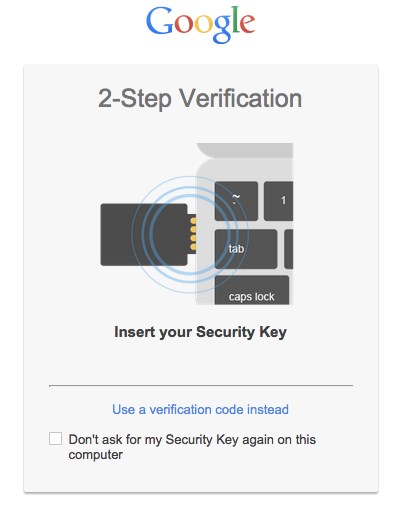
Rather than relying on a mobile phone or tablet, Security Key reduces two factor authentication to working with a USB drive. Requirement for a physical 'key' greatly reduces the chances of security breaches and means it matters less if a third party determines your account password.
 
As Google explains in its announcement blog post: "Rather than typing a code, just insert Security Key into your computer’s USB port and tap it when prompted in Chrome. When you sign into your Google Account using Chrome and Security Key, you can be sure that the cryptographic signature cannot be phished".
 
Security is based on the open Universal 2nd Factor (U2F) protocol, so don’t be surprised if support is added to other services as well. This is not a security tool that will be universally embraced as Security Key is only compatible with Google Chrome, although it can be used with Windows, OS X, Linux and Chrome OS.

~ Mark Wilson

9.11.2014

Apple slashes iCloud pricing, adds new 1TB tier

Summary: As promised in June, Apple has dramatically cut its cloud storage prices - but rivals are still undercutting it.
 
New iCloud pricing plans up to 1TB. Image: Apple
Along with the launch of two iPhone 6 handsets and the Watch yesterday, Apple has made good on its promise to slash iCloud storage prices, with tiers now going all the way up to 1TB.
 
Apple's new iCloud pricing was announced at its developer conference in June, signalling the company was finally willing to address criticisms over price, as well as rivals that had severely undercut it — most notably Google, which in May began offering 15GB of cloud storage for free, 100GB for $1.99 a month and 1TB for $9.99 a month.
 
The new iCloud pricing partly addresses the gap, offering 5GB for free, 20GB for 99 cents a month, and 200 GB for $3.99 a month, with the last bundle, which costs $48 a year, likely to be popular. In contrast, 55GB storage in iCloud previously cost around $100 a year.
 
Apple also released pricing for two additional tiers yesterday, including 500GB at $9.99 a month and 1TB at $19.99 a month.
 
In the UK, iCloud users can now get 20GB for £0.79 a month, 200GB for £2.99, 500GB for £6.99, and 1TB for £14.99. In France and Germany, those figures are €0.99, €3.99, €9.99, and €19.99. Up to 5GB is free across the board.
 
But while Apple has scaled up its storage capacity for users, iCloud is still more expensive than Google and Dropbox, with the latter last month introducing 1TB for $9.99 a month (a price it rather unfairly converted to €9.99/month in Europe).
 
Still, Apple's new pricing may have prompted Dropbox's price change, with its previous tiered model costing $9.99 a month for 100GB, $19.99 a month for 200GB, and $49.99 a month for 300GB.
 
Unfortunately for Apple, it's consumer-friendly pricing has launched to a backdrop of security concerns around content stored in iCloud following the recent celebrity photo leak.
 
To that end, Apple kicked off a new alert scheme to tell users when attempts are made to change their passwords, restore data to new devices, or when someone logs into to iCloud from a new Apple device.
 
And while the common security advice for users to prevent theft of data from iCloud was to enable Apple's two factor authentication, security researchers late last year drew attention to the fact iCloud two-factor does not protect iCloud backups, Find My Phone data and documents stored in the cloud.
 
~ Liam Tung

9.06.2014

Apple to add security alerts for iCloud users, says Cook: WSJ

Apple CEO Tim Cook delivers his keynote address at the World Wide developers conference in San Francisco, California June 2, 2014.
Credit: Reuters/Robert Galbraith

(Reuters) - Apple Inc (AAPL.O) is planning additional steps to keep hackers out of user accounts in the face of the recent celebrity photo scandal and will aggressively encourage users to take stricter security measures, CEO Tim cook told the Wall Street Journal in an interview.
 
Apple will alert users through email and push notifications when someone tries to change an account password, restore iCloud data to a new device, or when a device logs into an account for the first time, the report said. (on.wsj.com/1puYPl3)
 
Apple is moving quickly to restore confidence in its systems' security ahead of the crucial launch of its new iPhone next week.
 
Cook said Apple will broaden its use of the two-factor authentication security system to avoid future intrusions, the Journal reported.
 
The two-factor authentication requires a user to have two of three things to access an account, which may include a password, a separate four-digit one-time code, or a long access key given to the user when they signed up for the service.
 
The iPhone maker said it plans to more aggressively encourage people to turn on the two-factor authentication in the new version of iOS, the daily reported.  
 
"The usability battle will always be there but could you ever imagine using your debit card at an ATM and not entering a pin? That's two factor, something you have (a card) & something you know (a pin), and we all get along just fine," WhiteHat Security's Matt Johansen told Reuters.
 
Apple said on Tuesday the attacks that emerged over the Labor Day weekend on celebrities' iCloud accounts were individually targeted, and that none of the cases it investigated had resulted from a breach of its systems.
 
Some security experts have faulted Apple for failing to make its devices and software easier to secure through two-factor authentication, which requires a separate verification code after users log in initially.
 
Apple could also do more to advertise that option, they said. Most people do not bother with security measures because of the extra hassle, experts say, and the leading phone makers are partly to blame.
 
The iCloud service allows users to store photos and other content and access it from any Apple device. Security in the cloud has been a paramount concern in past years, but that has not stopped the rapid adoption of services that offer reams of storage and management of data and content off smartphones and computers.
 
Apple was not immediately available for comment.
 
~ Arnab Sen in Bangalore and Edwin Chan in San Francisco      
   

5.19.2014

Dropbox 2.8 offers smarter installer, drive space warnings

Cloud backup provider Dropbox has announced the final release of Dropbox 2.8, its latest major update for Windows, Linux and Mac.
 
The new release adds Windows and OS X auto sign-in support for easier installation. As long as you're logged into Dropbox already, the installer won’t ask for your credentials again. (This doesn’t work if you’re using two-step verification, or a Dropbox for Business account that uses single sign-on.)
 
A more intelligent setup process sees version 2.8 offer to use selective sync if your Dropbox is more than 10GB, or syncing everything would fill most of your hard drive space. This only applies when first linking an account to a computer, as otherwise the program uses your previous settings.
There are also new icons in the system tray menu, and a couple of bug fixes, in particular an issue moving a Dropbox where long paths are involved. The new concern about your hard drive space continues elsewhere, with notifications appearing as you run out.
 
It’s hard to get excited about 2.8, then, but Dropbox 2.9 Experimental is already looking much more interesting.
 
The key development is the introduction of streaming sync, where large files begin to be synced with your clients as they're being uploaded, cutting any initial delays.
 
A scrolling tray pop-up gives you convenient access to more than just the last three items. There's improved initial sync performance, and several new languages: Danish, Dutch, Swedish, Thai and Ukrainian.
 
Dropbox 2.8 FINAL and Dropbox 2.9 Experimental are available now as a free download for Windows, Linux and Mac.
 
~ Mike Williams

6.21.2013

Use Google Authenticator to securely login to non-Google sites

Takeaway: With two-step authentication enabled, you’ll be prompted to enter a six-digit number after you provide your username and password.
Google’s two-step authentication helps you restrict access to your accounts. Normally, you login to a website with your username and password. Without two-step authentication, you’re done. Access to your account relies on the strength of your username and password.
 
With two-step authentication enabled, you’ll be prompted to enter a six-digit number after you provide your username and password. Unlike a PIN number for an ATM, this six-digit number changes with every login.

 
Many sites send a text message to you containing the six-digit number. That’s how things work if you’ve enabled two-step authentication at Facebook, Twitter and LinkedIn as of June 14, 2013. (Follow the links for each service to learn how to enable two-step authentication on each of these widely-used social media sites.) If you use these sites and have a cellphone, I strongly recommend you enable two-step authentication at each service.
 
Other sites let you use the Google Authenticator app to generate the six-digit number. The app generates a different six-digit number for each connected site, and these numbers change every 30 seconds. With the app, you don’t have to wait a few seconds to receive a text message. Here’s how to set up and use the Google Authenticator app with your Google account, along with a few other well-known sites.

Doing the two-step

1. Make sure two-step authentication is enabled for your Google account

Before you start using the app, make sure that two-step authentication is enabled and configured for your account. See my August 2012 article, “Secure your Google Account with two-step authentication” for details.

2. Install the app

Download and install the app on your Android device or on your iPhone, iPad or iPod Touch.

3. Connect Google Authenticator to your Google Account

Login to your Google account at http://accounts.google.com. Choose “Security” from the left-side menu, then look for “2-step verification” and click “Edit”. You may need to login again.
 
Connect your Google Authenticator app to your Google account by following the prompts after “How to Connect” a Mobile Application.

The free Google Authenticator app helps secure your Google account.
The process will be similar when you enable 2-step authentication on other sites, and then link your Google Authenticator app with those sites, with these general steps:
  • You enable 2-step authentication at the website, and then
  • Indicate you want to use your Google Authenticator app to generate codes.
  • Next, you use the Google Authenticator app on your phone to scan a code displayed by the website on your computer screen, and then
  • The Authenticator app adds the account.
  • You enter a six-digit code generated by the Authenticator app to verify that the site and app are linked.

4. Connect Google Authenticator for 2-step authentication at other sites

Many companies have adopted the 2-step authentication process. For many users, discovering how to enable 2-step authentication at each site can be a bit time consuming. So here’s a quick guide to a few of the most widely visited sites with which you can use the Google Authenticator app.

Wordpress.com

Secure your Wordpress.com account by logging in to your account, then choosing “Settings”, then “Security”. Then enable 2-step authentication with Google Authenticator.


Secure your Wordpress.com account with Google Authenticator.

Outlook.com

Yes, you can use Google Authenticator for 2-step authentication of Outlook.com accounts. To enable 2-step authentication at Outlook.com, login, then choose “Account Settings”, then “Security info”. From this page you can enable 2-step authentication and manage your authenticator apps.
Your Google Authenticator app can help securely access Outlook.com accounts.

Evernote.com

Evernote’s setup is similar to the others above: login, go to “Account Settings”, then choose “Security”. From there, you can enable 2-step authentication using Google Authenticator.
Evernote enabled 2-step authentication in May 2013.

Dropbox.com

Dropbox provides a nicely designed step-by-step process for enabling 2-step authentication. First login to your Dropbox.com account, choosing “Settings”, then select the “Security” tab. From there, click the link to enable two-step verification.
Dropbox has a nicely designed step-by-step process that walks users through each step of configuring 2-step authentication.

LastPass.com

Finally, if you use the LastPass password manager, I strongly encourage you to secure it using 2-step authentication. Even if you use a very long, obscure password, the LastPass.com data store, if breached, would provide access to all of your passwords for other sites. This is worth securing.

To enable 2-step authentication in LastPass, login, then choose Settings, then select the “Multifactor options” tab. Choose the “Google Authenticator” option, then follow the on-screen instructions.  
Your LastPass.com password data store is definitely worth securing with 2-step authentication!

Bottom line

New sites continue to add support for 2-step authentication and the Google Authenticator app every month. While two-step authentication may not protect your data from the U.S. National Security Agency, it will help prevent unauthorized access to your accounts. Enable it wherever possible today.

~ Andy Wolber