Cisco Learning Network Store Promotions Page
Showing posts with label Ubuntu. Show all posts

1.23.2017

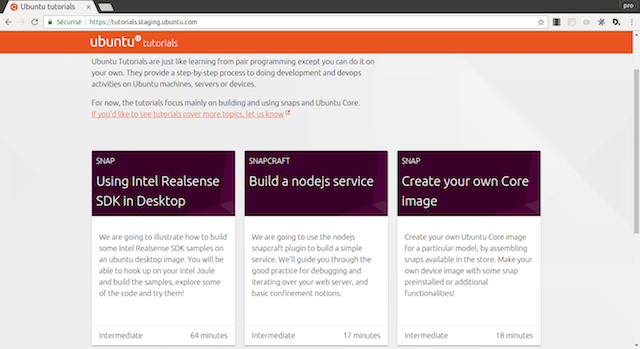
Canonical launches Ubuntu Tutorials

 
Linux is arguably the most successful open source project in all of history. The success of the kernel -- and operating systems that use it -- are not due to any one man or woman. Actually, the achievements are thanks to the Linux community. In other words, it is a team effort -- developers, users, and more.

For a Linux distribution, such as Ubuntu, to continue its progress, Canonical needs developers to remain interested -- this includes getting new people involved and educated. This week, the company launched Ubuntu Tutorials -- based on Google's open source Codelab. No, it is not self-learning for new workstation users, but for programmers and developers.

"Ubuntu tutorials are a topic-specific walkthroughs, giving you a very practical experience on a particular domain. They are just like learning from pair programming except you can do it on your own! They provide a step-by-step process to doing development and devops activities on Ubuntu machines, servers or devices," says Canonical.

The Ubuntu-maintainer further says, "You can as well work offline if you desire and always take your tutorials with you! Using the snap technology, we built a tutorial snap including the same content and the same technology as the one you can find on the website."
 
 
Canonical shares the following details about the tutorials.
  • A clear and detailed summary of what you will learn in this tutorial
  • The content difficulty level: you will know where to start from!
  • An estimated completion time for each step and the whole tutorial, so that you plan precisely depending on your availability.
  • A "where to go from there" final step, guiding you to the next logical places to get more information about that particular subject, or the next tutorial you can follow now that you have learned those notions.
Just as the Linux community is a group effort, so shall be Ubuntu Tutorials. You see, Canonical is asking for assistance in creating new tutorials. If you are interested in contributing to tutorials.ubuntu.com, the company shares the rather lengthy guidelines here.

Will you participate in creating tutorials? If yes, tell me how in the comments below.

Photo credit: Julien Tromeur / Shutterstock

~ Brian Fagioli

11.21.2016

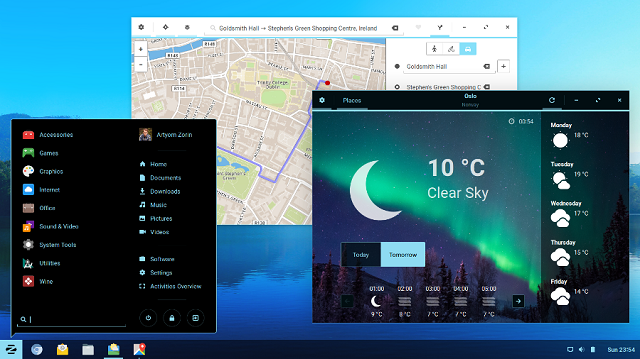
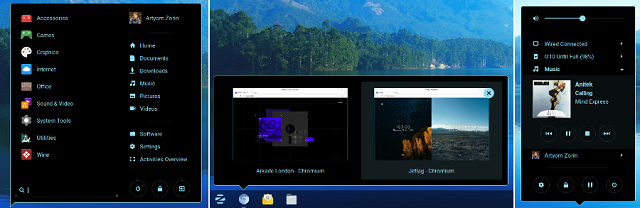
Zorin OS 12 Ubuntu-based Linux distribution now available -- a Windows 10 alternative

Windows 10 is a really great desktop operating system, but it is not for everyone. For those that care deeply about security and privacy, an open source Linux-based operating system is a wise alternative. The problem? Learning a new user interface can be hard for some. If you have always used a Windows OS in the past, moving to a desktop environment like GNOME or Unity can be confusing and scary.

Luckily, for those that have difficulty with change, there are some Linux-based operating systems that are designed for Windows-switchers. One fairly popular such offering, Zorin OS, has now reached version 12. It is designed to be familiar to former users of Microsoft's OS. While the company does charge for an "Ultimate" version, the "Core" edition of Zorin OS 12 is entirely free.

"Many of the built-in system apps have seen extensive improvements both visually and under the hood. Zorin OS 12 is powered by Linux Kernel version 4.4, which now works with even more hardware and introduces performance enhancements and security improvements. As Zorin OS 12 is based on Ubuntu 16.04 LTS, it will be supported with security updates until April 2021. This makes Zorin OS 12 the ideal choice for large deployments in businesses, governments, schools and organisations", says The Zorin OS Team.

The team further says, "with Zorin OS 12, we are introducing a new release schedule going into the future. Major releases of Zorin OS will now be made once every 2 years. In between, a number of point releases will be made that will include incremental updates to the built in apps as well as support for new hardware, security fixes and various under-the-hood improvements. This gives you the optimal balance between the robustness of tried-and-tested technology and the latest and greatest features. By focusing on one release at a time, we will be able to provide the best possible experience to everyone using Zorin OS".

Zorin OS features some really great features, such as Google Drive integration with the file browser. This means Google users can easily access their cloud storage without any confusing setup.

Chromium browser is installed by default, which is really the right thing to do nowadays. Look, I know some folks deeply care about Firefox -- which is available to use too -- but Chromium is just the better offering at this time.

The all-new Zorin Desktop 2.0 DE can be customized to look more like GNOME or macOS too (Ultimate-version only). The desktop environment even features useful gestures, which the team shares below.
  • 3+ finger pinch opens the Activities Overview
  • 4 finger drag (up or down) switches workspaces
  • 3 finger hold & tap switches between apps


If you are ready to download it, you can get the operating system here. If you are new to Zorin, I suggest opting for the free "Core" edition. However, if you find that you like it and want the additional features, the €15 is a reasonably priced way to support the developer.

~ Brian Fagioli

10.31.2016

MacBook Pro (2016) disappointment pushes some Apple loyalists to Ubuntu Linux

 
The new Apple MacBook Pro looks to be a wonderful laptop, but understandably, not everyone is impressed. The "Pro" moniker literally means "professional", and there are some concerns from that segment. Some photographers, for instance, will be very hurt and disgusted by the lack of an SD card slot. More importantly, the computer maxes out at 16GB of RAM -- many pro users want 32GB or more, which is not possible on the new machine, sadly.
 
While you might expect some of these disappointed Apple loyalists to turn to a Windows machine -- and I'm sure some will -- some are turning to an unexpected alternative -- Linux. You see, immediately after the Apple Keynote, famed Ubuntu laptop and desktop seller, System76, saw a huge jump in traffic from people looking to buy its machines. The traffic was so intense, that it needed to upgrade servers to keep up!
 
"We experienced much more traffic than we had prepared for, the website didn't go hard down but experienced slowness. We had to scale up to return to normal. It was a pretty big surge, I don't have the details in front of me at the moment but I've not really heard of anything like this before. People being so underwhelmed by a product that immediately following a new product release they actively seek out competitor's products", says Ryan Sipes, Community Manager, System76.
 
I decided to compare specifications and pricing on my own, so I headed to both Apple.com and System76.com to compare. Apple's new 15-inch MacBook Pro starts at $2,400. This machine has a Quad-core Sklyake i7, maxes out at 16GB of RAM, has an NVMe 256GB SSD, and a Radeon Pro 450 with a paltry 2GB memory.
 
 
Alternatively, I headed to System76 and configured its 15-inch Oryx Pro (you can do so here). I closely matched the MacBook Pro specs, with a Quad-core Sklyake i7 and NVMe 256GB SSD. Instead of 16GB of RAM as found on the Apple, I configured with 32GB (you can go up to 64GB if needed). By default, it comes with a 6GB Nvidia GTX 1060. The price? Less than $2,000! In other words, the System76 machine with much better specs is less expensive than Apple's.
Still, the Oryx Pro can be configured with specs far beyond the MacBook Pro, and at a very competitive price -- it is not hard to see why System76 saw a huge jump in traffic following the Apple Keynote. It is worth noting that both the Oryx Pro and MacBook Pro can run Windows too.
 
Are you surprised that some Mac users are jumping to Linux? Tell me in the comments.
 
Photo credit: Brian A Jackson / Shutterstock
 
~ Brian Fagioli

10.29.2016

Linux Mint 18.1 is officially named 'Serena'

 
Linux Mint is a brilliant operating system. Based on Ubuntu, it aims to make Linux accessible to everyone. You know what? It succeeds. The wonderful Cinnamon desktop environment is a no-nonsense approach to computing, making it easy for a home user to complete their tasks.
 
Today, the upcoming Linux Mint 18.1 (based on Ubuntu 16.04 LTS) gets an official code-name -- "Serena". What does this female name mean? According to Behind the Name, it is "from a Late Latin name which was derived from Latin serenus meaning 'clear, tranquil, serene'. This name was borne by an obscure early saint. Edmund Spenser also used it in his poem 'The Faerie Queene' (1590)".
 
"The second release in the Linux Mint 18.x series will be named 'Serena'. Linux Mint 18.1 is estimated to be released around November/December 2016 and will be supported until 2021. Linux Mint 18 users will have the ability to upgrade. This upgrade will be both easy and safe and it will be performed via the Update Manager", says Clement Lefebvre, Linux Mint.
 
If you aren't familiar with the name "Serena", please know there is a very famous person as an example. Serena Williams is a world-renowned tennis player, who was previously ranked number one in the world. She has earned many millions of dollars, and is an inspiration to people around the globe.
 
Do you think Serena is a good name for Linux Mint 18.1? Tell me in the comments.
 
Image credit: Jimmie48 Photography/Shutterstock
 
~ Brian Fagioli

10.12.2016

Fedora 25 Beta open source Linux distribution now available for download

 
Fedora is the operating system of choice of Linux founder Linus Torvalds -- that says a lot. Despite the fact that he uses a Dell XPS 13 Developer Edition laptop that ships pre-loaded with Ubuntu, it is unlikely that he kept that OS on it. While there is nothing wrong with Canonical's offering, Fedora is a very wise choice for those who want a no-nonsense Linux distro with a focus on free and open source software.
 
Today, Fedora 25 Beta becomes available for download. There are many things to get excited about, such as the implementation of Wayland and the pre-release 3.22 version of the GNOME desktop environment.
 
"Providing many of the latest developer and desktop tools, Fedora 25 Workstation Beta delivers a host of new features, including the long-awaited official debut of the Wayland display server. Replacing the legacy X11 system, Wayland has been under development for several years and aims to provide a smoother, more user-friendly experience when navigating Fedora Workstation. To further enhance ease-of-use, Fedora 25 Workstation Beta also features GNOME 3.22 in pre-release, which offers multiple file renaming, a redesigned keyboard settings tool and additional user interface improvements", says Matthew Miller, Project Leader, Fedora.
 
Miller further says, "Fedora 25 Workstation Beta now makes it easier to upgrade a desktop environment to the latest stable version of Fedora with the Fedora Media Writer. This tool helps users find and download the current Fedora release and write it to removable media, like a USB stick; this allows for potential Fedora users to 'test drive' the operating system from that media environment. If they like what they experience, Fedora can then be installed to their system with the same process".
 
The Fedora Project shares the following significant updates.
  • Docker 1.12 for building and running containerized applications
  • Node.js 6.5, the latest version of the popular server-side JavaScript engine
  • Support for Rust, a faster and more stable system programming language
  • Multiple Python versions - 2.6, 2.7, 3.3, 3.4 and 3.5 - to help run test suites across several Python configurations, as well as PyPy, PyPy3 and Jython
If you want to download Fedora 25 Beta, you can get it here. Keep in mind, however, this is pre-release software, and it should not be used on a production machine. Even though the Beta operating system should be fairly safe to use, if you were to, for example, experience data loss, you have no one to blame but yourself.

If you decide to try it, please tell me your opinions of it in the comments below.
 
Photo credit: FabrikaSimf/Shutterstock
 
~ Brian Fagioli

9.29.2016

Ubuntu Linux 16.10 'Yakkety Yak' Beta 2 open source OS now available for download

 
Next month, one of the most important desktop operating systems will get a major update. No, I am not talking about Windows or macOS; I am referring to Ubuntu. True, from a market share perspective Linux-based desktop operating systems are rather insignificant, but for those in the know, Canonical's open source OS is quite brilliant. Its fans and users are very loyal and passionate.
 
Today, the final beta of the upcoming Ubuntu Linux 16.10 becomes available. While this version -- dubbed 'Yakkety Yak' -- will not reinvent the wheel, it should offer enough to delight existing users of the open source operating system. Hey, if it's not broke, why fix it, right? That is a lesson Microsoft learned the hard way with Windows 8, but I digress.
 
"Codenamed 'Yakkety Yak', 16.10 continues Ubuntu's proud tradition of integrating the latest and greatest open source technologies into a high-quality, easy-to-use Linux distribution. The team has been hard at work through this cycle, introducing new features and fixing bugs", says Steve Langasek, Developer, Canonical.
 
Langasek further says, "the beta images are known to be reasonably free of showstopper CD build or installer bugs, while representing a very recent snapshot of 16.10 that should be representative of the features intended to ship with the final release expected on October 13th, 2016".
 
While there aren't many new aspects, there are some significant changes. The Linux kernel has been updated to 4.8 and the included GNOME apps have all been updated to 3.20 and higher. The wonderful LibreOffice is now at version 5.2.
 
If you are ready to download Ubuntu 16.10 'Yakkety Yak', you can use the below links. Desktop users will most likely want to select Ubuntu Desktop (Unity), but I recommend Kubuntu and Ubuntu GNOME too. Want to install Google Chrome on the operating system? You can follow our how-to guide here.
Photo Credit: da_o/Shutterstock
 
~ Brian Fagioli

How to: Install Google Chrome web browser on Ubuntu Linux (and uninstall Firefox)

 
Ubuntu comes with a lot of quality software pre-installed. Unfortunately, the default web browser, Mozilla Firefox, has been on the decline -- it is slow and clunky. On Linux, Google Chrome is now the top web browser, and it is the best way to experience Adobe Flash content too (if you still need it).
 
Installing Google Chrome on the Linux-based operating system is not totally straightforward. This is unfortunate, as the search-giant's web browser is an important part of having an overall quality experience on Ubuntu. Don't worry, however, as we will help you to both install the wonderful Google Chrome and uninstall the disappointing Mozilla Firefox.


First things first, you must download the appropriate file here. Scroll down until you see "Linux". There are three available versions -- Stable, Beta, and Dev. You will want to select 'Stable' as it is quite literally the most stable. It is designed for end users that are wanting to surf the web with as few bugs as possible. Beta and Dev are designed for bug-hunters and developers and should be avoided by home users.
 
 
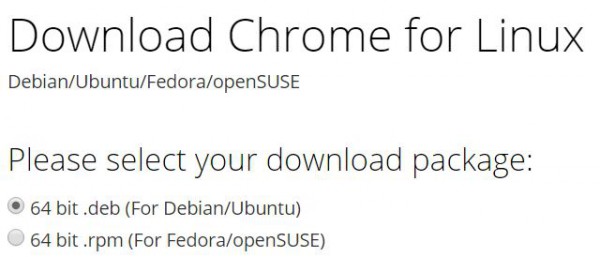
You will then be given the options of "64 bit .deb (For Debian/Ubuntu)" and "64 bit .rpm (For Fedora/openSUSE)". Since you are using Ubuntu, you will want to select the former. If you are coming from Windows, you can think of a .deb file as being sort of like a .exe file. You will want to double-click the file from where you downloaded it.
 
Once opened, it will launch the Ubuntu Software Center. This center is designed for not only finding available packages, but installing downloaded .deb files too. Once it completes installing the browser, you can launch Google Chrome immediately by searching for "Chrome" in global search. You can save it to the launcher for convenience too (recommended).
 
Lastly, you will want to uninstall Firefox, but this is not required. Having two web browsers is not necessarily a bad thing, but if you won't be using Mozilla's browser, why keep it? You can remove it easily in Terminal with the below command. You will be prompted for your password to start the process.
"sudo apt-get remove firefox"
Congratulations! You have now removed Mozilla Firefox and installed Google Chrome.
 
Image credit: Mascha Tace/Shutterstock
 
~ Brian Fagioli

8.01.2016

Charles Schwab says no to Windows 10 -- chooses Chromebooks instead

 
When it comes to get working done, I leverage many operating systems -- Windows 10, Ubuntu, iOS, and believe it or not, even Chrome OS. Google's cloud-focused desktop OS is actually quite capable -- depending on needs, of course. Many things work wonderfully in a browser nowadays, such as word processing, spreadsheets, and photo editing.
 
Apparently, Charles Schwab has seen the light on Chromebooks too, as the financial company has chosen them for a specific need -- in-person account opening. In other words, the much-respected company did not choose Windows 10 for this project. Sorry, Microsoft!
 
"We needed an intuitive interface that not only educated potential clients about our product but also made it easy to sign up. We tested several laptops and tablets that weren’t the right fit, before I reached out to Google. That was on a Friday and the following Monday, Google engineers came into our Phoenix engineering facility. By lunchtime, we landed on a solution that was quick to deploy, very easy to manage and use, and offered the high level of security that we demanded: Chromebooks", says Ed Obuchowski, Senior VP of Advisor Technology Solutions, Charles Schwab.
 
Obuchowski further explains, "opening a Schwab Intelligent Portfolios account on a Chromebook is easy. When a client walks into one of our branches to learn more about automated investing, an associate hands the client a Chromebook. Within seconds, the client is guided to a Charles Schwab webpage, where he or she can learn about the product, complete a questionnaire and open an account. The whole process is electronic, so there’s no paperwork -- minimizing errors and time spent on administration."
 
 
True, the need here is not very heavy -- a Windows 10 computer would be overkill for a webpage-focused account application. But that is the beauty of Chrome OS! There is no need to worry about malware and high administration costs -- Chromebooks and Chromeboxes just work! For a client-facing portal, the Linux-based operating system is a brilliant way to keep sensitive information secure.
 
 
The company was able to implement 1,000 of the computers in just two months time. The company was so impressed with the results, that it is now looking to implement Chrome OS desktops (Chromeboxes) in locations too.
 
Was Charles Schwab smart to choose Chromebooks over Windows 10 laptops? Tell me in the comments.
 
~ Brian Fagioli

6.15.2016

Ubuntu 'Snap' now universal -- coming to Linux distros like Fedora, Arch, OpenSUSE, and more!

 
My biggest complaint about Linux based desktop operating systems is fragmentation. There are too many desktop environments, too many package managers, heck, too many distros! Not only can end-users be negatively impacted by too many choices, but more importantly, developers can be spread too thin. Ultimately, the Linux community ends up being unfocused and unable to move the desktop dial.
 
Today, something miraculous happens. Believe it or not, the Linux Community largely bands together to embrace Ubuntu's "Snap" packages. Yes, you are reading that correctly -- competing Linux-based operating systems like Fedora, Gentoo, Arch, and more, will utilize the now-universal "Snap," meaning Linux software can be made to install regardless of distro. This should be particularly brilliant for operating systems optimized for mobile and IoT.
 
"Snaps sit alongside the native packages of the base Linux operating system. Each distribution has its own mechanisms to provide the base OS and its updates. Snaps complement the base OS with universal apps that cannot interfere with the base OS or one another", says Canonical.
 
The company further says, "the snap format is simpler than the native internal package formats of individual Linux distributions, because it is focused purely on applications rather than the core system itself. Snaps are essentially self-contained zip files that can be executed very fast in place, making them easy to create".
 
Canonical shares the following Linux-based operating systems which can now natively work with Snaps.
  • Arch
  • Debian
  • Fedora
  • Kubuntu
  • Lubuntu
  • Ubuntu GNOME
  • Ubuntu Kylin
  • Ubuntu MATE
  • Ubuntu Unity
  • Xubuntu
Snaps are being validated to work in the future on the following distros.
  • CentOS
  • Elementary
  • Gentoo
  • Mint
  • OpenSUSE
  • OpenWrt
  • RHEL
Mark this date on your calendar, Linux fans. By simply porting snapd to the distro, the Snaps can be installed without worry. This is revolutionary, and will change the way both developers and end-users deal with packages. The container-like design should prove more secure too.
 
 
Jason Shepherd, Director, IoT Strategy and Partnerships, Dell says, "we believe snaps address the security risks and manageability challenges associated with deploying and running multiple third party applications on a single IoT Gateway. This trusted and universal app format is essential for Dell, our IoT Solutions Partners and commercial customers to build a scalable, IT-ready, and vibrant ecosystem of IoT applications".
 
If you are a developer and you want to create a Snap, you can do so here. If you need some assistance, you can reach out on IRC here.
 
Do you think the universal acceptance of Snaps is a game-changer? Tell me in the comments.
 
Photo credit: vladsilver / Shutterstock
 
~ Brian Fagioli

5.11.2016

Fedora 24 Beta is here -- Linux fans, download it now

 
While Ubuntu focuses on convergence -- smartphones and tablets -- Fedora seems comfortable with the desktop, server, and cloud. You know what? That is not a bad thing. There are far too many Linux distributions nowadays, and if they all started focusing on a "Swiss Army" strategy with mobile device types, things would get messy. I find Fedora's narrower view refreshing.
 
Today, the Fedora Project announces that version 24 of the operating system achieves Beta status. If you have never tried the Linux-based OS, I urge you to give it a go. If my recommendation doesn't do it for you, please know that it is the operating system of choice for Linus Torvalds -- father of Linux.
 
"We're pleased to announce that Fedora 24, the latest version of the Fedora operating system, is now available in beta. The Fedora Project is a global community that works together to lead the advancement of free and open source software. As part of the community’s mission the project delivers three editions, each one a free, Linux-based operating system tailored to meet specific use cases: Fedora 24 Cloud Beta, Fedora 24 Server Beta, and Fedora 24 Workstation Beta", says Matthew Miller, Fedora Project Leader.
 
Miller further says, "each edition is built from a common set of base packages, which form the core foundation of Fedora 24 Beta. In addition to minor bug fixes and package tweaks, Fedora 24 Beta’s foundational packages include glibc 2.23 for better performance and improvements to POSIX compliance (and backwards compatibility to Fedora 23) and GNU Compiler Collection (GCC) 6. All base packages have been rebuilt with GCC 6, providing better code optimization across all Fedora 24 Beta editions".
 
The workstation version -- the one most home users will target -- offers GNOME 3.20 preview as a desktop environment. While other environments will be available too, I urge folks to try GNOME first. It has improved leaps and bounds over the years, becoming my choice for best UI of any operating system.
 
Wayland is available as preview, but not default. The display server protocol is still poised to replace X, but it will not yet be ready for Fedora 24. The team explains that it should be ready for "future versions". Whether that means version 25 will get Wayland as default remains to be seen.
 
If you are ready to download it, you can get it here. The download links are not yet live, but keep checking back as they will be available very soon.
 
Image Credit: Bobboz / Shutterstock
 
~ Brian Fagioli

4.11.2016

How to run Bash on Ubuntu on Windows 10 Anniversary Update or Preview Build 14316

 
Microsoft has been showing Linux a lot of love recently, and at Build 2016 the company announced that the Bash shell was coming to Windows 10. It’s a feature that will make an appearance in the upcoming Windows 10 Anniversary Update (due for release in July), but it's something that Windows Insiders on the Fast Ring already have access to in Build 14316 right now.
 
If you have installed this build, you'd be forgiven for not being able to find Bash however hard you look; there are hoops you have to jump through. So if you like the idea of accessing the Linux command line in Windows 10, there are a few steps for you to follow, starting off by enabling Developer Mode.
 
As Microsoft explains: "You can now run Bash scripts, Linux command-line tools like sed, awk, grep, and you can even try Linux-first tools like Ruby, Git, Python, etc. directly on Windows. You can also access your Windows filesystem from within Bash allowing you to work on the same set of files using your preferred Windows tools or Linux command-line tools".
 
Here are those all-important Bash-enabling steps:
  • Open up Settings, click Update & security, and then head to the For developers section. Select the Developer mode option, click Yes to confirm, and then exit Settings.
  • Hit the Windows key (or the Start button), type Windows features, and click the Turn Windows Features on or off entry that appears.
  • Scroll down to the bottom of the list, check the box next to the Windows Subsystem for Linux (Beta) option, and click OK.
  • Wait for a moment while Bash is installed and then click Restart now to restart your computer and complete the process.
  • When Windows is back up and running, open a command prompt window, type bash and hit Enter.
  • You'll see a message that reads 'This will install Ubuntu on Windows, distributed by Canonical and licensed under its terms'. Press Y followed by Enter to download the software from the Windows Store and complete the installation.
In future, you can access Bash via the Bash on Ubuntu on Windows shortcut in the All Apps section of the Start menu.
 
Photo credit: charnsitr / Shutterstock
 
~ Mark Wilson

3.25.2016

Canonical releases Ubuntu Linux 16.04 LTS 'Xenial Xerus' Final Beta

 
If you are a Linux desktop user, there is a good chance you have used Ubuntu at some point in your life. The distribution is one of the best, offering stability, many available packages, and an overall great user experience. Unfortunately, the last few releases have been rather ho-hum -- boring and evolutionary. Don't get me wrong, Canonical shouldn't fix what isn't broken (as Microsoft often does with Windows), but some users expect a bit more from operating system upgrades.
 
The upcoming 16.04 release looks to remedy this, finally delivering a meaty upgrade to Ubuntu fans. Two major changes are a much improved Unity with the ability to move the dock (woo-hoo!), and a refreshed software store. Today, Canonical releases the final beta, signaling that the true non-beta final version, due April 21, is right around the corner.
 
"Codenamed 'Xenial Xerus', 16.04 LTS continues Ubuntu's proud tradition of integrating the latest and greatest open source technologies into a high-quality, easy-to-use Linux distribution. The team has been hard at work through this cycle, introducing new features and fixing bugs. This beta release includes images from not only the Ubuntu Desktop, Server, Cloud, and Core products, but also the Kubuntu, Lubuntu, Mythbuntu, Ubuntu GNOME, Ubuntu Kylin, Ubuntu MATE, Ubuntu Studio, and Xubuntu flavours", says Adam Conrad, Software Engineer at Canonical.
 
Amazingly, there is only one known major bug in the release. Conrad explains, "in some cases, attempts to install to a hard drive that already contains a swap partition may fail in the partitioning phase. If you encounter this, the simplest workaround is to boot to the live session, start a terminal (Ctrl-Alt-T) and type 'sudo swapoff -a'. You can then start the installation from the icon on the desktop and it should proceed successfully".
 
Even though this final beta should be rather stable and complete, it is still not recommended for use on production machines. If you want to try it out, I would advise doing so in a VM, separate partition, or even better, a dedicated drive.
 
If you want to try the final beta of Ubuntu, you can use the links below.
Will you download it? Tell me in the comments.
 
Photo credit: Dean Drobot / Shutterstock
 
~ Brian Fagioli

12.30.2015

System76 Oryx Pro is the Ubuntu Linux gaming laptop of your dreams [Review]

  
When you think of a gaming PC, two things probably come to mind -- Microsoft Windows and desktop computers. In other words, gamers don't typically target laptops for playing their favorite games, and even when some do, they will likely aim for Windows 7, 8, or 10. Thanks to Steam, however, Linux-based operating systems are a legitimate option for gaming.
          If you want a Linux-based gaming laptop, your choices are slim. Yes, you can buy a Windows laptop and replace the operating system with Ubuntu or another OS, but that isn't the best experience. Ideally, you want a machine that was designed and sold with Linux in mind. Enter the Ubuntu-powered System76 Oryx Pro. This beast of a gaming laptop can be configured with some jaw-dropping specs. The one I have been testing features an Intel Skylake Core i7 processor, 32GB of DDR4 RAM, NVMe SSD and NVIDIA graphics, including G-SYNC. Are you salivating yet? Read on for more specs and my impressions.
  Notable Specs ($2,317 as configured)

  • Display: 15.6 inch 1080p matte IPS w/ G-SYNC
  • Graphics: NVIDIA 980M w/ 8GB video RAM
  • Processor: 3.5GHz Intel Skylake i7-6700HQ
  • Memory: 32GB 2133MHz DDR4 (2 x 16GB)
  • Storage: 256GB M.2 PCIe NVMe SSD
  • Wireless AC: Intel 8260
  • Weight: 5.5 pounds
Unboxing


Impressions

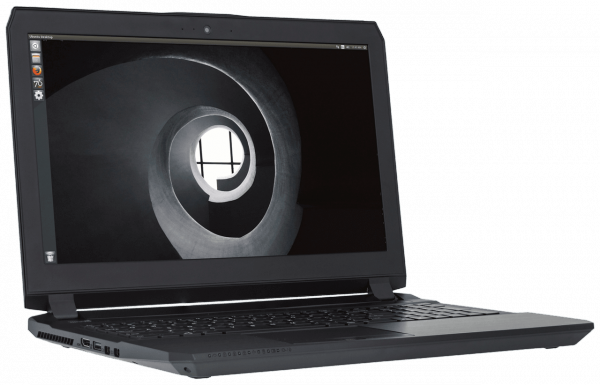
As you can see from the video above, the laptop is beautiful. Upon taking it out of the box, I was immediately impressed by the design. The aluminum body feels extremely premium, which should make you feel confident about your purchase. It is obvious that much care went into the design; I love the many striking angles. It is clearly a gaming machine in its design, but not overly flashy like other game-focused laptops. It is elegant and mature, while also looking bad-ass.

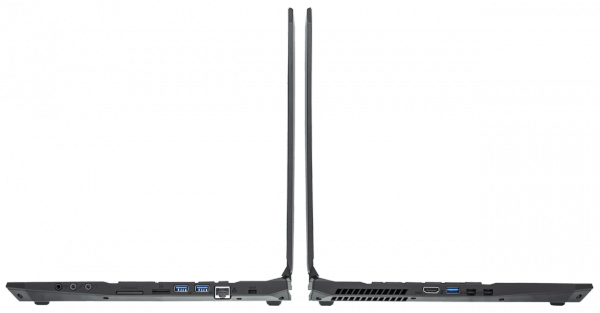
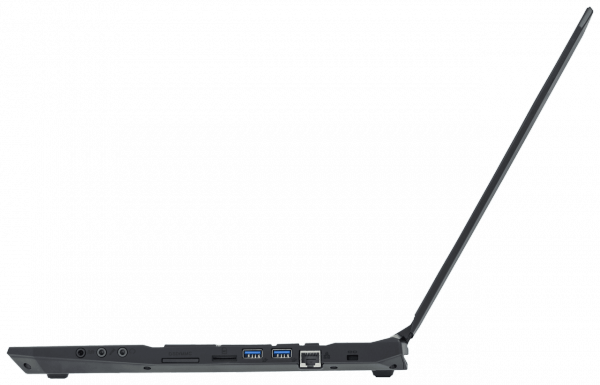
Equally impressive is the number of ports. On the right side, there are audio ports, an SD card reader, two USB 3.0 ports, gigabit Ethernet and a Kensington lock hole. There is also a sim card slot, but it is non-functional -- sorry, folks, there is no cellular radio. On the left, there are two mini Display Ports, an HDMI port, and a USB 3.0 port. This can easily push multiple 4K displays.

The rear is home to the power connector and an additional USB 3.0 port. This is extremely important to me, as I don't like to see wires. At home, on a desk, a USB 3.0 hub can easily be hidden behind it as a pseudo docking station. Many laptop manufacturers have stopped offering a rear port, meaning you have to have a hub and power cable hanging off the side. System76 gets it right here -- everything is so well thought out.

Opening up and powering up the laptop, I am presented with a beautiful backlit keyboard. Since this is a gaming laptop, the WASD keys are even marked with arrows -- useful for newbies. Because this is a 15 inch laptop, there is enough room for a number pad too. While I don't use the number pad, this is important to many people -- especially for those that may use this for a small business -- so it is appreciated. Most importantly, however, the keyboard is a dream to type on. The keys are solid and have a satisfying amount of depth. I can be confident as I type; it is rewarding.


Above the keyboard is branding that had me very excited -- Onkyo. Yes, the speakers are made by the famed audio hardware manufacturer. Guess what? They sound brilliant. Whether gaming, listening to music, or watching movies, audio is loud and crisp. While the bass is a bit lacking, it is still one of the most satisfying audio experiences I've had on a laptop. The speakers are even angled towards the user for optimal positioning.

Speaking of audio, there is something else audible -- the fan. A few people have asked me if the fan is loud, and the answer is no. It is not loud, but it can be heard in a quiet setting. In other words, if you were working in a library, where it is very silent, you will be able to hear it. Still, it is not distracting, nor is it excessive. Quite frankly, given the power of this beast, the fan is surprisingly quiet; it is a non-issue.

The 15.6 inch 1080p display is absolutely gorgeous. It is a matte variant, meaning it does not show excessive reflections or glare. Text is crisp and beautiful, while images and movies look wonderful. The G-SYNC technology from Nvidia will help against tearing for movement too.

The Oryx Pro ships with Ubuntu 15.10, which is an absolute treat -- dare I say, my favorite operating system of 2015. It comes configured with Nvidia proprietary drivers, so you are ready to game right away. Of course, you will want to install Steam to take advantage of premium games. With Steam installed, I played some great games, such as Dying Light, that look absolutely gorgeous. The NVIDIA 980M is insanely capable, making the laptop a gaming beast.


You will want to invest in a mouse or gamepad for serious gaming, however. The Oryx Pro's trackpad is spectacularly responsive, featuring dedicated buttons, but no trackpad will ever best a mouse in gameplay. Throw a nice wired mouse in your backpack and you will be glad that you did.

Gaming aside, the Oryx Pro absolutely flies; this is cutting edge specs, folks. The Core i7 Skylake processor, 32GB of DDR4 RAM and NVMe SSD will tackle absolutely anything you can throw at it. Seriously, this is an absolute powerhouse that will last you many years. Heck, you can even configure it with up to 64GB of RAM, but that is probably taking overkill to another level. Most users should be more than happy with 16GB of memory.

While acceptable heft is subjective, I can say that the 5.5 lbs is a bit heavy for me. As someone who is constantly on the go (I work wherever I can), carrying this in a backpack with a single strap (like the cool kids wore it in the 90's), I did experience some shoulder strain. Wearing the backpack properly (aka not like a poser) largely alleviated the issue.


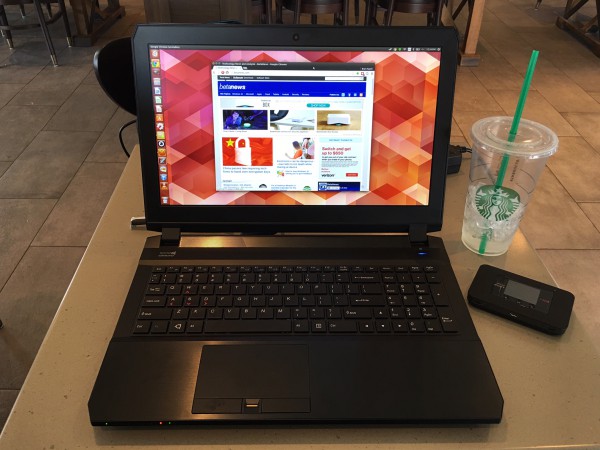
Battery life is a tad disappointing at about 2 hours. Look, Linux-based operating systems have never been the most power-optimized, but these powerful components are very energy hungry. Heck, even the power adapter is quite massive, looking a bit conspicuous when I was working at Starbucks.

It is worth mentioning that the Oryx Pro comes with a fingerprint reader, but it is essentially non-functional due to the poor biometric support on Linux. With that said, it is still appreciated for potential future use. If you plan to dual-boot with Windows 10, however, it should work fine with the 'Hello' feature. The Oryx Pro will run Windows like a champ, but I did not test it -- I only wanted to experience it as intended -- with the wonderful Ubuntu.


Final thoughts

So, who is this laptop for? Well, it depends. While the big focus is on gaming and LAN parties, this could also serve as a solid all-purpose family PC where kids want to game, or as a Linux workstation for a small business. Remember, you get what you pay for. Yes, your family or business could get by with less, but as an investment, and with cost-averaging, it is a smart buy. System76 even offers the option to finance.

Do I recommend it? Oh, hell yes. It is undoubtedly one of my favorite laptops ever. It is important to understand the limitations in portability, however, due to the heft and relatively short battery life. This is a machine that shines when stationary and plugged into the wall, but has the added benefit of being portable when needed. Road warriors should look elsewhere, but if you crave raw power and beautiful design -- portability be damned -- this is the Linux laptop for you. Very much recommended.

Want to design and configure your own Oryx Pro? You can do so here. If you buy one, please tell me what specs you chose in the comments below.


~ Brian Fagioli

9.17.2015

Pro tip: Install Kali Linux tools on Ubuntu with this easy script

If you want to get some of the power of Kali Linux on your Ubuntu distribution, Jack Wallen shows you how to do so with the Katoolin install script. 

 
You've heard of Kali Linux, right? If not, what you need to know is that Kali is one of the most powerful penetration testing platforms on the market. It's a Linux distribution that can be installed and used for free to help you run just about every kind of network test imaginable.
 
But for some, running Kali would be so much easier if it could be integrated with the likes of Ubuntu. Guess what? It can! Thanks to an easy to use script, called Katoolin, you can install any of the Kali Linux tools right on Ubuntu.
 
Let me walk you through the process.

Installing Katoolin

This installation is done completely through the command line. The process goes something like this:
  1. Open a terminal window
  2. Install git with the command sudo apt-get install git
  3. Now, download Katoolin with the command sudo git clone https://github.com/LionSec/katoolin.git
  4. Copy the katoolin executable to the proper directory with the command sudo cp katoolin/katoolin.py /usr/bin/katoolin
  5. Give the executable proper permissions with sudo chmod ugo+x /usr/bin/katoolin
You are now ready to use Katoolin.

Usage

To run the software, open a terminal window, issue the command sudo katoolin, and the ncurses-based tool will present itself. Here you will see an easy-to-navigate menu structure that makes installing the bits and pieces of Kali Linux a breeze (Figure A).
 
Figure A
  
 
The Katoolin main menu.
The first thing you must do is install the repositories by tapping the 1 key on your keyboard and then hitting the [Enter] key. Once the repositories are added, you can view the categories of available software and install anything you like. You can also install the classicmenu indicator, which is a Ubuntu Unity panel indicator that serves as a standard application menu (and it will offer a category-based hierarchy of all software installed).
 
There is one caveat to using Katoolin. Not all of the software listed is actually available. If you go to View Categories and then enter 0 for all, the installer will immediately return to where you were. Scroll up, and you'll see that a number of the packages can't be found. My guess is that those packages are no longer maintained or have been removed from the Kali repositories. Even with this issue, you'll still find a ton of the Kali software available for installation.
 
Your best bet is to go into each category and install the software one by one (Figure B).
 
Figure B
  
 
Installing from the Sniffing & Spoofing tools category.
If you're looking to get some of the power of Kali Linux, but you don't want to go to the trouble of doing a full distribution install, this handy script should get you where you need to go.
 
When you're doing network and penetration testing, what tools do you turn to? Share your experience in the discussion thread below.
 
~ Jack Wallen

6.16.2015

Chromixium: A new Linux distro with a Chrome OS twist

A long time Ubuntu fan, Jack Wallen opts to depart from the safe and familiar in search of something new. That search led him to a very Chrome OS-like Linux distribution called Chromixium. 

 
I already know what you're asking... why do we need a Chrome OS knock-off when we already have the real deal (and the real deal is dirt cheap)?
 
The answer to that question is two fold: 1) Because it can be done; and 2) Because you probably have plenty of older hardware sitting around that could easily power a Chrome OS-like operating system.
 
Recently, I had to reinstall the primary OS on my production machine. I opted to try something different than Ubuntu, so I started looking around at new distributions. In the end, the decision came down to two distributions:
I wound up going with Elementary OS Freya, but the decision was a challenging one. Why? Because Chromixium is incredibly well done and works as efficiently and easily as Chrome OS. In the end, however, Elementary OS Freya won out, because it offered a much superior audio recording experience.
 
Even so, Chromixium is an outstanding choice for anyone wanting Chrome OS on non-Chromebook hardware. What does it offer? Here are some of the features:
  • LTS Linux PAE Kernel 3.13
  • Chromium web browser (with the option of using the proprietary Google Chrome)
  • Pepperflash plugin
  • Openbox window manager
  • Compton desktop compositor
  • Plank dock
  • LXPanel
  • GTK+3 for a consistent look and feel
For anyone who has been around Linux long enough, the use of Openbox window manager (derived from the old-school Blackbox window manager) should be intriguing, especially in conjunction with a compositor. Openbox has been around for a while (initial release was 2002) and has always been lauded for its speed and small footprint. With Chromixium built on a Linux kernel, with a lightning fast desktop designed to mimic Chrome OS, what is there not to love?

Why you should try Chromixium

I can sum this up in a few quick bullet points:
  • If you've used Chrome OS and would love to see it with just a bit more flexibility
  • If you have aging hardware and want a solid OS to use
  • If you're looking for an incredibly easy-to-use OS that can serve just about any purpose
  • If you like the idea of Chrome OS with native apps like LibreOffice and GIMP
  • If you like the idea of Chrome OS but need much more local storage
The list, seriously, goes on and on.

Why you should not try Chromixium

Again, I can sum this up in a few bullet points:
  • You hate Linux
  • You hate anything that resembles a Google product
  • You'd prefer the Chrome OS experience with the incredibly fast-booting Chromebook hardware
  • You depend on applications that aren't available for the Linux platform

Installation

As with most Linux distributions, you can "try before you buy" by running Chromixium as a live instance. Once you've tried it, you'll probably want to install it. The installation of Chomixium is as simple as installing any Linux distribution. You simply boot from the ISO image (download here and burn it onto a DVD or USB flash drive), log into the desktop with the credentials Username: user / Password: user, and click the Install icon in the Panel.
 
You'll need to enter the sudo password user in order to start the installation process. The installation wizard is very user friendly and shouldn't toss anything your way that you haven't seen before.

Setting Chrome as the default

Out of the box, Chromium is the default browser. This is fine, except for the fact that you might find certain sites don't function quite as well with Chromium. If you'd prefer to use the official Chrome as the default browser, you'll first need to install it. Here's how:
  1. Open up Chromium
  2. Go to the Chrome download page
  3. Download the 32 bit .deb (For Debian/Ubuntu)
  4. Click Accept and Install
  5. Click Save to download the file to your Downloads folder
  6. Once it's downloaded, close the browser
  7. Open Files (the default file manager) from the dock
  8. Navigate to the Downloads folder
  9. Double-click on the file google-chrome-stable_current_i386.deb, and it will open in the Package Installer
  10. Click on Install Package and enter your password when prompted
  11. When the installation finished, close the Package Installer
Now to set Chrome as the default, follow these steps:
  1. Open a terminal window by hitting [Control]+[Alt]+[T]
  2. Enter the command sudo cp /usr/bin/chromium-browser /usr/bin/chromium-browser-old and type your sudo password when prompted
  3. Enter the command sudo ln -s -f /usr/bin/google-chrome /usr/bin/chromium-browser
At this point, Chrome will be your default browser.

The caveats

Chromixium isn't perfect (what do you expect from a 1.0 release?), and one of the biggest issues I've come across is that installed applications do not appear in the menu. Although the menu is great for all your Chrome apps and searching, it does next to nothing for those apps you install via Synaptic or the command line. There is, however, a bit of a hidden menu that allows you access to more of the Linux side of things. If you right-click anywhere on the desktop, the OpenBox menu will appear. Within this menu, you can:
  • Launch locally installed applications
  • Launch the Control Panel
  • Run commands
  • Change the desktop wallpaper
  • Logout/shutdown
  • Gain quick access to settings (Figure A)
Figure A

The Chromixium local menu.
With the help of this menu, Chromixium becomes the best of both worlds. At first blush, you might wish to have these two menus integrated as one. However, given enough thought, you might come to the same conclusion I did... separately, they're much more powerful. After using the dual menus long enough, I realized the two were better left apart. This separation means better Google integration without getting muddied by the plethora of available Linux applications. Most likely, you'll spend the majority of your time on the Google side of things, but when you need a bit more, it's just a right-click away.
 
The last issue you might find is the lack of a clear and obvious front end for package management and an update manager. Chromixium offers Synaptic, GDebi, Ubuntu Software Center, dpkg, and apt for the management of packages. This is too much (Figure B).
 
Figure B
 
Too many package manager front ends.
Chromixium needs to settle on one and leave it at that, because the primary user base for Chrome OS want simplicity. Instead, they'll find Synaptic in the Applications | System, the Ubuntu Software Center in Applications | Internet, GDebi in Applications | System, Software & Drivers in Applications | Settings, Automatic Updates in Applications | Settings... you get the idea.
 
The developers need to rein this in to avoid confusion.

Conclusion

If you're looking for one of the simplest Linux distributions, one that's very well integrated with Google, you need to give Chromixium a closer look. I've yet to come across a Linux distribution that does as good of a job at mimicking Chrome OS. Being a fan of the Google platform, this might eventually wind up being a perfect confluence of design and execution. For a 1.0 release, Chromixium is seriously impressive.
 
~ Jack Wallen

3.18.2015

Linux Mint Debian Edition (LMDE) 2 'Betsy' RC is here -- both MATE and Cinnamon

 
When it comes to picking a Linux distribution, it can be very difficult. Quite often, beginners will choose Ubuntu, which is a smart choice. Why? It is easy to use and well supported. Besides Ubuntu, however, Linux Mint is another great choice. Since it is based on Ubuntu, it is compatible with the same packages and commands.

 
There is another version of Linux Mint, though -- LMDE. This stands for Linux Mint Debian Edition. As the name describes, rather than being based on Ubuntu, it is based on Debian. While the operating system used to be a rolling release variant, it has since evolved to something else. Today, a release candidate for the second edition of the operating system becomes available. Should you use LMDE 2 instead of the traditional Linux Mint?
 
"LMDE (Linux Mint Debian Edition) is a very exciting distribution, targeted at experienced users, which provides the same environment as Linux Mint but uses Debian as its package base, instead of Ubuntu. LMDE is less mainstream than Linux Mint, it has a much smaller user base, it is not compatible with PPAs, and it lacks a few features. That makes it a bit harder to use and harder to find help for, so it is not recommended for novice users", says Clement Lefebvre, Linux Mint Team.
 
Lefebvre further explains, "LMDE is however slightly faster than Linux Mint and it runs newer packages. Life on the LMDE side can be exciting. There are no point releases in LMDE 2, except for bug fixes and security fixes base packages stay the same, but Mint and desktop components are updated continuously. When ready, newly developed features get directly into LMDE 2, whereas they are staged for inclusion on the next upcoming Linux Mint 17.x point release. Consequently, Linux Mint users only run new features when a new point release comes out and they opt-in to upgrade to it. LMDE 2 users don’t have that choice, but they also don’t have to wait for new packages to mature and they usually get to run them first. It's more risky, but more exciting".
 
Fans of Mint will be happy to know that both Cinnamon and MATE versions are available. For users of those desktop environments, using LMDE 2 will feel very familiar. It remains to be seen if any other desktop environments, such as KDE or Xfce, will be included in the future.

So, should you use LMDE 2? Probably not. For most home users, the traditional Ubuntu-based Mint is the smarter choice, as it should prove to be more stable. Not to mention, for many, the lack of PPA support will be a massive deal-breaker.
 
Users of LMDE 2 should probably be more adventurous and experienced in the ways of Linux. Remember though, this is a release candidate and not a final version, so it is not recommended to install on production machines. You can read a full list of known issues here.
 
You can download LMDE 2 Betsy RC using the below torrent links.
 
Cinnamon
Mate
Image Credit: wavebreakmedia / Shutterstock
 
~ Brian Fagioli

11.17.2014

Linux Mint 17.1 'Rebecca' RC now available with either Cinnamon or Mate

 
The Linux kernel is constantly evolving and adapting; there is a reason it has seen great success on servers and mobile devices. On the desktop, however, Linux-based operating systems hold a paltry amount of usage share; it is almost non-existent in the grand scheme of things. With that said, many modern Linux distributions are very usable, easy to install, and have great support communities.
 
While I am a Fedora user, there is only one Linux distro that I suggest to people -- Linux Mint. Why? Well, it is a very easy-to-use operating system, and for people coming from Windows, it can look rather familiar. The people behind Mint are very accommodating too; they actually listen to users! Since it is based on Ubuntu, there are tons of packages available, for which you can use the popular APT package manager when needed. Today, a release candidate (RC) of Linux Mint 17.1 'Rebecca' becomes available -- download it now.
 
"Linux Mint 17.1 is a long term support release which will be supported until 2019. It comes with updated software and brings refinements and many new features to make your desktop even more comfortable to use", says Clement Lefebvre, Linux Mint.
 
A big part of 17.1 is the updated desktop environments -- Cinnamon and Mate. The former focuses on added eye candy, while the latter is more light-weight (it is a fork of Gnome 2.x). With that said, Mate can be made to look rather snazzy by using Compiz.
 
 
Most users with modern computers will want to target Cinnamon, which is updated to version 2.4. The Mint team explains, "a lot of care went into attention to details and Cinnamon 2.4 received many little improvements to make your experience smoother and more enjoyable than before".
 
The operating system will feature the 3.13 kernel and is built on the stable Ubuntu 14.04 base. Even though Linux Mint 17.1 RC is probably safe and stable, I still caution that you do not install a release candidate on a production machine. However, if you do decide to install, you can download the appropriate torrent below.
You can learn more about the new features by clicking here (Cinnamon) or here (Mate)
 
Photo Credit: benik.at / Shutterstock
 
~ Brian Fagioli

10.01.2014

Is iOS 8 Spotlight Search Similar to the Ubuntu Dash?

If you’ve played with an iPhone or iPad running iOS 8 you might have spotted a new feature in Spotlight — a feature that bears more than a passing resemblance to a key part of the Ubuntu desktop.
  
Let me preface this by saying that good ideas catch on. That is a good thing. In culture, in literature, or in technology: we all benefit when people are free to take an idea and develop it in new, different ways. It’s a concept that most open-source frameworks are built on. Don’t like something? Fork it!
 
Back to Apple’s rejig of the Spotlight search feature in iOS 8. Apple has given Spotlight new features, features similar to those debuted by Ubuntu a few years back. Spotlight is now a search hub, for want of a better word.
 
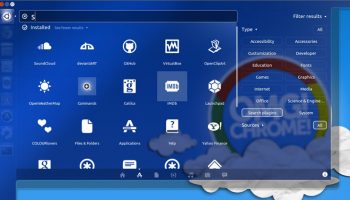
Like in the Unity Dash, Spotlight in iOS 8 will throw up results from online sources, including iTunes, Wikipedia and Bing, alongside local files, photos and apps. It will even serve up relevant app suggestions where applicable — just like Unity’s ‘recommended software’ section.
 
 
Results are grouped based on their source, with a small thumbnail shown alongside a brief snippet or link.
 
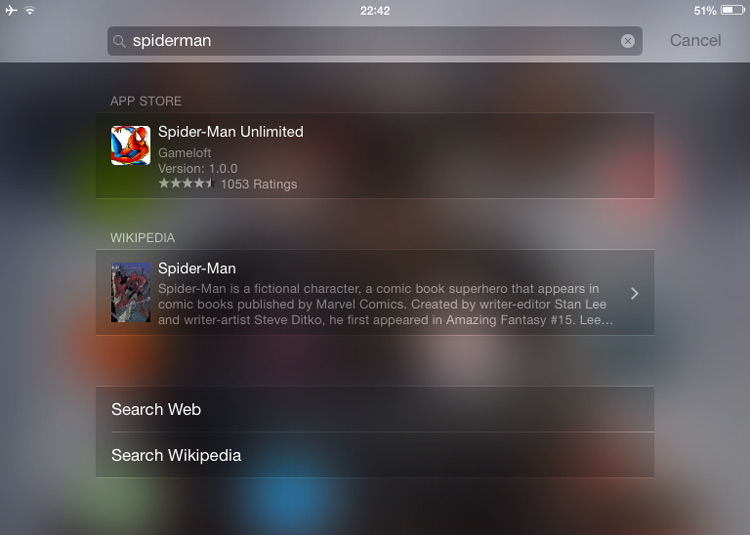
For example, typing in “Spiderman” throws out an App Store link and Wikipedia entry on the comic book character. Depending on the search term you may see movie times, nearby events or business, relevant web links, and so on.
 
 
Again, as with Unity, certain results can be clicked to reveal a short preview or snippet:
 
 
But unlike the Unity Dash there are no Amazon product results rearing their head thus far. But when you’re a company worth over half-a-trillion dollars, it’s not like you need them!
 
Apple do not (yet) have plans to allow third-party services to add in and extend the search functionality, something Ubuntu does allow through its “Scopes”.

Applentitlement

Now, by this point in the comparison, fervent Mac fans will be foaming at the mouth, incredulity rushing to their fingers, calling them into commenting action. To be fair, they have some reason to feel the need to rebut through Helvetica ALL CAPS.
 
Why? Well, firstly, the notion of a visual hub collating local files, apps, emails, contacts, music and other items is not novel or ‘unique’ to Ubuntu. Spotlight has long been a mainstay of Apple’s mobile and desktop OSes, and various Linux desktop shells/apps over the years have attempted similar things.
 
Secondly, it can be argued that the first true fusion of local and remote results to use smart matching began with productivity apps like Alfred, which served as inspiration for GNOME Do, Kupfer and, by extension, Synapse.
 
But it is only with iOS 8 (and the upcoming release of OS X 10.10 ‘Yosemite’ on the desktop) that Apple is expanding its search reach to cover ‘contextually relevant’ results in a way more accessible to the user.
 
Ubuntu amped up search on the Unity desktop shell through ‘Smart Scopes’ back in 2013.

Seriously, Don’t Miss the Point

Playing a game of “Who did what first” never ends well. And it’s not really what this article is supposed to be about. It’s about showing how different companies, projects and OSes tend to converge on the same problems but go about solving them in different — or not so different in this case — ways.
 
There is no shame in this. Is it likely that Apple actually flat out copied Ubuntu? Probably not. Inspired by it? Possibly…but given the insular nature of the Cupertino design team, even that would be a little arrogant to assume.
 
What this feature does show is that Canonical, in bringing this feature to the desktop and making it front and centre of their mobile OS, is acutely tuned to react and adapt to changing habits of users. While not always a hit in the implementation — the smart scopes server matching remains a little scattershot — they are often ahead in willing to break the status quo.
 
This instinct for what’s next bodes well for their mobile domination plans.
 
~ Joey-Elijah Sneddon