Cisco Learning Network Store Promotions Page
Showing posts with label OS X Yosemite. Show all posts

12.05.2015

Pro tip: How to create a hidden admin account in OS X

You can make OS X even more secure by protecting a local admin account from becoming compromised. Find out how. 

Image: Apple
Best security practices advise that user accounts run according to the least privilege required, which would virtually erase the ability for standard users to manage systems on their own. While this increases the workload exponentially for IT, standardization can be implemented, and that is increasingly important.
 
One common practice is the implementation of a local user account with admin rights used to continue management of a device in the event that the trust relationship is severed or directory authentication is otherwise unavailable. The provisional account is typically used only to manage the device in times of absolute necessity in lieu of formatting the machine.
 
While it is common practice on a Windows domain to rename and disable a local admin account, Macs will (by default) require at least one local admin account to be created and present in order for the system to function properly.
 
With the recent release of OS X El Capitan, Apple has added functionality to further secure OS X, especially during the deployment phase by fully pre-configuring the administrator account and keeping it hidden from all other users that log on to a system. This is a nice security benefit, as the account is kept from users' prying eyes, while still allowing IT the flexibility of having a local account to manage devices, if needed.
 
But what if you're not running El Capitan? The feature is available as a terminal command within OS X Yosemite and later. It can be executed by following the steps below.
 
1. Create a new user account and assign it admin rights.
 
2. Launch Terminal.app and enter the following command:
 
sudo dscl . /Users/HIDDEN_USERNAME IsHidden 1
  
In essence, the command will hide the local admin account from the logon screen and from the User preferences. While the admin account is "hidden" from common view, the home folder and public folder share point will still be visible to all users who navigate to the /Users folder.
 
To remedy these issues and redirect the home folder to another hidden directory, enter the following command:
 
sudo mv  /Users/HIDDEN_USERNAME /var/HIDDEN_USERNAME
  
To update the home folder user record with the new home path, enter the following command:
  
sudo dscl . -create /Users/HIDDEN_USERNAME NFSHomeDirectory /var/HIDDEN_USERNAME
  
To delete the public folder share point for the hidden admin account, enter the following command:
  
sudo dscl . -delete "/SharePoints/HIDDEN_USERNAME Public Folder"
   
A new, hidden administrator account will be created in OS X with a home folder that's redirected to a hidden directory. The public folder share point for that account will be deleted.
 
This isn't a clear-cut solution to protecting a local admin account from becoming compromised, though it does serve as a layer of protection, which when combined with other established best security practices, will strengthen the security of the admin account used to manage Macs on your network.
 
~ Jesus Vigo

7.30.2015

9 OS X antimalware suites get the thumbs up from AV-TEST

AV-TEST ran 10 Mac OS X antivirus applications through its test labs, and five of the suites achieved 100% malware detection.  

Image: AV-TEST
Microsoft operating systems may soon have competition as the most popular malware targets, because the bad guys are making serious inroads with Apple products. Just yesterday, my friend's Apple notebook caught some new form of ransomware and is completely locked up.
 
Seeing an emerging trend, AV-TEST GmbH, an independent IT security and antivirus research house, started testing antimalware products for Apple in 2014, Mac OS X in the Crosshairs - 18 Malware Scanners Put to the Test. AV-TEST just released its 2015 survey, Mac OS X under attack - 10 security packages put to the test. The 2015 report starts out with good news, "While the first test of OS X security solutions in 2014 revealed that many products had massive problems in malware detection, the results in the 2015 test were significantly better."
 
The 10 systems tested are:
  • Avast Mac Security - free
  • Avira Free Antivirus
  • Bitdefender Antivirus for Mac
  • Kaspersky Internet Security
  • Symantec Norton Security
  • Intel Security/McAfee Internet Security
  • Intego VirusBarrier
  • Sophos Anti-Virus - free
  • Webroot SecureAnywhere
  • ClamXav - free

Test setup

One reason to pay attention to AV-TEST reports is the willingness of company management to publish, in detail, the procedures used during the testing. This test report was no different.
  • All products were installed on identical iMacs with a 2.7 GHz Core i5 CPU, 16 GB memory, and a 500 GB SSD hard disk running OS X 10.10 (Yosemite) with recent updates.
  • All test systems were connected to the internet, so the products could reach their respective cloud and reputation services.
  • Each product was installed and ran on the test system individually.
  • All product versions were cross-checked with the developer's website (when available) to ensure that we had the latest product version and updates installed (before the start of each test).
Maik Morgenstern, one of the company's CEOs and technical director, mentioned, "We only tested downloadable products offered at the AV vendors' websites. The versions available at the Mac App Store appeared to be limited in functionality."

Testing for malware detection

To be realistic, care was taken in creating the test set of more than 160 malware threats. "All samples are confirmed to include malicious functionality," explained Morgenstern. "During the creation of the test set, we selected the most recent samples from several different malware families."
 
Morgenstern added, "There may be archive files included in the test set, as long as the specific malware is distributed that way (e.g. DMG or PKG)."
 
As for the actual tests, engineers performed on-demand scans of "native" malware, Potentially Unwanted Applications (PUA), and Potentially Unwanted Programs (PUP) samples, including scripts.
 
When the initial test run was finished, the engineers checked for application updates; if any were available, they were installed and the application was tested again to see if the updated version detected samples missed earlier. On-access tests were also run twice. Morgenstern said, "However, we excluded archives as such formats are not scanned by all products."
 
The report stated that Avast, Avira, Bitdefender, Kaspersky, and Symantec had 100% malware detection. The only antimalware that had detection rates less than 88% was the security package from ClamXav, detecting 39.6% of the malware threats.

No false positives

Engineers at AV-TEST understand that false positives are the bane of the antimalware industry. If false positives appear regularly, users will ignore both false positives and real warnings. The 2015 report explains how AV-TEST engineers check for false positives:
 
"We perform an on-demand scan while installing and using the top 100 products for the Mac OS X platform. This includes, but is not limited to Adobe Reader XI, Apache OpenOffice, CCleaner, Firefox, GIMP, Google Chrome, iTunes, Java Runtime Environment, Libre Office, Opera, Picasa, Raw Therapee, Safari, Skype, Thunderbird, Virtualbox, and VLC media player."
 
Morgenstern added, "Only Webroot sounded a warning twice in the test when launching programs. The other security solutions passed this test category without a glitch."

Performance slowdown

Almost as bad as false positives are system slowdowns due to inefficient antimalware programs. To test for slowdowns, AV-TEST engineers first created a reference baseline by timing how long a Mac OS X reference machine without antimalware took to copy 20 - 30 GB of files (documents, media files, presentations, and programs). That averaged out to 66.1 seconds. The adjacent slide lists the results, with Symantec Norton Utility ending up on top.
 
The free versions of antimalware held their own. As for features, Morgenstern told me the free versions were spartan. He added, "Most paid versions were not much better feature-wise, but were better equipped than the freeware solutions." For example:
  • Intel Security (McAfee) and Norton include a firewall
  • Kaspersky offers parental control

Bottom line

What I took away from the tests and Morgenstern's explanations was that, except for ClamXav, the OS X security package you choose from this list of 10 appears to be a matter of personal preference.
 
It might be best to reiterate something Morgenstern mentioned earlier: make sure to download the antimalware program from the manufacturer's website or purchase the boxed version from a retail store.
 
~ Michael Kassner

1.27.2015

Apple preparing fix for Thunderstrike malware in upcoming OS X 10.10.2 release

A powerful low-level malware vulnerability in Macs will soon be patched in an upcoming OS release. 

 
It's long been said, both by Apple and independent security experts, that Apple's computers are more secure than those running Windows. That does not mean, however, that Macs are invulnerable to malware threats.
 
One particularly terrifying example is called Thunderstrike. It allows a malicious actor to replace the firmware in Macs with something much more nefarious. The firmware controls extremely low-level functions of the computer, everything that happens from the moment the power button is pressed.
 
On a Macintosh, it's normally completely invisible to the user -- part of Apple's quest to keep things simple. And, as long as everything works, it's not a big deal.
 
Thunderstrike allows someone to use a Thunderbolt device, perhaps something as simple as a Thunderbolt-to-HDMI dongle, to reboot the computer and replace its firmware with custom designed backdoors. It could, in theory, completely bypass any existing protections on the computer. It would also survive reformatting of the hard drive and reinstallation of the OS X operating system, because it would be installed at the very lowest levels of the computer. Ars Technica has much more on exactly how it works.
 
It only requires brief physical access to the machine, say from someone posing as a hotel maid or a customs agent inspecting a computer at a border crossing, to plug in the compromised Thunderbolt attachment and restart the computer.
 
Without a fix from Apple, the only viable protection was to either permanently disable Thunderbolt entirely (not easy, since you'd need to do bad things to the main logic board) or keep ironclad control of your Mac at all times. Those really aren't the greatest options.
 
Apple has already rolled out temporary fixes to the Retina 5K iMac and new Mac Mini, which was introduced late last year. According to iMore, a more permanent solution is coming in OS X Yosemite 10.10.2, and it's expected to be released soon.
"To secure against Thunderstrike, Apple had to change the code to not only prevent the Mac's boot ROM from being replaced, but also to prevent it from being rolled back to a state where the attack would be possible again. According to people with access to the latest beta of OS X 10.10.2 who are familiar with Thunderstrike and how it works, that's exactly the deep, layered process that's been completed."
Luckily, no malicious versions of Thunderstrike have been discovered in the wild, but given the disclosures of US intelligence activities that have come from Edward Snowden, it wouldn't be surprising for the NSA to be examining the vulnerability for potential intelligence uses.
 
It's a good reminder that just because we use Apple products, that doesn't mean we're immune from security concerns -- and it's always a good idea to make sure you're running the latest versions of Apple's operating systems on all your devices.
 
How do you protect your Apple products from potential security vulnerabilities? Let us know in the comments below.
 
~ Jordan Golson 

1.11.2015

OS X Yosemite Spotlight vulnerability allows email spammers to access IP address and private data

 
Reports suggest a glitch in Apple’s OS X Yosemite is making it possible for spammers to steal IP addresses and other private data from unsuspecting users. As spotted by the German tech outlet Heise, the issue appears to be with Apple’s built-in Spotlight search and the way it treats Apple Mail results.
 
The glitch was replicated successfully when tested by IDG News Service and has to do with the way Spotlight will ignore user privacy options from within Apple Mail. The company suggests users turn off “load remote content in messages" from within their Mail settings in order to avoid tracking pixels and other scams that spammers might attempt in order to steal private information.
 
The problem is that when users search for something in Spotlight that brings back a Mail message of malicious nature, the remote content selection is ignored and the files are loaded up as part of the results. If a tracking pixel or something of the sort is loaded in this way, onlookers can easily pull IP addresses, system info, browser history/details and other things they shouldn’t be able to access.
 
At this point, there has been no response from Apple regarding the Spotlight vulnerability, but there are things Apple Mail users can do to protect themselves in the mean time. It looks as though the best way is to simply block Spotlight from accessing Mail content manually. Go to System Preferences, then into the Spotlight options where you’ll find a list of content that will be included in results, and then uncheck the "Mail & Messages" option.
 
~ Justin Kahn

11.28.2014

Pro tip: Troubleshooting 10 known OS X Yosemite issues

Jesus Vigo reviews 10 documented issues affecting OS X Yosemite and offers troubleshooting tips to work through them.  

Apple's Yosemite has been the most ambitious OS X release in unifying the desktop and iOS mobile devices. Some of the benefits, however, can only be enjoyed by installing OS X 10.10 and iOS 8 on your respective devices.
 
As advancements are made, there are certain concessions if the technology is to move forward, and sometimes this requires upgrading older hardware to take advantage of newer features. However, as with any new product, bugs will be identified that prevent some functions from working as advertised.
 
Thankfully, most of the difficulties surrounding Yosemite can be resolved with some troubleshooting and/or software updates. Let's review below 10 of the more common issues affecting Yosemite and how to resolve them.

1. Wi-Fi connectivity

Symptoms: Wireless connection drops connectivity and goes offline for approx. 30-45 seconds at a time, often at 10-15 minute intervals between loss of connections.
 
Causes: The issue usually pertains to a buggy Wi-Fi driver. Unfortunately, this relies squarely on Apple's shoulders, as the driver must be updated before a permanent solution may be found. Sometimes the issue pertains to router and/or specific wireless settings.
 
Solution: As of this writing, the current version of OS X is 10.10.1, which includes better Wi-Fi reliability. While this has been known to resolve some issues, many users are still experiencing trouble and holding out hope for the forthcoming 10.10.2 update.
 
Additional troubleshooting steps involve reviewing wireless and/or router settings on your home equipment to verify compatibility and check for common wireless issues, such as distance, obstacles (i.e., concrete walls, which are known to impede signals), and interference brought on by multiple wireless access points concentrated in a general area, since the 2.4 Ghz band Wi-Fi typically operates on is susceptible to overcrowding from cordless phones, neighboring routers, and other gadgets operating on the same frequency.

2. Trouble booting OS X

Symptoms: Mac computer powers on and initiates the boot process, yet the progress bar fills up about halfway and then just hangs there for an unspecified amount of time.
 
Causes: Boot issues are difficult to troubleshoot, since there are so many variables that can affect the process. You could be experiencing hardware failure, software extensions gone awry, or a combination of multiple issues could be keeping your Mac computer from starting up properly.
 
Solution: Best practices in troubleshooting are the best offense to tackling boot issues affecting your Mac. Combined with a little common sense, boot issues can be resolved relatively quickly and painlessly.

3. Excessive RAM usage

Symptoms: RAM usage is throttled to its maximum capacity, preventing the use of certain applications or features.
 
Causes: RAM is used by a computer to keep application information moving as it transitions from storage to the CPU for processing and back. Yet, somewhere along the line, a process takes on more than its share of allocated memory or an app has a memory leak that causes it to continue to use up RAM until nothing is left for the system to run stably.
 
Solution: The quickest way of identifying an offending application or process is by launching the Activity Monitor.app from the Applications | Utilities folder. Checking the memory tab will list each process currently running and the total commit of RAM being used by each app in descending order from greatest amount used.
 
Many times, unsuspecting applications are loaded when a user logs on to a computer, and these apps continue to run, unfettered and often times needlessly, which negatively impacts memory performance. Quitting these processes will reallocate the previously used RAM back to the systems pool of available RAM.

4. Apple Mail trouble

Symptoms: Apple Mail has difficulty sending/receiving email for previously configured accounts. Also, certain messages can't be viewed when the message is selected.
 
Causes: Regarding the former, this is a known issue that affects Macs upgraded to Yosemite from a previous version of OS X. Apple Mail seemingly "forgets" email server settings -- typically the SMTP server settings -- allowing users to only receive email but not send out. As for the latter, one needs to look at how Mail stores messages in the .MBOX format. These files, much like their Microsoft Outlook counterparts, .PST files, become corrupt at times, preventing the retrieval of stored messages in folders.
 
Solution: Correcting send/receive errors are as easy as contacting your email service provider or searching for the POP/IMAP/SMTP settings on their support page and reconfiguring the incoming/outgoing server settings for the affected email accounts.
 
Fixing stored messages in Mail requires a bit more work to resolve. If you can see the messages listed in Mail but can't access them, click on the folder that contains the affected messages and select Mailbox | Export Mailbox... from the menu bar. A window will open, prompting you to select a location to backup the file. Click choose, and the messages will be backed to the selected location, including folder hierarchy.
 
Once the files have been backed up, delete the folders from Apple Mail and import the newly created .MBOX folder by selecting File | Import Mailboxes... and selecting the back-up file to import.

5. Handoff prompts after disconnecting phone call

Symptoms: Handoff prompts you to answer an incoming phone call from your iPhone, and after disconnecting or ending the call, OS X continues to prompt you and does not allow you to end the call.
 
Causes: The exact cause of this phenomenon isn't exactly known -- it can be attributed to OS X, iOS, or Wi-Fi/Bluetooth that's used for connectivity.
 
Solution: Typically, Continuity-related issues are fleeting. Simply re-establishing a Wi-Fi/Bluetooth connection by powering them off temporarily and restarting them resolves the hiccup. An additional step would involve rebooting OS X and iOS, which causes the devices and connection protocols to resynchronize with each other.

6. AirDrop between iOS/OS X

Symptoms: AirDrop service not detected between OS X and iOS, preventing data transfer.
 
Causes: AirDrop can be a little finicky between iOS and OS X. The majority of the disconnection occurs when the feature is used on unsupported hardware.
 
Solution: Verify that both your Mac and iOS device meet the minimum requirements for cross-AirDrop support. Once that's done, check to make sure AirDrop is enabled on both OS X/iOS devices and that both devices have Wi-Fi and Bluetooth enabled. If AirDrop is still not communicating, try these troubleshooting steps to mitigate the issue.

7. App-specific issues

Symptoms: Applications not working as advertised or certain features/functions are disabled.
 
Causes: Changes in OS X, particularly with all the new API additions for developers to utilize when coding their applications, bring a host of random issues when it comes to app compatibility.
 
Solution: Most of the time, developers have time to sort out any bugs that present themselves by the time an OS is ready for public release. However, as stated before, some issues are unforeseen and require updates or patches to correct. The best practice is to ensure that OS X is fully updated, plus any applications that might be experiencing trouble with Yosemite. Checking the vendors' support pages will often yield download links for updated versions of software or patches and workarounds for known issues affecting users.

8. Battery life

Symptoms: Battery life is drastically reduced when compared to its current use with Yosemite and the previously installed version of OS X on your Apple laptop.
 
Causes: Any potential hardware defects aside, such as malfunctioning cells in the battery themselves, changes in battery life for typical usage is usually a direct result of a driver issue within the OS itself and/or the use of software that may not be optimized for Yosemite.
 
Solution: Similar to issue #7 above, ensure that your MacBook is using the latest version of OS X 10.10.x and that all software applications are also updated to their latest versions, since this code typically has been optimized for use with the latest version of OS X.
 
An excellent technique that one could use to deduce any offending apps is located in the Energy tab of the Activity Monitor.app in Yosemite. A listing will be presented of all the applications currently running on your device, along with the Energy Impact -- updated in real time -- and the average Energy Impact as determined by use over a period of time. Additionally, with certain apps, like Safari for example, plugins are also included by selecting the arrow to expand and display such services and their respective impact on your systems power consumption.
 
Any outstanding offenders displayed here might be unknown to the software developers, and you may be able to submit a bug report on the developer's website explaining the problem so that they can issue a patch or rework the code in a future update.

9. Lag brought on by Spotlight indexing

Symptoms: Yosemite may, at certain times, become extremely slow and lag while you're trying to work on the computer.
 
Causes: Spotlight -- Apple's system-wide search function -- must index data located on your computer in order to be able to report lightning-fast searches. This indexing builds a catalog of all the data on your device. Depending on the amount of data, completion of this process may take some time, which will impact the resources on your computer while it's building the index.
 
Solution: If Spotlight is not used and you wish to turn the service off, it can be done so by executing the following command in Terminal:
 
sudo launchctl load -w /System/Library/LaunchDaemons/com.apple.metadata.mds.plist
 
However, since Spotlight is a useful piece of technology, you may wish to keep it enabled and just limit what is indexed. To do so, launch System Preferences | Spotlight and select the Search Results tab. There, you'll find a number of search categories. Uncheck the selections you wish to exclude from indexing, and they'll be removed immediately. Similarly, if there are specific files or folders you wish to exclude, or even a particular drive, click the Privacy tab and use the plus sign [+] to add paths you wish to have excluded from Spotlight. All paths added will immediately be excluded from indexing and removed from the index catalog to keep Spotlight optimized.

10. Upgrade vs. clean installation

Symptoms: Prior to installing Yosemite (and perhaps given the number of issues affecting this latest version of OS X), users must decide how they wish to install the newest OS to maximize the operating system potential and minimize any possible issues.
 
Causes: Installing the latest version of OS X offers two paths: Upgrade and Clean Install. Which one you choose will depend on your specific needs, available storage space, and whether data has been backed up.
 
Solution: Upgrading is the easiest solution and the one most will choose. It allows end-users to keep their data, apps, and settings in place while replacing the previous OS with Yosemite.
 
The downside to upgrading is that any issues that existed with OS X previously will continue to plague the system after upgrading to Yosemite. Also, possible incompatibilities with apps or corrupt files might be enough to destabilize OS X Yosemite, and it may lead to some of the known bugs users have been experiencing.
 
Clean installs effectively format the HDD/SSD and installs a fresh copy of Yosemite on your Mac. During the format process, all data is lost -- as are settings, preferences, and pretty much everything else. But once the process is complete, you have a brand new installation of your OS, and none of the previously installed apps or settings will be there to conflict with OS X.
 
The main caveat to clean installs is data loss. This isn't much of a problem for users who practice regular backups of their data. However, it will be an issue for users who haven't backed up, since they'll have to first backup any data they don't want to lose, which adds considerable time to the overall process. Any settings will also be lost, passwords remembered, email configurations, etc. You'll basically be starting from scratch, which might be a deal breaker if you use your Mac for work or critical functions.
 
I personally advocate for a clean install, since the payoff of having a sanitized system far outweighs any time it will take to reconfigure certain apps or settings. Plus, since my data is regularly backed up, it's easy to restore my files once my clean copy of OS X is ready for use. However, I do recognize that it's less than ideal for some solutions, so tread lightly and consider benefits vs. time before making the decision either way.
 
Lastly, troubleshooting is going to be essential with any OS -- Apple, Microsoft, or Linux. Things happen, updates may fix one problem only to open another issue somewhere else. Such is the way of computers and code generated by humans -- they are both prone to occasional error. The silver lining is that it keeps IT working and certainly never makes for a dull moment.
 
What other troubleshooting tips would you recommend for OS X Yosemite? Share your experience in the discussion thread below.
 
~ Jesus Vigo

11.25.2014

Apple releases another Yosemite beta as Wi-Fi problems refuse to go away

 
Just over a couple of weeks after Apple released the first beta of Mac OS X Yosemite for developers since the official release, the company has come out with a second beta. It isn't yet clear whether the 10.10.2 update fixes the Wi-Fi problems that have been plaguing users for some time now.
 
Ever since Yosemite made its debut last month, users have reported various issues. Chief among them is that after installing the OS their Wi-Fi becomes extremely slow or unstable, dropping every few minutes.
 
The 10.10.1 beta claimed to enhance Wi-Fi reliability, among other improvements, and yielded a formal OS update released to the public last week. But it failed to fix the Wi-Fi problems and users continued to post complaints in Apple discussion forums, third-party sites, and other platforms.
 
As of writing, the longest running thread on the Apple Support site about the problem, which is titled "OSX Yosemite Wifi issues", has 1,368 replies, and has been viewed 278670 times.
 
While announcing the availability of the OS, the Cupertino-based company had said, "OS X Yosemite is the most advanced version of OS X we’ve ever built," adding that it ushers in the future of computing, where your Apple devices all work together "seamlessly and magically." Apple is yet to issue a formal statement on what might be causing the Wi-Fi issues.
 
~ Himanshu Arora

11.19.2014

Apple issues Yosemite patch for Wi-Fi bug

Summary: Apple has issued the first patch for OS X 10.10 Yosemite, fixing, among other things, a pervasive and frustrating bug that affected Wi-Fi connectivity for some Mac users.
 
 
Apple has issued the first patch for OS X 10.10 Yosemite, fixing, among other things, a pervasive and frustrating bug that affected Wi-Fi connectivity for some Mac users.
 
The bug caused Wi-Fi connectivity to drop intermittently on certain configurations of Macs and routers. Over the course of the month since Yosemite was released, the bug has generated a 1,000-plus reply thread on the Apple support forum.
 
Mac users that have experienced Wi-Fi performance issues running Yosemite should expect to see an improvement with this update. I've tested it on a system that was affected by the Wi-Fi bug and the problem now appears to be fixed.
 
According to Apple, the 10.10.1 patch not only addresses the Wi-Fi bug, but a raft of other issues too:
  • Improves reliability when connecting to a Microsoft Exchange server
  • Resolves an issue that may prevent Mail from sending messages through certain email service providers
  • Addresses an issue that prevents connecting to remote computers using Back to My Mac
  • Resolves an issue where sharing services, Notification Center widgets and Actions may not be available
  • Addresses an issue that could cause Notification Center settings to not be retained after a restart
  • Addresses an issue that might prevent the Mac App Store from displaying certain updates
  • Addresses an issue that could prevent some Mac mini computers from waking from sleep
  • Resolves an issue that might prevent Time Machine from displaying older backups
  • Addresses an issue that might prevent entering text in Japanese
There are also enterprise-related improvements:
  • Allows you to append search domains for partially qualified domain names when performing DNS lookups
  • Addresses an issue where the Mac App Store might offer an update to Apple Remote Desktop when the latest version is already installed
The update is available for Macs running OS X Yosemite through the Updates tab of the Mac App Store. More information on this update can be found here.
 
~ Adrian Kingsley-Hughes

11.14.2014

Pro tip: Installing OS X to external media

Jesus Vigo shows you how to create an emergency boot drive for OS X so that you can utilize external media to aide in diagnosing and troubleshooting Apple computers while you're on the go. 

 
Troubleshooting OS X can be accomplished in a myriad of different ways. Given how resilient the OS is, most of the time, tasks take place directly from the startup drive itself, with little to no worry of data loss or corruption.
 
Since OS X Lion, installations create a recovery partition to assist in resolving deeper issues that could prevent computers from booting into OS X successfully or otherwise limit access to data.
 
However, what do you do when the disk itself -- not just a system file or partition -- is the problem? How do you troubleshoot the computer when the recovery partition isn't accessible or simply doesn't exist?
 
The solution is to boot the computer from an external device that has a full installation of OS X. Similar to booting from a USB flash drive to install a fresh copy of OS X, the method outlined below actually takes it a step further by creating a live, fully functioning OS X environment that can be used to boot from, further allowing sys admins to perform troubleshooting, run applications, access precious data, or backup a failing device.
 
Before you install OS X, let's review the requirements needed to create an emergency disk:
  • Apple OS X Installer App (10.7+) from the Mac App Store
  • Apple computer
  • External media with at least 8 GB of storage space available* (USB flash drive, SD card, or external hard drive)
* Note: According to Apple's OS X Yosemite minimum requirements, only 8 GB of available storage are required in theory -- but in practice, due to the way gigabytes are converted mathematically, you may encounter an insufficient space error when attempting to install OS X on your media. It's advisable to use a higher capacity drive whenever possible, especially if you wish to be able to install applications on the drive and/or backup/recover data. Common uses such as those will certainly require additional free storage space and should be accounted for prior to purchasing a spare drive.
 
With the necessary hardware/software in place, follow the steps below to create your emergency boot drive.
 
1. If you've already formatted the drive for OS X, skip down to step #6. If not, launch Disk Utility.app from Applications | Utilities (Figure A).
Figure A
 
2. Select the Partition tab, and select 1 Partition from the Partition Layout drop-down window.
3. Select OS X Extended (Journaled) from the Format drop-down menu -- and optionally, give the drive a Name (Figure B).
Figure B


4. Click the Options button, and select GUID Partition Table, then click the OK button to return to the previous screen (Figure C).
Figure C

 
5. Clicking the Apply button will prompt you to confirm the changes. Click the Partition button to begin the partitioning process (Figure D).
Figure D
 

6. Depending on the size of the media, the process could take several minutes, though it's generally a very quick procedure (Figure E).
Figure E
 

7. Once the partition has been created, close Disk Utility.
8. Launch the OS X Installer.app and the welcome screen will greet you. Click Continue to begin (Figure F).
Figure F

  
9. On the next page, click Agree if you agree with Apple's software license agreement (Figure G).
Figure G
  
10. You will be prompted to click the Agree button once more time to confirm (Figure H).
Figure H
 
11. At the install page, only locally installed hard disks will appear by default (Figure I).
Figure I
 
12. However, by clicking Show All Disks... externally connected media and drives will be shown. Select the device you wish to install OS X onto, and then click Install to proceed with the process (Figure J).
Figure J
 
13. If you're prompted to authenticate as an administrator, enter the administrator-level credentials and click the OK button to authenticate (Figure K).
Figure K
 
14. The installer will prepare the destination drive momentarily and then restart the computer to perform the remainder of the operation (Figure L).
Figure L
 
Once the computer reboots, it will install OS X onto the destination drive/media as it normally would on any other hard drive or SSD. The speed at which the installation occurs will vary greatly on the media/drive used. Typically, external hard drives have a faster read/write speed than, say, the average USB 2.0 flash drive. Using the fastest media or external drive connections available to you will cut the installation time dramatically. A USB 3.0 or Thunderbolt drive would be several times faster than a professional-class SDHC card, though an SD card is much more portable and takes up less space in your troubleshooting kit than an external drive -- even a 2.5" one.
 
Upon the final reboot, the Mac will boot to the newly installed media/drive and initiate the post-install procedures, which consist of connecting to Wi-Fi, creating a user account, and setting the time/date. Once that's been completed, the computer will boot into the desktop of the newly installed emergency boot drive.
 
As with any computing environment, the emergency boot drive will need maintenance and upkeep from time to time. System updates are just as crucial as on a production node, especially since the last thing you'd want is for your emergency disk to fail when you need it the most. Additionally, applications, scripts, or any other troubleshooting tricks you've come to rely on may be copied and/or installed on this drive to aide in future troubleshooting sessions, as needed.
 
Stay focused on addressing the basic needs of a potentially failed device when creating a drive like this. Especially if storage space is minimal, common sense should indicate that including the most recent combo update or installing a data recovery application would better utilize the limited space than including versions of common apps, such as Adobe Flash or Google Chrome, which update too frequently and require administrative overhead. Ultimately, your time is better spent on getting production machines back online and communicating again.
 
If you've created an emergency boot drive for OS X on external media, what tips would you include to make this process as smooth as possible? Share your experience in the discussion thread below.
 
~ Jesus Vigo

Yosemite kills third-party SSD support

Summary: If you are running a Mac that uses a third-party SSD with TRIM enabled, then upgrading to OS X 10.10 Yosemite will leave you in a world of hurt as Apple drops support for third-party SSDs.
 
 
Apple has, without warning, removed support for third-party SSDs in OS X 10.10 Yosemite, leaving anyone who uses one as a boot drive and has TRIM enabled with a Mac that won't boot.
 
While this is unlikely to be a problem for the average Mac user, for high-end Mac users such as filmmakers and videographers running customized systems it's a serious problem.
 
According to Cindori Software, makers of the popular utility Trim Enabler, the issue is down to a newly introduced security feature called kext signing. A kext is an OS X kernel extension, or a driver.
 
Enabling TRIM is one of the best ways to maximize the life of a solid-state drive, but OS X doesn't support it out-of-the-box except for Apple's own drives, but until now it has been possible to enable it by altering drivers.
 
"Kext signing basically works by checking if all the drivers in the system are unaltered by a third party, or approved by Apple," wrote Cindori Software on its blog. "If they have been modified, Yosemite will no longer load the driver. This is a means of enforcing security, but also a way for Apple to control what hardware that third-party developers can release OS X support for."
 
The Trim Enabler software has been updated so that it can disable kext signing, but this is a global setting, and disables an otherwise useful security feature. However, if you rely on third-party SSDs, it's your only hope.
 
"It is important to note that disabling the kext-signing to enable Trim is best described as taking a sledgehammer to crack a nut, and for most users it will not be worth it," writes Cindori Software. "But I have been unsuccessful in creating a less invasive method to enable Trim, as all of Apple’s AHCI SATA drivers are closed source and undocumented, which makes it impossible for me to create my own Trim driver and get it signed. This is the only alternative for enabling Trim for the moment."
 
The blog post also outlines how users locked out of their Macs following an upgrade can get back into their systems.
 
"I have to say I’m extremely disappointed by Apple with this," writes Andrew Reid on the DSLR filmmaker site EOSHD. "To have an official installation of OS-X simply stop working when upgraded from Mavericks to Yosemite is unacceptable for any user. For professional environments and pro video it is even more troublesome and it puts vital data and creative projects at risk. Is this what Apple wants to be known for? At the very least the installation should detect if an appropriate SSD is present before attempting to install and notify the user if there’s a problem. I just had a grey screen and a dead system."
 
Some SSD drives, such as those supplied by OWC, do not require TRIM to be enabled because they have the feature built into the drive, and are as such unaffected.
 
The big takeaway here is that if you are running a third-party SSD as a boot drive, and you do have TRIM enabled, then you need to take steps before upgrading to Yosemite to make sure that your drive will continue to be accessible after the upgrade.
 
~ Adrian Kingsley-Hughes

11.05.2014

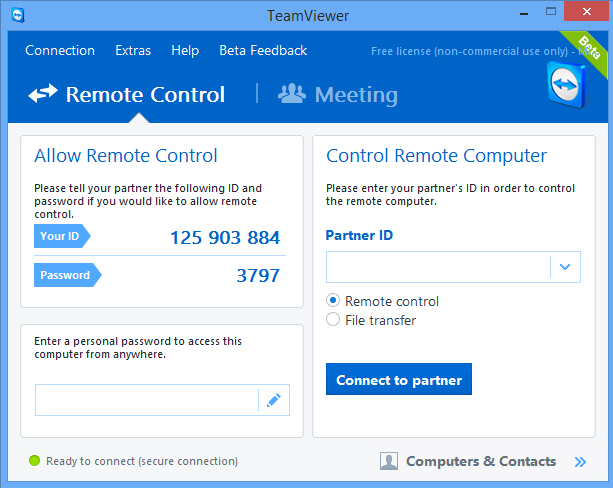
TeamViewer 10 beta adds cloud storage support

 
TeamViewer has unveiled TeamViewer 10 beta, the latest edition of its popular remote access and control tool.
 
New integration with Dropbox, Google Drive, OneDrive and Box makes it quicker and easier to share files in meetings or remote control sessions.
 
You’re now able to launch video calls with a click (no need to start a meeting first), while the ability to add a profile picture gives your activities a more personal touch.
 
Meetings have gained a "door lock". No-one get in until you unlock the door, perfect if you’re running late and still have some preparations to make.
 
A new Chat History not only maintains a complete history of all your conversations, but forms the basis of "persistent chat groups" where you can discuss topics over time.
 
Corporate users will appreciate the ability to set, distribute and enforce policies from the Management Console.
 
You can also give users access to all your devices from a single master whitelist, a real time-saver, while the Computers and Contacts API helps integrate your computers and contacts into any software.
 
There are also a stack of more fundamental improvements which should appeal to just about everyone: multicore CPU optimizations, better voice quality, 4K support, a BlackBerry Remote Control app and (on Mac OS X Yosemite) an integrated remote control toolbar, and many others, all wrapped up in a revamped, streamlined interface.
 
Amazingly, the program remains free for personal use. But there’s no catch for commercial users, either: if you need a license, anything you purchase now will also be valid for the final release of version 10.
 
TeamViewer 10 beta is available now.
 
~ Mike Williams

11.04.2014

Serious security flaw in OS X Yosemite 'Rootpipe'

Summary: Details are emerging about a serious vulnerability found by a Swedish hacker in Apple's OS X Yosemite, called "Rootpipe." A patch isn't likely to appear until January 2015.
 
Details are finally emerging about a serious vulnerability in Apple's OS X Yosemite, called "Rootpipe" which allows root access by attackers.
 
The privilege escalation vulnerability was discovered by Swedish hacker Emil Kvarnhammar, who has been asked by Apple to withhold details until January 2015 -- since Apple likely wouldn't allow details until they have a fix, this is probably when users can expect a patch.


"Rootpipe is a privilege escalation from admin to root so switching to a non-admin account would clearly be a good thing," Kvarnhammar said.
 
He posted a video showing his initial findings.
 
 
When TrueSec's Kvarnhammar contacted Apple about the problem, he was initially met with silence, followed by Apple asking for more details -- after which Apple asked TrueSec not to disclose until next January.
 
Kvarnhammar said, "The current agreement with Apple is to disclose all details in mid-January 2015. This might sound like a long wait, but hey, time flies. It's important that they have time to patch, and that the patch is available for some time."
 
Meanwhile, he reported the issue to US-CERT.
 
Kvarnhammar first found the exploit in previous versions of Apple's OS around mid-October.
 
The same day Kvarnhammar tweeted caution to give Apple time in pushing out a fix, somewhat coincidentally, Apple rolled out security updates for Mountain Lion, Mavericks, OS X Server versions 2, 3 and 4 (new version) and iTunes -- which added up to address a whopping 144 separate vulnerabilities. Some of the fixes were for vulnerabilities reported over a year ago.
 
"It all started when I was preparing for two security events, one in Stockholm and one in Malmö," explained Kvarnhammar. "I wanted to show a flaw in Mac OS X, but relatively few have been published. There are a few 'proof of concepts' online, but the latest I found affected the older 10.8.5 version of OS X."
I was a bit dejected but continued to investigate. There were a few small differences [in later releases] but the architecture was the same. With a few modifications I was able to use the vulnerability in the latest Mac OS X, version 10.10.
Kvarnhammar is reluctant to explain as to how the vuln got is name. When asked by TechWorld Sweden where Rootpipe's name came from he demurred, "I can't get into that too much; I'll get back to you when we can provide more information."
 
The answers may be in plain sight, however. Kvarnhammar said, "Normally there are ‘sudo’ password requirements, which work as a barrier, so the admin can't gain root access without entering the correct password. However, rootpipe circumvents this."

Don't use an admin account daily; turn on FileVault

Protecting yourself from Rootpipe means employing an admin account workaround, with FileVault on top for safety.
 
If you're worried about your company's IP, protecting files or contacts, you keep financial information on your Mac, or are in any way a public figure, you're better safe than sorry.
 
Needless to say, you should be using FileVault regardless -- if this vuln is what makes you turn it on, that's a good thing.
 
Rootpipe's access is through an admin account, which is of course what everyone has to have on a Mac -- and it's what most people use for daily computer use. To clog Rootpipe, create a secondary admin account, one that you won't use every day. Then, through the admin account, you'll want to remove admin permissions from the account you’ll be using daily.
 
ZDNet has reached out to Apple for comment and will update this article accordingly.
 
~ Violet Blue

10.21.2014

Apple seeks to allay concerns over Yosemite Spotlight data collection

Summary: Apple is ruffling features by collecting search and location data from OS X Yosemite users through Spotlight features that some argue should be off by default.
 
 
Apple's quest to be known as a company that makes products with built-in privacy hit another snag on Monday amid concern over query and location data it's collecting through Spotlight in iOS 8 and OS X Yosemite.
 
Spotlight for OS X Yosemite, as reported in the Washington Post on Monday, contains a little surprise for users, with the search tool now sending queries and location data to Apple. And thanks to a deal between Microsoft and Apple to display Bing results in Spotlight, it's also sending some data to Microsoft.
 
The feature update has annoyed some users, including developer Landon Fuller, who posted details at fix-macosx.com on how to restore privacy in OS X, chiefly by disabling several Spotlight settings in not just Spotlight but Apple's Safari browser too.
 
While Apple does outline Spotlight's new features in its documentation, Fuller doesn't like that the potentially invasive features are on by default — which he considers a break from past versions of OS X.
 
Apple explains in its "about" section for Spotlight that search queries and any Spotlight suggestions it offers are sent to Apple, while search results are not. Apple will also collect a user's location when users make a search and location data is on.
 
In response to the kerfuffle over the privacy implications of the feature, it's also published a separate support note explaining how to deactivate the features.
 
Apple issued a statement to iMore outlining that it doesn't retain the IP addresses of users' devices and "blurs" the location of the device so that Apple doesn't see the exact location. Also, the device identifier it does collect changes every 15 minutes, preventing it or third-parties from creating a profile based on search history. It also clarified that Apple only forwards commonly searched terms and city-level location information to Bing, while Microsoft doesn't store search queries or receive a user's IP address.
 
The company explains as much in its page about built-in privacy, pointing out that before Spotlight provides suggestions, it "considers things like context and location while protecting your privacy by using an anonymous identifier that refreshes every 15 minutes. You can always opt out of Suggestions and continue to use Spotlight solely for local search on your device."
 
Apple has attempted to distinguish itself from rivals, in particular Google, by claiming its business doesn't rely much on the collection of user data for advertising. It's also stepped up that messaging in response to concerns its products have backdoors and that it works with government agencies — a concern that held up the iPhone 6 and 6 Plus launch in China as regulators there extracted promises from Apple that its device was not a security and privacy risk. The third major privacy issue it's faced in recent months, of course, is Celebgate.
 
~ Liam Tung

10.19.2014

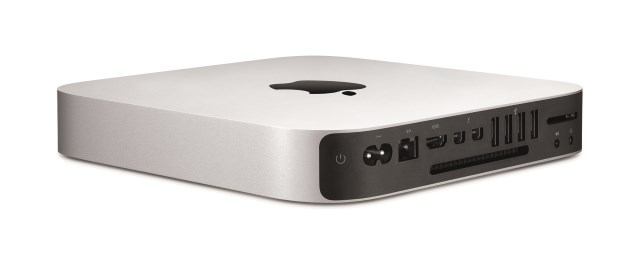
Apple solders RAM into new Mac mini to block memory upgrades

 
This week, Apple unveiled a number of new and updated products. The latest additions to the iPad range were the crowd pleasers, while the iMac with Retina 5K Display was something of a headline-grabber. Yosemite was expected, but the Mac mini refresh came slightly out of the blue.
 
For anyone looking for a cheap way to get their hands on a Mac, it's a great starting point -- prices start at just $499. But you'd better make sure you select a model with enough RAM when you place your order -- Apple has taken steps that mean it is impossible for buyers to install more memory.
 
The surprising news was confirmed by Brian Stucki on the macminicolo blog and it will come as a disappointment to anyone on a budget. It's quite common for people investing in a new computer to cut back in certain areas to help keep costs down, and then upgrade further down the line when funds allow. With the new Mac Mini, this is simply not an option. Speculation had been rife that RAM modules were soldered in place, and this was backed up by Stucki:
 
 
This isn't the only bad news for the would-be upgrader. As well as making double sure you have decided on the right amount of RAM before placing your order, you'd better also have a good hard think about what size hard drive you want. While not impossible to upgrade, Stucki deals another blow:
 
 
If you're determined to add more storage, it is possible to do so, providing you don't mind invalidating your warranty.
 
Does the lack of upgrade possibilities make the Mac mini less desirable, or is it a non-issue?
 
~ Mark Wilson

10.17.2014

Apple's new iPads sport modest upgrades but short on 'wow'

Phil Schiller, Apple's Senior Vice President of Worldwide Product Marketing speaks during a presentation at Apple headquarters in Cupertino, California October 16, 2014.
Credit: Reuters/Robert Galbraith
 
(Reuters) - Apple Inc's (AAPL.O) faster, slimmer iPads come with modest improvements, such as a fingerprint sensor, but some analysts say it offers few other features to wow consumers ahead of a holiday shopping season expected to be swamped by mobile devices.
 
At a launch event on Thursday, Chief Executive Tim Cook called Apple's new line-up, which includes a new iMac computer with a "5K retina" or high-end display, the company's best ever. But analysts say Apple may struggle to arouse the same passion for its tablets as in past years among consumers faced with an abundance of hand-held, touch-screen devices. 
 
Apple CEO Tim Cook holds an iPad during a presentation at Apple headquarters in Cupertino, California October 16, 2014.
Credit: REUTERS/Robert Galbraith
  
"I've got to be honest and say, the only impressive thing was the 5K retina display on the iMac," said Gartner analyst Van Baker, who attended the show at Apple's headquarters in Cupertino, California. "The other things we saw (included) just iterative improvements on the iPad."
 
Marketing chief Phil Schiller called the larger tablet the world's slimmest and described several new features such as an anti-reflective screen. He also confirmed the inclusion of the "Touch ID" sensor, already available on the latest iPhones.
  
Phil Schiller, Apple's Senior Vice President of Worldwide Product Marketing speaks during a presentation of the new iPad at Apple headquarters in Cupertino, California October 16, 2014.
Credit: REUTERS/Robert Galbraith
  
Pre-orders start Friday for the larger iPad Air 2, priced at $499 and up, with shipping beginning next week. The smaller iPad mini 3 will be about $100 cheaper.
 
The new iMac, which sports the new "Yosemite" operating system, will go for $2,499.
 
Tablet sales are set to rise only 11 percent this year, according to tech research firm Gartner, compared to 55 percent last year, even as smartphone sales continue to soar and personal computer sales are waning. 
 
DEFINING MOMENT
 
Tablet sales for Apple, which defined the category with the iPad just four years ago, have fallen for two straight quarters. Investors remain focused on the iPhone, Apple's main revenue generator, but a prolonged downturn in iPad sales would threaten about 15 percent of the company's revenue.
 
The new iPads will go up against recently introduced tablets from Amazon.com Inc (AMZN.O) and Google Inc (GOOG.O) in coming months. Shares of Apple slid 1 percent to $96.57 shortly before the close.
 
Apple CEO Tim Cook speaks about the Apple Pay service during a presentation at Apple headquarters in Cupertino, California October 16, 2014.
Credit: REUTERS/Robert Galbraith
  
Apple also said it will launch its new electronic payments service on Monday, after the iPhone maker signed up another 500 banks to support a feature that competes with eBay Inc's (EBAY.O) PayPal and other online systems.
 
Cook said developers were beginning to design apps for its upcoming Watch.
 
Apple last month introduced the Watch, its first new device since the iPad in 2010. The company's entry into the rapidly expanding wearable computing arena will be available only from 2015, but Cook said software development kits for the device will be available from November.
 
Missing on Thursday was a larger, 12-inch-plus iPad, the subject of industry speculation ahead of Apple's event.
 
"It is disappointing, particularly to enterprise buyers, that there wasn't a 12.9 inch iPad model," said Forrester Research analyst J.P. Gownder. "To return iPad to high growth, form factor innovation will be required. We'll have to wait until 2015 to see if Apple addresses this issue."           
 
~ Christina Farr

10.16.2014

Apple refreshes Mac lineup... in installments

Summary: Those waiting for a MacBook Air with Retina Display will have to wait a little longer. The iMac, however, was updated with a Retina 5K display. 
 
 
Apple on Thursday outlined new Macs including the launch of Yosemite OS X. The catch is that Apple's Mac updates didn't include the ever popular MacBook Air and MacBook Pro lines.
 
Instead, Apple gave the faithful a 27-inch iMac to complement a 21.5-inch version. Apple also added a Mac mini for good measure.
 
Macs are less than 15 percent of Apple's business, but still a sizeable unit. In the enterprise, Macs — especially laptops — are becoming a staple among creative pros and others.
 
A slide in CEO Tim Cook's presentation at Apple's iPad event illustrated how the Mac launches were a work in progress. The latest OS X, iOS 8 updates, iPad and even Apple Watch eclipsed the Mac content.
 
Overall, the event featured Yosemite OS X and Apple is betting that the coordination and continuity between the Mac and iOS 8 devices will give it some growth in laptops and desktops.
 
 
The Yosemite updates are free. Some features include:
  • The ability to hand off content and tasks from one Apple device to another. 
  • An instant hotspot that allows the Mac to use connectivity with the iPhone. 
  • iCloud synchronization.
 
Apple's marketing VP Phil Schiller introduced the latest iMac with a 5K Retina Display. It ships starting today, at $2,499. Older non-5K versions will still be available. 
 
The new iMac was also updated with fourth generation Intel Core processors, Intel Iris and HD graphics 5000, 802.11 ac Wi-Fi, and two Thunderbolt 2 ports. iMac with Retina 5K display comes standard with 8GB of memory and a 1TB Fusion Drive for the first time.
  
As for the Mac mini, new features include fourth generation Intel Core processors, integrated graphics that Apple claimes are up to 90 percent faster, 802.11ac Wi-Fi and a Thunderbolt 2 port. Starting price is $499.
 
The MacBook that everyone wanted was a MacBook Air with a Retina Display. Maybe next time.
 
~ Larry Dignan