Cisco Learning Network Store Promotions Page
Showing posts with label Chrome. Show all posts

11.17.2016

Betternet is a simple, free and 'unlimited' VPN

Connecting to a virtual private network can shield your IP, maintain your privacy on insecure wireless hotspots and perhaps help you access websites you couldn’t reach normally.
 
VPN’s usually require paying a chunky subscription fee, but Betternet promises an unlimited service for absolutely nothing at all.
 
We grabbed the Windows client --there are also iOS and Android apps, as well as Chrome and Firefox extensions -- and ran the installer. It’s essentially a front end for the OpenVPN client, which works for us, but doesn’t pack your PC with any other network layers or components.
 
Betternet doesn’t require any registration, which is another plus. You don’t have to hand over your name, email address or anything else: just run the program and click "Connect".
 
Our default browser opened immediately to display an advert, which wasn’t a great surprise -- Betternet has to fund the service somehow, and the mobile apps have other elements (you’re asked to watch videos or installed sponsored apps). But the ads only appear when connecting, there’s no extra toolbar and you can ignore the sponsored app and video-watching requests, so overall it’s not too intrusive.
 
On the plus side, the system connected us quickly, and within a few seconds we had a new IP address in Switzerland. Testing showed no DNS or other privacy leaks, and our browsing speeds weren’t noticeably affected.
 
A Swiss IP doesn’t suit your needs? Tough luck, at least with our Windows client. We couldn’t see any way to choose or change our server location, and no matter how many times we connected and disconnected, our new Swiss home remained the same.
 
There are no other major tweaks or options, either. The only setting is a "reconnect automatically" feature which restores your connection if it drops, which is convenient, but not as speedy or effective as the "kill switches" of the commercial competition. If the VPN does go down, your system will use its regular network connection instead, giving away your real IP address to any other service you’re accessing.
 
Once you are connected, there don’t seem to be any specific restrictions on what you can do. We tried downloading a couple of small torrents and had no problems at all. Betternet’s terms and conditions have the usual clauses about restricting service to protect other users, though, and we’d guess the system will also drop or throttle the connection if you’re using too much bandwidth.
 
Overall, Betternet scores for its simplicity, the relatively few ads and the fact that it doesn’t need registration. If you just need quick protection when connecting to a wireless hotspot, it’ll do the job very well.
 
The lack of server choice and configuration options will be an issue for more experienced users, though, and for real privacy and more reliable site-unblocking we’d look elsewhere.
 
Betternet is available for Windows, iOS, Android, Chrome and Firefox.
 
~ Mike Williams
10.31.2016

Thanks to Microsoft, Chrome is now 15% faster on Windows

 
In a bid to make its browser faster than ever, Google has started using Microsoft’s Profile Guided Optimization (PGO). Introduced in Chrome 53, this technology can help optimize high-use functions in the browser.
 
The nightly Chrome builds track how often functions are used, and these functions are then optimized by PGO, sometimes increasing their binary size. In addition, PGO optimizes the memory location of the browser code, keeping rarely and frequently used functions away from each other.
 
PGO was first introduced into the 64-bit build of Chrome in version 53. It has since been added to the 32-bit build in Chrome 54.
 
As to the impact PGO has already had on Chrome’s load and startup times, Google shares the following stats:
 
New tab page load time                                                           14.8% faster


Page load (time to first paint)                                                   5.9% faster


Startup time                                                                              16.8% faster


Have you noticed Chrome getting faster recently?
 
Photo Credit: Faber14/Shutterstock
 
~ Wayne Williams

7.19.2016

Microsoft badmouths Chrome's battery life as Windows 10 message urges switching to Edge

 
Microsoft has been shouting about Edge a lot as of late. Not happy with claiming that it is the most battery-friendly of the main web browsers, the company has also made much of Edge's 1080p support for Netflix.
 
In the latest twist, Microsoft switches tack, instead using pop up messages in Windows 10 to badmouth Chrome and promote Edge. The pop up rams home the idea that Chrome is a battery hog and suggests switching to Microsoft Edge to increase longevity.
 
This is not the first time Microsoft has used Windows 10 to advertise apps -- don’t forget promoted apps in the Start menu -- but it is the most aggressive advertising of its own software within its operating system. Software developer Rudy Huyn grabbed a screenshot of the offending message and posted it to Twitter:
Microsoft is yet to comment on the appearance of the message, but it would be interesting to hear how many readers have seen this appear on their own computer.
 
~ Mark Wilson

7.14.2016

Microsoft Edge is the best browser for Netflix -- the only that offers 1080p on the desktop

 
Internet Explorer has been much-maligned over the years, and Microsoft Edge sees the Redmond company trying to shake off the shackles of the past. Its latest marketing push finds Microsoft claiming that Edge is the best desktop web browser for Netflix viewing.
 
The reason? In addition to claims about greater battery efficiency, Microsoft's killer blow is that Edge is the only of the main desktop browsers to support 1080p viewing. It might seem like a surprising and audacious claim, but the test bears it out. Microsoft Edge has a serious unique selling point.
 
Microsoft's lauding of Edge comes in a blog post in which the company points out that Firefox, Chrome and Opera are limited to 720p. Pre-empting any concerns that this extra quality comes at the expense of longevity, Microsoft points out that its own test shows that "Microsoft Edge provided the highest quality content and also delivered the longest battery life".
 
With everyone so keen on accessing the highest quality content possible, you might be tempted to take Microsoft's claims with a pinch of salt. But further testing by PC World shows them to be entirely correct:
A quick test of all four browsers by PCWorld proved this claim to be true, with the other three browsers capped at 720p.
This is a real boon for Microsoft, and something that -- sufficiently advertised -- could push more and more users to Edge... even if it is only for their Netflix and chill sessions.
 
Photo credit: ByEmo / Shutterstock
 
~ Mark Wilson

6.27.2016

Chrome flaw makes it possible to copy DRM video streams such as Netflix

 
Security researchers from Ben-Gurion University Cyber Security Research Center (CSRC) have unearthed a vulnerability in Google Chrome that can be exploited to make copies of DRM-protected video streams. The problem affects all Chromium-based browsers, and makes it possible to circumvent Widevine encryption technology Google uses to secure streams.
 
Widevine has been used in Chrome for a while, after Google acquired it back in 2010. It has been used to prevent piracy of premium YouTube channels, and is also used to protect Amazon Prime and Netflix streams. Google was informed about the problem back in May, but is yet to issue a patch.
 
Researchers David Livshits and Alexandra Mikityuk say the flaw means that it is relatively easy to save copies of streamed videos, Wired reports. Widevine's encrypted media extensions are used to decrypt protected streams ready for playback, and the exploit takes advantage of the fact that the system fails to perform proper checks to ensure that the decrypted stream is only playing in the web browser. It is possible to intercept the video as it is passed from the CDM (Content Decryption Module) to Chrome's media player, and make a copy.
 
The researchers who discovered the problem have released a video that shows the exploit in action:
 
 
Full details of how the exploit works have not -- for obvious reasons -- been released, but it is described as being a simple bug. Google has not only failed to produce a patch, but does not seem in any rush to do so. In an email to Wired, a spokesperson said:
 
Chrome has long been an open-source project and developers have been able to create their own versions of the browser that, for example, may use a different CDM or include modified CDM rendering paths.
 
The Widevine CDM is also used by Firefox and Opera, but these browsers have not been probed to see if they are similarly vulnerable.
 
Photo credit: Evan Lorne / Shutterstock
 
~ Mark Wilson

6.23.2016

Opera says Microsoft's claims about Edge battery life are wrong -- but all's not as it seems

 
The other day, Microsoft made some bold claims about the power consumption of Edge. The company claimed that its latest web browser is the most battery-friendly when compared to Chrome, Opera and Firefox. Having been beaten into third place behind Chrome, but ahead of Firefox, Opera has hit back.
 
The company says that its own tests show -- surprise, surprise -- that it is Opera which is the most efficient battery sipper. Opera says that its own battery saving feature boosts battery life by up to 50 percent when compared to Chrome. The company criticizes Microsoft for failing to reveal its methodology, accusing it of a lack of transparency. But Opera is guilty of being disingenuous, as it fails to compare like with like.
 
In a post on the Opera blog, BĹ‚aĹĽej KaĹşmierczak says that the company was taken aback by Microsoft's claim. He says that when Opera was being optimized, Edge was ignored: "we didn’t pay attention [...] Microsoft Edge, mostly because [it] is only available on Windows 10". He goes on to reveal Opera's own batch of tests that show that far from being the best performing browser, Edge is actually knocked into second place.
 
 
The graph clearly shows that in Opera's test, Chrome gives 2 hours 54 minutes of battery life, Edge gives 3 hours 12 minutes, and Opera gives five minutes short of four hours. To back up its claims, there's even a video showing the methodology -- "Our test (which you can replicate) show..." -- and full details of the tests are provided:


This looks good for Opera, and bad for Microsoft. Opera throws down the gauntlet, saying:
If Microsoft really wants to prove that its browser performs better than others (in any regard), the company should be transparent about its methodology so that others can replicate it.
Better luck next time, Microsoft!
But Opera is not being entirely honest. In its tests, it works with Microsoft Edge (25.10586.0.0) and "the latest version of Google Chrome" (51.0.2704.103). You would expect Opera to offer up the latest version of its own browser to make for a fair test, but no. Instead, what is used is "Opera Developer (39.0.2248.0) with native ad blocker and power saver enabled".
 
So a developer version of Opera -- a version used by a small subsection of the browser's user base -- is pitted against the publicly released versions of Chrome and Edge. That hardly seems fair.
 
Play the game, Opera.
 
Photo Credit: Horoscope / Shutterstock

~ Mark Wilson

6.10.2016

Linux Mint 18 'Sarah' BETA available now

 
With all of the negative press surrounding Windows 10, many folks in my private life are asking me about alternatives. Believe it or not, Linux is often the answer. The first thing I ask them is, for what do you use your computer? Almost everyone tells me things like Facebook, email, and word processing. Well, a combination of Google Chrome and LibreOffice on top of an easy-to-use distro meets those needs perfectly.
 
The big decision, however, is selecting a Linux-based operating system. Ubuntu is always a good choice, although Unity can be a bit confusing for a transitioning Windows user. Manjaro is a solid choice too, and I highlighted that recently. Ultimately, however, Linux Mint is probably the wisest choice for someone totally new to Linux -- it is familiar, beautiful, and easy to use. Today, version 18 -- named Sarah -- becomes available with both Cinnamon and Mate desktop environments. While newbies should avoid it until the final release, Linux experts can safely jump in.
 
"In 2007, Linux Mint 3.1 introduced the 'apt' command, a handy shortcut to apt-get, aptitude, apt-cache and other commands related to package management, and since then this command was improved, slightly, release after release. In 2014, Debian came up with the same idea but implemented it differently. Although their 'apt' command was missing some of the features we supported, it also introduced a few improvements. The Debian 'apt' command made its way into Ubuntu and many tutorials now refer to it. In Linux Mint 18, 'apt' continues to support all the features it previously had, but also now supports the syntax of the Debian 'apt' and benefits from the improvements it introduced", says Clement Lefebvre, Linux Mint leader.
 
The update manager is receiving some important updates too. Lefebvre explains, "the main screen and the preferences screen now use stack widgets and subtle animations, and better support was given for alternative themes (toolbar icons are now compatible with dark themes, application and status icons are now themeable and dimmed text is now rendered with dynamic colors). Two new settings were added to let you see and select kernel updates. Even though these aren’t really updates, but the availability of packages for newer kernels, the manager is now able to detect them and to present them for installation to you as a traditional update. These are level 5 updates but the new settings let you configure them independently."
 
 
While Linux Mint beta releases are usually quite stable and pain free, it is still not recommended to use pre-release software on production machines. With that said, you may want to test it on a virtual machine instead. The final version should be absolutely rock solid, not to mention supported until 2021!
 
No matter how you decide to install it, you can download the appropriate ISO using the torrent links below. While both desktop environments are nice, I find Cinnamon to be a bit more polished and modern. Those with slower machines may want to opt for the also-nice Mate version, however.
 
Cinnamon (x64)
 
Mate (x64)
 
~ Brian Fagioli

6.07.2016

Newsprompt displays breaking news on Chrome’s new tab page

 
Newsprompt is a free Chrome extension which finds, sorts and displays 50+ of the latest news stories on your new tab page. The add-on scans 1,000+ top websites covering broad and niche categories, uses smart algorithms to remove any duplicates, and presents you with the results: a picture, headline, source and date per story.
 
Just skimming through the recent results will get you up-to-date in seconds. Click anything interesting and the source article opens in new tab.
 
A sidebar has more specific links, covering trending stories (Highly Read, Highly Shared, Recommended) and specific topic areas (World, US News, Business, Entertainment, Sports, Technology, Science, Health).
 
Or, if you’ve had enough of the news, you could carry on browsing with a Yahoo!-powered search box.
 
There’s apparently some intelligence here, with the developer claiming Newsprompt offers recommendations based on your browsing history, sites and topics you like.
 
What you don’t get is any manual control or configurability. You can’t tell the add-on to always display sports stories first, for instance, and it won’t remember and redisplay whatever category you were viewing last time.
 
Still, if you’re mostly looking for general news then Newsprompt delivers, quickly presenting you with all the latest stories across a host of sources and categories.
 
Newsprompt is a free extension for Google Chrome.
 
~ Mike Williams

5.06.2016

10 must-have Chrome productivity extensions

Chrome is more than just a browser--it's an ecosystem that can help make your day a bit more productive. And with the help of these extensions, it can deliver an extra boost of efficiency to your daily grind. 

Image: Jack Wallen
If you're a Chrome user, you know well how the extension architecture can expand functionality and make Chrome more than just a browser. In fact, with the right collection of extensions, Chrome can become a means to a very productive end. Don't believe me? Just take a gander at the Productivity category on the Chrome Web Store. But which of the plethora of extensions are best suited for getting your life in order and your work done? Of course, this will depend upon what exactly you need to accomplish, but certain extensions can help just about anyone. Let's take a look at 10 of them and see if they appeal to your needs.

1: Buffer

Buffer is one of those tools you don't realize you need until you try it. Buffer is all about scheduled tweets, retweets, and Facebook posts. If you (or your company) works with either Twitter or Facebook to market a product or service, you owe it to yourself to give this a try. Not only can you schedule your tweets (or retweets), you can also get insight into what tweets are getting the most traction and even rebuffer those to keep them bubbling up to the top. You can sign up for a free account (which allows you 10 tweets in your buffer) or pay $10.00 USD/month for an "awesome" upgrade and get 100 tweets in your buffer. 

2: QuickDrop

QuickDrop is one of the best tools for interacting with Dropbox from within Chrome. With this extension you can navigate through your Dropbox account (with a single click on the extension button), upload images directly to your Dropbox account (through a right-click context menu), and much more. You can also create a special upload folder from within the QuickDrop settings so all uploaded files can be found there.

3: StayFocused

StayFocused is the extension you need if you tend to waste too much time on websites (Facebook, Twitter, etc.) and want a third party to control your usage. If you restrict your Facebook usage to one hour a day, that's all you'll get. StayFocused can block specific pages, entire domains, and even apps and games. With the help of this extension, you'll stay more focused and get more work done. 

4: Dayboard

Dayboard replaces your new tab page with a daily to-do list. You can view these tasks in what's called Focus Mode, which displays the tasks in your to-do list one at a time. Dayboard will also give you a history of your completed tasks, allows you to connect teams to your lists, and keep your tasks in sync with all your devices. The developers are always working on new features (such as the coming-soon ability to archive tasks and turn off reminders when the workday is over).

5: Auto Text Expander

Auto Text Expander is an extension focused on saving you time on phrases you repetitively type. You simply add shortcuts for text snippets. Every time you type the shortcut, Auto Text Expander will automatically insert the text associated with it. Not only will you save time, but you'll save the extra work associated with typos. Auto Text Expander allows you to import and export your shortcuts (which you should always do, to be safe). 

6: Save to Pocket

Save to Pocket offers an efficient way to save articles or bookmarks for later viewing. Instead of creating a Temp folder on your Bookmark bar, just add this extension and be done with it. Save to Pocket offers one-click saving from the toolbar, from a context menu, and from a keyboard shortcut. Everything you save will appear in your Pocket account and be synced across all of your devices.

7: OneTab

OneTab is the extension for anyone who keeps too many tabs open at one time. When this happens, those tabs can become so small, you have no idea which tab is associated with what page. OneTab provides a single tab that lists all your currently open pages. This will also help save memory on your PC (as all of those tabs have been reduced to a single instance). When you need access to a tab, you can either restore them individually or all at once. 

8: Authy

Authy is an extension for setting up two-factor authentication (which everyone should be using). With Authy, you won't have to constantly grab for your mobile device to retrieve a six-digit PIN (to gain entrance to those sites you have protected with two-factor authentication). This extension functions in the same way as the mobile app—which means it's very easy to use.

9: LastPass

LastPass is a free password manager that should be considered a must-have for anyone who needs to remember passwords across devices. If you are concerned about security (and you should be), those passwords shouldn't be easy to memorize. So you want a good password manager to take on the task. You can't go wrong with LastPass. 

10: Note Board

Note Board is a corkboard for your computer screen. Yes, it's a bit cheesy. But if you prefer to work by visuals (as opposed to lists), this tool will help you keep your cluttered mind a bit less cluttered. With Note Board you can drag and drop content from other tabs or images from your local file manager onto a board. You can also create popups with notes and even have public boards.

Other favorites?

The list of productivity extensions for Chrome seems to be never-ending... and somewhat overwhelming. If you don't know where to start, give some of these a try and see if your daily grind is a bit less grindy.
 
Do you have a favorite productivity extension that's not on this list? Share your recommendations with fellow TechRepublic members.
 
~ Jack Wallen

4.16.2016

Microsoft Edge web browser gets plugin-free Skype, and that is great news for Linux users

As a Linux user, I have stopped using Skype recently. What was once a great experience on Ubuntu, Fedora, and other such operating systems, has been seemingly abandoned by Microsoft. Skype on Linux is barely usable nowadays, as the client has not seen an update in quite a while. This is rather tragic, as it is otherwise a great service on other platforms, such as Android, iOS, and of course, Windows.
 
Users of Windows 10 that use the Edge web browser are getting a cool update this month, as Microsoft is rolling out plugin-free Skype support. While that is cool, the really intriguing aspect is the potential for Linux users, as it should lead to similar functionality on browsers like Google Chrome and Firefox.
 
"Today, we're excited to announce that Skype for Web, Outlook.com, Office Online and OneDrive now support real-time, plugin free voice, video and group video calling on Microsoft's Edge browser, using the ORTC media engine that was recently embedded in Microsoft Edge", says The Skype Team.
 
The team further says, "today's launch is exciting news and is the first step towards fulfilling the commitment we've made to support WebRTC in Skype and Skype for Business. But we want to bring seamless calling to everyone, not just people using Microsoft Edge. To make this a reality, we will continue to work on enabling audio and video interoperability with Chrome and Firefox browsers, once they both support the H.264 video codec".
 
There you have it folks, not only is Microsoft focusing on its own Edge web browser, but Firefox and Chrome too. Since both of those browsers are available for Linux, it could once again make Skype a valid option for users of operating systems based on the open source kernel. Maybe this is why Microsoft has not been focusing on the Skype client for Linux.
 
Do you use the Edge browser? Are you a Linux user that leverages Skype? Tell me what you think of this news in the comments.
 
Photo credit: Viachaslau Kraskouski / Shutterstock
 
~ Brian Fagioli

4.15.2016

Facebook video scam targets Chrome users

 
Researchers at security company ESET have released details of a new piece of malware that spreads disguised as video posts on Facebook.
 
Malicious links appear as a video post you were tagged in on a timeline, or as a message sent to you via Facebook Messenger by a friend. They use the titles, 'My first video', 'My video', 'Private video' or a string of randomly generated characters.
 
Clicking on the link tells you that a plugin is needed in order to play the video. If this is installed your Facebook wall will be flooded with fake video posts tagging various friends. The malware has other functions though, it can add friends, create Facebook pages, share, edit or hide posts or unfollow them -- though ESET says these features are not yet active.
 
At the moment the malware only targets Chrome users but there's no guarantee it won't spread to other browsers in future. The company has detected the threat more than 10,000 times in the past week and users around the world have been infected.
 
Writing on the ESET blog, malware analyst Lukas Stefanko says, "At this very moment, the malicious campaign is spreading spam messages and infecting Facebook accounts with a very high rate of success. However, it has potential to become more dangerous in the future, spreading other, more powerful malware with new capabilities".
 
The blog includes more information on the infection along with details on how to remove it.
 
Photo credit: dolphfyn / Shutterstock
 
~ Ian Barker

1.25.2016

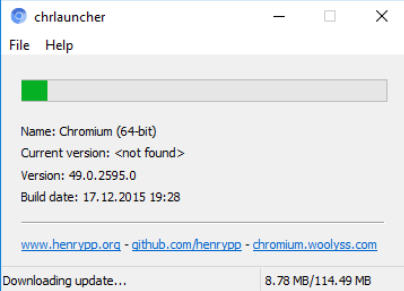
chrlauncher is a free Chromium updater for PCs


If you like Chrome, but aren’t so keen on Google’s tracking code and other extras, then you could switch to Chromium, its open-source browser engine.

Sure, you’d lose the integrated PDF viewer, various codecs, the Flash player (actually, that might be a good thing).

But it’s also more lightweight, and you’ll get new Chromium features long before they arrive in other builds.

Chrlauncher is a portable Chromium updater and launcher for Windows XP+ which makes it easy to download, update and run the browser, without interfering with your existing web settings.

There’s no installation required, just unzip the tiny download, switch to the 32 or 64-bit folder depending on the version you need, and run chrlauncher.exe.

The program immediately detects that this is your first run, then goes online, downloads a portable copy of Chromium to a BIN subfolder, and launches it.

Now you can browse as normal, add bookmarks, maybe install extensions. Whatever you’re doing is stored locally in a PROFILE subfolder, so it won’t interfere with any existing browser setup.

Whenever you run chrlauncher.exe in future, it automatically checks for and downloads any updates, before launching Chromium.

Although this is plainly designed for portable use, the package also includes a SetDefaultBrowser.bat file which does exactly what its name suggests.

We’d guess you’re probably never going to want to use this, but if you’re technically inclined then it’s interesting just as an example of how to set your default browser from a batch file (it’s more involved than you might think).

Put it all together and chrlauncher has something for everyone: it’s a simple updater for Chromium fans, but it’s also an easy way to build a portable browser setup for everyone else. Take a look.

Chrlauncher is a free application for Windows XP and later.

~ Mike Williams

Chrome and Firefox are about to get a lot faster thanks to Google's new data compression algorithm


Google Chrome is about to get a lot faster, all thanks to a new algorithm called Brotli.Revealed by Google in September last year, the data compression algorithm is said to be 20 to 26 percent more efficient than Zopfli, the existing engine that was launched just over three years ago.

It now looks as if Brotli, which Google is calling a “whole new data format,” will arrive on Chrome quite soon, according to a post by Google's web performance engineer Ilya Grigorik. No word yet on an exact date when this will happen, but it’s expected to be here in the next few weeks.

While Brotli compresses HTML, JavaScript and CSS to allow for "better space utilization and faster page loads,” the biggest area of improvement in compression is said to be HTML, which the new code can squeeze down by 25%.

Google says users should expect to see a noticeable increase in load times once the next version of Chrome is released. The company added that mobile users will also benefit from "lower data transfer fees and reduced battery use," which should help those who eat up their data allowance all too quickly.

Google also hopes that other browsers will eventually support Brotli. It looks as if Firefox will be the first non-Chrome browser to use the algorithm, as it has said it will adopt Brotli in a future update.

When Brotli was first announced, Google found itself unexpectedly caught up in a gender controversy for its plans to use a ‘.bro’ file extension, which some people, quite strangely, said came across as misogynistic and unprofessional. Google eventually changed the extension to ‘.br,’ and put out a statement that read: "there will be no '.bro' in Brotli.”


Anyone using Chrome Canary, Google’s beta/developer version of Chrome, can access a Brotli demo link via Chrome://flags#enable-brotli.

~ Rob Thubron

12.03.2015

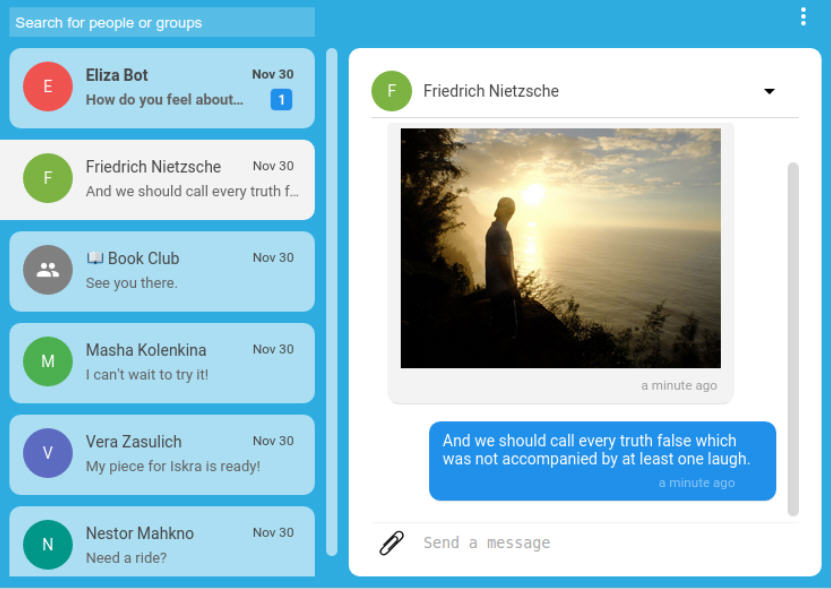
Signal Desktop first beta now available

 
Edward Snowden-endorsed developer Open Whisper Systems has announced the first public beta of Signal Desktop, a secure chat app for Chrome.
 
The new release enables users of its popular mobile app, Signal Private Messenger, to carry on a conversation across even more devices.
 
One notable issue with the initial build is it only connects to Android devices, although iOS support is expected in a future release.
 
As with the mobile version, Signal Desktop is a free app for secure one-to-one or group chats on mobile phones, avoiding SMS fees, and with support for file attachments and media sharing.
 
That’s nothing unusual, but Signal’s major plus point is its security. End-to-end encryption protects everything you’re doing from snoopers, even Signal’s server doesn’t have access to your communications, and the app is open-source so technical users can review the code to check what’s going on.
 
The technology is impressive, and endorsements by Bruce Schneier ("I am regularly impressed with the thought and care put into both the security and the usability of this app. It’s my first choice for an encrypted conversation") and Edward Snowden ("Use anything by Open Whisper Systems") don’t hurt, either.
 
Signal Desktop beta is an open-source secure chat app for Chrome.
 
~ Mike Williams

12.01.2015

Google Chrome can now cut data usage by up to 70 percent

  
Websites are rapidly growing in size, making it harder for mobile device users to keep their data usage at reasonable levels. Connecting to Wi-Fi can make a huge difference, but free hotspots are not available everywhere. This is especially true when we are talking about developing markets where, for many, browsing the Web can prove to be a too costly affair.
     
But, at least in Chrome's case, it is possible to minimize data consumption by turning on Data Saver. In my experience, I see data savings of around 40 percent with this mode enabled. And now Google is rolling out an even more aggressive version for the Android version of its mobile browser, which promises to cut down data usage even further.
 
Google says that, with the new Data Saver enabled, users can expect to see data savings of up to 70 percent. The way Chrome is able to achieve that kind of performance, compared to the previous implementation, is by forgoing to load images. They can "eat" quite a lot of data, making them an obvious target for removal.
        
I have tested Data Saver on both Android and iOS. It works seamlessly, without any noticeable effects in terms of page rendering. Everything loads as if this mode is not even enabled, which makes a compelling case for using Data Saver. But how does it work?
  
When the feature is enabled, non-secure web traffic gets routed through Google's servers, which is where the content is compressed. That said, if you mostly access secure websites you likely will not see much of a difference as Data Saver will not optimize HTTPs traffic.
  
Now, on top of that, images will only load when the user chooses to. If Chrome detects a slow network connection, it will not pull images until the user hits the "Load Images" button in the bottom-right corner of the screen. There is no information whether an option to always load images will be available in Data Saver's settings.
 
The "expanded" Data Saver mode, as Google calls it, will be first available to Chrome users in India and Indonesia, but this feature will also make its way to "additional countries in the coming months". There is no word on whether it will also be offered on Chrome for iOS.
 
Photo Credit: Shkljoc/Shutterstock
 
~ Mihaita Bamburic

8.22.2015

Chrome finally becomes memory and power efficient -- you can try it out now

 
It's no secret that Chrome for Mac (OS X) is a mess. It eats a ridiculously high amount of memory, energy and shortens the battery life. Google announced earlier this year that it was working on a fix. And now it is delivering on that promise. The latest Chrome build -- available via Canary channel -- is significantly less resource hogging, and surprisingly faster at the same time.
 
The company has been hard at work improving the memory consumption in its Web browser while also making the tabs snappier. You can read about the development process and feedback at Chromium's developer website. The build dubbed 45.0.2454.46 is also significantly lighter on the battery and is no longer making the laptop crazy hot. In a recent build, the company was testing interesting internal processes like tab discarding in the background. The idea behind it is simple: make the tabs you haven't used in awhile idle automatically. This would, under the typical condition, free up a significant amount of memory.
 
The company also made some changes in the stable version of Chrome earlier this month to increase the responsiveness of Web applications. “Starting in Chrome 41, V8 takes advantage of a new technique to increase the responsiveness of web applications by hiding expensive memory management operations inside of small, otherwise unused chunks of idle time. As a result, web developers should expect smoother scrolling and buttery animations with much reduced jank due to garbage collection”, it noted in a blog post.
 
The stable version of Chrome, however, doesn't offer these features just yet. But since it is already on version 44, we expect the version 45 to release on Windows and Mac soon. Till then, you can try out the beta build, though do note that due to its nature, it might have many rough edges, and could crash and trigger unanticipated actions.
 
~ Manish Singh

5.29.2015

Adware makers turn their sights on OS X

 
Hot on the heels of news that OS X topped the vulnerabilities charts in April comes Dr. Web's virus activity review for May which shows increasing quantities of adware and unwanted applications targeting the Apple operating system.
 
The company reports several programs aimed at OS X that either install adware, install other applications or inject JavaScript code into webpages.
 
Adware.Mac.InstallCore.1 cannot only install unwanted programs on the user's computer but also change the browser home page and the search engine used by default. The program incorporates debugging functions too -- once launched, it scans the system for the presence of virtual machines, anti-virus tools, and some other applications. If the scan returns positive results, the malware will not prompt the user to install additional programs.
 
There's similar functionality in Mac.Trojan.Crossrider which is distributed in the guise of an installation package (Safari Helper). Crossrider trojans may be familiar to Windows users but this variant specifically targets Apple systems. Running it triggers a stealthy installation of the FlashMall extension for Safari, Chrome, and Firefox. It also adds two applications to the system startup list: "WebSocketServerApp" and "Safari Security". The first is responsible for communication with the command and control server and the second one installs browser extensions. In addition the malware modifies the startup scripts for the browser extensions to be updated in the future.
 
Apple users may like to know they're not the only ones that are coming under attack. Linux.Kluh.1, developed by a Chinese hacker group, infects routers with the purpose of launching DDoS attacks. Linux.Iframe.4 is a malicious plug-in for the Apache web server that injects code into web pages browsed by users redirecting the victim to the web page run by cybercriminals.
 
Trojans continue to be the big threat to Windows systems with an overall increase of 14.9 percent in the amount of malware and riskware detected in May. Android users aren't safe either with an increase in numbers of banking and SMS trojans as well as the emergence of new ransomware.
 
There's been a big increase in malicious websites too with 221,346 URLs being added to Dr. Web's database in May. Many of these use social engineering techniques like sending bulk SMS messages informing the recipient that they have won a car. The message contains a link to a wesbite which tries to get visitors to part with their financial details.
 
More information on these and other threats is available on the Dr. Web site.
 
Photo Credit: Stephen Finn/Shutterstock
 
~ Ian Barker

3.21.2015

Fully patched versions of Firefox, Chrome, IE 11 and Safari exploited at Pwn2Own hacking competition

 
As in years past, the latest patched versions of the most popular web browsers around stood little chance against those competing in the annual Pwn2Own hacking competition. The usual suspects – Apple Safari, Google Chrome, Mozilla Firefox and Microsoft Internet Explorer – all went down during the two-day competition, earning researchers a collective total of $557,500 in prize money.
 
The event, which took place at the CanSecWest conference in Vancouver, was sponsored by the Hewlett-Packard Zero Day Initiative. During the first day, HP awarded $317,500 to researchers that exploited flaws in Adobe Flash, Adobe Reader, Internet Explorer and Firefox.
 
eWeek notes that the first reward, paid to a hacker by the name of ilxu1a, was for an out-of-bounds memory vulnerability in Firefox. It took less than a second to execute which earned him a cool $15,000.
 
Firefox was exploited twice during the event. Daniel Veditz, principal security engineer at Mozilla, said the foundation was on hand during the event to get the bug details from HP. Engineers are already working on a fix back at home, he added, that could be ready as early as today.
 
Another security researcher, JungHoon Lee, managed to demonstrate exploits against Chrome, IE 11 and Safari. As you can imagine, he walked away with quite a bit of money: $75,000 for the Chrome bug, $65,000 for IE and $50,000 for the Safari vulnerability. He also received two bonuses totaling $35,000.


~ Shawn Knight

2.18.2015

HTTP/2 has been approved, bringing the promise of a more efficient web

 
The web could be in line for a speed boost as the HTTP/2 standard edges closer to being finalized. The updated standard will be the first major alteration to the protocol since the late 1990s, and it includes a number of important updates that should help to make life online faster and more enjoyable.
 
Although HTTP/2 is yet to be published as a completed standard, it is already supported by some web browsers including Chrome and Firefox. However, it won't be until the standard is far more widely adopted that the real benefits will be felt.
 
The draft proposal for the HTTP/2 standard explains that it will introduce header field compression and allow more simultaneous connections for more efficient use of network resources. As The Next Web suggests, this could also help to reduce the costs associated with running websites and online services by reducing server loads.
 
In a blog post Mark Nottingham, chair of the IETF HTTP Working Group, said:
The IESG has formally approved the HTTP/2 and HPACK specifications, and they’re on their way to the RFC Editor, where they’ll soon be assigned RFC numbers, go through some editorial processes, and be published.
The move to HTTP/2 should be a relatively painless one as it uses the same HTTP APIs. While some finetuning may be needed, Nottingham explains that HTTP/2 is not a completely new standard, rather about "getting the HTTP we know on the wire in a better way". There are also security benefits thanks to improved security options, and the interesting concept of 'cache pushing' that will make it possible to proactively send data to users' caches for later use.
 
It’s not yet known how long it might be before HTTP/2 is formally adopted, but the wheels are now very much in motion.
 
Photo credit: atm2003 / Shutterstock
 
~ Mark Wilson

1.22.2015

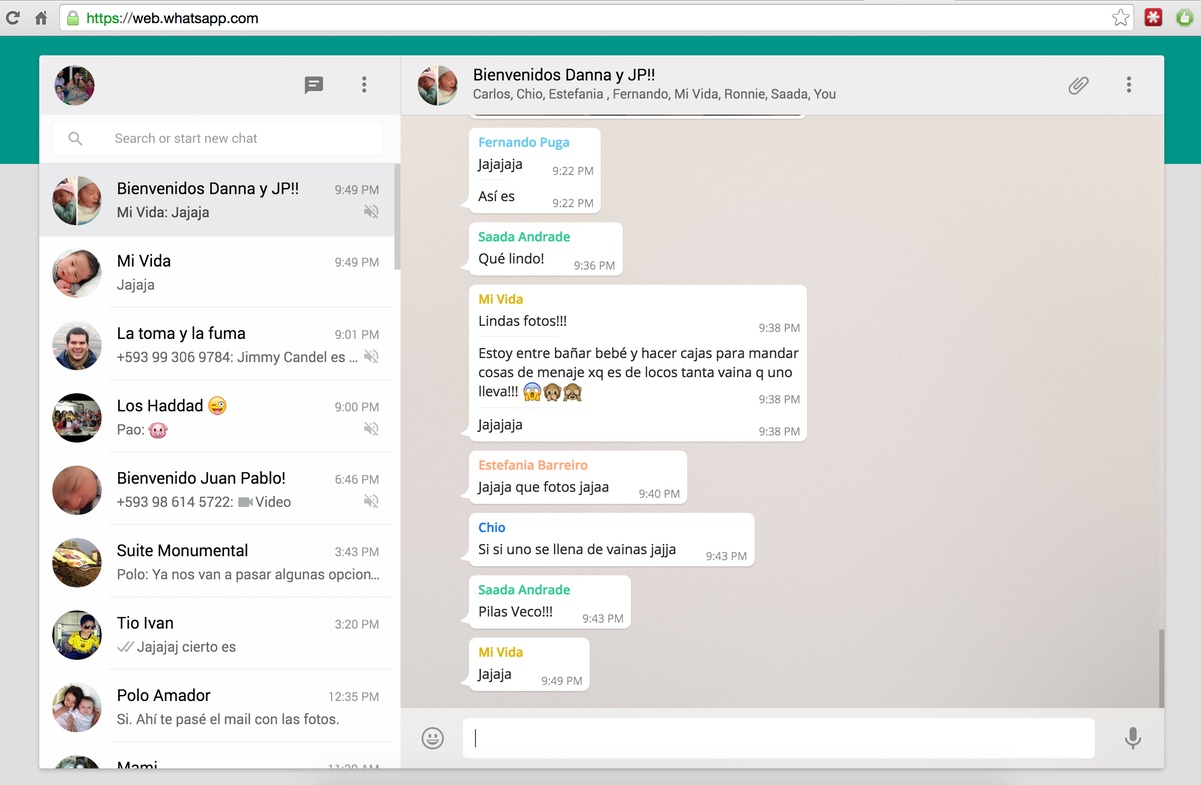
WhatsApp finally arrives on the desktop as a web app

 
Update: For all of you with an Android phone who could not find the WhatsApp Web option yesterday, that was because you where one version behind. The new version 2.11.498 can be downloaded here and I guarantee it works. Just download the new version on your Android phone, install it, open the app, click on the menu (upper right corner where there are three squares one on top of each other), select WhatsApp Web, open a browser (Chrome or any other plug-in based) on the desktop computer you want to connect to your account, enter https://web.whatsapp.com/, and with your phone from the WhatsApp Web option, scan the QR code on your computer screen.
 
If you’re one of the 700 million people that use WhatsApp and you also have a desktop or notebook, you’ll probably be interested to learn that the Facebook-owned company has finally released a web-based client.
 
WhatsApp for the web is, once again, a web-based client so there isn’t a dedicated program that you download onto your computer. To get started, simply head over to the WhatsApp Web page using Google Chrome as your browser and scan the QR code using the WhatsApp app on your phone to log in.
 
 
That may seem like a weird requirement – and I suppose it is – but that's because WhatsApp uses your phone number for user verifications instead of a username / password. This also pairs WhatsApp on your phone with the WhatsApp web client because, after all, the WhatsApp web client is simply an extension of the phone app.
 
That means all of your conversations are still kept on your phone and what’s more, you’ll need to keep your phone connected to the Internet during your WhatsApp web session. We've been using the web app for a couple of hours since it launched and it's working smoothly.
 
The process is said to work on Android, BlackBerry and Windows Phone but not iOS due to what CEO Jan Koum described as Apple platform limitations. A spokesperson for WhatsApp told The Verge that a web client for iOS was in the works but the timeframe for its arrival was unclear.
 
~ Shawn Knight