Cisco Learning Network Store Promotions Page

3.28.2014

Microsoft launches Office for iPad

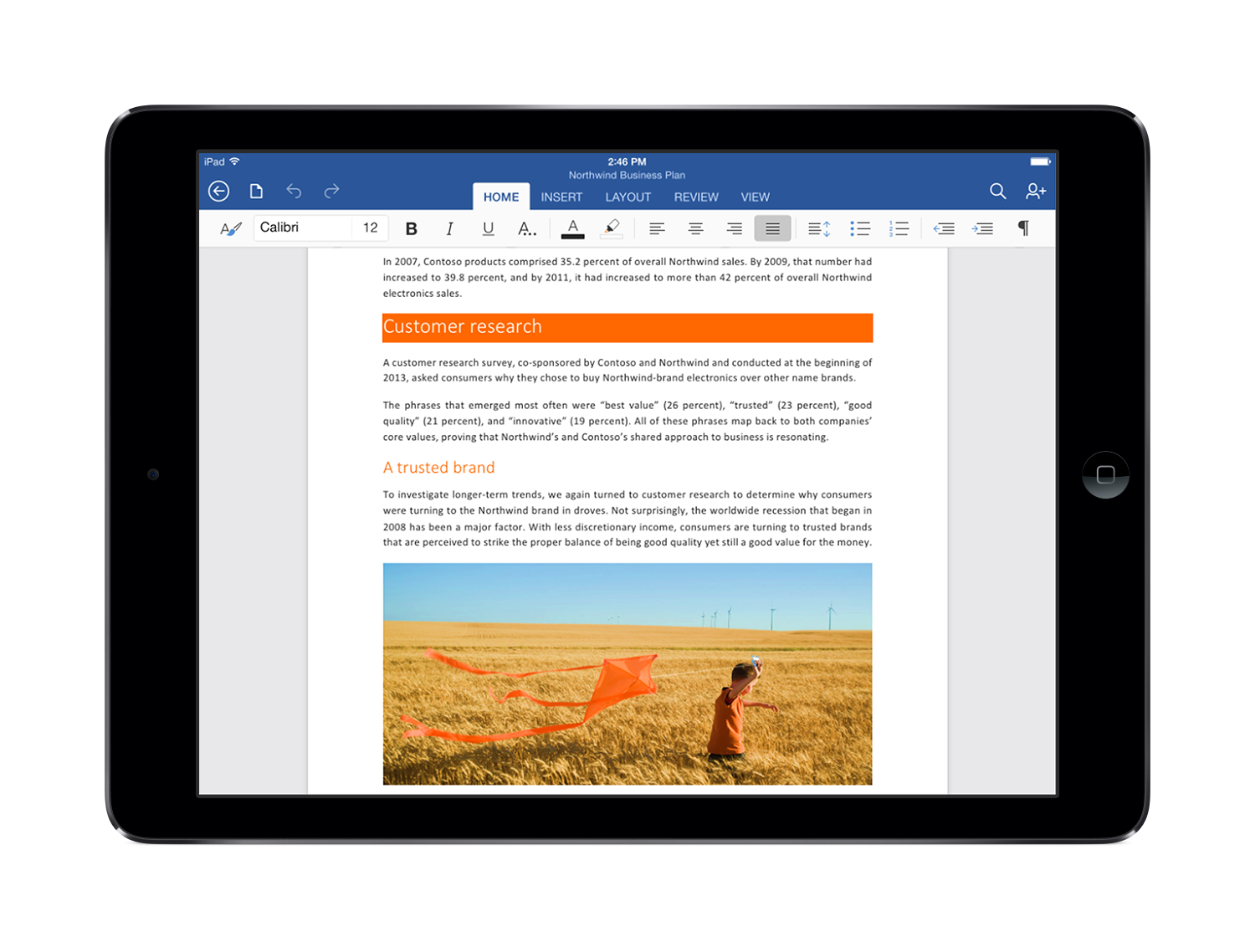
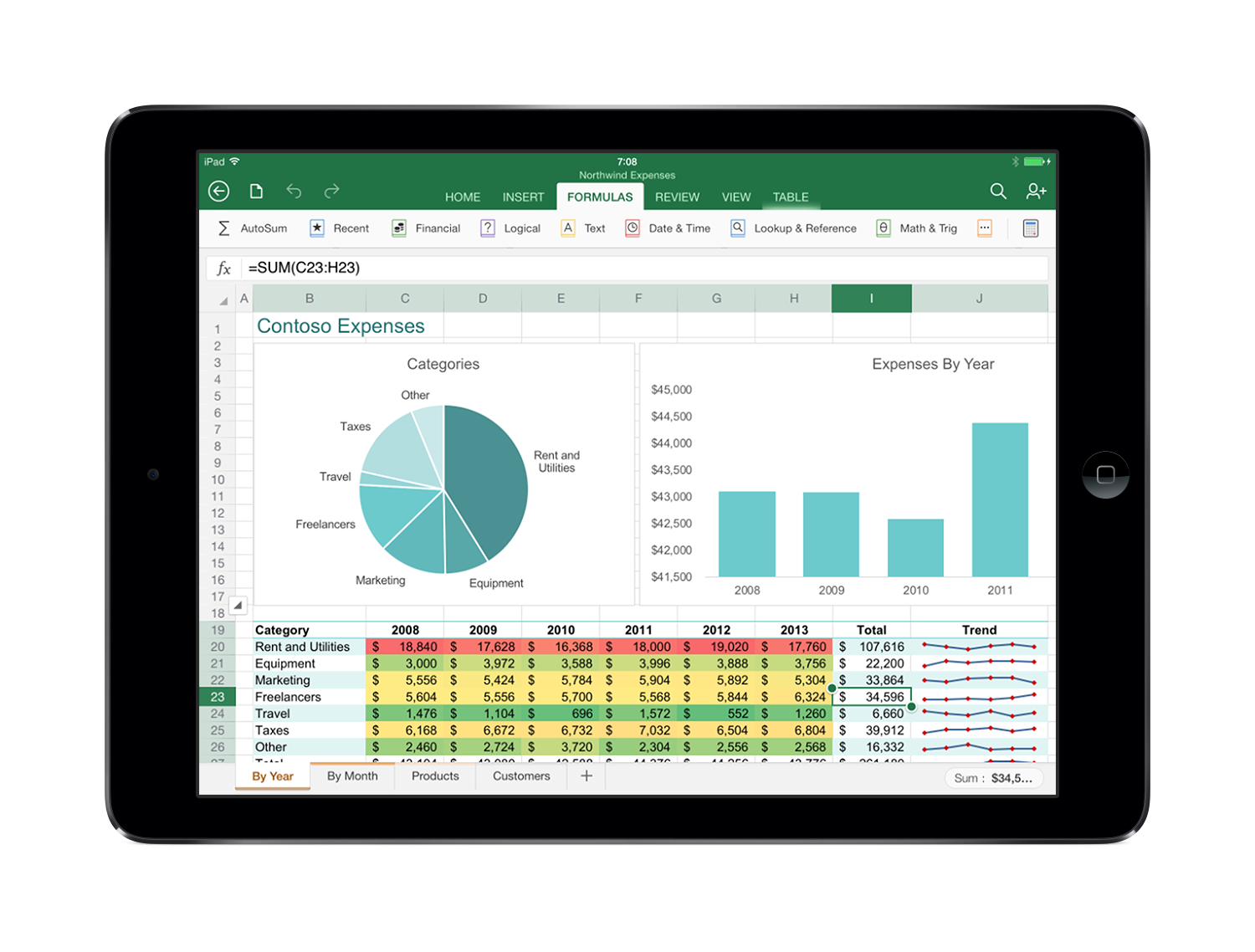
It’s taken a very long time, but today, finally, Microsoft unveiled Office for iPad. Despite the name, Office for iPad is three separate apps -- Word, Excel and PowerPoint -- which are individually available in the App store.
 
The apps have a familiar interface, with the same Ribbon interface and layout. But at the same time, they’re not just a port of the regular desktop version. Menus have been optimized for touch; objects can similarly be dragged, rotated or resized with a swipe; Excel has a special formula keyboard to help you enter data quickly, and everything scales properly in both portrait and landscape mode.
 
There’s solid integration with other iPad features, too; you can use voice dictation to create a document, perhaps, or AirPlay to project your finished presentation.
 
Best of all, there’s plenty of functionality here. This isn’t the hobbled Office Mobile for iPhone: there are templates, tables, footnotes, filters, transitions, collaboration tools, and just about everything else you’ll need. Formatting is preserved so documents look just as you’d expect, and of course you can save and share your documents in OneDrive, OneDrive for Business and SharePoint.
 
If you’re just looking for a viewer, then the good news is that the Office apps are free. Just download them and you’ll be able to read and present documents, spreadsheets and presentations.
 
To create or edit documents, though, you’ll need an Office 365 subscription. If you have one already, no problem; you’re covered for all the apps installed on up to five tablets, as well as five further Office installations on your PCs and Macs.
If you’re not a subscriber, Microsoft says Office for iPad will be covered by the upcoming Office 365 Personal at $6.99 a month ($69.99 a year).
 
There’s no doubt that Office for iPad looks great, is powerful and easy to use. But whether it’s good enough to justify the price, when there’s so much free competition, is another question.
 
 
~ Mike Williams

3.26.2014

Google propels Linux to the top

Find out why Jack Wallen believes that Google has single-handedly helped Linux become one of the most popular platforms on the planet. 


Ah, Google. Never before has a company brought about such crazed and polarized opinions. Depending on who you speak with, they're funneling your information to NSA, they're controlling where you find content, they're the reason why small businesses have thrived (or not), they house Bigfoot, Elvis, and Jim Morrison…
 
Or not.
 
Google has also, much to the chagrin of many in the open source community, single-handedly helped Linux to become one of the most popular platforms on the planet.
 
Say what?
 
Redact, retract, rewrite.
 
Oh no, good ladies and gentlemen; I uphold my original statement and shall reprise with my blade.
 
Let’s follow some logic, Spock.

  • Google is responsible for Android and Chrome OS
  • Android is becoming one of the most widespread platforms on the planet
  • Chromebooks are the best selling laptops on Amazon
  • Both Android and Chrome OS are based on Linux
What Google has done for Linux, over the past few years, no other company has managed to pull off. By releasing two major platforms, both getting the most out of a Linux kernel, Google has put Linux in more hands than Canonical, Red Hat, SuSE, and any other company to have attempted to bring to life the Linux platform.
 
It’s taken a mobile platform and a completely new take on the “desktop OS” to pull it off. Not the server, not the standard desktop... nothing like anything the open source community would have expected.
 
Chrome OS is a particularly interesting facet to the gem that is Linux. This relatively new platform, based on Linux and created by Google, is gaining ground faster than any operating system ever has, thanks to dirt-cheap hardware and an amazingly simple interface. But it’s much more than that. Everyone has always assumed that Linux is one of the more secure operating systems on the planet. But what about Chrome OS? Recently, the Google-hosted Pwn2own competition shed light on three vulnerabilities within Chrome OS. All three were nearly impossible to find, but there they were.
 
However, Google immediately patched them. This was after shelling out over $150,000 to the winners of the competition. How brilliant is that? Use a well-known competition to help patch your platform, and pay the hackers for their efforts. Within short period, Chrome OS had its only discoverable vulnerabilities fixed. What other platform can lay claim to that?
 
Google is doing everything right for getting Linux into the hands of the masses — something that has been a dreadful enigma for countless companies and developers before them. But Google isn’t just getting it out there, it’s doing it the right way — giving the people what they want and doing so in a way that isn’t going to leave them open to attacks, viruses, malware, downtime, and much more. One company is redefining the Linux platform and security in general.
 
Yes, people have been hesitant to hop onto the Chromebook bandwagon, but that general opinion is quickly changing. Chromebooks are handily outselling MacBooks and Windows 8 ultrabooks. And Android? During 2013, Android accounted for 81% of smartphones sold worldwide.
 
That is serious market share — and that, my friends, is Linux.
 
No matter your opinion of the Google juggernaut, you cannot deny what they’ve managed to pull off with the help of Linux. Are they perfect? Not at all. Sure, they’ve injected a host of proprietary software and not released code under the GPL; and to the purist, that is a serious strike against all things open. But for those more concerned with ol’ war cry of World Domination? Well, it looks like it’s happening... thanks to our good friends at Google.
 
What do you think? Will Google be that which propels Linux to the top? And should they be? If not, then who? Sound off in the comments.
 
~ Jack Wallen

3.25.2014

Hands-On: Zorin OS 8 Linux

Summary: This is the distribution that is touted as the "easiest" transition from Windows to Linux, so how does it stack up?
 

Zorin Desktop

I've had several comments recently asking or recommending that I look at Zorin OS. Whenever this distribution is mentioned, it is invariably said to be the easiest/best migration path for Windows users to change to Linux.
 
To be honest, I haven't given it much serious consideration because I thought of it as YAUD (Yet Another Ubuntu Derivative), and there are plenty of those around. A lot of them are good, solid Linux distributions, and they work very well for their users, but there is generally not enough that is different about any of them to really catch my interest.
 
But Zorin 8 was released a few weeks ago, and I've gotten even more suggestions about checking it out, so I decided to give the new release a try.
 
There are several choices which have to be made when getting Zorin OS.  You see the first when you click 'Get It' on their web page — there is a free and a 'premium' version. If you choose the premium version you get Zorin OS 8 Ultimate, which includes preloaded applications and utilities for multimedia, gaming, business and such.
 
Of course, as this is Linux you could start with the free version and add the extras yourself, but there are a number of good reasons to get a pre-packaged and tested version, and besides giving financial support to any Linux distribution is a good thing. The "minimum donation" for the premium version is €9.99 if you want to download it, or €14.99 (plus €3 shipping) for physical media.
 
The Get It premium page also contains a very good piece of advice — before purchasing the premium version, at least download and boot the free Live version, to make sure that it works on your computer and supports all of the hardware.
 
If you choose the free version, you will then be offered a choice between the latest release (currently Zorin OS 8.1), which is based on Ubuntu 13.10, or the current Long Term Support (LTS) release (Zorin OS 6.4), which is based on Ubuntu 12.04 LTS.  Furthermore, both the current and LTS releases have three versions: Core, Educational and Gaming. That's quite a variety of versions to choose from — and there might even be a "Lite" version coming with LXDE!
 
Anyway, I've looked around for a clear list of the differences between the Core, Educational and Gaming versions, but I haven't found anything so I chose to download the Core version.
 
The Core ISO file is about 1.75GB, so it obviously won't fit on a CD. I guess we should have given up expecting that quite some time ago now, and just note the few exceptional cases where there is a download that would fit on a CD. Anyway, the download page notes that you can either burn this image to a DVD, or create a bootable Live USB stick using our old friend unetbootin. I took the latter route, and it booted to a nice looking Linux desktop with an "Install Zorin 8" icon on it.
 
Unfortunately there is no UEFI support in these Live images, so if you have a computer with UEFI firmware, you would have to either use Legacy Boot, if it is available, or install some other boot manager such as rEFInd. I am nowhere near that determined to get Zorin running, so I just dragged out my old Fujitsu Lifebook S6510 and booted it on that.
 
Zorin uses the Ubuntu installer (ubiquity), rebranded with Zorin graphics and messages. I won't spend a lot of time going through that in detail, it has been described many times and in many places. I will, however, pass along the biggest and most important piece of advice that I have about installing Zorin at this point (here comes the rant).
 
When you get to "Who are You", where you create your user account, you should select the "Log in Automatically" box. This is something that I never do, and I never recommend, but I am making an exception here. Why? Because if you don't, then when you reboot after installing you will get a login screen, with "Guest Session" as the default account.
 
You can then login with any password you like, or no password at all, and you will be in a special temporary restricted account. You can run user programs — browsers, office and such - but you can't do anything administrative to the system. You can't enter a wi-fi password to connect to a wireless network, for example.
 
You can't sudo to get around these restrictions, and you can't even su to whatever user account you created during the installation. What you can do, I can tell you from experience, is get more and more frustrated and angry as you try to understand what is going on, until you are ready to throw the computer down on the floor and stomp on it, or play it a little safer and just fire the Zorin OS USB stick out the window into the cow pasture.

 
If you find yourself in this situation, the correct thing to do is logout, and then on the login screen click where it says "Guest Session", and the user name you created during installation will "magically" appear above the login prompt.  You're still not home and dry, though, because you then have to click on your name, and that will change the login prompt to your account, and you can login.
 
Okay, who thought this was a good idea, and why? This is supposed to be an "easy transition from Windows" kind of a system. Does Windows contain this bizarre behaviour, and I'm just not aware of it? I've certainly never seen it before. 
 
Does it seem natural, obvious or intuitive to anyone? If it didn't come from Windows, then where did it come from? Zorin is derived from Ubuntu, did it come from there? I install every new release of Ubuntu, and login at least once, and I follow exactly the procedure that I used here, and I've never seen Ubuntu do this either.
 
This is without a doubt one of the most obnoxious things I have ever seen a Linux distribution do, and I just can't make any sense of it.  If someone would like to enlighten me about it in the comments, I would really appreciate it.
 
If you take my advice above and set "Log in Automatically", then when you reboot after the installation is complete you will be logged into whatever account you created. That makes perfect sense to me — I don't particularly like it from a security viewpoint, but it certainly makes more sense than presenting you with an intentionally misleading login screen.
 
Unfortunately, if you happen to logout you will then still be presented with the "Guest Session" default login.  If that happens, go back to the beginning of my rant and read it all again.
 
Here is the most important question of all.  Why is there no mention of this in the Release Notes or the Installation Guide (such as it is)? Would that be too much to ask?
 
Maybe I am just as thick as a brick, but I don't seem to be the only person who has run into this, once you start looking around you can find comments on the release announcement and in the Zorin User Forums from people who have had it too. Of course, it is one of those things that once you figure it out it's obvious, and you probably never think about it again.
 
But until you figure it out, it's maddening — and if the objective is to make a Linux distribution which provides an "easy" transition for Windows users, I would suggest that avoiding or at least clearly documenting things like this should be a top priority.  But maybe that's just me...
 
~ J.A. Watson

ATM operators looking to replace outgoing XP with Linux

 
A number of financial firms and ATM operators are considering a move to Linux as Microsoft’s April 8 end-of-support date for Windows XP is quickly approaching. Migrating to the open source OS would reportedly give operators more control over both hardware and software upgrade cycles.
 
As outlined in a recent article from Computerworld, operators would prefer to sync their hardware and software upgrade cycles. That is difficult to do now with Microsoft in charge of the software upgrade schedule. As such, some operators and financial firms are exploring the use of non-Microsoft operating systems according to David Tente, executive director of the ATM Industry Association in the US.
 
Back in January it was reported that a whopping 95 percent of the world’s ATMs were powered by Windows XP, an operating system that Microsoft launched more than 12 years ago. Some have prepared ahead of time for the inevitable but even still, 60 percent of the 400,000 ATMs in the US are expected to still be using XP once the deadline has passed.
 
ATM operators have known for quite some time that official support for XP was winding down so it’s not like it snuck up on anyone. And despite the fact that Microsoft will continue to provide anti-malware support through mid-2015, the effectiveness of those solutions will be limited.
 
So why then would operators seemingly wait until the last minute (or beyond) to convert to a new OS? The likely answer is that they simply wanted to get the most mileage out of XP and existing hardware. ATMs and POS terminals will soon need to be updated to support the new wave of PIN and microchip-powered cards set to take hold late next year so maybe others will knock out both upgrades at the same time?
 
~ Shawn Knight

3.21.2014

Newest version of the Google Play Store will make your Android device app-tastic

The Google Play Store is about to get a much needed update, with a couple of must-have features. Jack Wallen highlights the major changes and shows you how to get this new version. 

 
The Google Play Store serves as your gateway to Android applications, books, multi-media, news, and much more. There’s a big update coming that you can get before those molasses-slow updates begin to trickle down to your devices. This new version of the Google Play Store brings plenty of new features, including:
  • Batch install
  • Require password option
  • Settings and help moved to slide out navigation
  • Force Play Store self update
  • In-app purchase warning
  • Google +1 now accurate
  • Numerous minor tweaks
Some of these features/updates do not require explanation, but others do. Let’s take a look at the major highlights.

Batch install

This is a really nice feature. However, if you’re thinking that you'll be able to hop on over the Google Play Store and batch install any number of apps, you’re on the wrong track. What this feature does is allow you to quickly install any of the apps from your All list on a new device associated with your Google account. Here's how it works:
  1. After you buy a new Android device, associate the new device with your Google account
  2. On the new device, open the Google Play Store
  3. Tap the overflow menu (three horizontal lines in the top left corner)
  4. Tap My Apps
  5. Tap the All tab
  6. Select all the apps to install by long-pressing the listing until it turns gray (Figure A)
  7. Tap Install
  8. Tap Accept
  9. Allow the installation(s) to complete
Figure A
The new Google Play Store on a Verizon-branded Motorola Moto X.

Require password

An in-app purchase (IAP) is simple — you’re using an app, and the developers of the app have another related app that they want you to purchase. Prior to the latest update of the Google Play Store, if that app had a price, it could be purchased without having to enter a password for your Google Play Store account. This was not acceptable, so Google changed it. Now, you can set up the Google Play Store to always require a password for in-app purchases. To do this, follow these steps:
  1. Open the Google Play Store
  2. Tap the overflow menu
  3. Tap Settings
  4. Scroll down to Require password for purchases
  5. Select For all purchases through Google Play on this device (Figure B)
  6. Enter your Google Play Store password
  7. Tap OK
Figure B
IAPs will now need your permission via password.
Along with this, you'll now see whether or not the app contains IAPs in the App permissions warning screen (Figure C). That way, you can choose to not install the app based on the new information.
 
Figure C
You are now warned if an app includes IAPs.

Play Store self update

Strangely enough, the Google Play Store didn’t always update itself (even when a new version was available). The new version fixes that issue. Go to the Google Play Store | Settings and tap Build version. A popup should now appear, indicating that your version of Google Play Store is up to date. Prior to this update, it was hit and miss if Google Play Store would update.

How to get and install the latest version

As of this writing, the newest version of the Google Play Store (4.6.16) isn’t available via update. You can, however, get it. Here’s how:

Note: First, you have to enable Unknown sources on your device. Go to Settings | Security, and tap Unknown sources to enable. 
  1. On your device, go to this URL
  2. Click on one of the listed mirrors
  3. Allow the download to complete
  4. Pull down the notification bar
  5. Tap the listing for the download
  6. Tap Install (Figure D)
  7. Tap Done when prompted
Figure D
Side-loading the latest Google Play Store.
If you’re concerned about the security of .apk file, the file is signed by Google. The MD5 checksum is: de29d98de5f239d844abcaef3b18cc93. 
 
Some of the updates in this new version of the Google Play Store are long overdue. Does this update satisfy you, or are there things still missing or further development necessary? What would you change in the Google Play Store to make it perfect for your needs? Share your thoughts in the discussion thread below. 
  
~ Jack Wallen

3.20.2014

iOS 8 to gain (at least) five new first-party apps

Summary: A steady stream of iOS 8 tidbits are starting to leak out ahead of developer's summer pilgrimage to San Francisco where the company traditionally shows off its next mobile OS. Here's the latest.
 
While all eyes are on iOS 7.1, which was released to the public on March 10, 2014, Apple's been hard at work at the next whole number version of its mobile operating system – iOS 8 – which is expected to debut this June at WWDC. Since Apple hasn't officially announced anything yet the leaks fall squarely into the rumor category and should be taken with a grain of salt.

New apps

New apps are coming in iOS 8 for Preview, Text Edit, Tips and Healthbook. An image posted to Chinese microblogging website Weibo (since removed) appears to show a first look at some of Apple's new iOS 8 apps. Healthbook is the biggest deal which is believed to integrate with Apple's forthcoming wearable health and fitness "iWatch" hardware. The Healthbook app borrows heavily from the design of Apple's Passbook app and believed to indicate support for monitoring blood pressure (red), heart rate (green) and calories burned (orange).
 
According to 9to5Mac the new Preview and Text Edit apps will not edit documents like their counterparts in OS X but instead will access documents stored on iCloud. Apple added iCloud synchronization for Preview and TextEdit in OS X Mountain Lion, but hasn't made the documents available to iOS. Those Preview and TextEdit apps are most likely placeholders taken from their OS X equivalents, as Apple has moved to much more flat, two-color icons, like the FaceTime and Tips icons in the screenshot. Tips is believed to be an online help system for iOS which could pull content from existing sources like http://www.apple.com/iphone-5s/tips/.

New iTunes Radio app

Apple's rumored to spin off its iTunes Radio service in iOS 8. iTunes Radio was announced alongside iOS 7 in September, 2013 and is currently available as a tab in the Apple Music app. The service has seen a significant jump in popularity surpassing Spotify to takeover third place (behind Pandora and iHeartRadio) according to a recent report from Statista.

Updated Maps with Public Transit

Apple's much-maligned first-party mapping app has been getting a lot of attention by developers in Cupertino and the team has been growing with the acquisition of map companies BroadMap, Embark, and HopStop. An improved version of Maps sporting improved data and public transit directions is due to arrive in iOS 8 reports 9to5Mac.

Goodbye Game Center?

According to 9toMac Apple is considering its under-utilized Game Center app in favor of including its functionality inside of games. The move comes less than a year after Apple overhauled Game Center removing the green felt, casino theme in favor of a much more flat design in iOS 7.

Odds and ends

According to 9toMac Apple is making significant tweaks to some of it most popular app to make them more functional in iOS 8:
  • Data sharing API: Apple is said to be making it easier for app developers to more easily pass data back and forth. Photo editing apps would more easily be able to share with Facebook and Instagram.
  • CarPlay: The ability to work over Wi-Fi, in addition to Lightning cable, in vehicles that support it.
  • Messages: An option to auto-delete threads after a user defined period (i.e. one month or one year).
  • Notification Center: A simplified layout that replaces the "All," and "Missed" tabs with a unified today labeled "Notifications."
  • Voice Memos: Improved controls that are more obvious to the user.
Curiously absent are a number of features from my iOS wish list, including:
  1. Default apps
  2. Lower case keyboard
  3. Third party keyboards
  4. Landscape springboard
  5. Upside-down springboard
  6. Widgets
  7. Menubarlets
  8. Lock screen widgets (more than the fixed options available in Control Center)
  9. Multiple user accounts
  10. Better/more printing options
What do you think of the rumored changes in iOS 8? What's on your wish list? 

~ Jason D. O'Grady 


3.19.2014

Six ways to maximize Mavericks battery life

Erik Eckel provides some tips for getting the most out of your battery life in Mavericks OS X. 


Mac business users frequently work outside the office. That’s why they buy MacBook Pros and MacBook Airs. Portability is required to meet the challenges of modern careers. However, preserving battery life is often a critical task when working remotely.
 
Certainly, Apple’s taken notice. Its developers included several power-saving features within Mavericks, the new OS X release. Time Coalescing is one such feature. The technology enables Macs, including the popular laptop models, to group low-level operations, thereby creating idle periods for the CPU. Why is that important? Because the CPU can then enter lower power states more often. Apple claims the method can reduce CPU activity as much as 72% with little adverse effect noticeable to the user. Best of all, the feature is enabled automatically, which means Mavericks users don't have to do anything to benefit from it.
 
App Nap is another Mavericks refinement aimed at reducing power so that Mac business users obtain longer battery life. The system reduces resources dedicated to apps that are placed in the background and not performing other actions. Because email, Safari, and other apps constantly draw resources, Apple claims the new technology can reduce energy use by 23%.
 
Thus, Mavericks is already designed to maximize energy use. But particularly demanding road warriors can also leverage additional choices to further extend a MacBook Pro or MacBook Air’s battery charge. Here are six more ways to maximize Mavericks battery life.

1. Consider an SSD

Solid-state disk drives, while more expensive, offer faster performance. They also consume less energy. MacBook Airs ship with flash storage drives. Many 13” MacBook Pros, however, ship with 1 TB 5400 rpm drives, although solid-state drives are available as an upgrade.
 
Skeptics should consider the numerous Internet reports that confirm an SSD’s performance benefits. Lifehacker notes an SSD drive boosted a 13” MacBook Pro’s performance by approximately 20% and almost halved startup. Laptop Magazine, meanwhile, measured SSD power consumption and found “significantly more battery life.”

2. Disable Bluetooth

If you’re working on the road using a MacBook Air or MacBook Pro, disable Bluetooth. Chances are you don’t need wireless connectivity to a mouse, keyboard, or printer left back at the office anyway. Disable Bluetooth simply by clicking the Bluetooth icon in the menu bar and selecting Turn Bluetooth Off.

3. Disable wireless networking

A Mac’s wireless radio also consumes considerable energy. When an Internet connection and email access are unnecessary, disable the laptop’s Wi-Fi radio to further extend battery life. Disable Wi-Fi by clicking Apple’s wireless icon in the menu bar and selecting Turn Wi-Fi Off.

4. Lower display brightness

Mobile users seeking to squeeze every last drop of electricity from their Mac can lower the display brightness, too. Tapping the F1 key incrementally lowers the display brightness and further extends a battery charge.

5. Avoid using an optical drive

Some tips seem obvious, but occasionally they're necessary to point out truths. Listening to a CD or watching a DVD places quite a demand on a laptop’s electrical resources. The optical drive motor alone consumes quite a bit of energy, so avoid those practices when you need to extend a system’s battery life, if possible.

6. Leverage Energy Saver

Apple also includes Energy Saver options within System Preferences. Road warriors can specify explicit battery-saving preferences within Energy Saver. Adjusting how quickly the computer and display sleep, using the provided slider bars, can significantly extend the laptop’s battery charge, particularly if there are many activity lulls. Other Energy Saver options include choosing to put hard disks to sleep, when possible, and dimming the display when running on the battery.
 
Do you have any other suggestions for maximizing the battery life in Mavericks OS X? Share your tips and tricks in the discussion thread below.
 
~ Erik Eckel

3.18.2014

Apple introduces 8GB iPhone 5c, brings iPad 4 back to life

 
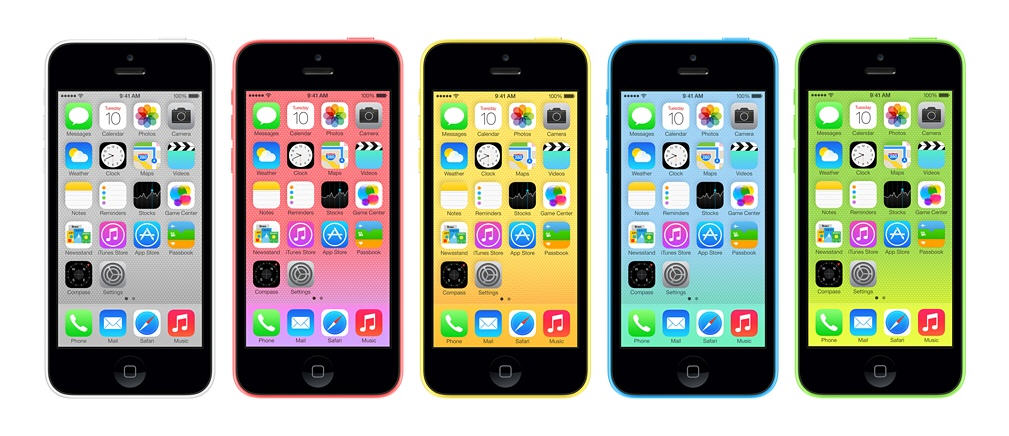
It’s fair to say the iPhone 5c hasn’t been a major success for Apple so far. Rumors prior to its launch suggested it would be a cheap iPhone, and while it is more affordable than the flagship 5s, it certainly isn’t "cheap". Those low cost expectations coupled with the actual price have affected the iPhone 5c’s sales -- with many buyers preferring to spend a little extra to get the 5s.
 
That might change soon though, as Apple has rolled out an 8GB variant of the iPhone 5c, making it available across Europe and China from today.
 
UK purchasers can pick up an unlocked model from the Apple Store for £429 ($713), £40 ($66) cheaper than the 16GB model. If you’d rather not pay a chunk upfront, you can get it from UK operator O2 for free on a multi-year contract. The 8GB phone is also available in China, priced at RMB 4,088 ($660). There are no signs, as yet, of the new iPhone in the US Apple store.
 
That’s not the only big Apple news today. The iPad 2, which was offered as a more affordable alternative to the flagship iPad Air, is being retired, and in its place comes the fourth generation iPad, complete with Retina display and Lightning connector.
 
Interestingly, the "new" iPad is priced from $399, which is the same as the iPad mini, making choosing which model to go for that bit trickier. The fourth gen iPad is available across all of the world’s Apple stores now.
 
Will you be buying the 8GB iPhone 5c or iPad with Retina Display?
 
~ Wayne Williams

3.15.2014

Mozilla disses Microsoft -- cancels Modern UI version of Firefox for Windows 8.x

The hatred of Modern UI and its associated Start Screen is well documented. Many users dislike the full-screen Windows apps, stating they are less productive with them. There can be truth to that -- working with multiple open programs and apps simultaneously can be problematic. Not to mention, there are very few apps compared to legacy programs. Some users may feel that if they cannot go "all in" on Modern UI, they don't want to use it at all.
 
It is hard to blame developers for not embracing Modern UI -- Microsoft hasn't even done so with Office. One notable app that has been conspicuously absent, is Firefox. Mozilla developers have been working on it, but a final, stable version never came to fruition. Sadly, Mozilla announces that it is cancelling the project, dealing Microsoft's Windows 8.x a significant blow.
 
"We've been watching Metro's adoption. From what we can see, it's pretty flat. On any given day we have, for instance, millions of people testing pre-release versions of Firefox desktop, but we've never seen more than 1000 active daily users in the Metro environment", says Johnathan Nightingale, VP Firefox.
 
Nightingale further explains, "we could ship it, but it means doing so without much real-world testing. That's going to mean lots of bugs discovered in the field, requiring a lot of follow up engineering, design, and QA effort. To ship it without doing that follow up work is not an option. If we release a product, we maintain it through end of life. When I talk about the need to pick our battles, this feels like a bad one to pick: significant investment and low impact. Instead, we pull it".
 
Many will claim the cancellation is an indictment of Windows 8.x and Modern UI and maybe it is. However, I am not so sure. Mozilla is citing low usage of pre-release software and projecting this on users of stable versions. This may be a mistake, as the behaviors of these two groups are likely very different. There is no guarantee, but it is possible that normal users would flock to it. Mozilla should at least give it a chance.
 
I also sense an air of negativity and petulance on behalf of Mozilla in its announcement. Nightingale repeatedly refers to the Modern UI as "Metro" -- something it has not been called in a while. Microsoft notoriously does not like the "Metro" moniker being used. Mozilla's use of the name comes across as a possible needling of Microsoft -- that is the perception, true or not.
 
Is Mozilla making a mistake or is this a smart move? Is it dissing Microsoft? Tell me in the comments.
 
~ Brian Fagioli

3.14.2014

Windows XP User? Here’s 4 Reasons to Switch to Lubuntu This April

Support for Windows XP officially ends on April 8, 2014. After this date Microsoft will no longer issues security updates, patch exploits or provide any other means of official, direct support to its users

For the majority of us the axe can’t fall soon enough. At twelve-years old, XP is a crusty, cob-web laden old-codger of an OS, one that has trundled on well past its best-buy date.
 
But in relieving themselves of the Crayola-coloured burden, Microsoft are throwing an estimated 25% of PC users in to a minefield of security issues.
 
The company will be hoping that the fear of vulnerability will spur the frugal XP hold-outs into upgrading to (read: buying) a newer version of the Windows family. Canny; Windows 8 appears to need all the help it can get!

‘At 12 years old, XP is an ancient, crusty, cob-web laden OS.’

While newer versions of the Windows operating system will require newer, faster computers to run on (i.e. expense) there are other, cheaper (i.e. totally free) solutions. In fact, there are versions of Linux designed specifically to run on ageing computers, breathing new life in to hardware that would otherwise be considered obsolete.

Meet Lubuntu

 
So let’s say you’re running Windows XP right now. You like it; it does what you need. But, at the same time, you don’t want to gamble on security. It’s a wise and sensible thing. But what to do?
 
Lubuntu is a free, Linux-based operating system that supports a wide range of computers and hardware. It’s fast, safe and secure (Linux doesn’t require virus software, for example) it’s also really easy to use, and there are thousands of applications available for it.
 
Not sold? Let’s take a look at some of those points in a little bit more detail.

Lubuntu is Maintained & Supported

Microsoft has supported Windows XP far longer than they originally planned. As such few will blame them for finally redirecting their time and effort into their more modern systems designed for newer hardware.
 
But that doesn’t mean those on ‘old’ computers are left to the wind. Lubuntu is one of several Linux distributions that aims to breathe new life into ageing hardware.
 
Lubuntu 14.04, due for release this coming April, will be updated with critical bug fixes and security updates as and when needed until 2017 at the earliest. After this date you’ll be given the choice to upgrade to the next major release — again, for free!

Lubuntu is Secure; You Don’t Need Virus Software

The biggest culture shock you’ll experience in switching is (actually) a nice one. Unlike Windows, you do not need to use anti-virus or malware protection software on Lubuntu. Why not?

You don’t need anti-virus software on Lubuntu’

Linux is built in a way that makes it very hard for viruses to run, much less do any sort of damage should they somehow find themselves installed. As long as you don’t install suspicious software from suspicious places you’re virtually immune to any sort of nasty or untoward threat.

Lubuntu Looks & Feels Familiar

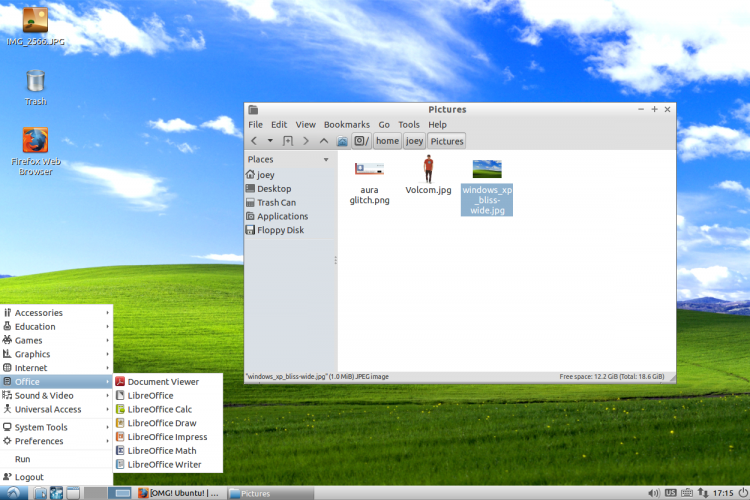
Moving away from an operating system you’ve used for years can seems scary, I know that. The good news is that Lubuntu has a very similar layout to Windows XP. So while it looks a little different to what you’re used to working with the differences are largely cosmetic.

Take the desktop for example:


The panel along the bottom has a “Start Menu” with links to your apps; next to this is a “Quick Launch” area where you can put your most commonly used applications; next to this is the area where you switch between open windows and applications; finally, at the far end, is the ‘System Tray‘ and clock.

Your Favourite Applications Are Available

While not every single application you’re used to using is going to be available on Lubuntu, a good many will be.
 
There will be few new names to learn and icons to get familiar with, but when it comes to software Lubuntu offers all the same core functionality as Windows XP.
 
For browsing the web the modern, fast and secure Mozilla Firefox web browser is installed by default.  The Google Chrome browser is also available to download and install should you wish.
 
For video calls Skype is available; ‘Pidgin’ is a multi-service instant messaging app that can connect to Facebook, AIM and Yahoo! Chat among others; and ‘Sylpheed’ is just one of the many apps available for getting e-mail on your desktop.
 
Microsoft Office isn’t available natively on Linux, but there are a host of office applications, including spreadsheet and word processing tools, available that are compatible with Microsoft Office documents. Lubuntu also includes a document viewer for viewing PDF files.
 
More apps, most of which are free, can be installed from the Software Centre application preinstalled on your computer.
 
Some common “equivalents” to know:
  • Windows Explorer = ‘File Manager’
  • Windows Media Player = ‘Audacious’ (for audio) and ‘GNOME MPlayer’ (videos)
  • Microsoft Paint = ‘MtPaint’
  • Notepad = ‘LeafPad’
  • Windows Update = ‘Software Updater’

Find Out More

For more information on Lubuntu you can visit the official website for the project. There you’ll also find details on how to download a copy, burn it to a CD and try it out for yourself without losing your files.
 
http://lubuntu.net/
 
~ Joey-Elijah Sneddon


3.13.2014

Long-awaited Office for Mac refresh reportedly coming in late 2014


Microsoft is set to refresh its aging Office for Mac productivity suite later this year. According to to Thorsten HĂĽbschen, Business Group Lead at Microsoft Germany, news about the new version of Office should come during the second quarter of 2014, with a final product planned for release by the year's end. The revelation came during an interview with German publication Computerwoche at CeBit 2014.
            
The current version of Office for the Mac was released more than three years ago in October of 2010. While development on Apple’s platform has historically lagged behind its Windows counterpart by about a year, the current timeline would put the Mac release almost two years apart. The company originally had plans to release Office for Mac in the spring of 2014, but it appears it will miss that timeline. HĂĽbschen says a reorganization in 2010 that merged the Mac development team with the wider business software group is what caused the delay.

Office 365 subscribers will automatically get the next version of Office for Mac when it’s ready.
   
In related news last month reports emerged suggesting that development on Office for iPad had been sped up with the goal of launching during the first half of 2014. If that’s the case we should see the touch friendly version of Microsoft’s productivity suite arrive before its desktop counterpart on the Mac.
   
~ Jose Vilches  

3.12.2014

Apache OpenOffice 4.1 Beta unveiled, supports commenting and annotating on text ranges in Writer

 
Apache Software Foundation has unveiled the first public beta of its forthcoming Apache OpenOffice 4.1 release. The new version continues to build on the major changes introduced when version 4 was released last year.
 
Although termed a minor release, version 4.1 does add one major new feature -- the ability to commentate and annotate on text ranges -- as well as a number of significant improvements. It also moves to 64-bit only on the OS X platform.
 
Previous versions of Writer allowed users to add comments and annotations to specific text positions only, whereas version 4.1 now supports selecting a range of text -- including entire paragraphs -- before commenting or annotating it.
 
Improvements include in-place editing of Input Fields in Writer and a more robust Interactive Crop Feature for selected objects in Draw and Impress. The Import Picture from File and Drag & Drop of Graphic Data features have also been improved to work more consistently.Also enhanced are the load and import of large 3D charts. OpenOffice also improves its ability to keep the original graphic data intact instead of modifying it (typically by changing its filetype). There are also clipboard enhancements for graphics content to work better with external graphic editors.
 
Security has been tightened by replacing outdated code from Seamonkey with Network Security Services (NSS) libraries for cryptography services and address book access. One consequence of this change is that Thunderbird users will no longer be able to directly import their address book across to OpenOffice. Support for authenticated LDAP access has also been dropped.
 
The update adds six new languages -- including Bulgarian, Danish, Hindi and Thai, and becomes 64-bit on the Mac platform, upping its system requirements to OS X 10.7 (Lion) or later.
 
Apache OpenOffice 4.1.0 Beta is available now as a free, open-source download for testing on Windows, Mac and Linux. Also available is Apache OpenOffice 4.0.1.
 
~ Nick Peers

3.11.2014

A new Windows 8.1 update tries to win back desktop diehards

Summary: With its second major update to Windows 8 in less than 18 months, Microsoft is trying to ease the pain for Windows users who are befuddled by the Windows 8 interface on conventional PCs. Here's what you can expect. Will it be enough to calm the troubled waters?
  
Microsoft is about to deliver an update to Windows 8.1, its second significant set of changes since the launch of Windows 8 less than 18 months ago.
 
Last week, someone in Redmond inadvertently left the final update packages available on Windows Update for anyone to install. I’ve had a couple days to use the newly updated Windows interface on a handful of machines.
 
You can see exactly what’s changed in the gallery that accompanies this post: "A close-up look at Windows 8.1 Update 1." Here's some background on why this update exists.


The biggest mistake Microsoft made with Windows 8 was to deliberately eliminate some of the touchstones of the Windows 7 desktop interface, while still leaving most of that desktop intact. As I wrote a few months after the original release of Windows 8:

That decision alienated many desktop users and created a wedge issue that has distracted from the many impressive accomplishments in Windows 8. I know some people (myself included) who have adapted to the new ways and even prefer them. Those who would rather stick with the old paradigms can't catch a break from Microsoft, though. They need to tweak the system extensively and use third-party utilities to achieve the desired result.
Windows 8.1 was a first, very large step on the road to rectifying that mistake. This update—let’s call it Windows 8.1.1—is a continuation of those changes, designed to make the new OS work more smoothly on conventional PCs driven by a keyboard and mouse.
 
A word of warning: If you’re a Metro hater, this update will do almost nothing to make you feel all warm and fuzzy. The Windows 7-style Start menu is not coming back. This update sticks with the fundamental design principles of the Windows 8 interface, and nothing in it comes close to restoring the Windows 7 desktop interface. It is still the Windows 8.x interface, evolved, with that evolution clearly driven by powerful negative feedback.
 
Many of the changes that are at the core of Windows 8.1 Update 1 won’t really be visible until we see new PCs with this version of Windows installed as the base operating system. For traditional PCs that are designed for use with a keyboard and a mouse, the new OS will be configured to go to the desktop by default. It will also be less of a disk-space and memory hog, making it possible for this version of Windows to run on tablets with as little as 16 GB of flash storage.
 
If you install this update when it arrives in April (via Windows Update, not via the Windows Store), the first thing you’ll notice is a series of changes to the Start screen. Alongside the picture and name of the current logged-in user are a new Power button and a Search button. Both of them are designed to reduce the need to play Where’s Windows? with the well-hidden Windows 8 Charms menu.
 
There’s also an option to right-click on tiles on the Start screen or in the more complete Apps view screen, which lists every installed desktop program and app. That option exposes a new, familiar-looking context-sensitive menu so you can resize those tiles or pin them to the Start screen or to the taskbar.
 
Oh yeah, that’s the really big change in this update: The taskbar is no longer just for the desktop. It can include Windows Store (Metro style) apps, so you can switch between desktop programs and Windows Store apps with one click. And the new, unified taskbar is available from the Start screen and from any Windows Store app, with a simple gesture.
 
Move the mouse to the bottom of the screen in Windows 8.1.1 and the taskbar appears. I’ve seen some complaints that the action is inconsistent. It works fine on multiple test systems here. I think what others are seeing is a deliberate design decision. If you move the mouse pointer casually to the bottom of the screen, the taskbar doesn’t pop up as a distracting element. If you really want to see the taskbar, you move the mouse with purpose, or move it to the bottom of the screen and then, after a very brief pause, move it down ever so slightly.
 
From the taskbar, you can preview any running program or Windows Store app, just as you can on the desktop, and switch to it with a click.
 
The other big complaint from early users of Windows 8 was that it was impossible to figure out how to close or switch away from Windows Store apps. The solution in Windows 8.1 Update 1 is a new title bar, with Minimize and Close buttons, which appears when you bump the mouse up against the top of the screen.
 
What’s noteworthy about all these changes is that they appear only when you use a mouse. If you use a touchscreen to navigate through Windows 8, you’ll see the taskbar only on the desktop, and you’ll only see the new title bars if you use a mouse.
 
There are a few additional usability tweaks in this update, including some welcome changes in Internet Explorer. There are also fixes you can’t see, aimed at improving security and performance and swatting bugs.
 
Will this update quiet the I-hate-Metro crowd? Probably not. Will it make Windows users on desktop machines more productive? Almost certainly.
 
~ Ed Bott

A new level of security is coming to an Android near you

Jack Wallen addresses the upcoming change to the Verify app system for the prevention of malware on the Android platform. 


The developers of the Android platform have something rather special in mind that will go a long way to prevent malware from infiltrating the barriers of your mobile devices. Beginning with Android 4.2, a Verify app system was created that watches for new apps -- especially ones that are side-loaded (not installed from the Google Play Store). This real-time app scanning service instantly scans an app (upon installation) for suspect malware.
 
If you go to Settings | Security, you’ll find the entry called Verify apps (Figure A). When it's enabled, Verify apps will warn you before you install any app that may cause harm.
 
Figure A
 

Verify app settings on a Verizon-branded Motorola Moto X.
Once your Android device was upgraded to 4.2, this opt-in service should have prompted you the first time you installed an app. However, it didn’t really prevent malware from getting onto the devices. Since the release of 4.2, the onslaught of malicious software has increased significantly, because the Verify app feature really only bothered with side-loaded applications. Google must have assumed every app in the app store was safe, but we know this isn't true.
 
Soon, the Verify app system will extend beyond initial install and continue to monitor your device for malware. This means that when a new threat is discovered, your Verify app system will update and check your device against that threat. If it discovers malware, it will alert you. This will work in conjunction with another verification system (one on the Google Play Store servers), so the protection against malware should see a significant improvement.
 
When will this happen? That is the big unknown. Google says that it will arrive in a future Google Play Store update. My guess is that they're making sure this system, which continuously scans for malware, isn’t going to do the one thing most Android users are concerned with -- that is, further drain the device battery.
 
In this case, I don’t think users should be concerned. The battery life of most phones has improved enough that the additional layer of security gained by such a system will be well worth what extra drain the real-time Verify app will add. But, if you’re really concerned about yet another service running, fear not -- the Verify app is currently an opt-in solution and will probably remain as such.
 
I’m all for Google making the Android platform as secure as possible. I also firmly believe that they can pull off such a feat without insisting an Apple-level lockdown on their users. You’ll still have the freedom to disable Verify, but I’m certain -- as malware continues to rise everywhere -- that you’ll want to keep it running.
 
Is Google right in taking Android in this direction? If you had control over the situation, what would you do to prevent malware from reaching Android devices? Share your opinion and thoughts in the discussion thread below.
 
~ Jack Wallen

3.10.2014

Best Web Browser (Final)


The Straight Dope

With all due respect to diehard Firefox fans, the spunky browser is no longer our favorite vehicle for surfing the web. That distinction now belongs to Chrome, the sleekest and fastest browser available. Our primary gripe with Chrome in our last browser roundup two years ago was that it didn’t support hardware acceleration without mucking around with secret code. That’s long been addressed and our only lingering concern is that Google may cater to advertisers a bit too much, hence it being the last of the major browsers to implement Do Not Track technology, which still isn’t turned on by default.
 
We also have to give props to Microsoft for its work with Internet Explorer 11. If you’re rocking a touchscreen in Windows 8/8.1, you may prefer to use IE11 over Chrome simply because it’s better suited for touch navigation. It’s also fast, though we’re calling shenanigans on Microsoft’s own tech demos, which seem to heavily favor its own browser over the competition, even though others also boast GPU acceleration. Still, it’s the best version of IE yet, and we especially like the side-by-side browsing feature when launching the browser from the Start screen.
 
Where does that leave the others? Firefox is still a great browser with a rich catalog of extensions, and Opera is one to keep an eye on now that it shares DNA with Chrome. That leaves Safari as the odd man out, a decision Apple ultimately made for the masses by discontinuing support for Windows.
 
Note: This article was originally featured in the December 2013 issue of the magazine.
 
Best scores are bolded. Our test bed is an Intel Core i7 930, Asus P6X58D Premium, 12GB Corsair DDR3/1866 RAM, Radeon HD 7970, OCZ Vertex 3 240GB SSD, and Windows 8.1 64-bit.
 
~ Paul Lilly